
How to Turn Off the Trader Voice in Killing Floor 2
The trader in the weapon-printing pod likes to comment on how you play. If those voice lines wear on you, there is a quiet fix: remove the single sound bank that holds them. This guide comes from a Russian-speaking player and is translated here.
Steps
- Close the game and open Explorer. Go to your install folder, then:
KFGame\BrewedPC\WwiseAudio\Windows\<your language>
The original guide used the Russian folder, for example D:\Games\steam\steamapps\common\killingfloor2\KFGame\BrewedPC\WwiseAudio\Windows\Russian. If your game runs in English, open the English(US) folder instead.
- Find the file
WwiseDefaultBank_WW_VOX_NPC_Trader.bnk.
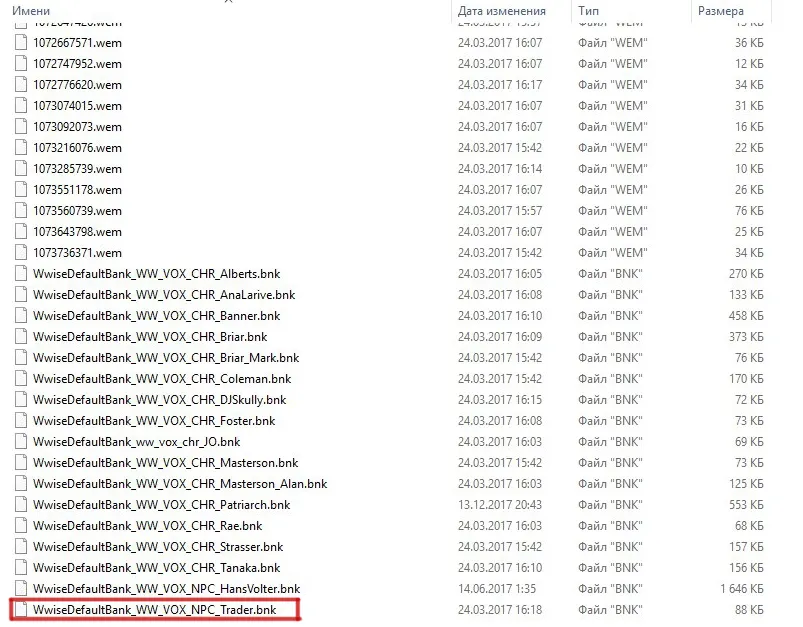 The trader bank sits at the bottom of the list of Wwise voice banks.
- Delete it.
- In Steam, right-click Killing Floor 2, open Properties and then the Updates tab, and untick Steam Cloud. Without this, the missing files are downloaded again automatically.
Enjoy the silence at the trader.
Undo
Run "Verify Integrity of Game Files" in Steam and the bank comes back. Re-enable Steam Cloud if you want your normal sync behaviour.
FAQ
- Which file contains the trader voice?
- WwiseDefaultBank_WW_VOX_NPC_Trader.bnk in killingfloor2\KFGame\BrewedPC\WwiseAudio\Windows, inside the folder for your game language (the guide uses the Russian one).
- Why disable Steam Cloud for the game?
- If the option stays on, the missing files are downloaded again automatically and the trader talks again.
- Can this break the game?
- It only removes one voice bank. If something goes wrong, run Verify Integrity of Game Files in Steam to restore it.
