
KF2 Instant Crash Fixes: Seven Quick Solutions and GPU Tips
This checklist was written for the early-access period, when many players saw Killing Floor 2 crash the moment they launched it. Most of the fixes were first collected in a developer community report called "24 Hours In", and the rest came from players. Start with the simple solutions; if they fail, move on to the graphics section.
Simple solutions
1. Verify the game cache. In the Steam Library right-click Killing Floor 2, choose Properties, Local Files, then "Verify Integrity of Game Cache". Steam reports either that everything validated or that a few files were restored. Do it twice for good measure.
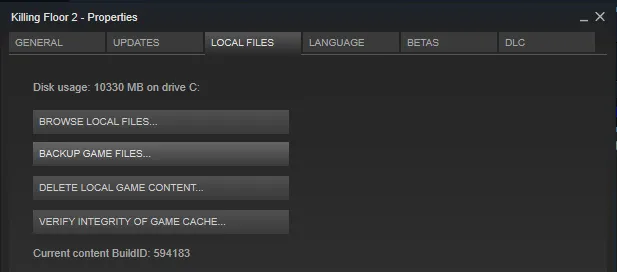 Steam: Local Files, Verify Integrity of Game Cache.
2. Unplug extra controllers. Disconnect USB gamepads (Xbox 360 pads) and other HID devices, leaving only keyboard and mouse.
3. Restart the Steam client.
4. Run as administrator. Right-click Steam or Killing Floor 2, open Properties and tick "Run this program as an administrator".
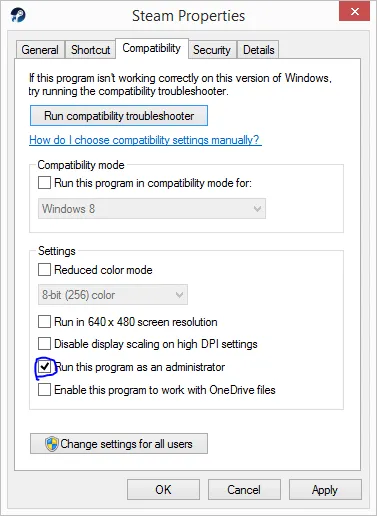 Compatibility tab with the administrator option.
5. Change compatibility mode. In the same properties window tick "Run this program in compatibility mode for" and pick Windows 7 (works best in most cases) or Windows 8.
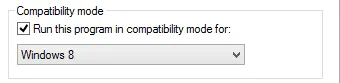 Compatibility mode drop-down.
6. Launch options. In the game's Steam Properties click "Launch Options" and type dx10 and/or windowed.
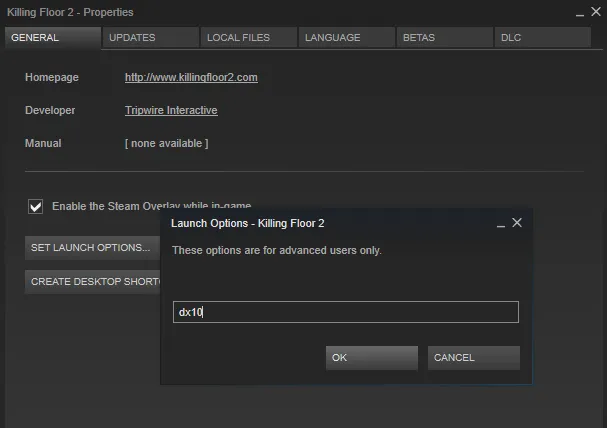 Launch options dialog.
7. Delete the Config folder. Go to Program Files (x86)\Steam\SteamApps\common\killingfloor2\KFGame and delete the Config folder; the game recreates it.
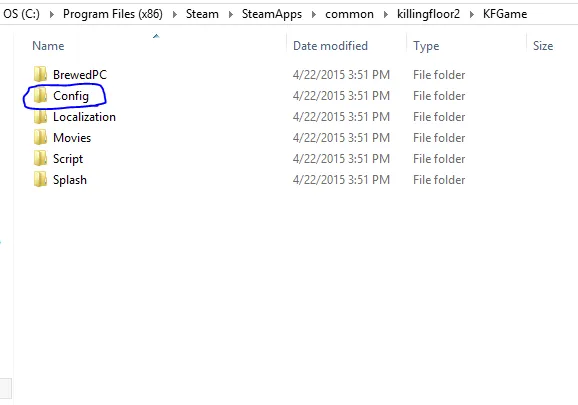 The Config folder inside KFGame.
Graphics solutions
Most instant crashes were caused by the graphics setup.
- Out-of-date driver. Update the graphics driver, or do a clean install of it. This worked for many users.
- Laptops with two GPUs (also possible on AMD systems). Open Control Panel, Hardware and Sound, then the Nvidia Control Panel, then Manage 3D Settings. Click Add in row 1, pick Killing Floor 2 from the list, and in row 2 choose the High Performance Nvidia Processor as the preferred processor.
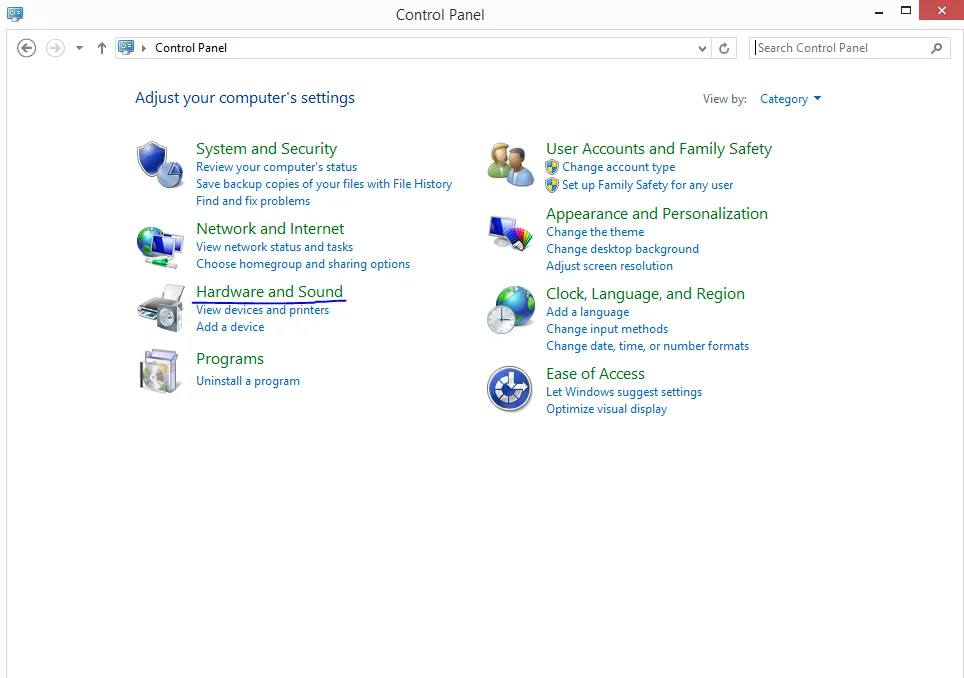 Control Panel, Hardware and Sound.
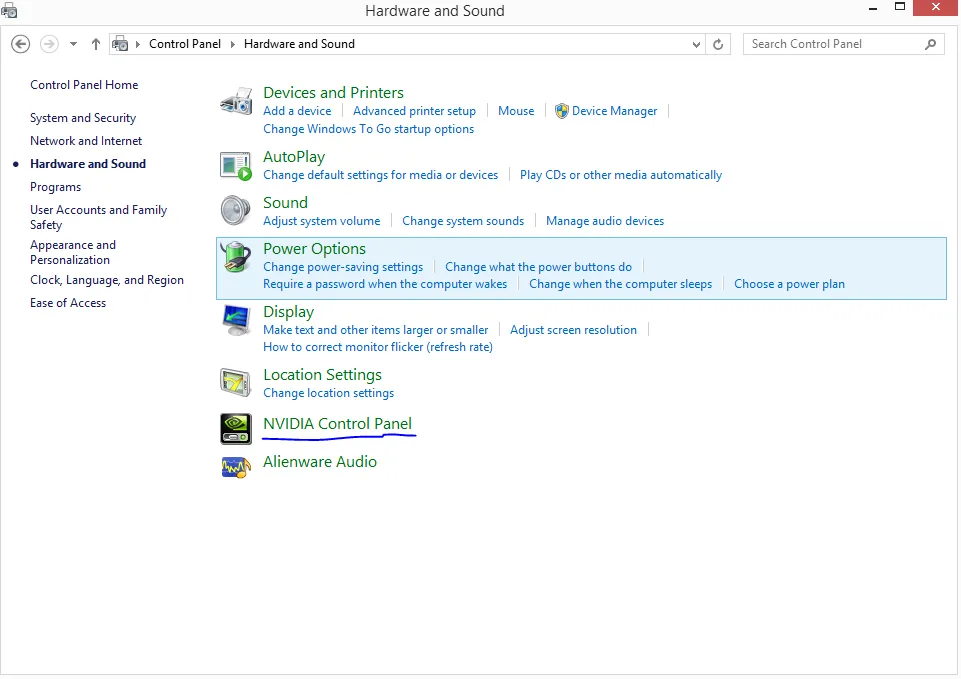 Open the Nvidia Control Panel.
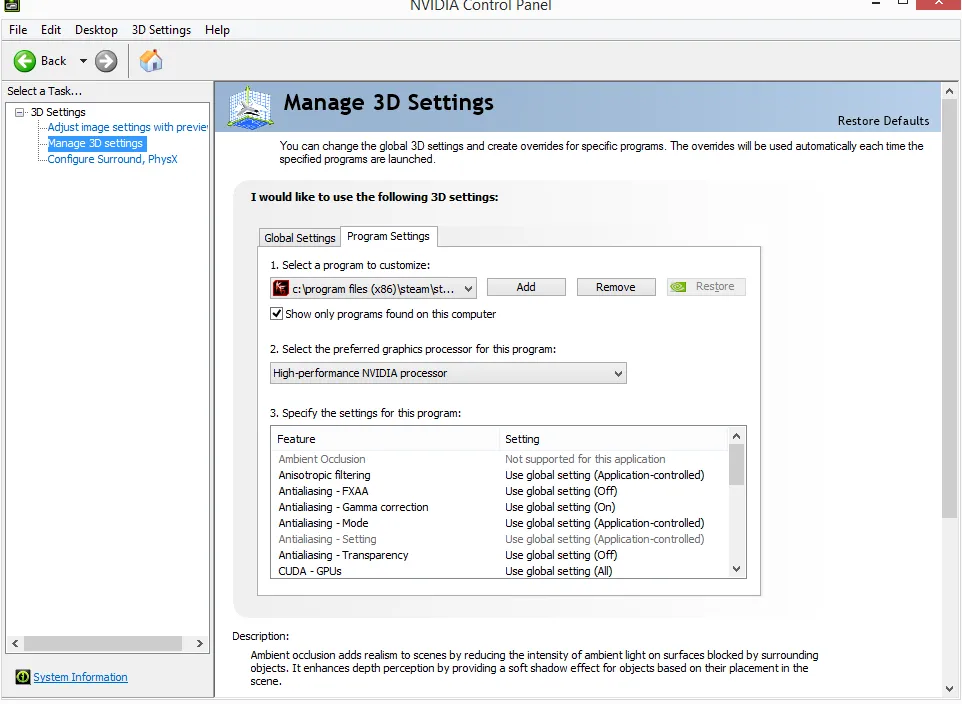 Assign the high-performance Nvidia processor to the game.
- PhysX reinstall (Nvidia only). Uninstall Nvidia PhysX in "Uninstall a program", then run the installer in
killingfloor2\_CommonRedist\PhysX\9.14.0702\to install it again.
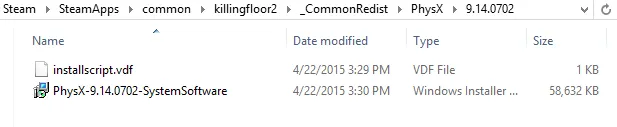 The bundled PhysX installer.
FAQ
- What is the first thing to try when KF2 crashes instantly?
- Verify the integrity of the game cache in Steam (Properties, Local Files), ideally twice, then restart Steam.
- Which launch options does the guide suggest?
- Type dx10 and/or windowed into the Launch Options box in the game's Steam properties.
- Where is the config folder to delete?
- In the Steam install folder: SteamApps\common\killingfloor2\KFGame\Config. Deleting it makes the game rebuild default settings.
