
KF2 Weekly Outbreaks Any Time: Time Server Trick (Archive)
This page paraphrases an archival community guide for playing any weekly outbreak in Killing Floor 2 whenever you want. Important: by the author's own notes, it stopped working after the fall 2023 update, which added extra checks that prevent the match from starting and a profile loading issue after time spoofing. It remains here for reference.
 Cover of the original guide.
Why it existed
Weekly outbreaks are special mutation sets for regular Survival, introduced with the 2017 Summer Sideshow update. They started at eight and later grew to sixteen. Survival Weekly follows a fixed automatic rotation and does not let you start a chosen weekly, so a missed outbreak means a wait of up to 15 weeks. The fall 2023 update finally added a weekly mode selector, but you still only unlock the reward for the currently scheduled weekly, so it did not help with earning several rewards ahead of time.
The trick: KF2 asks internet time servers for the precise time and uses it to pick the weekly. If you give the game a spoofed future date through a local time server, both client and server switch to the weekly you want. The author describes completing the outbreak normally and earning its reward.
The author notes it is complicated and only for experienced users comfortable with dedicated servers. An early update says you can skip the dedicated server and simply pick Solo Offline and the Weekly mode after setting up the time server.
Step 1: dedicated server (optional later)
- Create
C:\KF2ServerandC:\SteamCMD, download SteamCMD and extract it intoC:\SteamCMD. - In a command prompt run
cd /d C:\SteamCMD, then install the server:steamcmd.exe force_install_dir C:\KF2Server login anonymous app_update 232130 validate quit. The install is about 20 GB. - Create
Weekly.batinC:\KF2Serverthat startsBinaries\Win64\KFServer.exe KF-BurningParis?Game=KFGameContent.KFGameInfo_WeeklySurvival. - Run it once, then stop it with Ctrl+C so config files are generated.
- In
KFGame\Config\PCServer-KFGame.ini, under[Engine.AccessControl], setAdminPassword=andGamePassword=. - In
KFGame\Config\KFWeb.ini, under[IpDrv.WebServer], make surebEnabled=trueandListenPort=8080for the web admin interface.
Optional Workshop integration: in PCServer-KFEngine.ini make sure [IpDrv.TcpNetDriver] has DownloadManagers=OnlineSubsystemSteamworks.SteamWorkshopDownload, and add ServerSubscribedWorkshopItems=<id> lines under [OnlineSubsystemSteamworks.KFWorkshopSteamworks]. For custom maps you also need a [KF-CustomMap KFMapSummary] section in PCServer-KFGame.ini with MapName, MapAssociation=2, bPlayableInSurvival=True, bPlayableInWeekly=True and so on (no .kfm extension).
Step 2: local time server
- Disable automatic time sync in Windows (Date & Time settings) and run
net stop w32timein an administrator prompt. - Install NetTime, launch it as administrator in standalone mode (not as a service), then open Configure and set it to use only the local system time and "Always provide time".
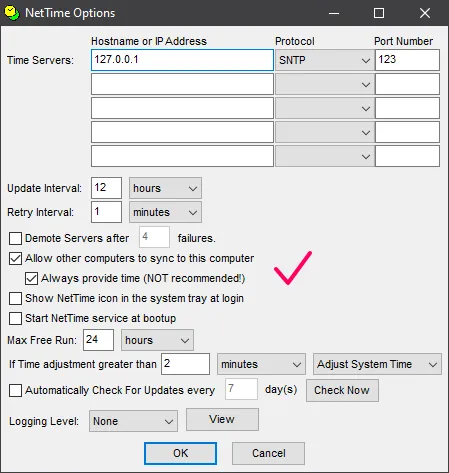 NetTime settings from the original guide.
- Close NetTime fully (exit from the tray), then set your system clock forward by whole weeks to land on the desired weekly, and start NetTime again.
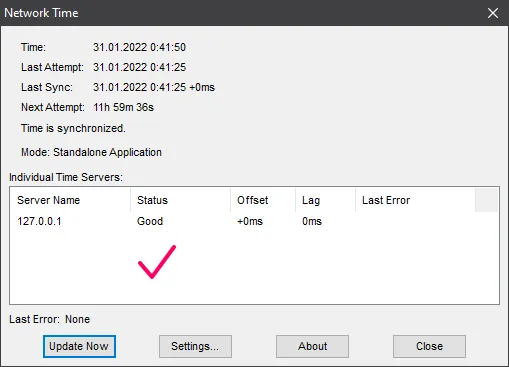 NetTime showing the working state.
The rotation order:
| # | Weekly |
|---|---|
| 1 | Boom |
| 2 | Cranium Cracker |
| 3 | Tiny Terror |
| 4 | Bobble Zed |
| 5 | Poundemonium |
| 6 | Up, Up, and Decay |
| 7 | Zed Time |
| 8 | Beefcake |
| 9 | Blood Thirst |
| 10 | Coliseum |
| 11 | Arachnophobia |
| 12 | Scavenger |
| 13 | Wild West London |
| 14 | Abandon All Hope |
| 15 | Boss Rush |
| 16 | Shrunken Heads |
The list wraps around. If the current weekly is Beefcake (8) and you want Abandon All Hope (14), add 14 - 8 = 6 weeks.
Step 3: redirect the game's time requests
KF2 uses Google's public time servers. Edit C:\Windows\System32\drivers\etc\hosts (copy to the desktop, edit, copy back) and add lines pointing time.google.com and time1.google.com through time4.google.com to 127.0.0.1. Then run ipconfig /flushdns in an administrator prompt.
Step 4: play
Start the dedicated server with Weekly.bat, and it should load Burning Paris in Survival Weekly. The web admin at http://127.0.0.1:8080 lets you change the map. Start KF2; the weekly in the menu should now match your chosen one. If it does not, you made a mistake somewhere. Open the console with the tilde key, type open 127.0.0.1, close the console, enter your regular password and play. In the simplified variant, just choose Solo Offline and Weekly.
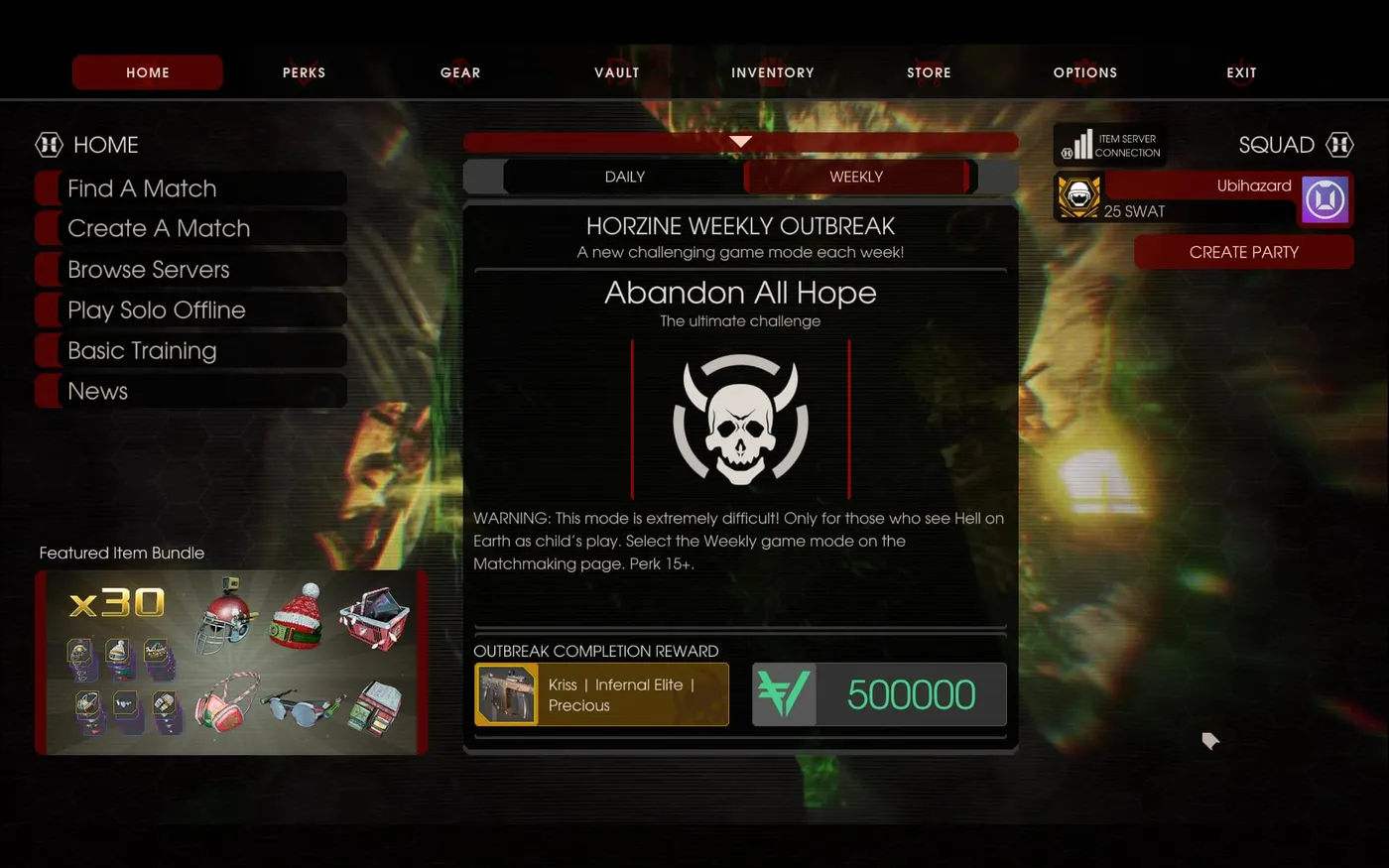 Completed weeklies and rewards, 1.
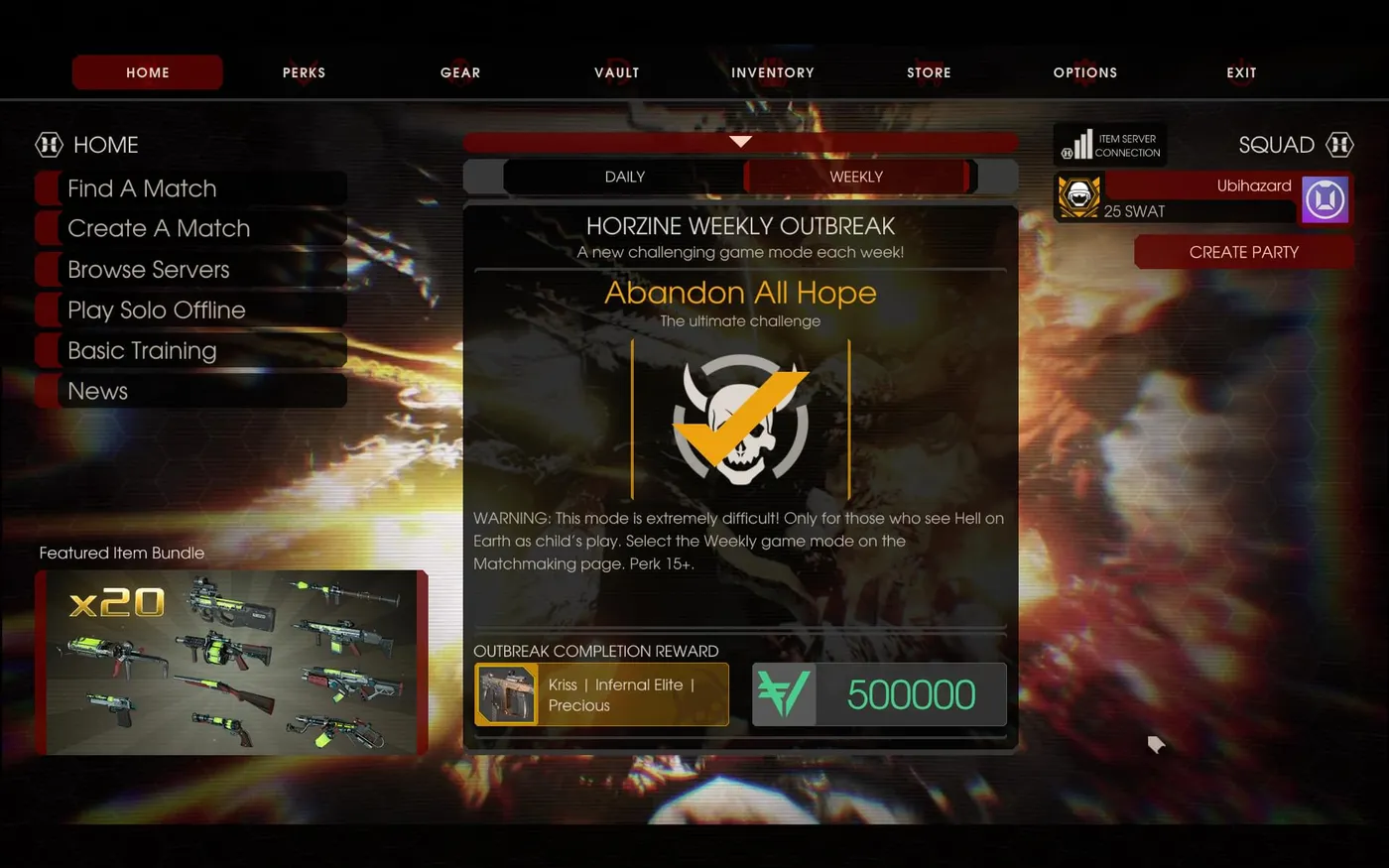 Completed weeklies and rewards, 2.
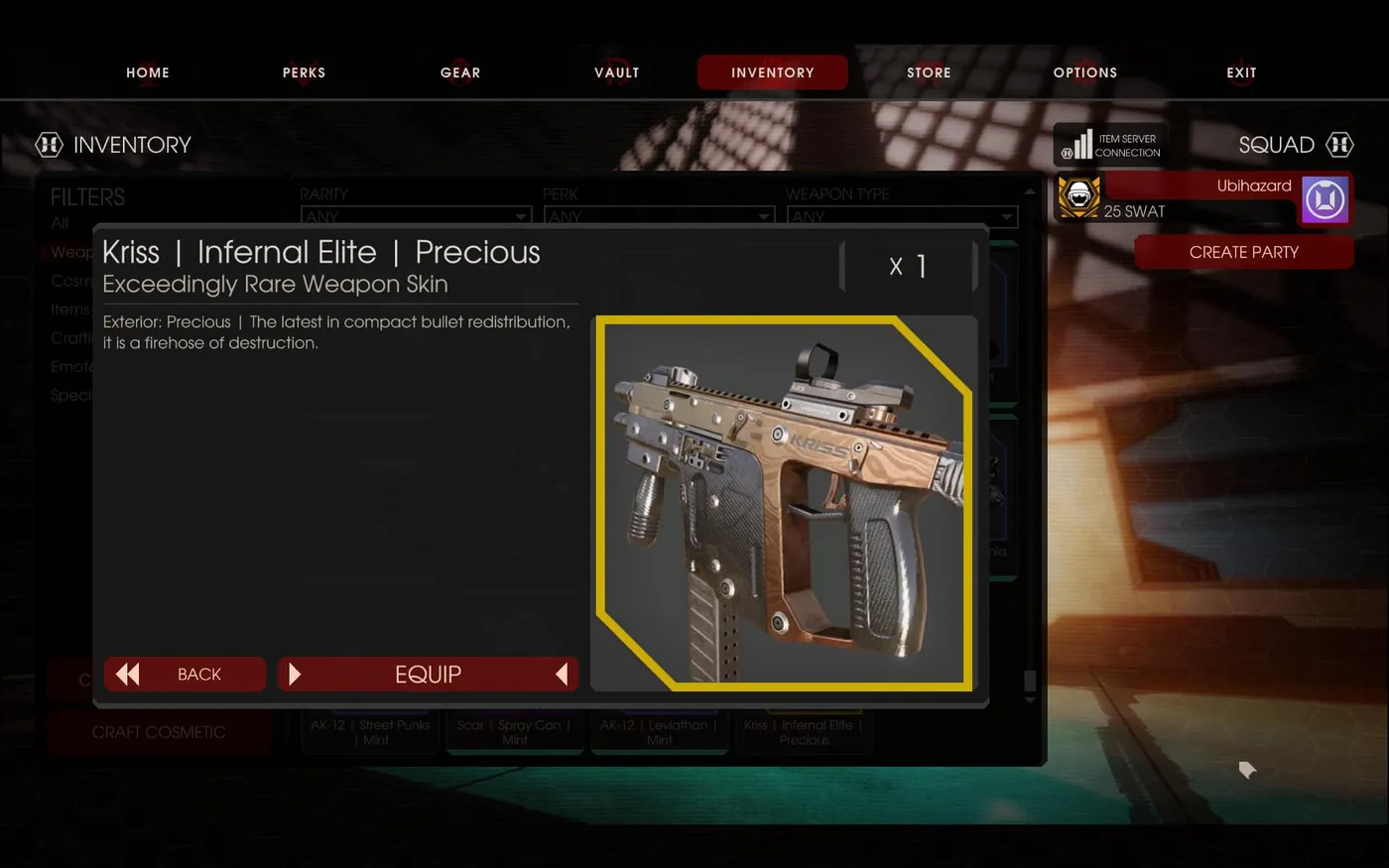 Completed weeklies and rewards, 3.
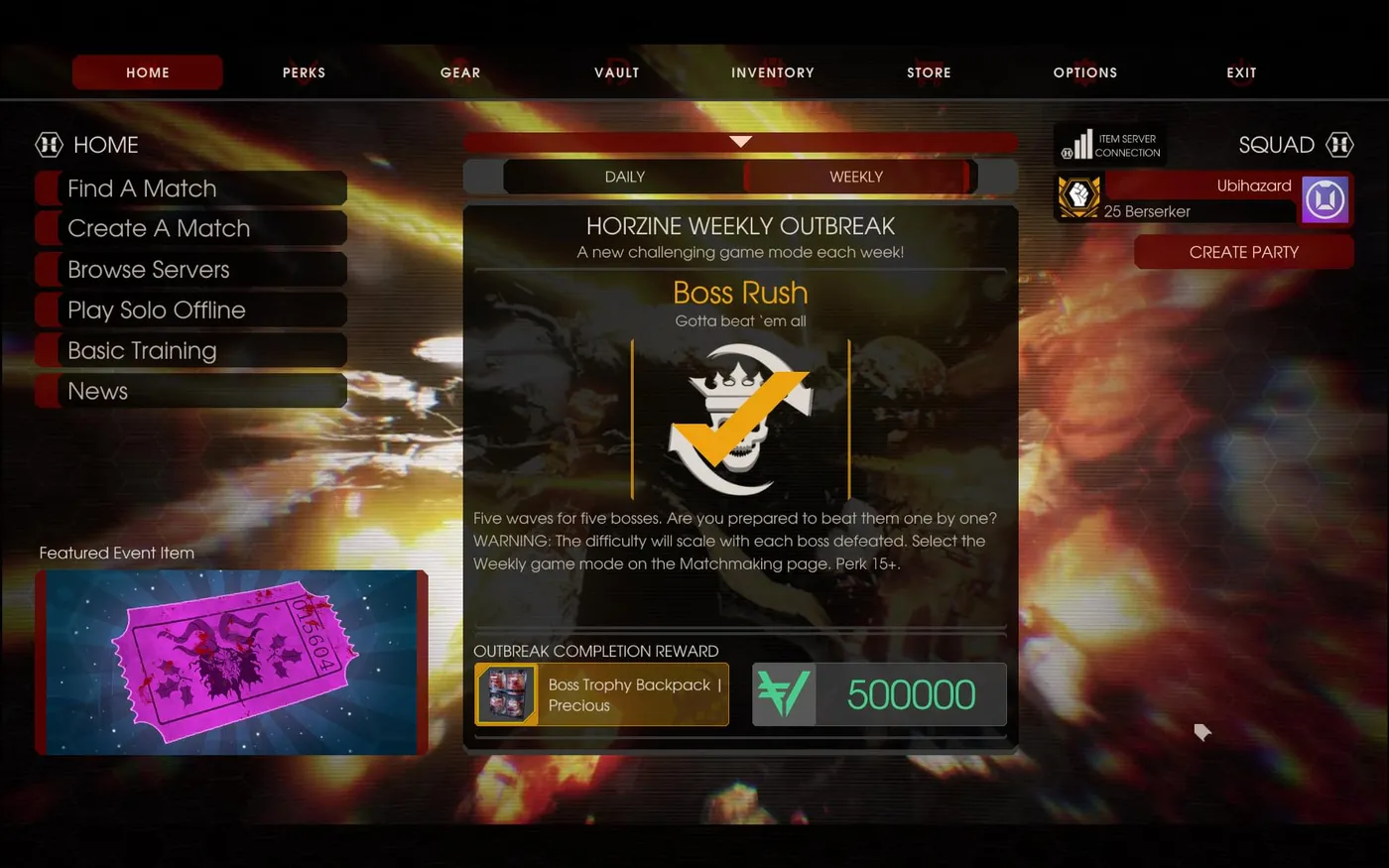 Completed weeklies and rewards, 4.
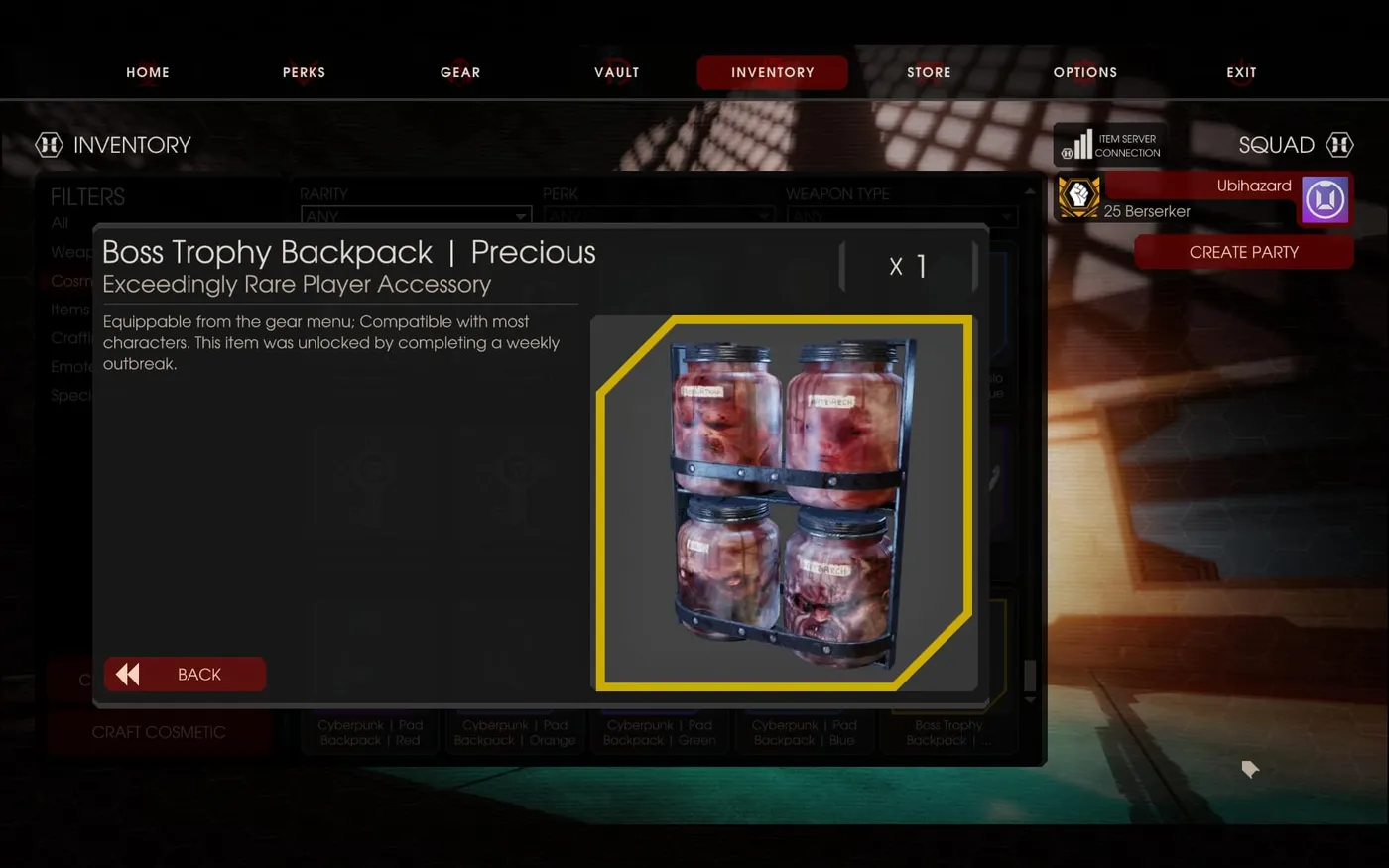 Completed weeklies and rewards, 5.
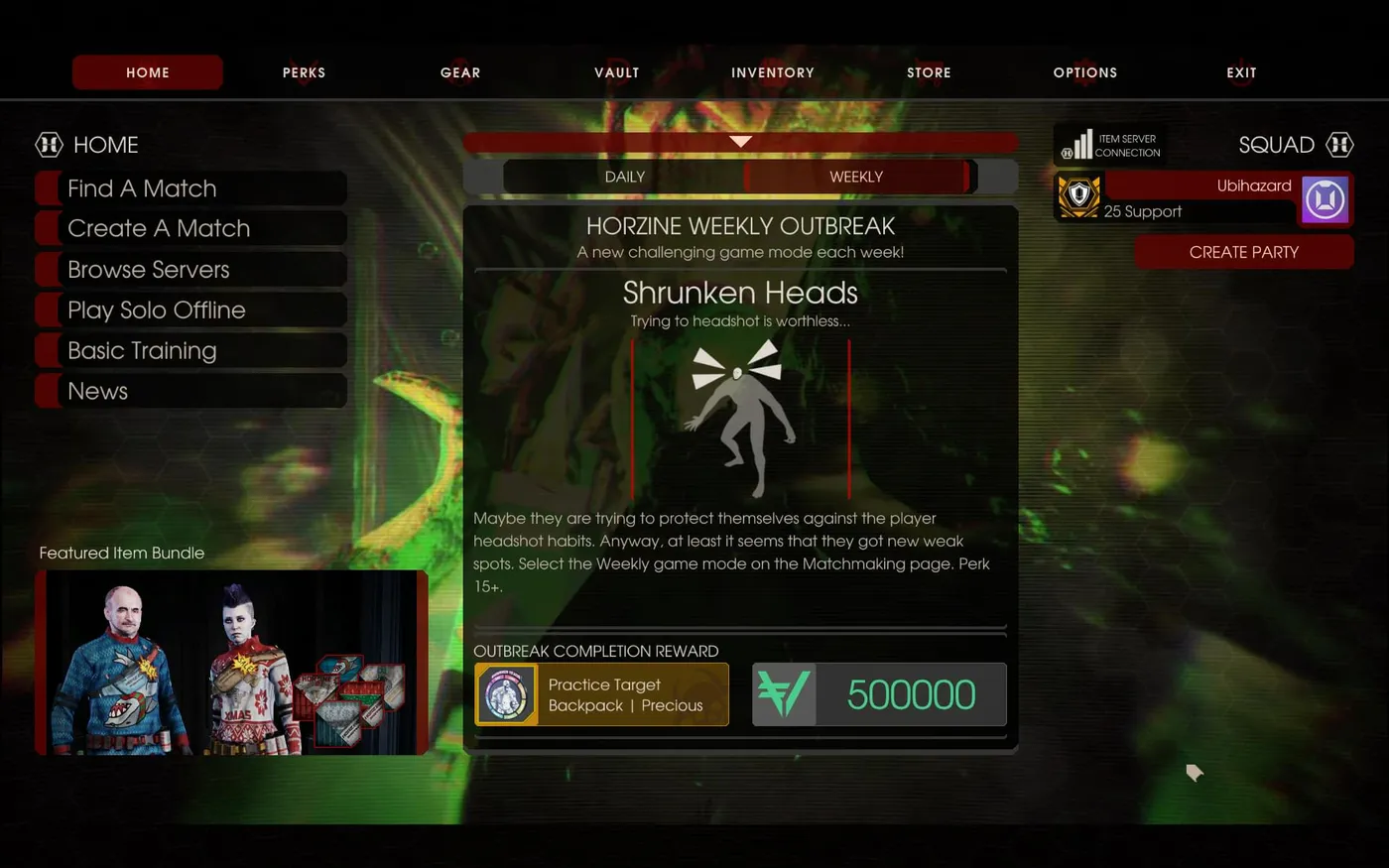 Completed weeklies and rewards, 6.
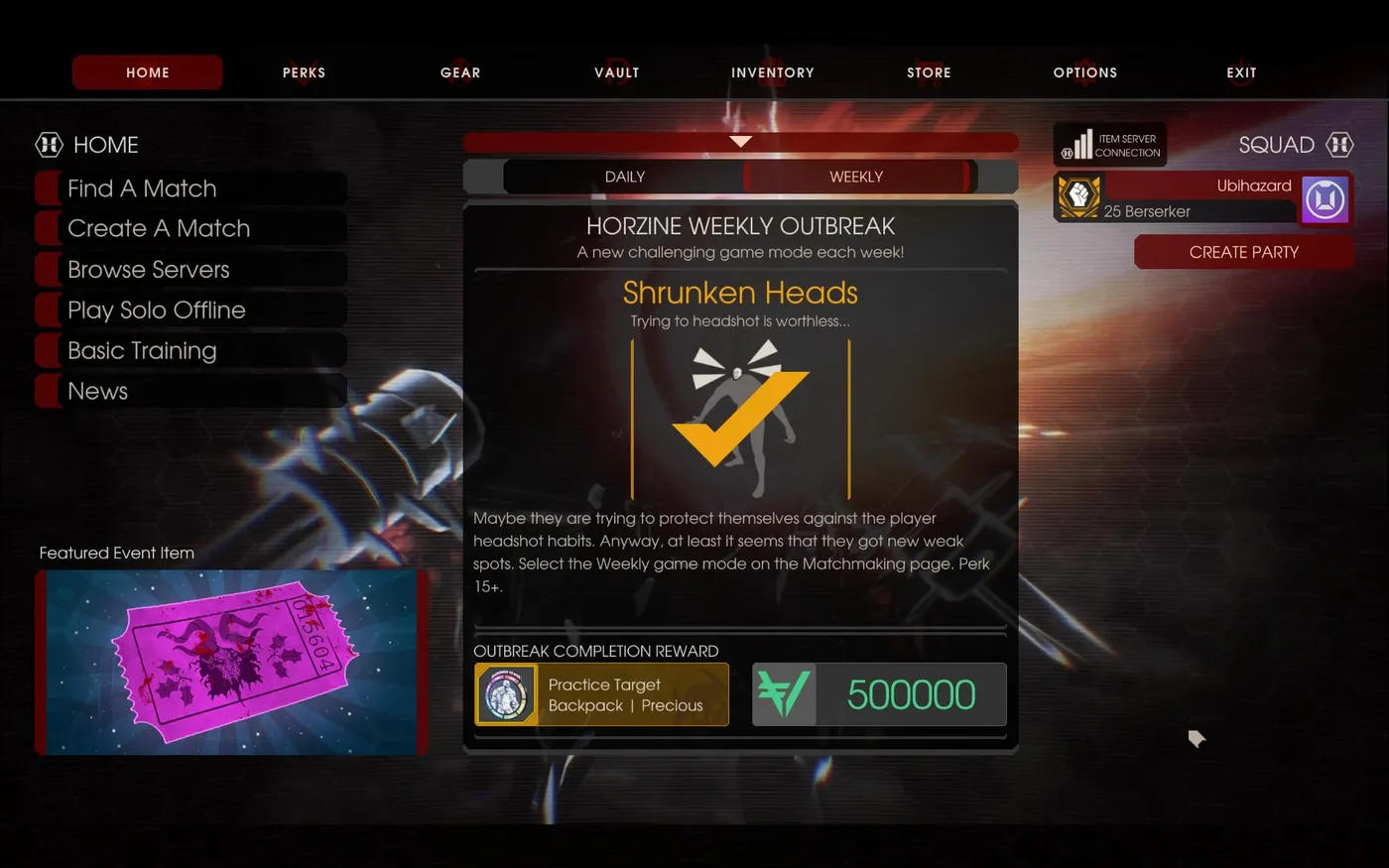 Completed weeklies and rewards, 7.
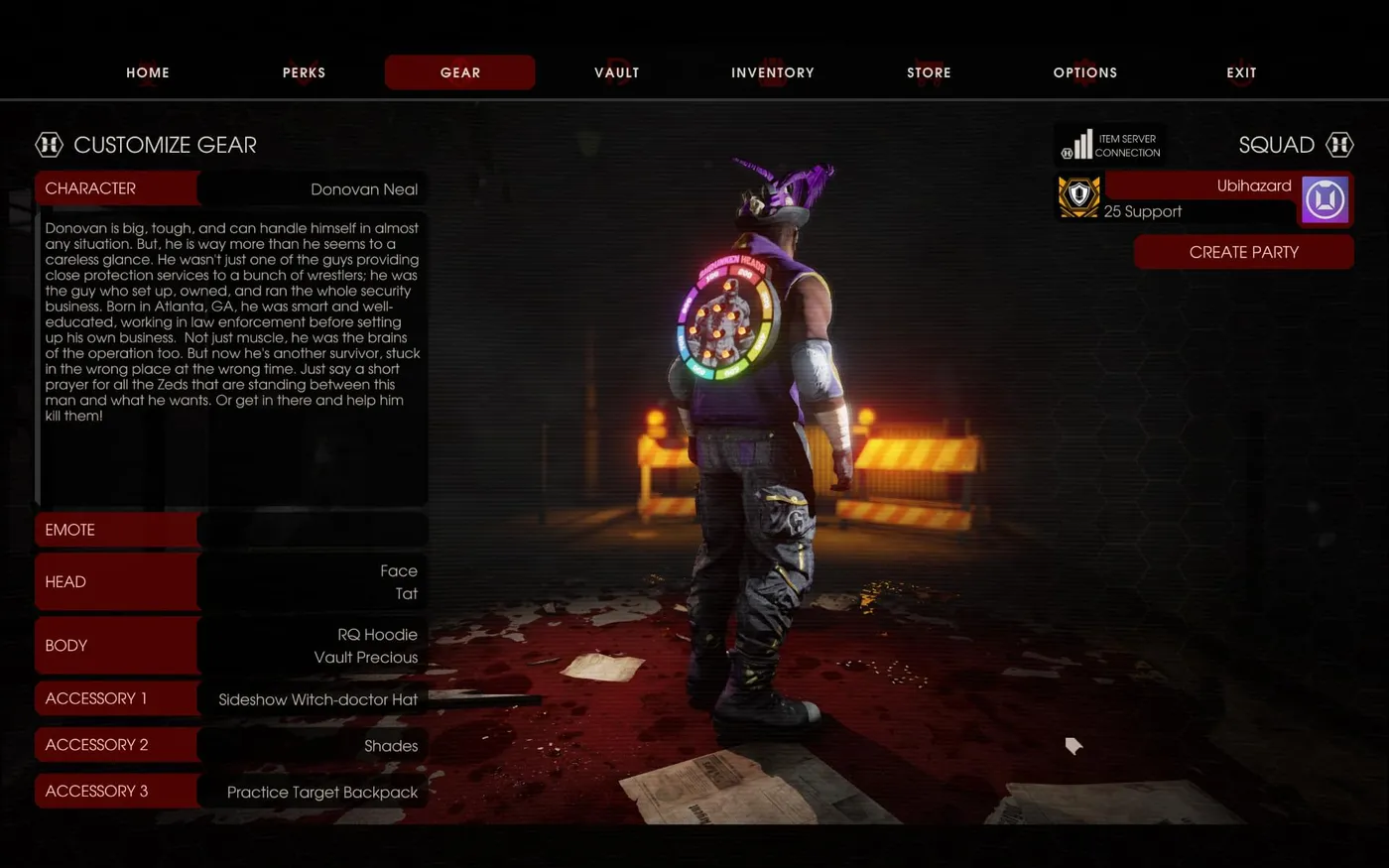 Completed weeklies and rewards, 8.
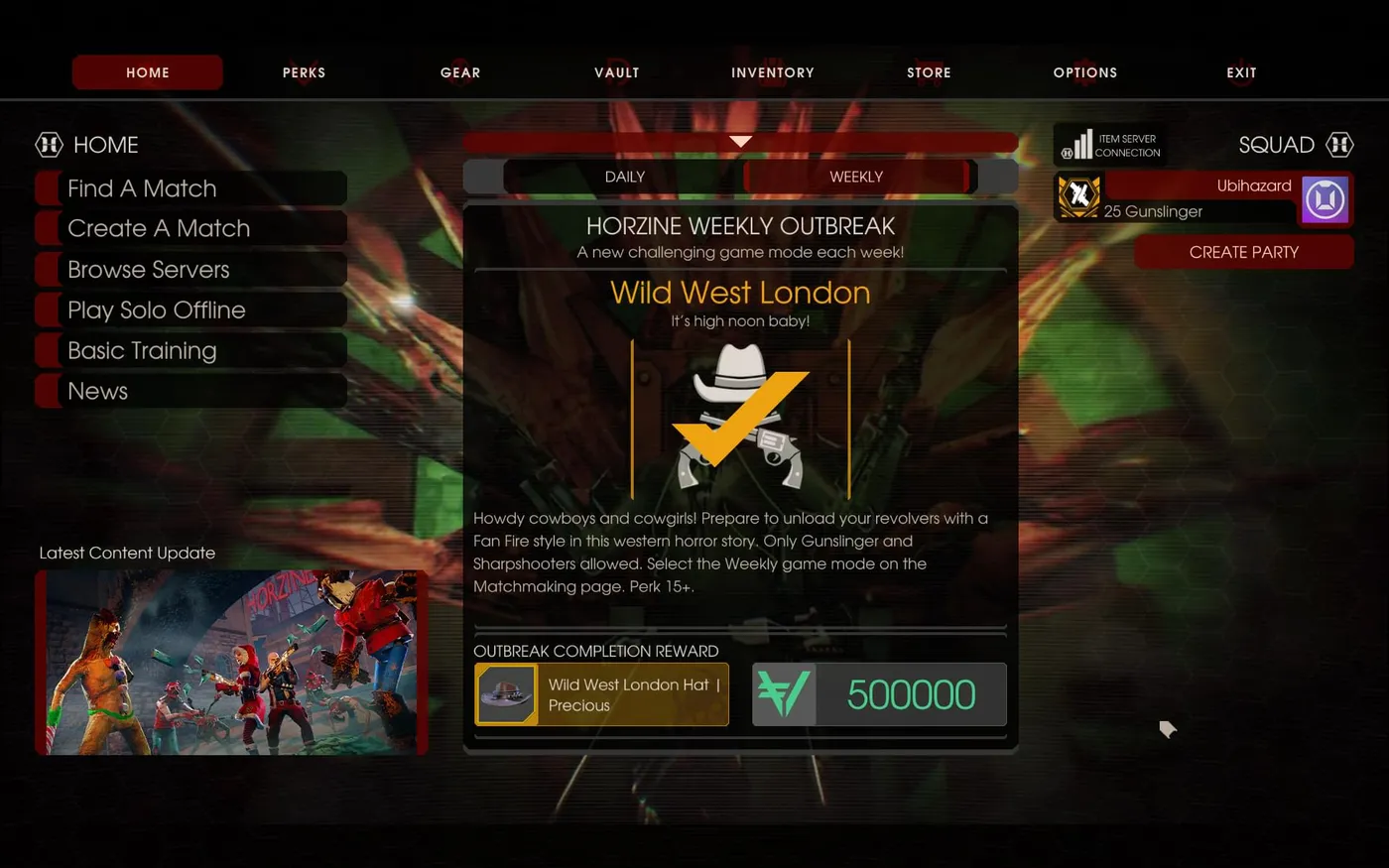 Completed weeklies and rewards, 9.
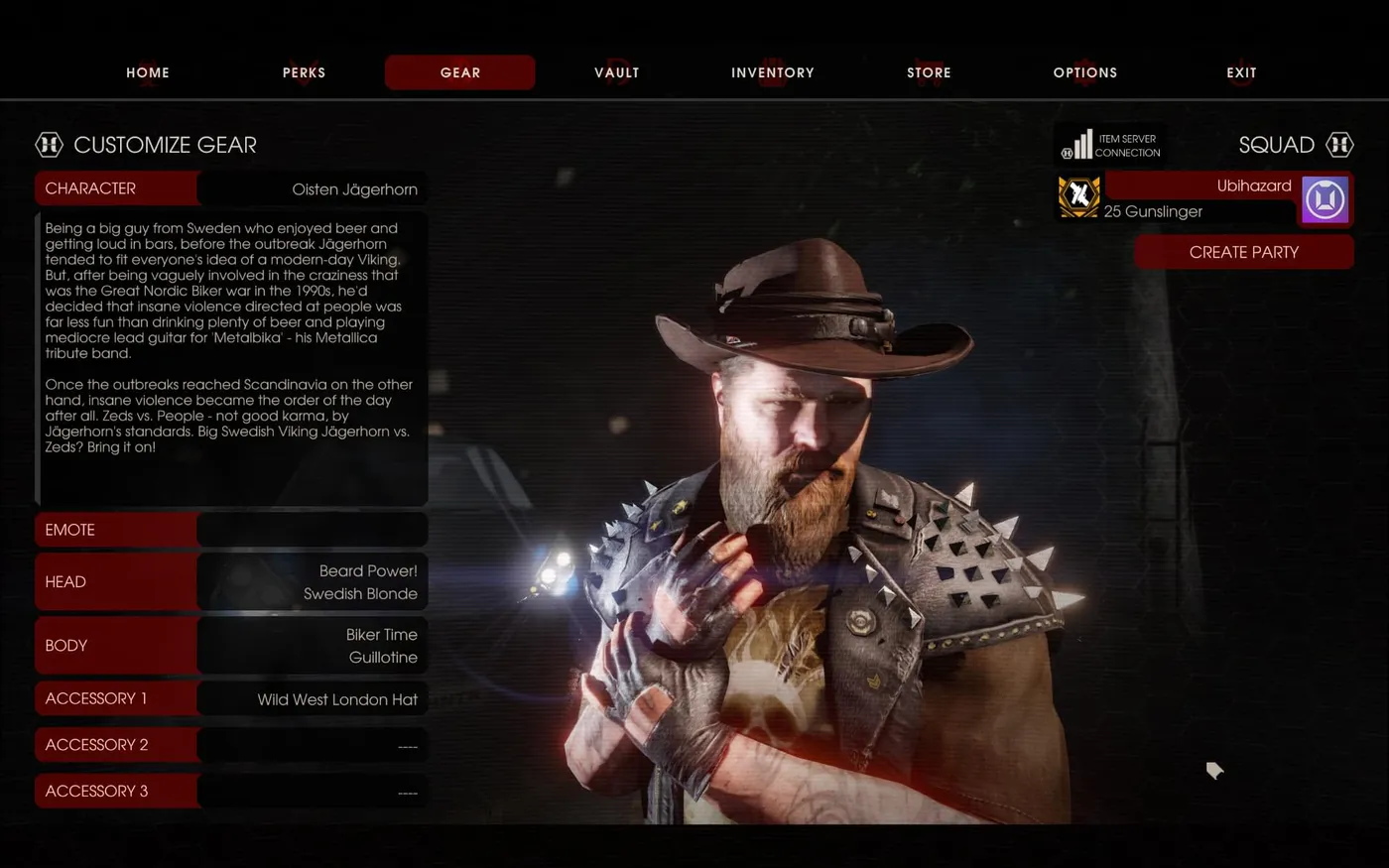 Completed weeklies and rewards, 10.
Switching outbreaks and restoring normal time
To change outbreak, stop the game client, the server and NetTime (exit it from the tray). Change the system clock again, then restart NetTime, the server and the game in that order. To undo everything, close everything, re-enable automatic time sync in Windows, remove the time.google.com entries from the hosts file and run ipconfig /flushdns again.
Verdict
The author says it is worth it only if you value your time more than a half-year wait for a missed weekly. Since the fall 2023 update it no longer works, so treat this page as history.
FAQ
- Does this method still work?
- No. The author's third update says the fall 2023 update added extra checks that stop the match from starting, plus a profile loading issue after time spoofing. The guide is kept for archival purposes.
- How many weeks until a missed weekly returns?
- The rotation has 16 outbreaks, so a missed weekly takes up to 15 weeks to come back.
- What was the trick?
- Run a local time server set to a future date, point the game's Google time server lookups to your own machine through the hosts file, and the client and server pick a different weekly from the rotation.
