
Killing Floor Client Config Diffs - Sound, Lag, Mouse Smoothing, User.ini
This page collects practical KillingFloor.ini and User.ini edits for KF1 clients. The focus is on sound options, hitch reduction, cache and video memory values, mouse smoothing, weapon pickup behavior, and blur.
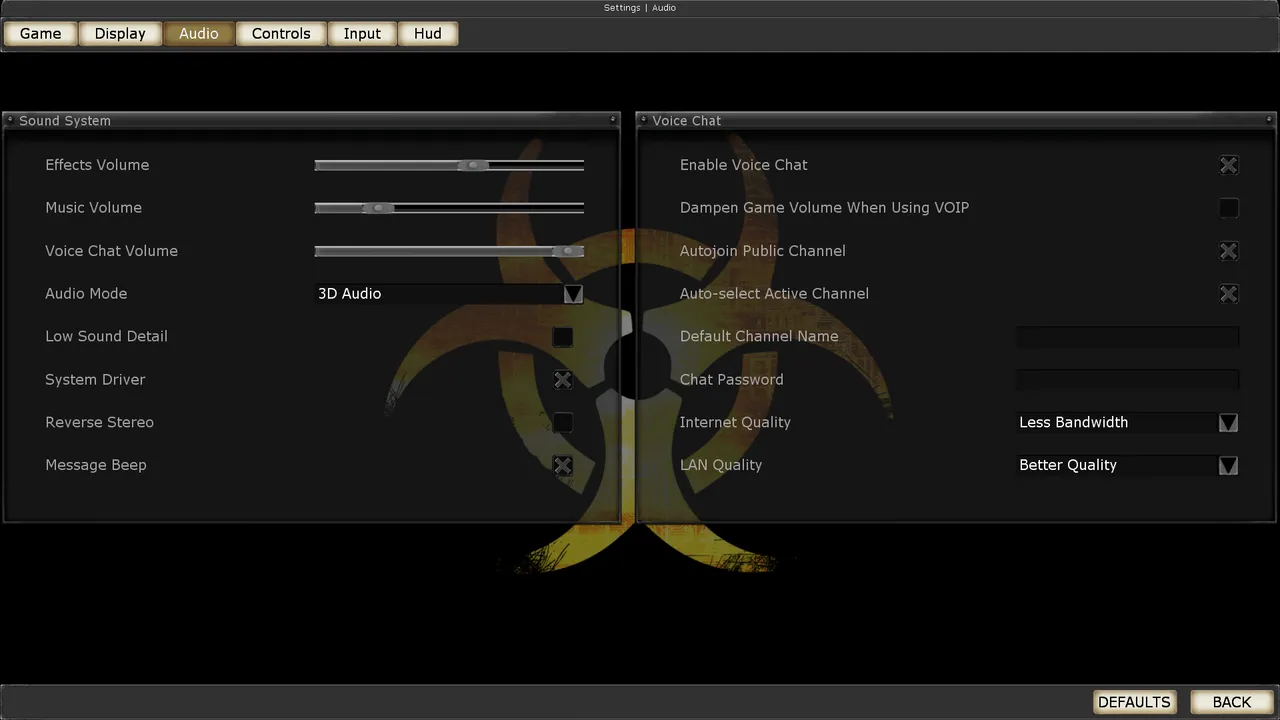 The Killing Floor Audio menu: volume, audio mode and voice chat. Screenshot: PCGamingWiki.
Before editing, back up your config files. If the result is worse, restore from backup or regenerate defaults from the game.
Backup Files
LazyKFWiki linked default config backups:
KillingFloor\SystemKillingFloor.ini: Better 3D Sound
UseEAX=True
Use3DSound=True
UseDefaultDriver=False
CompatibilityMode=False
MaxEAXVersion=255
ReverseStereo=False
Channels=64
Channels=64 can noticeably change the sound mix. If audio becomes strange, lower the value or restore the original section.
KillingFloor.ini: FPS And Hitch Reduction
UsePrecaching=True
bNeverPrecache=True
UsePreCache=FalseUsePrecaching=False
bNeverPrecache=True
UsePreCache=True[Engine.GameEngine]
CacheSizeMegs=256
[Engine.Engine]
DetectedVideoMemory=2048
NVidiaGPU=True
[D3D9Drv.D3D9RenderDevice]
CheckForOverflow=True
AvoidHitches=TrueThe original warning is important: values above CacheSizeMegs=256 can eventually crash the game. DetectedVideoMemory should match your GPU VRAM instead of being copied blindly.
Mouse Smoothing: KillingFloor.ini
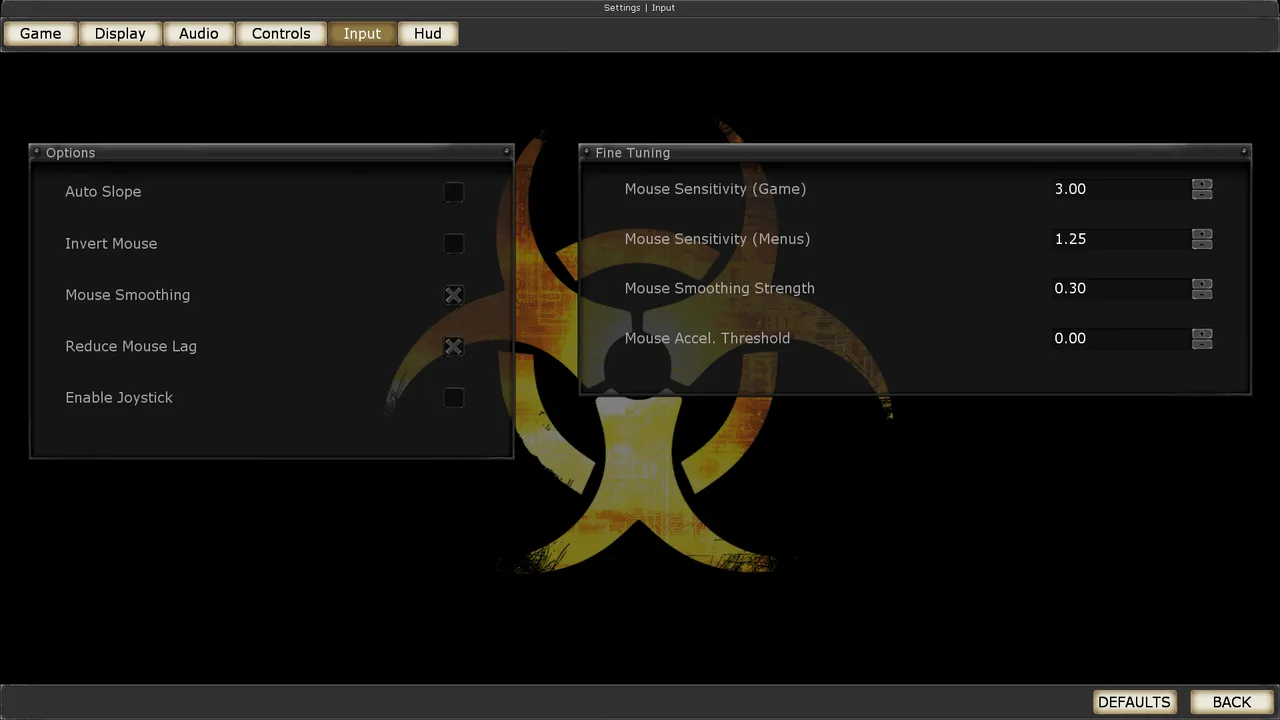 The Killing Floor Input menu: mouse sensitivity, mouse smoothing and joystick options. Screenshot: PCGamingWiki.
[SDLDrv.SDLClient]
[WinDrv.WindowsClient]
MinDesiredFrameRate=1.000000
[D3D9Drv.D3D9RenderDevice]
ReduceMouseLag=FalseOther possible renderer sections include D3DDrv, OpenGLDrv, and PixoDrv.
User.ini: Mouse Smoothing
MouseX=Count bXAxis | Axis aMouseX Speed=1.0
MouseY=Count bYAxis | Axis aMouseY Speed=1.0MouseSmoothingMode=0
MouseSmoothingStrength=0.000000
MouseSamplingTime=0.001000
MouseAccelThreshold=-1
MouseSensitivity=0.500000MouseAccelThreshold may reset when the in-game menu is opened, so check the file again after changing menu settings.
[XInterface.GUIController]
[GUI2K4.UT2K4GUIController]
[KFGui.KFGUIController]
MenuMouseSens=0.400000
User.ini: Disable Auto-Switch On Pickup
[Engine.PlayerController]
bNeverSwitchOnPickup=True
User.ini: Remove Pawn Blur
[KFmod.KFHumanPawn]
bUseBlurEffect=False
Test Checklist
- Start a solo game after each group of edits.
- Check mouse feel before and after opening settings menus.
- Test a crowded map for hitching.
- Confirm weapon pickup no longer forces a switch.
- Keep a backup of the exact config that felt best.
