
Dual Monitor Issue in Killing Floor
Guide for solving dual monitor problems in Killing Floor.
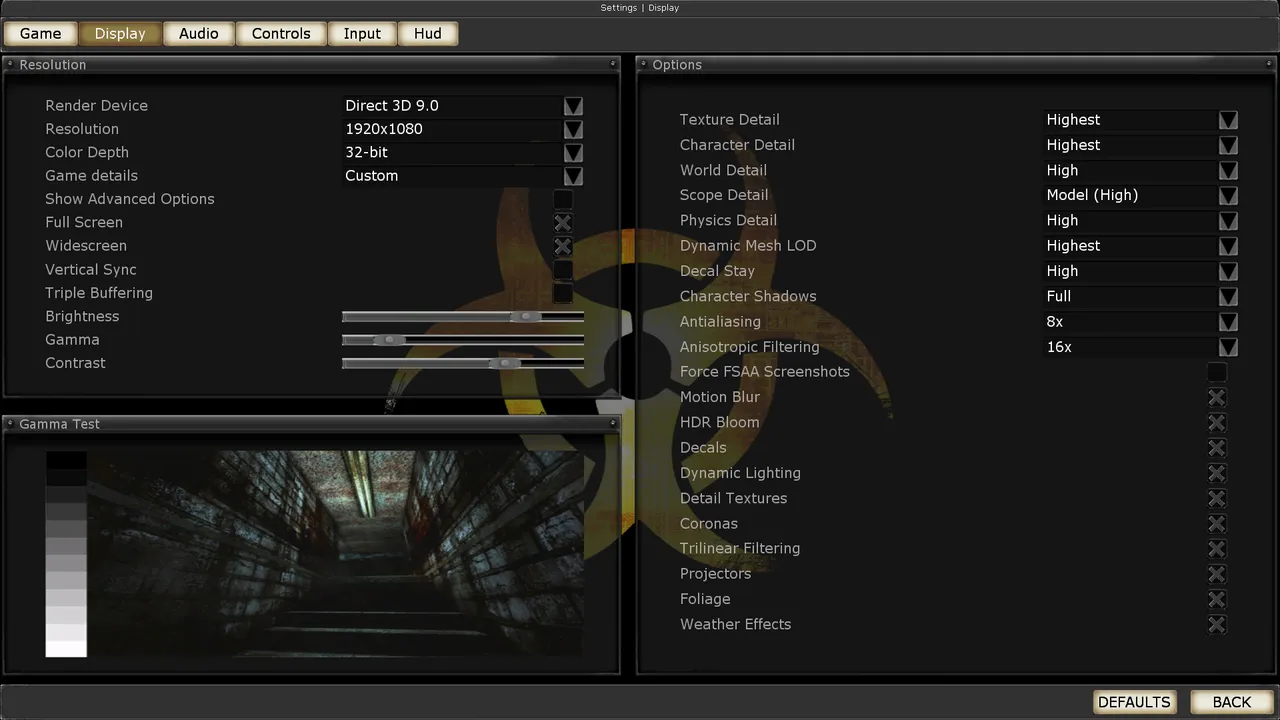 The Killing Floor Display menu: render device, resolution and detail levels. Screenshot: PCGamingWiki.
Problem Description
When trying to maximize the game window on a system with two monitors, the following problem may occur:
- Screens start flickering and switching
- The game tries to use a resolution equal to the size of both monitors combined
- The flickering process continues indefinitely
- The game becomes unplayable
Solutions
Solution 1: Disable Extended Monitor (Simple Solution)
The simplest solution is to temporarily disable the extended monitor before launching the game:
- Open Windows display settings
- Select "Show only on 1" or "Duplicate" mode
- Launch the game
- After playing, you can restore extended mode
This solution works for most cases and does not require changing game settings.
Solution 2: Graphics Card Configuration
The problem may depend on the graphics card and installed drivers:
- Update graphics card drivers to the latest version
- Check graphics card settings:
- NVIDIA: NVIDIA Control Panel → Set up multiple displays
- AMD: AMD Radeon Settings → Displays
- Make sure all necessary driver components are installed
Solution 3: Modifying KillingFloor.ini
You can try configuring the game configuration file for proper operation with your monitor configuration:
- Open
KillingFloor.iniin theSystemfolder - Find the
[WinDrv.WindowsClient]section - Set correct values for:
FullscreenViewportX— primary monitor widthFullscreenViewportY— primary monitor heightWindowedViewportX— windowed mode widthWindowedViewportY— windowed mode height
[WinDrv.WindowsClient]
FullscreenViewportX=1920
FullscreenViewportY=1080
WindowedViewportX=1920
WindowedViewportY=1080- Save the file and launch the game
Solution 4: Using Windowed Mode
If the problem persists, you can use windowed mode:
- Launch the game
- In settings, select windowed mode instead of fullscreen
- Or use console command to switch modes
Solution 5: BIOS Configuration (for systems with two graphics cards)
If you have two different graphics cards from different manufacturers installed:
- Restart your computer and enter BIOS
- Find graphics card settings
- Set the additional graphics card as primary for boot
- Save settings and restart the computer
Additional Tips
- Use one monitor for gaming: The simplest way to avoid problems is to play on one monitor
- Check Windows settings: Make sure both monitors are properly configured in Windows
- Update DirectX: Install the latest version of DirectX
- Check compatibility: Some older games may have problems with modern monitor configurations
