
Graphics Settings Optimization: Best Visual Quality & Performance
Getting the right graphics settings in Killing Floor can make the difference between a smooth, enjoyable experience and a laggy, frustrating one. This guide will help you find the perfect balance between visual quality and performance for your system.
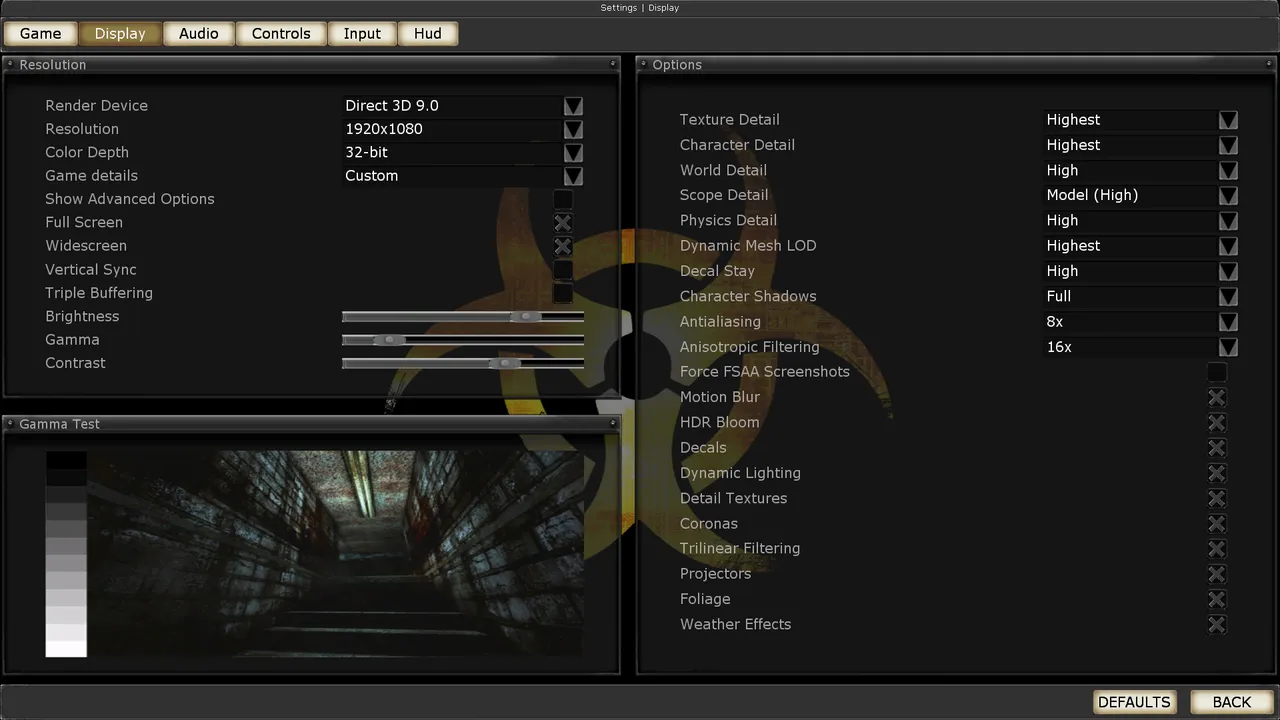 The Killing Floor Display menu: render device, resolution and detail levels. Screenshot: PCGamingWiki.
Understanding Graphics Settings
What They Control
- Visual quality — How good the game looks
- Performance — How well it runs
- Frame rate — FPS you get
- System resources — CPU/GPU usage
- Battery life — For laptops
The Balance
- High settings — Better visuals, lower FPS
- Low settings — Worse visuals, higher FPS
- Optimal settings — Best balance for your system
- Personal preference — What you prefer
Graphics Settings Breakdown
Resolution
- 1920x1080 — Standard HD, good balance
- 1440p — Higher quality, more demanding
- 4K — Maximum quality, very demanding
- Lower resolutions — Better performance
- Native resolution — Your monitor's resolution
Texture Quality
- High — Best textures, more VRAM
- Medium — Good balance
- Low — Better performance, lower quality
- Impact — Affects visual quality significantly
Detail Level
- High — Maximum detail, more demanding
- Medium — Balanced detail
- Low — Less detail, better performance
- Impact — Affects object detail
Shadow Quality
- High — Best shadows, very demanding
- Medium — Good shadows, balanced
- Low — Basic shadows, better performance
- Off — No shadows, best performance
- Impact — Major performance impact
Lighting Quality
- High — Best lighting, demanding
- Medium — Good lighting, balanced
- Low — Basic lighting, better performance
- Impact — Affects atmosphere
Effects Quality
- High — Best effects, demanding
- Medium — Good effects, balanced
- Low — Basic effects, better performance
- Impact — Affects visual flair
Detail toggles in the KF1 menu
Advice from F4TAL1ST in the "Graphics settings" thread on the killingfloor.ru forum (2010):
| Option | Advice |
|---|---|
| Decals (bullet marks) | Off: no use, and the textures are plain |
| Dynamic lighting | On: light and shadow matter for the horror atmosphere |
| Detail textures | Depends on your PC |
| Coronas (glare) | Can go off, but bright open maps like KF-Manor look worse without them |
| Trilinear filtering | Your choice: smoother picture, noticeably lower FPS |
| Projectors | Only worth it with shadows and coronas on |
| Foliage | Not essential, but noticeably improves KF-Farm |
| Weather effects | Can stay on: the load is small |
If settings do not save, the forum blamed the 1C Russian localisation; installing a community translation over the game helped. See also Restoring the Russian language.
Performance Optimization
For Low-End PCs
Recommended Settings:
- Resolution: 1280x720 or 1024x768
- Texture Quality: Low
- Detail Level: Low
- Shadow Quality: Off or Low
- Lighting Quality: Low
- Effects Quality: Low
Result: Maximum FPS, playable experience
For Mid-Range PCs
Recommended Settings:
- Resolution: 1920x1080
- Texture Quality: Medium
- Detail Level: Medium
- Shadow Quality: Medium
- Lighting Quality: Medium
- Effects Quality: Medium
Result: Good balance, smooth gameplay
For High-End PCs
Recommended Settings:
- Resolution: 1920x1080 or 1440p
- Texture Quality: High
- Detail Level: High
- Shadow Quality: High
- Lighting Quality: High
- Effects Quality: High
Result: Best visuals, smooth performance
Advanced Settings
.ini File Tweaks
- Advanced config — Manual settings
- Performance tweaks — FPS improvements
- Visual tweaks — Quality adjustments
- Custom settings — Personalized config
- Expert level — For advanced users
Specific Optimizations
- Disable gore — Performance boost
- Reduce bodies — Less objects to render
- Lower particle count — Fewer effects
- Optimize draw distance — Reduce rendering
- Texture streaming — Better memory usage
Performance Tips
General Tips
- Update drivers — Latest GPU drivers
- Close background apps — Free up resources
- Disable overlays — Steam, Discord, etc.
- Monitor temperature — Prevent throttling
- Clean system — Remove bloatware
Game-Specific Tips
- Lower resolution — Biggest FPS gain
- Disable shadows — Major performance boost
- Reduce effects — Less visual clutter
- Optimize config — Advanced tweaks
- Use fullscreen — Better performance
Visual Quality Tips
For Best Graphics
- High resolution — Maximum clarity
- High textures — Best detail
- High shadows — Realistic lighting
- High effects — Visual polish
- Native resolution — Your monitor's res
Balanced Approach
- Medium settings — Good quality, good FPS
- Selective high — High on important settings
- Selective low — Low on demanding settings
- Personal preference — What you value
Troubleshooting
Low FPS Issues
- Lower settings — Reduce quality
- Check drivers — Update GPU drivers
- Monitor usage — Check CPU/GPU usage
- Close programs — Free up resources
- Check temperature — Prevent throttling
When minimum settings do not help
Source: killingfloor.ru forum, 2012.
In the thread "How to fix lag in KF" a player had a slideshow on his own listen server whenever many zeds were on screen (worse on big maps like Manor Farm and Mountain Pass, almost none on Area-69), even at minimum settings and 640x480, while other people's servers on the same maps ran smoothly. Advice from the thread:
- Try raising the settings. Several players had KF lag at minimum settings that went away once they turned graphics up. The reason is unknown; one player found "above medium" the most comfortable.
- Verify the game cache in Steam: game Properties > Local Files > Verify integrity of game cache.
- Clear the game's
cachefolder inside the game directory. - Clean junk off the system drive (CCleaner was suggested) and clean dust out of the PC.
The thread ended without a confirmed fix.
Lag only in single-player
Source: killingfloor.ru forum, "Лаги в одиночной игре" thread.
A player's KF lagged badly in single-player while multiplayer was fine. Explanations and advice from the thread:
- In single-player your own computer calculates the zed AI, not someone else's server. On top of that, in solo zeds speed up while you cannot see them. Advice: create a dedicated server and connect to it yourself.
- KF is built around a single CPU core, so even on a decent laptop solo play can stutter more than online play.
- Delete
KillingFloor.iniand verify the cache integrity. - Mutators can cause lag too: remove them all and add them back one at a time, testing each.
- Turning off anti-aliasing fixed it for the thread author.
Visual Glitches
- Update drivers — Fix compatibility
- Verify files — Check game integrity
- Reset settings — Default configuration
- Reinstall — Fresh installation
- Check mods — Mod conflicts
System Requirements
Minimum Requirements
- Low settings — Playable on old hardware
- Basic experience — Functional gameplay
- Compromises — Visual quality sacrificed
Recommended Requirements
- Medium settings — Good experience
- Balanced — Quality and performance
- Smooth gameplay — Consistent FPS
Optimal Requirements
- High settings — Best experience
- Maximum quality — Visual fidelity
- Smooth performance — High FPS
Conclusion
Optimizing graphics settings is about finding the right balance for your system. Don't be afraid to experiment—every system is different, and what works for others might not work for you. Start with recommended settings for your hardware level, then adjust based on your preferences. Remember—consistent FPS is often more important than maximum visual quality. A smooth 60 FPS on medium settings beats a stuttering 30 FPS on high settings every time.
