
Killing Floor Fixes (PC Gaming Wiki)
Problem solutions and improvements for Killing Floor based on information from PC Gaming Wiki.
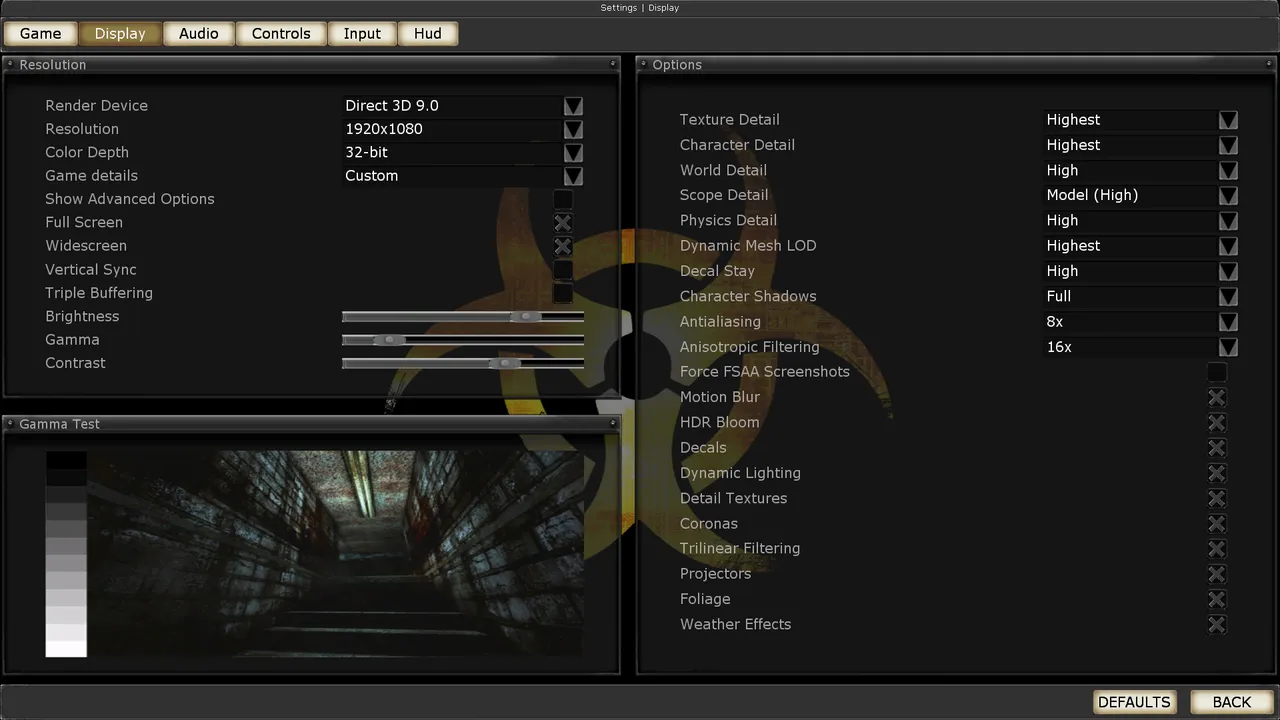 The Killing Floor Display menu: render device, resolution and detail levels. Screenshot: PCGamingWiki.
Problems and Fixes
Display Issues
Problem: Low resolution or incorrect aspect ratio
Solution:
- Open
KillingFloor.iniin theSystemfolder - Find the
[WinDrv.WindowsClient]section - Set correct values for
FullscreenViewportXandFullscreenViewportY - Or use settings in the game menu
Problem: Display issues on widescreen monitors
Solution:
- Use game settings to set the correct resolution
- Check graphics card settings for scaling
Audio Issues
Problem: No sound or audio problems
Solutions:
- Check sound settings in the game
- Make sure sound card drivers are updated
- Check Windows settings for the audio device
- Try changing settings in
KillingFloor.iniin the[ALAudio.ALAudioSubsystem]section
Performance Issues
Problem: Low FPS or lag
Solutions:
- Reduce graphics settings in the game
- Update graphics card drivers
- Close background programs
- Use optimization settings from the optimization guide
Network Issues
Problem: High ping or connection problems
Solutions:
- Check internet connection
- Make sure firewall is not blocking the game
- Check router settings
- Try connecting to servers with lower ping
Controller Issues
Problem: Game doesn't recognize controller
Solutions:
- Make sure the controller is connected and recognized by Windows
- Check settings in the game
- Use programs to emulate keyboard/mouse (e.g., x360ce)
Improvements
Skip Intro Video
To skip the intro video when launching the game:
- Open
KillingFloor.iniin theSystemfolder - Find the line
LocalMap=KFIntro.rom - Replace with
LocalMap=NoIntro.rom(create an emptyNoIntro.romfile in theMapsfolder) - Or use the ready-made file from the optimization guide
Skip Killing Floor 2 Trailer
If a Killing Floor 2 trailer is shown when launching:
- Open
KillingFloor.ini - Find the
[KFMod.KFGameType]section - Add or change the parameter
bSkipKF2Trailer=True
Configuration File Location
Configuration files are located in:
- Windows:
%USERPROFILE%\Documents\My Games\KillingFloor\System\ - Steam:
Steam\steamapps\common\killingfloor\System\
Main files:
KillingFloor.ini— main game settingsUser.ini— user settings and key bindingsDefault.ini— default settings
Save Game and Cloud Syncing
Killing Floor supports cloud syncing through Steam:
- Saves are automatically synced with Steam cloud
- Perk progression data is stored on servers
- Local saves are located in the
Systemfolder
Video: Multi-monitor and Borderless Mode
Multi-monitor Issues
If you experience issues with multiple monitors, see the dual monitor issue guide.
Borderless Fullscreen Mode
To enable borderless fullscreen mode:
- Open
KillingFloor.ini - Find the
[WinDrv.WindowsClient]sectionFullscreenViewportX=1920 FullscreenViewportY=1080 WindowedViewportX=1920 WindowedViewportY=1080 StartInFullscreen=False
Input: Make Walk Toggle
To make walking toggleable instead of holding the key:
- Open
User.ini - Find the walk key binding (usually
WALK) - Change to
ToggleWalkinstead ofWalk
SET INPUT WALK TOGGLEWALKAudio: Localization
The game supports multiple languages:
- Language can be changed in Steam settings
- Russian localization is available through community patches
- Localization files are located in the
Systemfolder (.intfiles)
Network: Multiplayer
Multiplayer Type
- Cooperative: Up to 6 players against waves of zombies
- Online: Through Steam
- Local Network: Through LAN
Connection Type
- Steam: Main connection method
- Direct IP: Direct connection by IP address
Ports
To host a server, you need to open ports:
- UDP 7707-7708: Main game ports
- UDP 20560: Additional port for some servers
- UDP 7777: Alternative port
Performance Improvements
- Use settings from the optimization guide
- Update graphics card drivers
- Close unnecessary background programs
Compatibility Improvements
- Run the game in Windows XP compatibility mode (if necessary)
- Use latest versions of DirectX and Visual C++
- Update the operating system
