
Complete Killing Floor Optimization Guide From A to Z
This guide collects a full safe optimization flow for Killing Floor: clean configs, cache tuning, renderer settings, precache, and legacy tweaks. Some methods are only useful for older systems, so risky steps are kept separate.
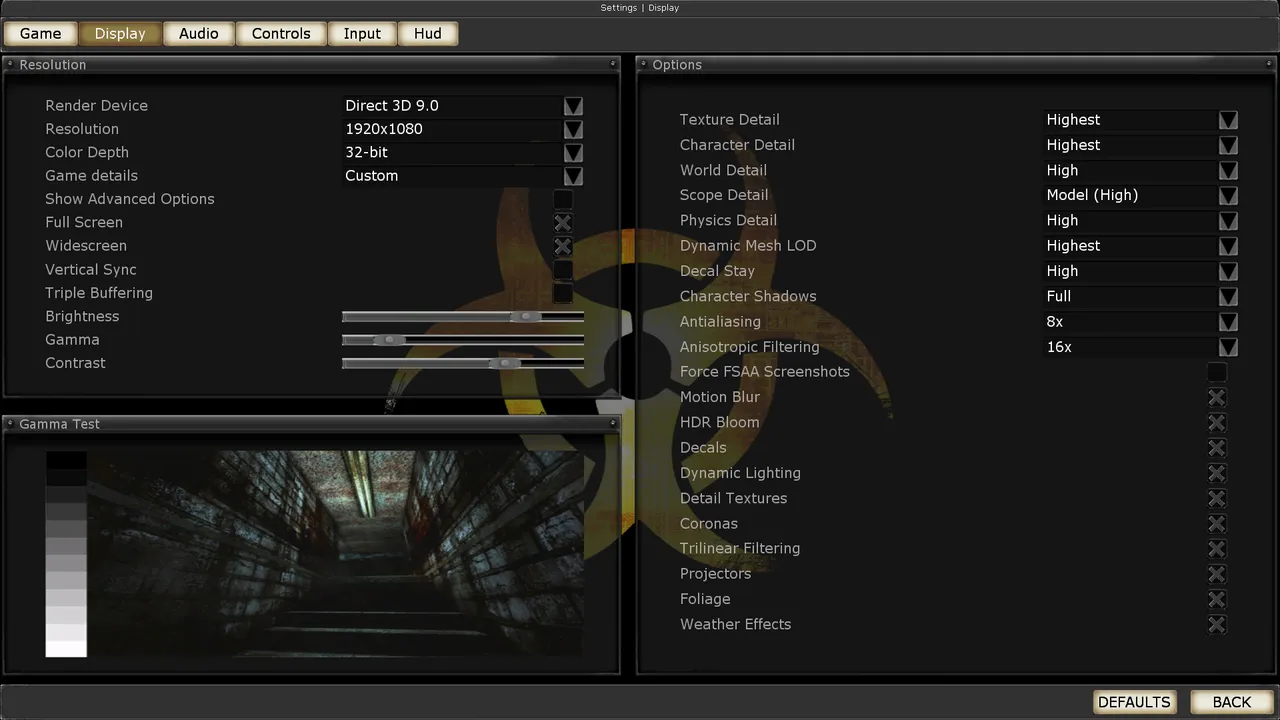 The Killing Floor Display menu: render device, resolution and detail levels. Screenshot: PCGamingWiki.
What this guide helps with
- critical errors and crashes on older Windows installs
- slow map loading
- freezes when a weapon, zed, or effect appears for the first time
- weak FPS on old hardware
- broken or corrupted
KillingFloor.ini - instability caused by maxed-out graphics settings
Main rule: make backups first. Do not edit the exe or replace system files until you have tried the safe
KillingFloor.inichanges.
Quick order
| Step | Action | Risk |
|---|---|---|
| 1 | Update GPU driver and DirectX runtime | Low |
| 2 | Reset corrupted cache and config | Low if backed up |
| 3 | Tune CacheSizeMegs | Low |
| 4 | Lower expensive graphics settings | Low |
| 5 | Test Direct3D / Direct3D 9 renderer | Medium |
| 6 | Disable precache only for real stutter issues | Medium |
| 7 | Patch KillingFloor.exe with CFF Explorer | High, legacy method |
1. Preparation: drivers and runtime
The old forum guide started with software updates. That is still a sensible first step:
- update your NVIDIA, AMD, or Intel graphics driver
- install DirectX End-User Runtime if a fresh Windows install is missing old DirectX libraries
- check Microsoft Visual C++ Redistributable if the game crashes at startup
- reboot the PC after installing runtime components
Avoid random "driver pack" installers. Use the GPU vendor site or Windows Update.
2. Make a clean backup
KillingFloor/System/KillingFloor.ini
KillingFloor/System/User.ini
KillingFloor/Cache/
If the game is already broken and crashes often, rename Cache to Cache.backup and let the game create a fresh cache. You can do the same with KillingFloor.ini: rename it, launch the game once, and let it generate a clean config.
Do not delete User.ini if you have custom binds. Back it up first.
3. Windows pagefile
The old thread recommended manually setting the pagefile to 4096-8192 MB. Today, Windows automatic management is usually best, but manual sizing can still help old systems or PCs with very little RAM.
Practical approach:
- with 8 GB RAM or more - keep automatic pagefile management enabled
- with 4 GB RAM or less - make sure the pagefile is enabled
- if you get a virtual memory error - try 4096 MB initial and 8192 MB maximum
- keep free space on the system drive
Reboot Windows after changing pagefile settings.
4. Skip intro with NoIntro
LocalMap=KFIntro.romLocalMap=NoIntro.romThis can speed up startup, but NoIntro.rom must actually exist in the game folder. If the game reports a missing rom after the edit, restore LocalMap=KFIntro.rom.
Safer workflow:
- Find
KillingFloor.iniin theSystemfolder. - Find
LocalMap=KFIntro.rom. - Change it only if you already have a working
NoIntro.rom. - If startup breaks, revert the line.
5. Cache tuning
[Engine.GameEngine]
CacheSizeMegs=256| RAM | Value |
|---|---|
| 256 MB or less | CacheSizeMegs=32 |
| 512 MB | CacheSizeMegs=64 |
| 768 MB | CacheSizeMegs=128 |
| 1 GB or more | CacheSizeMegs=256 |
For most modern PCs, 256 is enough. Extreme cache values do not make the old engine more stable.
6. Graphics: lower the expensive settings first
If the game crashes on large open maps or drops FPS in late waves, do not start with exe patching. Lower graphics first.
TextureDetailLightmap=UltraHighTextureDetailLightmap=NormalAlso try this in the game or driver panel:
- lower texture and lightmap quality
- disable excessive anti-aliasing
- use "Performance" mode in NVIDIA/AMD/Intel control panel
- close overlays, recording software, and heavy background apps
This often helps more than rare ini tweaks.
7. Renderer: Direct3D or Direct3D 9
One reply in the old thread suggested switching from Direct3D 9 to Direct3D for Windows 7/8 crashes.
How to use that advice now:
- if the game is stable - do not change renderer
- if crashes repeat on the same maps - test a different Direct3D renderer in video settings
- restart the game after switching renderer
- if it gets worse - revert
Some old GPUs run faster with Direct3D 9, while others are more stable with the older Direct3D path. There is no universal winner.
8. Precache: test tweak, not mandatory
UsePrecache=True
UsePrecaching=True
bNeverPrecache=falseUsePrecache=False
UsePrecaching=False
bNeverPrecache=true[ALAudio.ALAudioSubsystem]
UsePrecache=False
[D3D9Drv.D3D9RenderDevice]
UsePrecaching=False
[Engine.LevelInfo]
bNeverPrecache=TrueWhat to know:
- disabling it can speed up startup and map loading
- it can also create a freeze when an asset appears for the first time
- on some PCs,
UsePrecache=Trueis better - change one block and test before changing more
If the game starts stuttering at the beginning of waves, restore the previous values.
9. Trilinear, CaptureMouse, and VARSize
These old-thread tweaks are lightweight and easy to revert.
UseTrilinear=False
CaptureMouse=False
VARSize=512
UseTrilinear=False
Slightly lowers filtering quality and can help very weak GPUs. On modern systems, the effect may be negligible.
CaptureMouse=False
This is more about compatibility and comfort than FPS. It can help with alt-tab and odd mouse capture behavior.
VARSize
Use a value close to the real VRAM of the old GPU if the option exists in your renderer block. Do not invent a huge number. 512 or 1024 is enough for most old configurations.
10. Windows compatibility and admin mode
If the game crashes on older systems:
- try Windows XP SP3 compatibility mode
- run the game as administrator
- disable fullscreen optimizations for
KillingFloor.exe - check that antivirus is not blocking writes to the game folder
These steps matter most for old non-Steam installs or installs inside protected folders like Program Files.
11. Core.rus and game language
The original thread included a huge Core.rus replacement block for Russian error messages and localization issues. Today, do not blindly replace the whole file from a forum post.
Safer approach:
- If the game works - do not touch
Core.rus. - If Russian localization is broken - restore files through Steam verify or your backup.
- If settings are not saving - check write permissions and read-only flags on
.inifiles. - If the issue looks localization-related - temporarily switch the game to English and test again.
Full Core.rus replacement is a legacy repair step, not a normal optimization step.
12. CFF Explorer and 2GB address space
The old guide recommended opening KillingFloor.exe in CFF Explorer and enabling App can handle > 2GB address space. This can help some 32-bit memory crashes, but the risk is high:
- Steam can overwrite the exe during file verification
- anti-cheat or server rules may dislike a modified exe
- a bad save can break startup
- modern systems do not guarantee a benefit
Use it only if:
- you have a backup of
KillingFloor.exe - all safe settings were already tested
- you know how to restore the original file
- the crash clearly looks like address-space exhaustion
Most players should skip this step.
Recommended safe profile
[Engine.GameEngine]
CacheSizeMegs=256

[D3D9Drv.D3D9RenderDevice]
UseTrilinear=False

[Engine.LevelInfo]
bNeverPrecache=True
Test precache and renderer separately. If things get worse, revert the last block rather than throwing away the whole config.
Rollback plan
If the game no longer starts:
- Restore the backup
KillingFloor.ini. - Restore
LocalMap=KFIntro.romif you changed NoIntro. - Delete the new
Cacheand restoreCache.backupif needed. - Use Steam Verify integrity of game files.
- If you edited the exe, restore the original
KillingFloor.exe.
