
Killing Floor optimization (INI tweaks, cache, faster loading)
Killing Floor is old-school in the best and worst ways. One week it runs perfectly, the next week you're re-downloading maps or sitting through long loads for no reason.
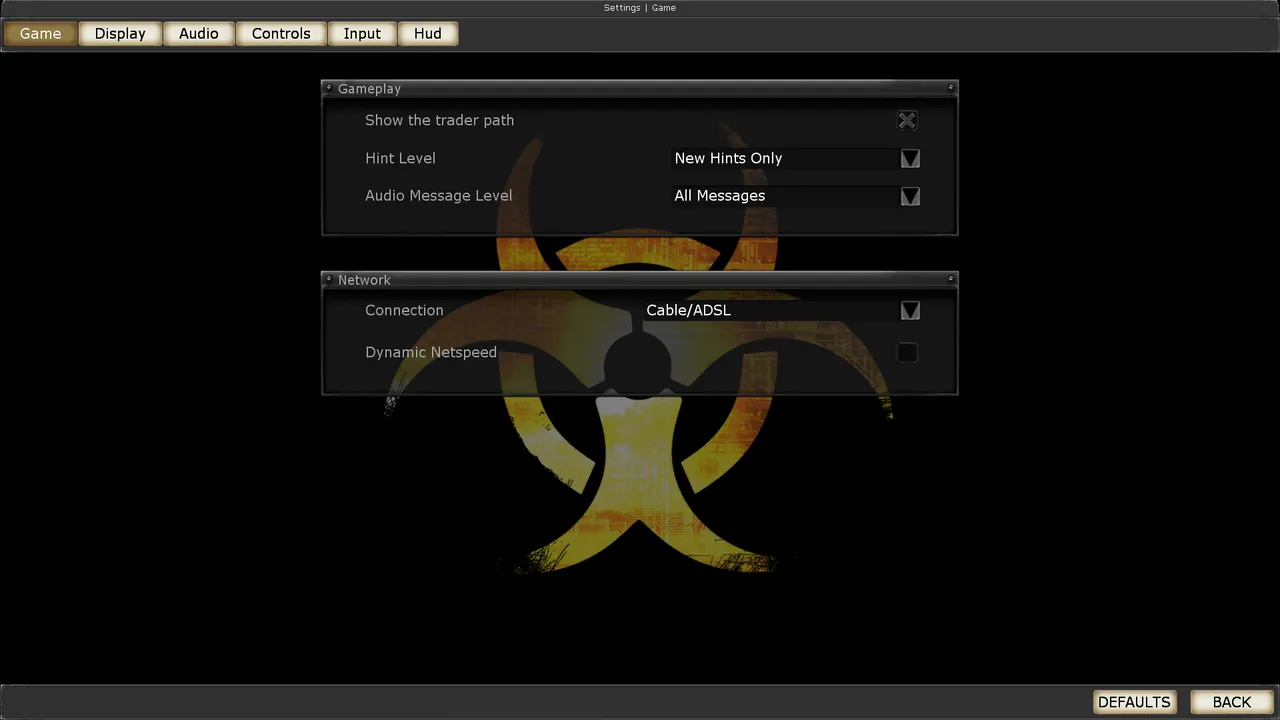 The Killing Floor Game menu, including the network connection setting. Screenshot: PCGamingWiki.
This page collects a few safe, practical tweaks that help most players on community servers.
Tip: Before editing config files, make a backup copy of the file you're changing.
Where is KillingFloor.ini?
File locations can differ depending on installation, but the idea is the same:
- look inside your Killing Floor installation directory for
System - find
KillingFloor.ini(and sometimes other.inifiles nearby)
If you cannot find it quickly, search your KF folder for KillingFloor.ini.
1) Keep cache longer (avoid re-downloading server files)
By default, the cache is purged relatively often. You can increase the retention time:
- Open
KillingFloor.ini
PurgeCacheDays=30PurgeCacheDays=300Longer cache retention means fewer re-downloads when joining servers with custom maps/mutators.
1.2) Move the cache to another drive
A tip from the "Расположение кэша игры" (game cache location) thread on the killingfloor.ru forum: you can move the cache folder, for example to another drive. In KillingFloor.ini, section [Core.System], set the path in CachePath:
CachePath=D:\KillingFloor\CacheThe default is CachePath=../Cache. Dr_Killjoy tested it: it works. Other paths in the same section (SavePath, MusicPath, Paths=...) can be changed the same way.
2) Faster startup (optional "NoIntro")
If you want to skip intro loading, there's a lightweight method described in our main FAQ.
3) Map switching and RAM cache size
If your PC is on the weaker side, you can tune cache size in KillingFloor.ini under [Engine.GameEngine] by adjusting CacheSizeMegs.
4) PreCaching (advanced / optional)
Disabling precaching can reduce stutters or long stalls on some systems, but it's not universally beneficial. If you try it, do it exactly as written and test after each change.
[ALAudio.ALAudioSubsystem]
Change UsePrecache=True to UsePrecache=False
[Engine.LevelInfo]
Change bNeverPrecache=False to bNeverPrecache=True
[Engine.NullRenderDevice]
Change UsePrecaching=True to UsePrecaching=False
[D3DDrv.D3DRenderDevice]
Change UsePrecaching=True to UsePrecaching=False
[D3D9Drv.D3D9RenderDevice]
Change UsePrecaching=True to UsePrecaching=False
[OpenGLDrv.OpenGLRenderDevice]
Change UsePrecaching=True to UsePrecaching=False
[PixoDrv.PixoRenderDevice]
Change UsePrecaching=True to UsePrecaching=False
5) Simple performance basics (safe, boring, effective)
Without touching configs, these are the most reliable wins:
- run at a stable resolution and avoid extreme settings that create stutters
- close heavy background apps during long sessions
- if you use overlays (recording, chat overlays), disable them if you get random stutters
KF is old. Stability is more important than max visuals.
