
Mouse Sensitivity Settings Not Saving
Problem: Mouse sensitivity in the game resets to 3.00 after each map.
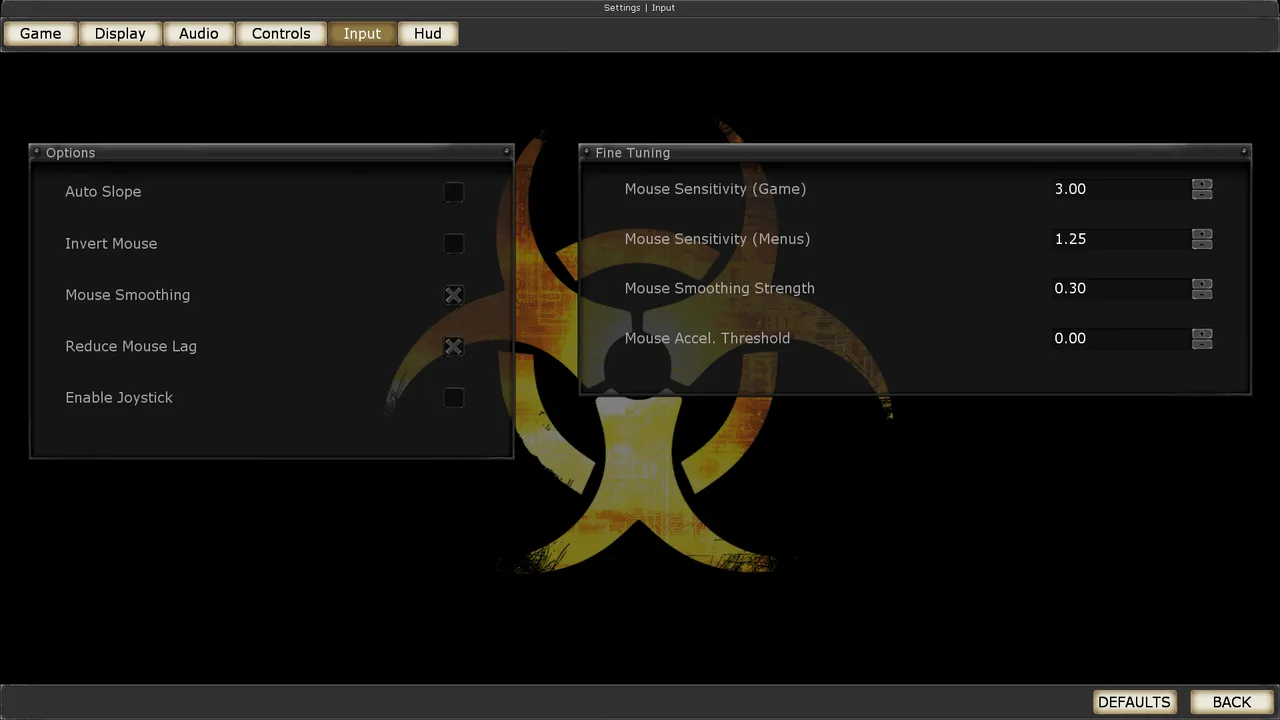 The Killing Floor Input menu: mouse sensitivity, mouse smoothing and joystick options. Screenshot: PCGamingWiki.
Solution #1: Direct Change in user.ini
- Go to the
Systemfolder in the game directory - Open the
user.inifile with Notepad - Find the parameter
MouseSensitivity=3.000000 - Change the value to what you need (e.g.,
MouseSensitivity=2.500000) - Save the file
This method allows you to directly set the desired mouse sensitivity value that will be saved.
Solution #2: Setting "Read-only" Attribute
- Find the
user.inifile in theSystemfolder - Right-click on the file
- Select "Properties"
- Check the "Read-only" box
- Click "OK"
This prevents the game from overwriting the file and preserves your settings.
Solution #3: Change from Main Menu
- Launch the game
- In the main menu (before connecting to server) change mouse sensitivity in settings
- Save settings
- Restart the game
This method sometimes helps if the problem is related to the order of loading settings.
Causes of the Problem
The problem may be related to:
- Game localization — some localized versions have issues with saving settings
- File access rights — the game cannot overwrite the settings file
- Loading order — settings reset when connecting to server
Recommendations
- Try Solution #1 first — this is the most reliable method
- If the problem persists, use Solution #2 to protect the file from being overwritten
- Make sure you have write permissions in the
Systemfolder - Create a backup of
user.inibefore making changes
Additional Information
The MouseSensitivity parameter is located in the [Engine.PlayerInput] section of the user.ini file. The value can be from 0.1 to 10.0, where a higher value means higher sensitivity.
Article based on forum discussion
