
KF2 ReShade Anti-Aliasing and Sharpening Profile Guide
KF2's built-in anti-aliasing smooths jagged edges but leaves the whole image soft, hiding detail. This guide offers a ReShade profile that handles AA better while keeping the picture clear and sharp, unlike many popular profiles that only add blur. It uses SMAA, FineSharp and HighPassSharp, and has been tuned for performance. If you are tuning graphics generally, see graphics settings explained.
Read first
- Turn off in-game anti-aliasing. You can do this before or after installing the profile, and you do not need to restart the game if you do it afterwards.
- You will know the profile is loaded when a text bar shows at the top-left of the screen after the initial logo.
- The file was updated so that it works properly again.
Why this profile
The author began making ReShade profiles after noticing that most well-known ones for various games had poor or half-finished AA and sharpening. The goal here is only better AA and sharpening, with a clearer image than the stock option gives.
Screenshot comparisons
The in-game AA leaves the picture blurry, makes details hard or impossible to distinguish and does not remove jagged edges as well. Here are comparison shots from the original guide.
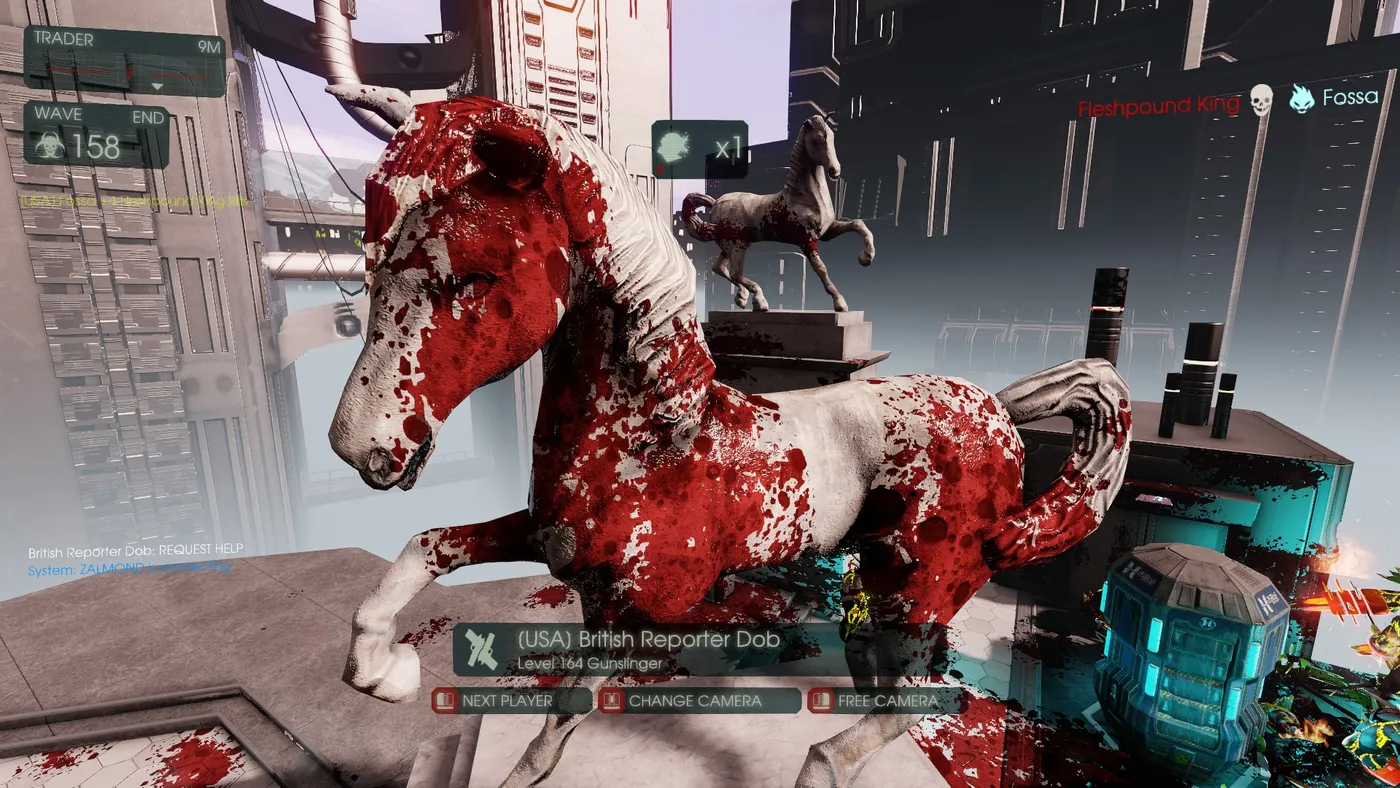 Screenshot 1 from the author's comparison set.
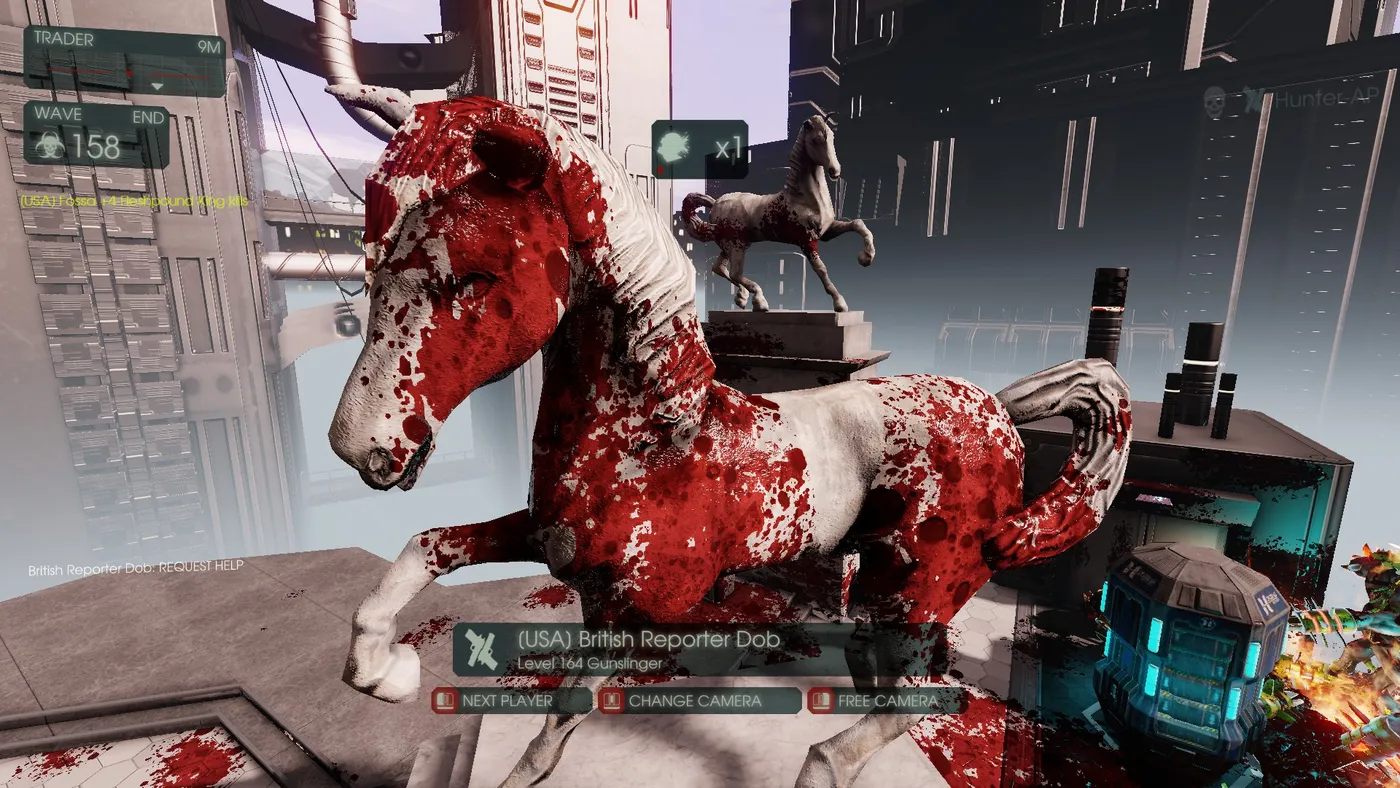 Screenshot 2.
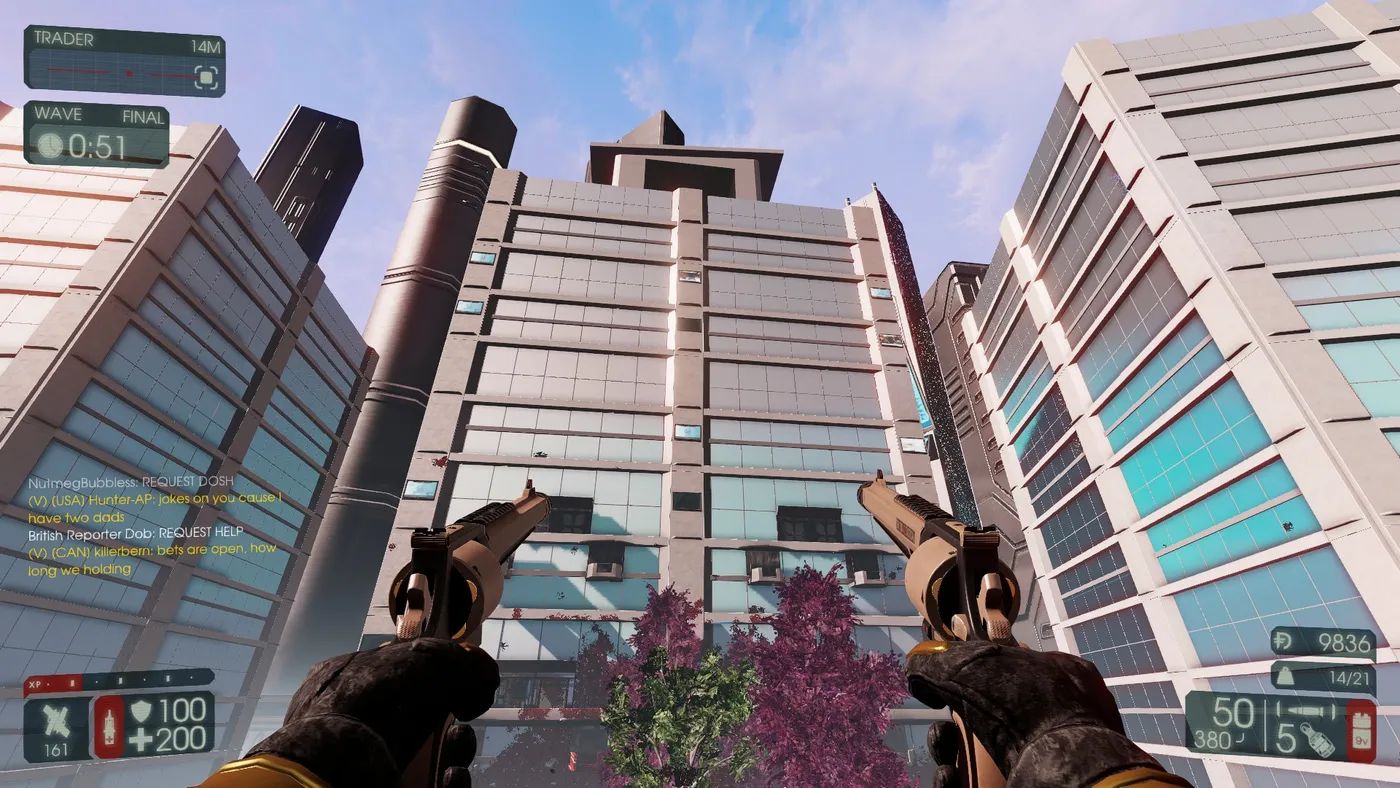 Screenshot 3.
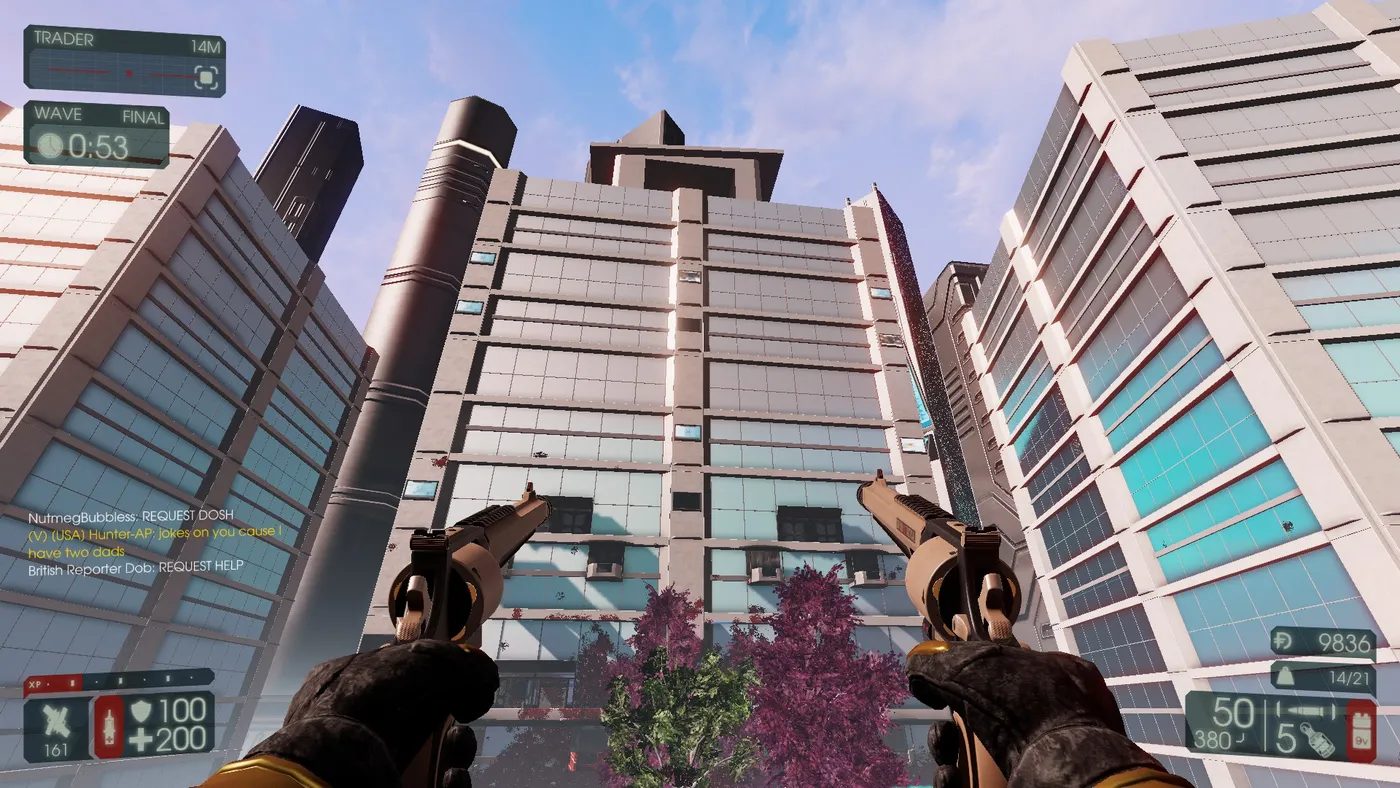 Screenshot 4.
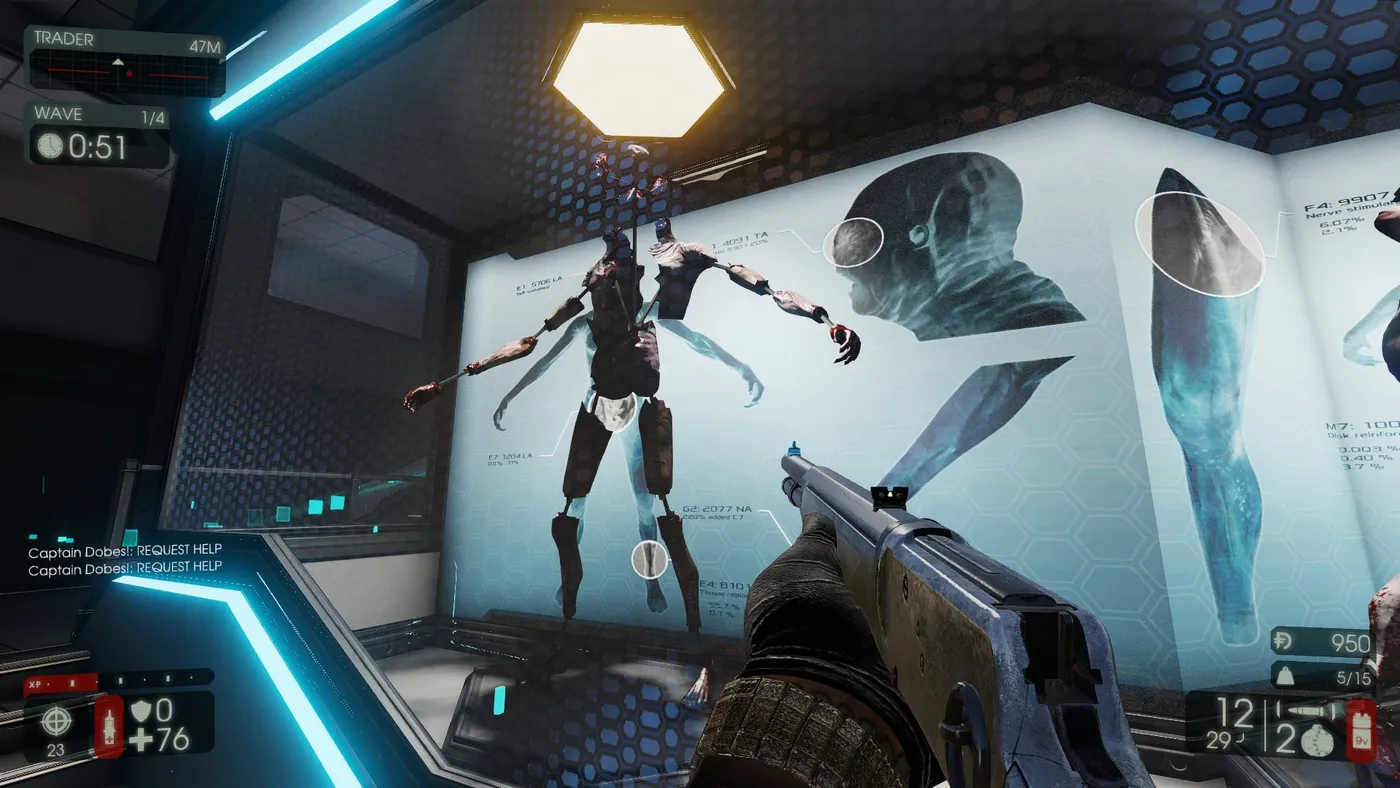 Screenshot 5.
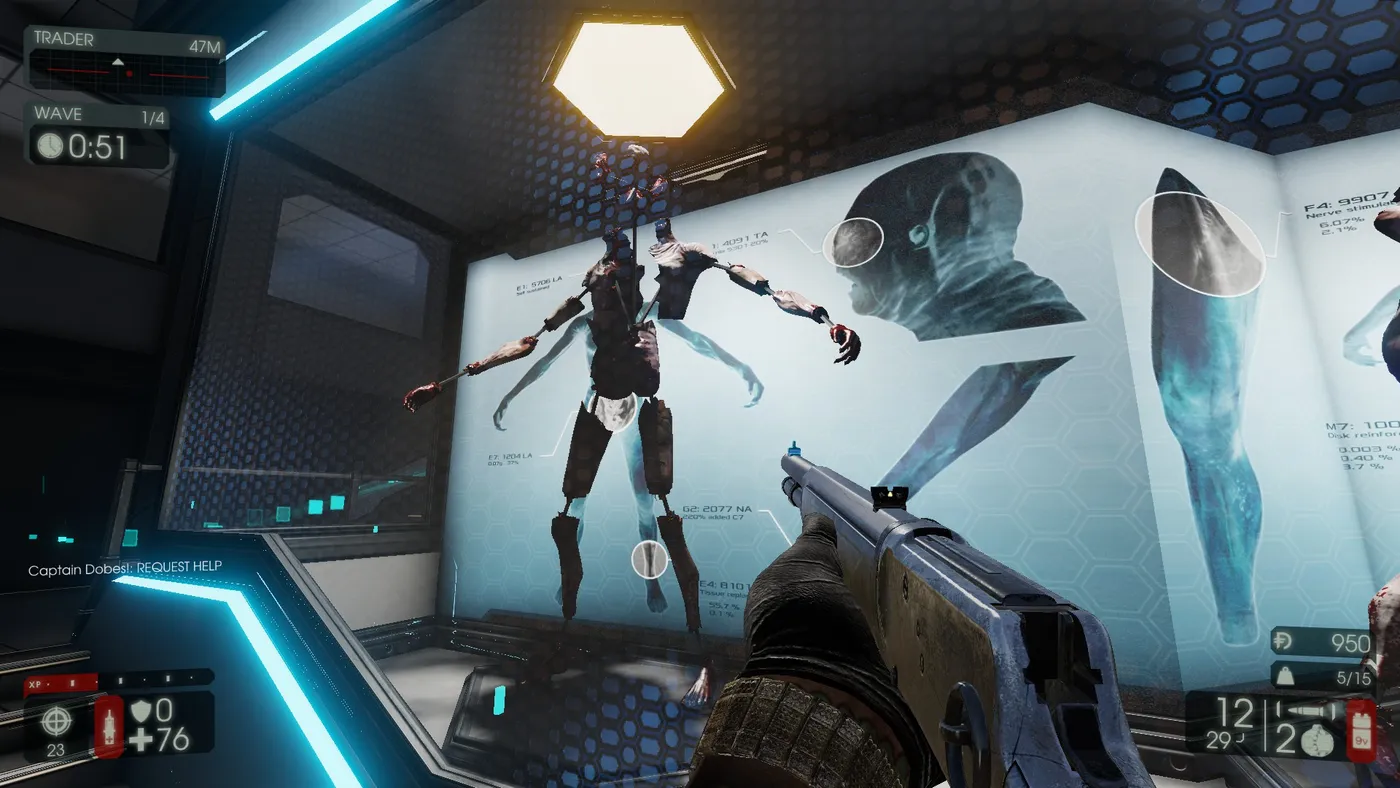 Screenshot 6.
Download and installation
The profile (named "KF2 - RS3", a 7z archive using SMAA, FineSharp and HighPassSharp) was shared through a file host link on the original page.
- Open the archive.
- Extract everything into your KF2 folder at
steamapps\common\killingfloor2\Binaries\Win64. - Start the game and check for the text bar at the top-left.
If it does not run, the author says the cause is not the installation itself but most likely a conflict with overlay software, the operating system or antivirus programs.
The guide includes a small performance adjustment in the profile, and the author asks readers to favorite and rate it if they like the result.
FAQ
- Do I need to turn off in-game anti-aliasing?
- Yes. Disable the in-game AA; it can be done before or after installing the profile and no restart is needed.
- Where do the files go?
- Extract everything into the game's Binaries\Win64 folder, for example steamapps\common\killingfloor2\Binaries\Win64.
- How do I know it is working?
- A text bar appears at the top-left of the screen when the game starts, after the initial logo.
