
KF2: Clone a Weapon Skin to Other Weapons via KFGame.ini
This page is a translation and condensation of a step-by-step Spanish guide. The idea is simple: the game's config file lists, for each weapon that has a skin equipped, a line with the skin's ID. If you copy that entry and replace the weapon name with another weapon's class name, the other weapon uses the same skin. The author used a Neon Mint SG 500 skin from a crate and cloned it onto the M4 shotgun.
Step 1: open KFGame.ini
- In File Explorer open
Documents, then theMy Gamesfolder.
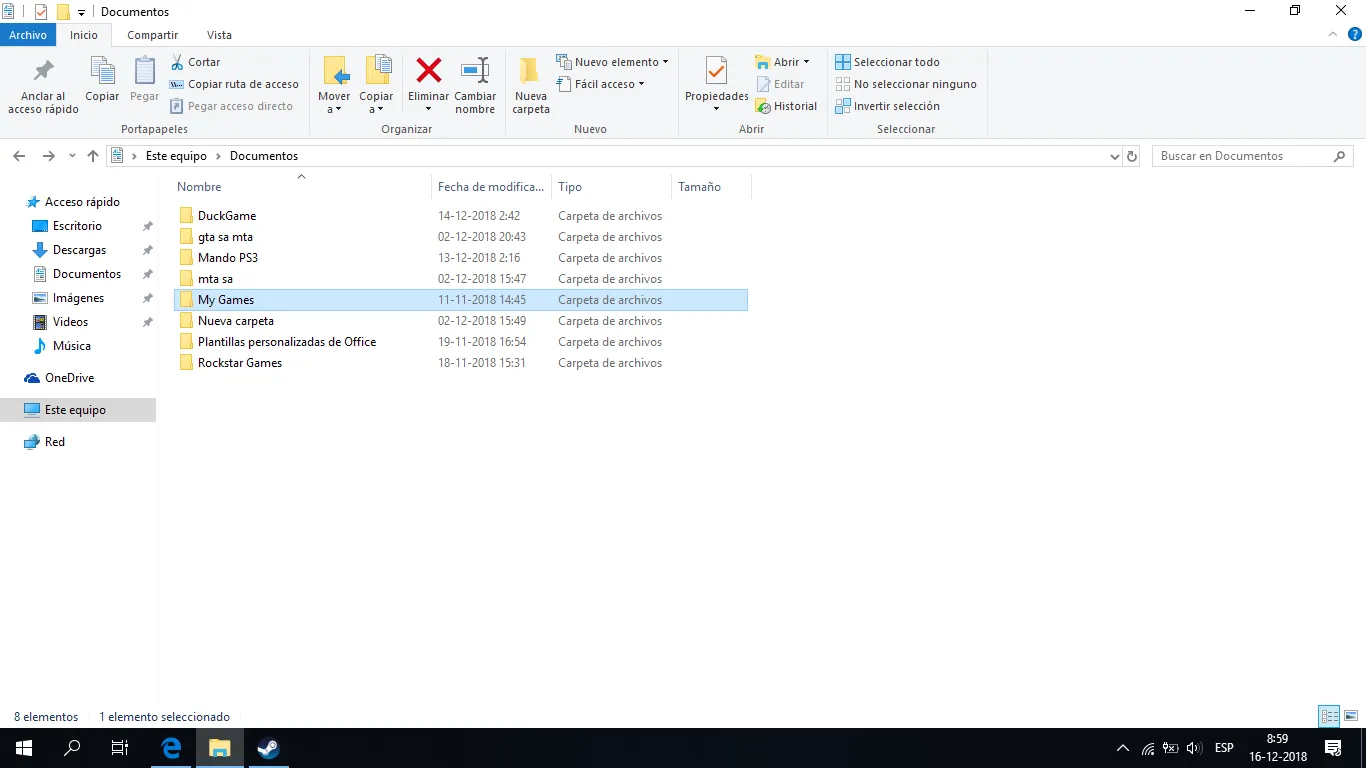 Documents, My Games.
- Go to
KillingFloor2, thenKFGame, thenConfig.
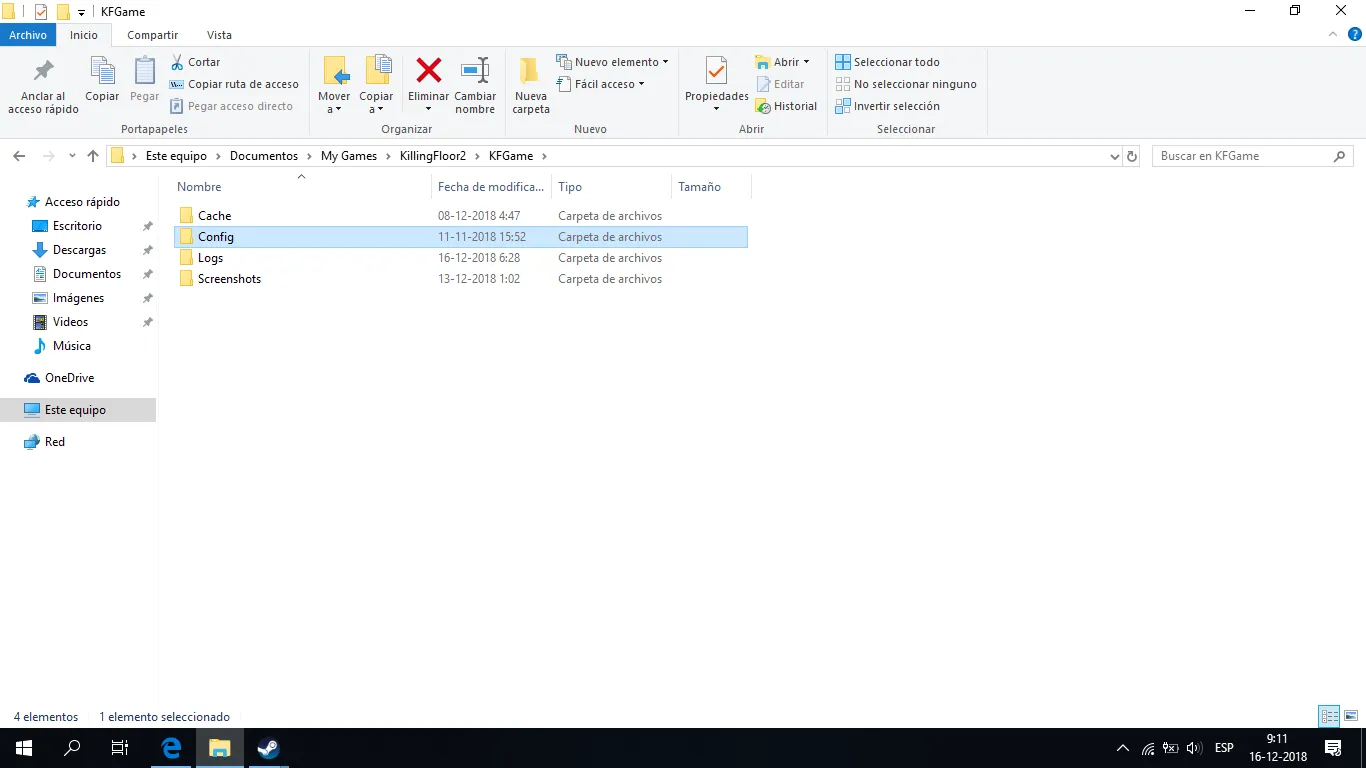 Inside My Games, KillingFloor2, KFGame, the Config folder holds the ini files.
- Open the text file named
KFGamewith Notepad.
Step 2: find the skin entries
Near the end of KFGame.ini there is a series of weapon entries, each followed by the ID of the equipped skin. Keep this file open.
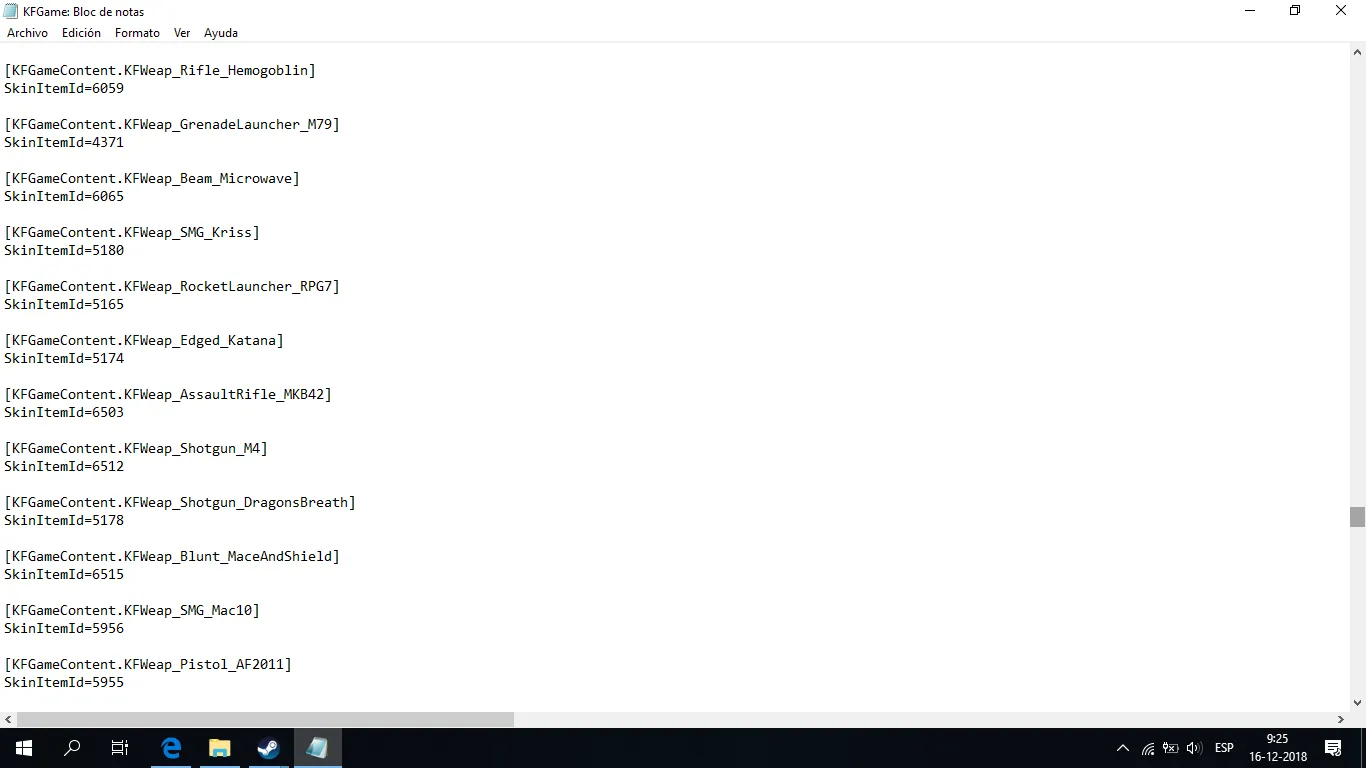 Entries look like
[KFGameContent.KFWeap_Shotgun_M4] followed by SkinItemId=....
Step 3: find the weapon class names
In File Explorer go to your Steam folder (Program Files (x86)\Steam\steamapps\common\killingfloor2), open KFGame, then Localization, then the INT folder, and open the KFGameContent file in Notepad. Scroll down to find the class names of all weapons (pistols, knives, rifles and so on). Keep this file open too.
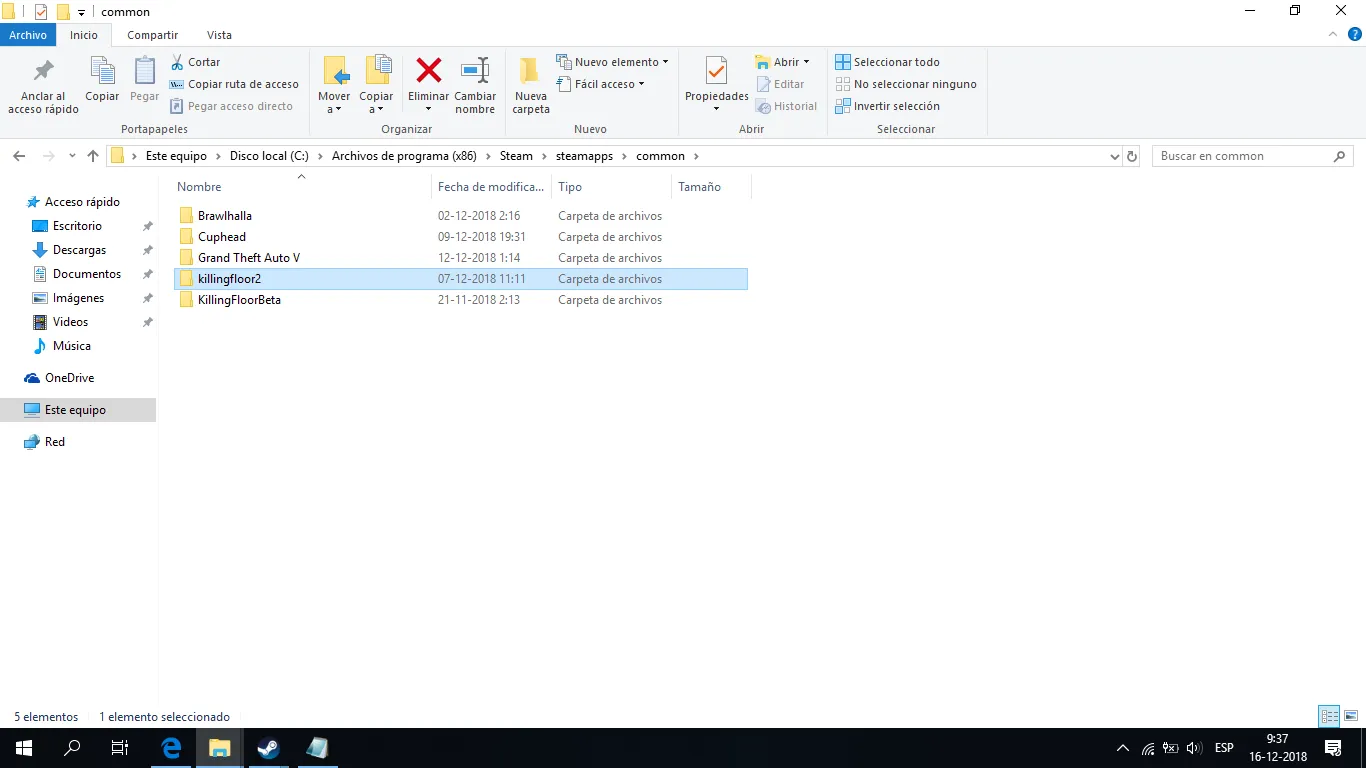 Steam's common folder, where
killingfloor2 lives.
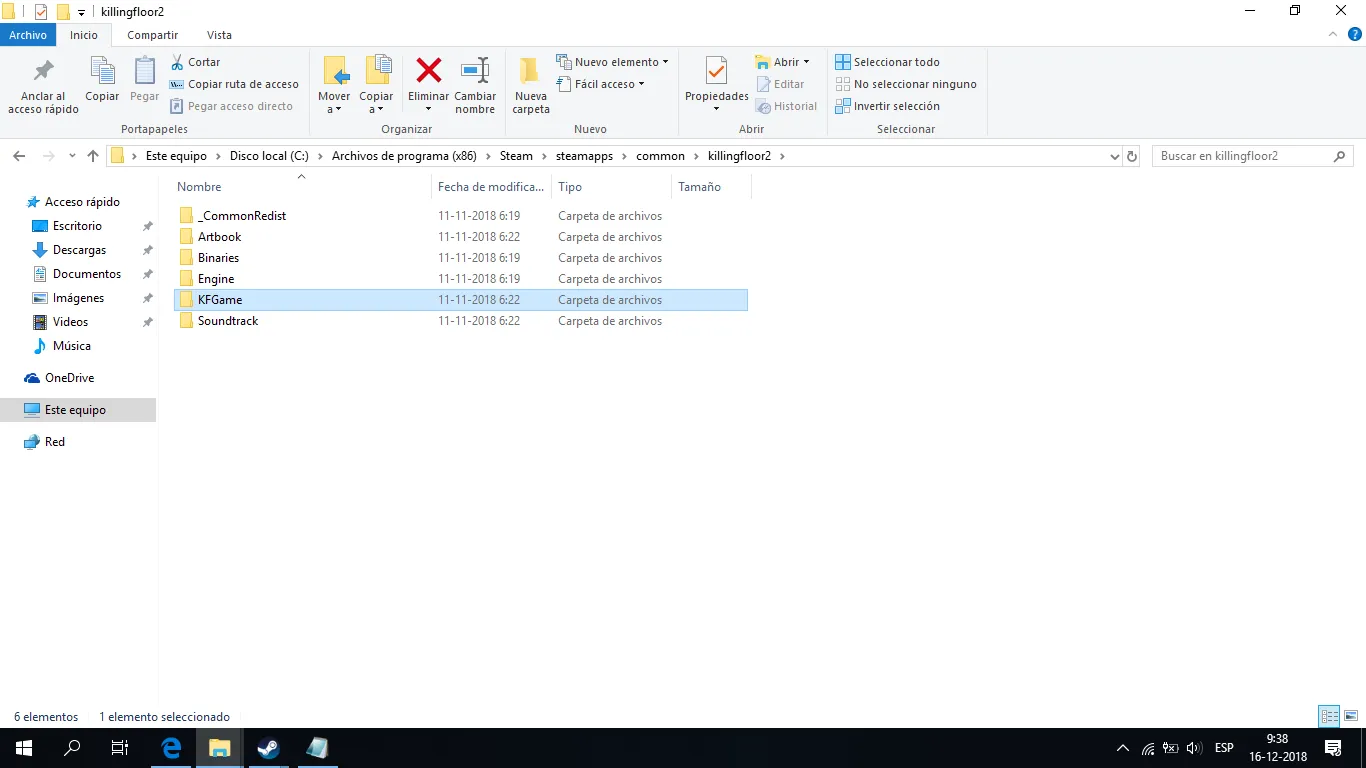 Inside the game folder, open KFGame and then Localization.
Step 4: copy and replace
- In
KFGame.inifind the weapon that carries the original skin you want to clone. In the guide it is the SG 500 shotgun (classKFWeap_Shotgun_MB500, the Support starter weapon) with a Neon Mint skin. - Copy that block exactly (the
[KFGameContent...]line and itsSkinItemIdline), and paste it below, leaving a blank line.
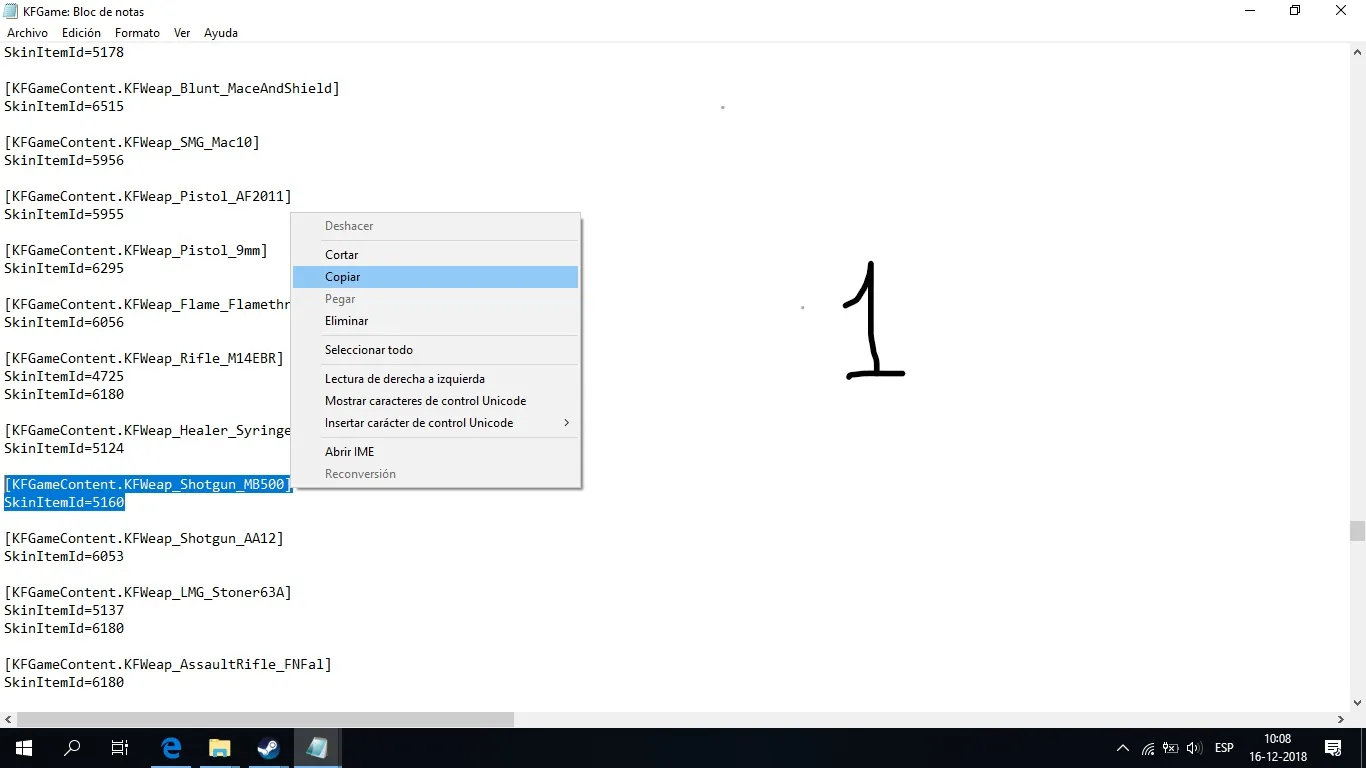 Image 1: select the original entry and copy it.
- In the
KFGameContentfile find the weapon you want to give the skin to (the author chose the M4 combat shotgun, but it can be any weapon) and copy its class name as shown, for exampleKFWeap_Shotgun_M4.
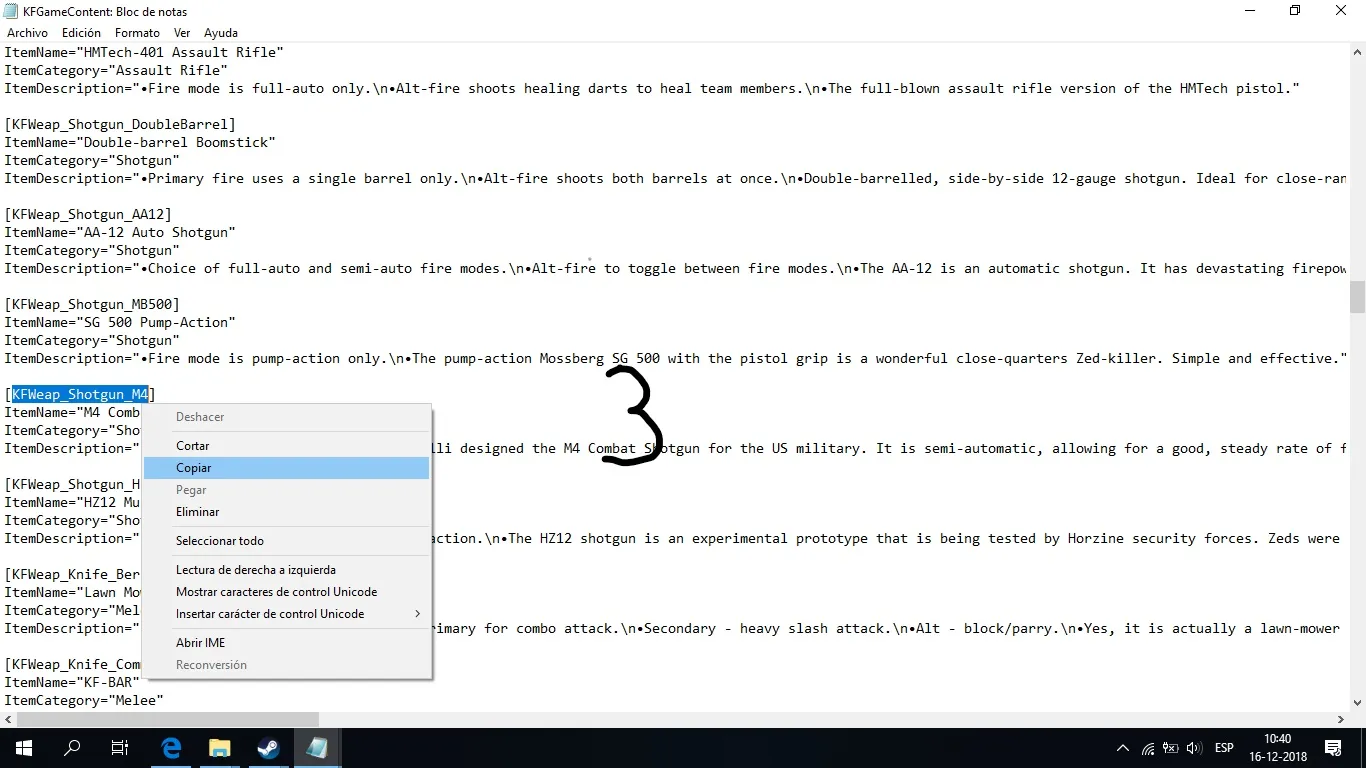 Image 3: copy the new weapon's class name.
- Go back to
KFGame.ini, delete the weapon name in the pasted copy and paste the new weapon's class name in its place. Keep theSkinItemIdline unchanged. - Save the file and start the game.
The author highlighted text in the screenshots just to show where you are working.
Compatibility notes
- Not every skin fits every weapon. Examples of trouble are the sights of some weapons such as the Microwave gun and some Medic weapons, which may look wrong.
- A commenter confirmed that the duplicated appearance is only visible to the player who edited their own config. It did not glitch on the UMP in the author's test, which used an SG 500 Neon Mint skin.
- If you want a sighted weapon to look right, start from a skin that includes sights.
FAQ
- Which files do I edit?
- KFGame.ini in Documents/My Games/KillingFloor2/KFGame/Config, with weapon class names looked up in the KFGameContent file in the game's KFGame/Localization/INT folder.
- Do other players see the cloned skin?
- A commenter notes that the duplicated appearance is visible only to the player who edited the file.
- Do all skins work on all weapons?
- No. Some weapons, such as the Microwave gun and certain Medic weapons, have sights or parts that do not render correctly with a cloned skin.
