
KF2 Performance: Launch in DX10 Mode and Install DXVK (Vulkan)
This guide gives a two-step way to try to improve frame rate in Killing Floor 2: first force DirectX 10 mode, then add DXVK so DirectX calls run through Vulkan. Results depend on your hardware, so test before and after.
Step 1: launch in DX10 mode
- Right-click Killing Floor 2 in your Steam library and open Properties.
- In the Launch Options field type
-dx10and confirm. - Start the game once and exit.
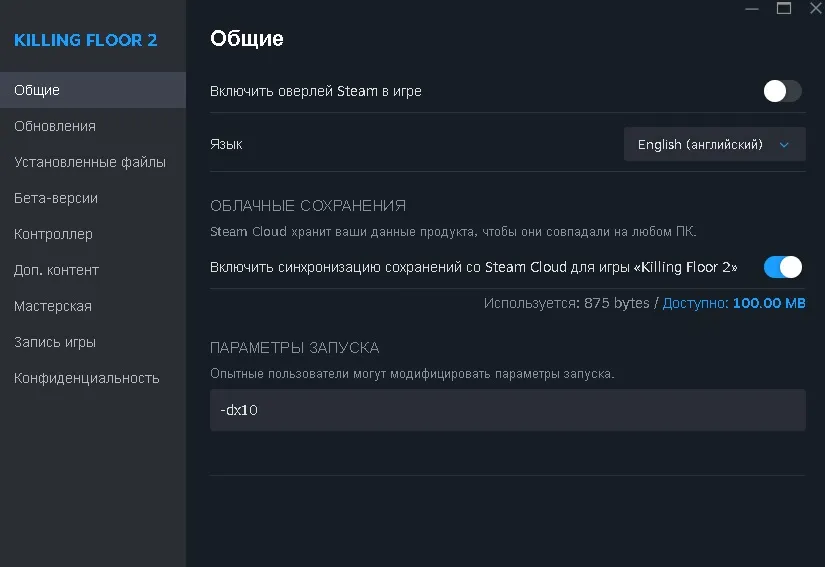 Steam properties for Killing Floor 2 with
-dx10 entered as the launch option.
Step 2: install DXVK
DXVK translates DirectX to the Vulkan API.
- Download the DXVK release archive (the guide uses
dxvk-2.7.tar.gz) from the project's GitHub releases page. - Open it with any archive manager such as WinRAR or 7-Zip.
- Open the
x64folder and copyd3d10core.dll,d3d11.dllanddxgi.dll. - Paste them into
\SteamLibrary\steamapps\common\killingfloor2\Binaries\Win64.
That is all. To undo it, delete those three files from the Win64 folder (Steam's file verification will not restore them, so keep note of what you added).
See also another guide on the DX10 launch option.
FAQ
- What launch option enables DX10 in KF2?
- Add -dx10 in the Steam launch options for Killing Floor 2, then run the game once and exit.
- What is DXVK?
- A translation layer that converts DirectX calls to the Vulkan API, which can improve performance on some systems.
- Which files do I copy?
- From the x64 folder of the DXVK archive copy d3d10core.dll, d3d11.dll and dxgi.dll to SteamLibrary\steamapps\common\killingfloor2\Binaries\Win64.
