
KF2 Dedicated Server Secrets: Tips, Fixes, WebAdmin and Custom Maps
This page condenses a very long community handbook by a server owner who runs several Hell on Earth servers. It covers the things the official setup does not explain: what the Workshop states mean, how to update with one click, how to run several servers from one install, how to get on the server browser, WebAdmin tweaks, server settings, map management and mutator installation. Paths use C:\KF2Server as the example install; yours may differ. For the base installation see dedicated server via SteamCMD and common host issues.
Workshop item states and warnings
After you add Workshop maps to PCServer-KFEngine.ini, the server console prints an Item State per map.
| Item state | Meaning |
|---|---|
| 4 | The custom map is installed and up to date. |
| 0 | Not installed yet; the server will download it for the first time. |
| 12 | Installed but needs an update; it will be downloaded and replace the old file. |
| 20 | Likely means the update check failed or the Workshop connection was briefly lost. Restart the server and check your connection. |
| 8 | Unknown; may mean a download or status problem similar to 20. |
| 36 | Unknown; it always clears on its own with no visible problem. The author noticed maps in this state were mostly from the same uploader. |
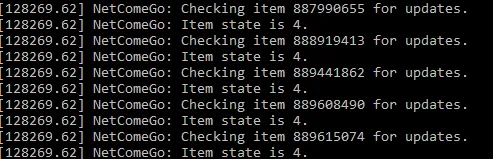 Item state 4: map installed and up to date.
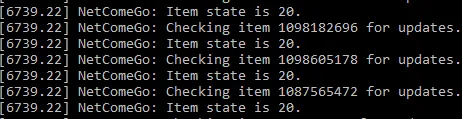 Item state 20: failed update check.
Warnings:
- Workshop: Steam does not appear to be running. Unable to check Workshop. The server cannot reach the Workshop. Close and reopen Steam from the taskbar and relaunch the server, and make sure the server is up to date. It can also appear if you launch the server twice by mistake.
- Unable to download workshop item . The Workshop page for the ID was set to private or taken down.
- A line saying the server is checking whether the map is already installed so it does not need to download it: the server first looks in
C:\KF2Server\Binaries\Win64\steamapps\workshop\content\232090and, if the map is there, copies it intoC:\KF2Server\KFGame\Cache. If it is not found, the state goes to 0, the map is downloaded and then copied to the Cache folder, resulting in state 4.
 A Workshop warning in the server console.
Update your server with one click
- Right-click SteamCMD.exe and create a shortcut. Rename it to "Update Server" and place it anywhere.
- Open the shortcut's Properties and paste this at the end of the Target field:
+login anonymous +force_install_dir ./KF2Server +app_update 232130 +exit - Adjust
+force_install_dirto the real location of your server (an absolute path such asc:\KF2Server\works) so it updates the existing server rather than making a new one. - When Killing Floor 2 updates, launch that shortcut. It closes itself when finished.
Notes: use app_update 232130 for regular updates, app_update 232130 -beta preview for beta updates, and add validate to check the server files.
 Shortcut target with the update command appended.
Server icons
- Ranked icon: the server is ranked, so stats and XP are enabled. No mutators or custom server settings. Custom maps do not de-rank a server unless they use scripts.
- Ranked Stock icon: customized but stats and XP are still on, likely a whitelisted mutator or a setting such as friendly fire.
- Unranked icon: stats and XP are off, because of a non-whitelisted mutator or mod or a custom map that uses scripts such as spawning extra zeds.
 Ranked, Ranked Stock and Unranked server icons.
Several servers from one install
This lets you run multiple servers that share the same files but have different settings, so one update refreshes all of them. The author recommends at least 16 GB of RAM if you plan to run many.
- Copy
KF2Server.batin the same folder and rename the copy, for exampleKF2ServerHoE.bat. - Edit it and add
-ConfigSubDir=HoEServerat the end, for example:start .\Binaries\win64\kfserver KF-BioticsLab?Difficulty=3?GameLength=2 -ConfigSubDir=HoEServer - Launch the new bat. It creates a
HoEServersubfolder in the Config folder; your first server keeps its files in the Config folder. - In
HoEServer\PCServer-KFEngine.ini, under URL, changePort=7777toPort=7778. - In
HoEServer\KFWeb.inichangeListenPort=8080toListenPort=8081. - Forward the new ports on your router: 7777-7778 UDP (game), 27010-27019 UDP (query), 8080-8081 TCP (WebAdmin) and 20560 UDP (Steam).
Keep -ConfigSubDir=HoEServer in the new bat. The main server needs nothing. Example result: 209.249.95.195:7778 is the HoE server, :7777 the Suicidal server, and WebAdmin is on 8081 and 8080 respectively.
The second server does not show in the list. A case from the killingfloor.ru forum thread "2й сервер на одной машине?": in the second server copy, the ports in PCServer-KFEngine.ini were changed from 7777 to 7877 and from 7778 to 7878; the server got a Steam game server UID but did not appear in the list. The firewall turned out to be the cause: besides the first server's standard ports (20560, 27015, 7777, 7778 UDP), the second one needed not only 7877 and 7878 open but also 20660 and 27115.
MultiAdmin: several admins in WebAdmin
- Open
C:\KF2Server\KFGame\Config\KFWebAdmin.iniand add under[WebAdmin.WebAdmin]:AuthenticationClass=WebAdmin.MultiWebAdminAuth. - Launch the server. It creates
KFMultiAdmin.ini; leave it alone (do not create admins or passwords there; edit it only to delete admins). - Open WebAdmin and log in as Admin (capital A) with your original password. MultiAdmin usernames are case sensitive, unlike the standard login.
- Open Administrators, then Create Administrator, enable the account, set a password and display name (the display name is what players see in WebAdmin chat).
- Use the Deny/Allow patterns to limit what each admin can do. Access order "Deny, Allow" denies some features and allows the rest; "Allow, Deny" is the reverse. Drag items from the Navigation Preview. The author recommends disabling Administrators for everyone but yourself.
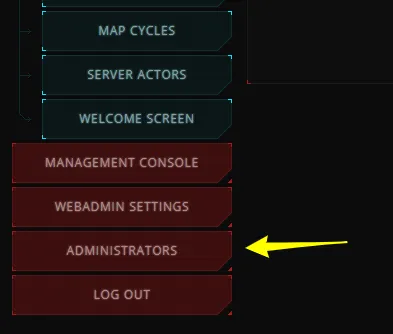 The Administrators section after enabling MultiAdmin.
There is no delete button: to remove an admin, delete the whole admin section from KFMultiAdmin.ini. The default Admin account still uses the password from PCServer-KFGame.ini and does not affect the in-game adminlogin <password>.
Port forwarding and static IP
Make sure the server is really not visible before changing anything: open your server browser filters fully, sort by lowest ping, and ask a friend to connect by console using your IP.
- Find your machine's IPv4 address with
ipconfigin Command Prompt. - Make it static, in the router or in Windows, otherwise forwarded ports will point at the wrong address later.
- Forward these ports to that IP:
| Name | Port | Protocol | Purpose |
|---|---|---|---|
| Game port | 7777 | UDP | Main game connections |
| Query port | 27015 | UDP | Steam master server communication |
| WebAdmin | 8080 | TCP | Web admin page |
| Steam port | 20560 | UDP | Steam |
The author's unverified observations: a wrong game port can hide the server from both LAN and public lists, a wrong query port can hide it from the public list while it still shows in LAN, and a wrong WebAdmin port or a disabled WebAdmin blocks the admin page.
 Example of router port forwarding.
Check the ports in the config: PCServer-KFEngine.ini should have Port=7777 and KFWeb.ini should have ListenPort=8080 and bEnabled=true. As an alternative you can add switches to the bat, which override the config: -Port=7777 -QueryPort=27015 -WebAdminPort=8080.
If the server still does not show:
- re-check every port, IP and setting, and reboot the router;
- try a different game port such as 7780;
- temporarily put the IP in the router's DMZ for testing and remove it afterwards;
- ask your ISP whether it blocks the ports;
- check firewalls and antivirus. The author had AVG (possibly AVG Tune-Up) block servers completely, and the Windows Firewall on a Public network can also block them.
WebAdmin mods
Back up the edited files; if you break something, validate the server files. These tweaks do not de-rank the server and need no restart.
Show perk levels
In C:\KF2Server\KFGame\Web\ServerAdmin:
current.html: add<th>Level</th>under the Perk header.current_players.html: add<th>Perk</th>and<th>Level</th>under Player name.current_player_row.inc: add<td class="right"><%player.perk.level%></td>under%player.perk.name%.current_players_row.inc: add<td><%player.perk.name%></td>and<td class="center"><%player.perk.level%></td>under%player.name%, and change the ping class fromrighttocenter.
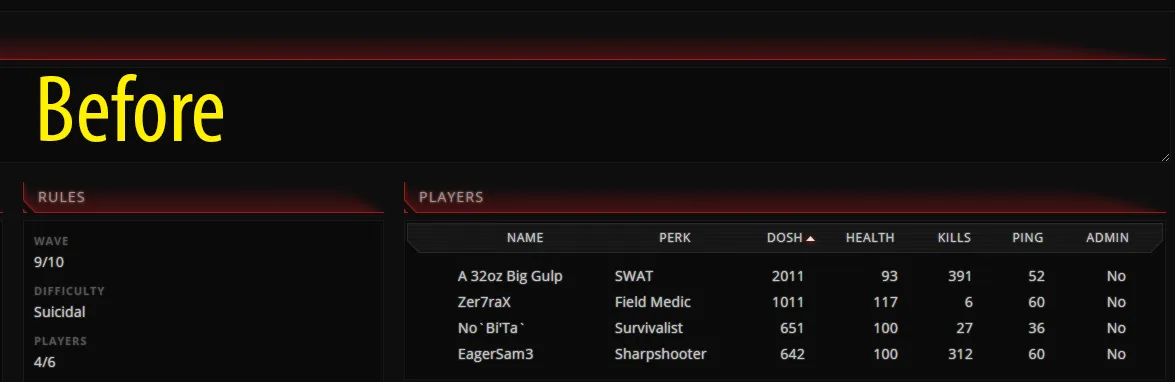 Perk and level columns added to WebAdmin.
Endless wave counter
In gamesummary.inc replace the two time lines near the bottom with:
<dt class="gs_wave">Wave <%wave.num%></dt> and <dd class="gs_wave"><%wave.monsters.dead%>/<%wave.monsters.total%></dd>.
To also show it on the Server Info page, add <dt>Wave</dt> and <dd><%wave.num%></dd> at the top of current_rules.inc, and add <dt>Difficulty</dt> and <dd><%rules.difficulty.text%></dd> if you do not already have them.
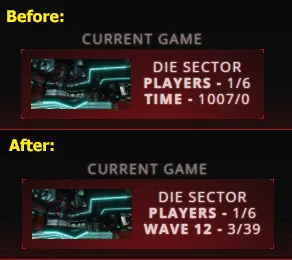 The wave counter in the game summary.
Cache folder explained
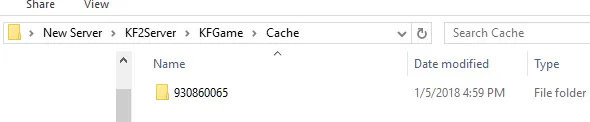
When you join a server, custom maps download to Documents\My Games\KillingFloor2\KFGame\Cache. The dedicated server has the same layout.
- Numbered folders such as
643383080are Workshop IDs of maps you downloaded. .uxxfiles are maps downloaded from a redirect and are listed inCache.iniwith a unique identifier; several entries for one map mean different file versions..tmpfiles are temporary files created when a player connects and disappear afterwards.
Welcome screen
The welcome screen has been somewhat dysfunctional for a while.
- Banner: must be a PNG, and some report it needs more than 8-bit colour. Size is not critical; 720 x 361 is a safe choice. Host it on an image site and use the direct link. It may look darker in game, so raise brightness and contrast and iterate.
- Website link and clan motto: the motto is centred under the image.
- Message of the day: scrolls without a scrollbar and has a character limit. Use
\nfor a new line and\n\nfor a paragraph break. - Formatting: HTML tags work; the colour picker in WebAdmin does not. Examples:
<font color="#B22222" size="24">Title</font>,<b>,<i>,<u>.
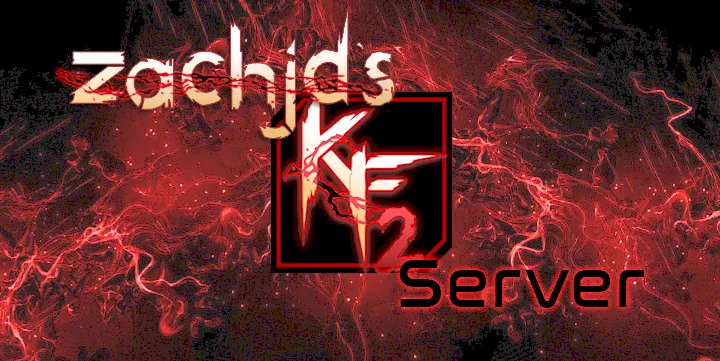 A banner image.
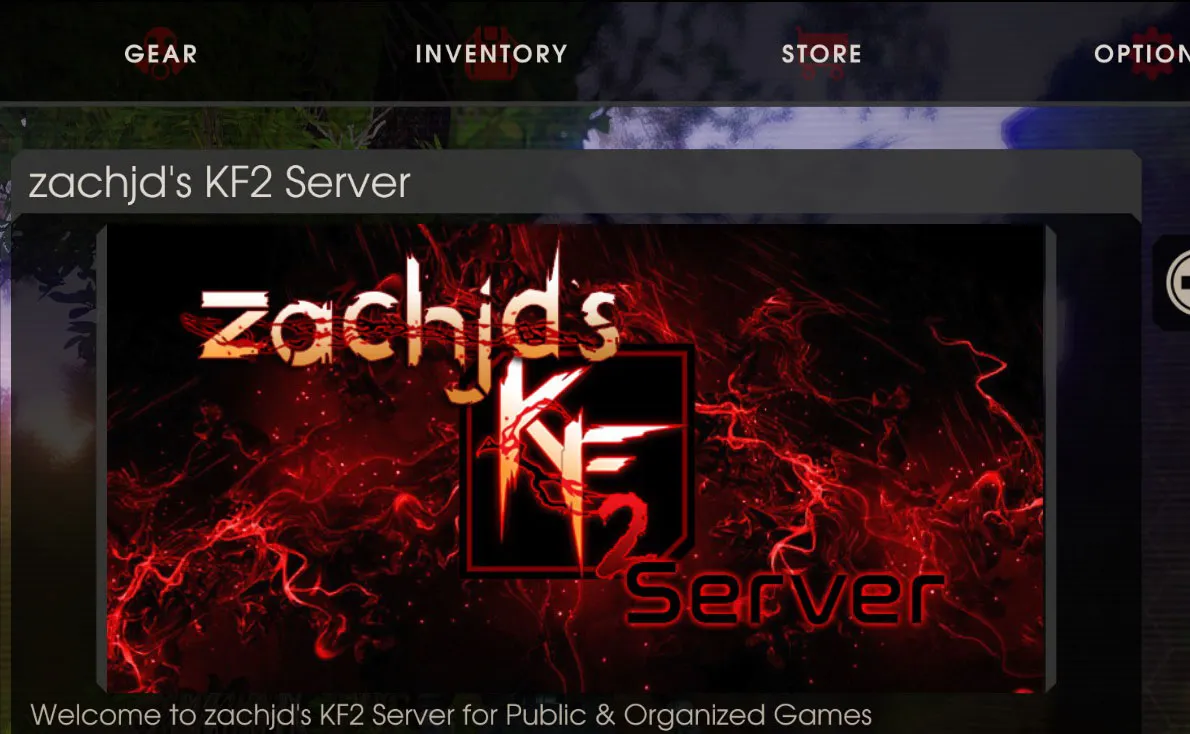 The banner as shown in game, darker than the original.
Import and export bans
In WebAdmin under BANNED IDS click Export and save server-bans.json. To import: open the file in Notepad, copy its contents, create a secret gist on gist.github.com with the filename server-bans.json, click Raw, copy the URL, paste it into the Import Bans URL field and click Import. You can reuse the same URL on several servers and update the gist whenever you like. "Downloaded file did not contain valid JSON data" means you pasted the wrong URL.
 Exporting bans in WebAdmin.
Chat logging
In WebAdmin go to WEBADMIN SETTINGS, CHAT LOGGING. Options: enable chat logging, append a timestamp, force unique filenames and a filename (placeholders %i server IP, %p port, %c computer name, %v engine version). Team chat is tracked as well as global chat. The logs are in KF2Server\KFGame\Logs as .log files.
Server settings explained
These are in WebAdmin or PCServer-KFGame.ini.
Do not de-rank or customize the server:
| Setting | Default and meaning |
|---|---|
| ReadyUpDelay=90 | Seconds you wait when everyone but one player has readied. |
| GameStartDelay=4 | Seconds after everyone is ready. Minimum 1; never 0. |
| TimeBetweenFailedVotes=10 | Seconds before another kick vote after a failed one. |
| VoteTime=60.0 | Seconds a kick vote lasts. |
| MaxSpectators=2 | Maximum spectators. |
| KickVotePercentage=0.66 | Fraction needed to pass (0.50 is 3 of 6, 0.66 is 4 of 6, 0.83 is 5 of 6). |
| bDisableTeamCollision=False | Let players walk through each other when true. |
| bEnableDeadToVOIP=true | Dead players can voice chat when true. |
| bAdminCanPause=True | Admins can pause with adminpause. |
| bDisableVOIP=False | Disable voice chat entirely. |
| bDisablePublicTextChat=False | Disable text chat entirely. |
| bDisableMapVote=False | Disable the map vote after a game. |
| MaxIdleTime=0 | Idle kick time in seconds, maximum 300. |
| bDisableKickVote=False | Disable kick votes. |
| bSilentAdminLogin=False | Hide the admin login announcement. |
| bPartitionSpectators=False | Spectators can only talk to each other (voice). |
| bUsedForTakeover=False | Lets players change your server to their matchmaking settings; the author suggests disabling it unless you want that service. |
| bEnableMapObjectives=True | Disable Stand Your Ground objectives in the GameInfo_Survival or Endless section, but keep the one under [KFGame.KFGameInfo] true. |
Switches the server to Ranked (Stock) when changed: bDisablePickups (kevlar and weapon pickups) and FriendlyFireScale (damage to teammates).
Workshop versus redirect for maps
You can use both at once; the Workshop takes priority.
| Workshop | Redirect | |
|---|---|---|
| Compression | Yes | No |
| Download speed | Fast | Slower |
| Automatic updates | Yes | No |
| Control | Less (maps must be public) | More |
The Workshop is better for most servers. If a Workshop page is removed the map breaks for joining players; a redirect avoids that and lets you host maps that are not on the Workshop.
Efficient custom map management
- Add comments with
//next to each Workshop ID inPCServer-KFEngine.ini, and put new maps at the top since the list is read top to bottom. - In the data store of
PCServer-KFGame.iniyou can keep only[KF-BikiniAtoll KFMapSummary]andMapName=....MapAssociationis for official maps andScreenshotPathNamedoes not work for custom maps. - Search the Cache folder for
kf-*.kfmto find only map files. - Keep a spreadsheet of installed maps if you have many.
- Sort the map cycle alphabetically (spreadsheets help) or make category headers by adding titles as fake maps, such as
-------KF1 Maps-------. Players clicking a header load the default map, BioticsLab.
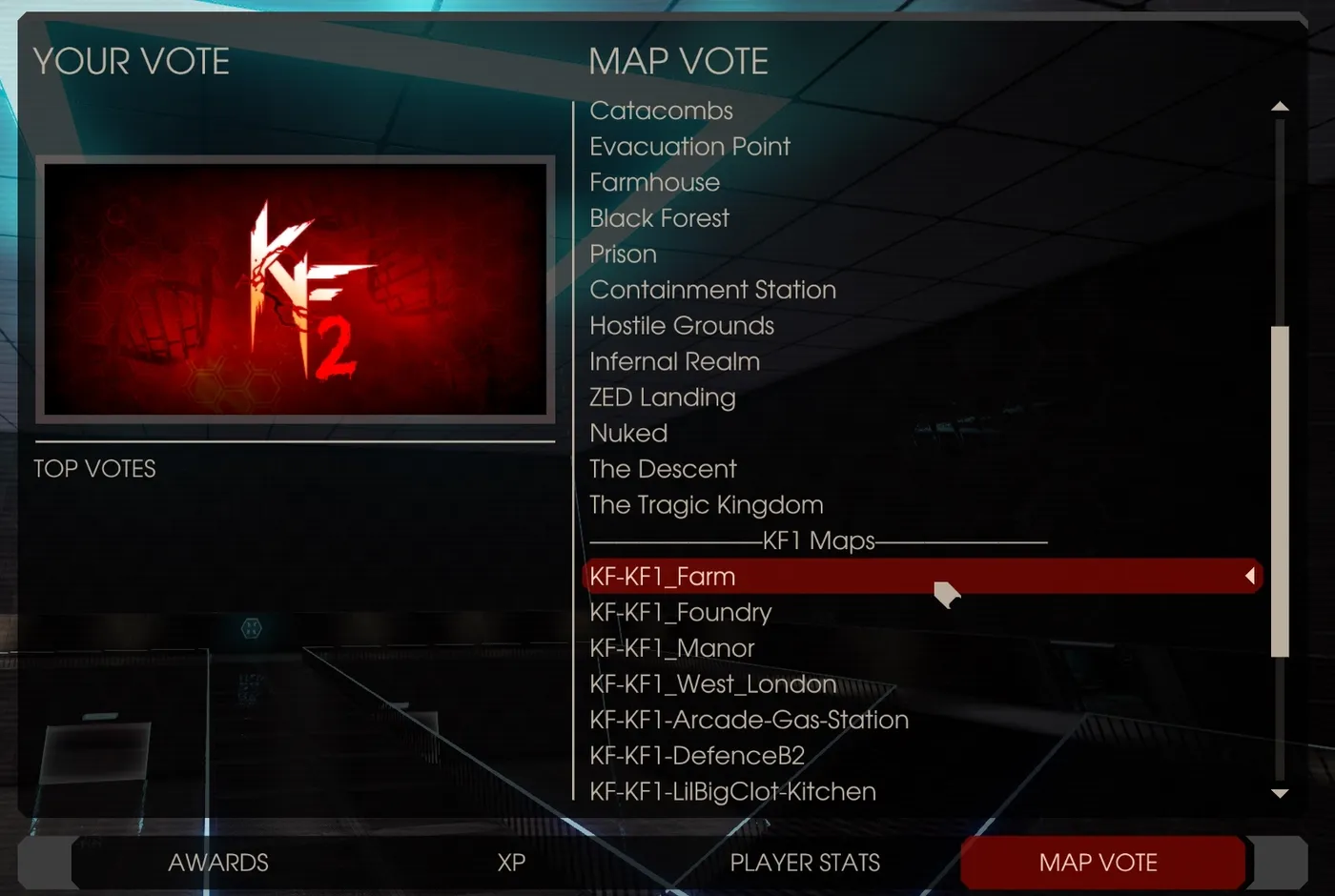 A categorized map cycle.
Workarounds for large map counts
- WebAdmin map cycle limit at about 170 to 180 maps: in
KFWeb.iniunder[IpDrv.WebConnection]raiseMaxValueLengthandMaxLineLengthfrom 4096 to 999999. - Crash at 519 or more maps when using WebAdmin Change Map or Map Cycle: there is no fix. Create a MultiAdmin account and put
/current/changeand/settings/maplistin DENY PATTERNS with Deny, Allow order, then change maps from the console withswitch KF-MapName(add?Difficulty=3?GameLength=2if you like) orrestartmap.
Installing custom maps
Players download maps from the Workshop or a redirect, never directly from your computer.
Redirect maps: pick a redirect site (the widely used one is skillzservers.com/kf2-redirect), download the maps, place them in \KF2Server\KFGame\BrewedPC\Maps (optionally a CustomMaps subfolder) and set RedirectToURL= in PCServer-KFEngine.ini.
Workshop maps: in PCServer-Engine.ini under [IpDrv.TcpNetDriver] add DownloadManagers=OnlineSubsystemSteamworks.SteamWorkshopDownload above any other DownloadManagers= lines. At the bottom add [OnlineSubsystemSteamworks.KFWorkshopSteamworks] and ServerSubscribedWorkshopItems=<ID>. Launch the server so it downloads the map, check \KF2Server\KFGame\Cache, then close it.
Data store and map cycle: in PCServer-KFGame.ini add a data store [KF-BikiniAtoll KFMapSummary] with MapName=KF-BikiniAtoll under the official maps, then add the map to GameMapCycles= or use Web Admin Map Cycles. Redirect map names are case sensitive; Workshop names are not.
 The Workshop ID is the number at the end of the item URL.
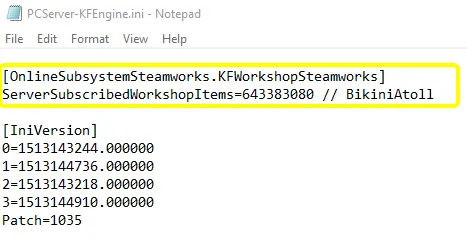 Workshop subscription in the engine config.
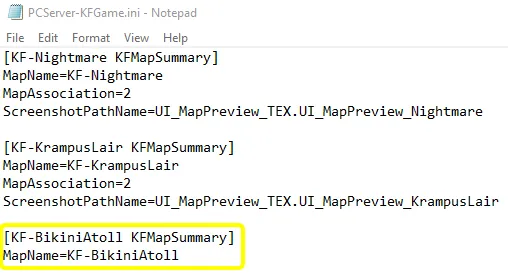 Data store entry for a custom map.
Mutators and game types
A mutator is a mini-mod with limited functionality; a game type determines the rules of the match. Both disable XP and stats unless whitelisted, and are downloaded by players from the Workshop like a custom map. Always read the author's own instructions.
- Copy the Workshop ID.
- Paste it after
ServerSubscribedWorkshopItems=inPCServer-KFEngine.ini. - Launch once so it downloads, then close and check the Cache folder.
- Add it to the launch variables in
KF2Server.bat. Examples:?Game=EndlessM.EndlessM_Main(Unofficial Endless Mode),?Game=ControlledDifficulty.CD_Survival(Controlled Difficulty),?Mutator=FPBackPackMut.FPBPBaseMut(Legs and Backpack),?Mutator=NightmareDifficulty.NightmareMutator?Difficulty=4,?Mutator=ServerExtMut.ServerExtMut,?Mutator=OnlyBossMut.OnlyBossMut,?Mutator=ClassicScoreboard.ClassicSCMut, and?Mutator=KFMutator.KFMutator_MaxPlayersV2?MaxPlayers=15?MaxMonsters=64.
Combine mutators with commas, for example ?Mutator=OnlyBossMut.OnlyBossMut,FPBackPackMut.FPBPBaseMut, and check compatibility in the authors' notes.
 Mutator parameters in the launch line.
Early mutators (2015-2016)
These mutators were discussed in the KF2 section of the killingfloor.ru forum and were written for old versions of the game, so check compatibility with the current version yourself.
- Server Extension (by Marco, "[Mutator] Server Extension mod" thread),
ServerExtMut.ServerExtMut: stores stats on the server and disables standard perk progression. RPG-style leveling: every level gives 15 points to spend on perk traits (for example, 10 on damage and 5 on max ammo). A new scoreboard that supports more than 6 players, shows a player's Steam profile and lets admins kick/ban; built-in Max Players; spectating through walls; chat is duplicated to the console; optionally kill and damage messages, respawn after death and map voting; damage numbers. Version 0.97 fixed a crash with KF2 1032 and added a "Knockback resist" trait, a server top-players list in the "Stats" menu, and a Berserker "Spartan" trait (move in real time during ZED time and attack much faster). - KF2 Bots ("[Mutator] KF2 Bots" thread),
KF2Bots.KF2BotsMut, version 0.1: bots shop at the trader, use weapons of their perk, throw grenades into crowds, and heal themselves and others. In solo, open the console in the main menu and typeOpen KF-BioticsLab?Mutator=KF2Bots.KF2BotsMut. On a server, add the mutator to the launch line, for examplestart .\Binaries\win64\kfserver kf-bioticslab?Mutator=KF2Bots.KF2BotsMut?adminpassword=123?AdminName=Administrator, or putServerActors=KF2Bots.KF2BotsMutunder[Engine.GameEngine]inPCServer-KFEngine.ini, or add it on the Server Actors tab in WebAdmin (one mutator per line). The.inigoes intoKFGame\Config\and the.uintoKFGame\BrewedPC\. Feedback: zed health scales with the bots but zed count does not; there was a conflict with ServerExt; by version 1048 the mutator no longer worked or compiled. - MutLoader for KF2 (by Freddy, "Mut Loader for KF2" thread),
MutLoader.MutLoader: a counterpart of KF1's MutLoader. In solo useOpen KF-BioticsLab?Mutator=MutLoader.MutLoader; on a server addServerActors=MutLoader.MutLoaderto the[KFGame.KFGameEngine]section ofPCServer-KFGame.ini. Flame noted, while admitting he might be wrong, that ServerActors only starts server-side mutators; client-side ones cannot be launched that way. - Hard mode survival ("[GameType] Hard mode survival" thread): the mode was set with
?Game=HardModeBoss.HardSurvand the[Engine.GameInfo]linesDefaultGame=HardModeBoss.HardSurvandDefaultServerGame=HardModeBoss.HardSurv, but it reset after a map change. Setting this game type in the map vote's (KFMapVote).inifixed it. - Setup Pickup (by Freddy, Workshop 711722623): sets how long dropped weapons and money stay on the floor and makes a player drop all weapons on death. Old style C4 (Workshop 647443145): C4 charges explode when zeds come near, as in KF1.
Quick tips and secrets
- Admins cannot be kicked. A kick vote on a logged-in admin fails even if it passes, and WebAdmin cannot kick them either.
- Session ban bans a player until the next map and then unbans them automatically, which is better than a plain kick if you want them to come back later.
- Map vote: if nobody votes, the server loads the next map in the cycle; it is not random.
- Password bypass: with a game password set, the admin password also lets you in, and you are logged in as admin.
- Faster admin login: bind
adminlogin <password>inKFInput.ini(Documents\My Games\KillingFloor2\KFGame\Config), for example on NumPad 1. - Door blockers: disable team collision so players walk through each other.
- Windows updates: set long active hours and notifications, or disable the Windows Update service temporarily, so the PC does not reboot and shut down the servers.
- WebAdmin notes: store the numbers, for example Difficulty: Hell on Earth 3, Suicidal 2, Hard 1, Normal 0, and GameLength: Long 2, Medium 1, Short 0.
- Conflicting software: some Windows applications can crash a server even when not running; Microsoft Visual Studio is a known one.
- Default map: when a voted map cannot be found the server loads BioticsLab.
ServerLocalMap=KF-BioticsLabinPCServer-KFEngine.iniis meant to change that, though it did not work for the author. - Mismatch and opening-file errors: see the author's separate guide on the topic and our map download fixes.
FAQ
- What does Item State 4 mean on a KF2 server?
- The custom map is installed and up to date. State 0 means it is not installed and will be downloaded, 12 means installed but needs an update, and 20 likely means the check failed or the Workshop connection was lost.
- How do I run two servers from one install?
- Copy KF2Server.bat, add -ConfigSubDir=<name> to the new copy, launch it to generate a config subfolder, then change the game port (7778) and the WebAdmin port (8081) in that subfolder and forward the new ports.
- Which ports should I forward?
- Game port 7777 UDP, query port 27015 UDP, WebAdmin port 8080 TCP and Steam port 20560 UDP.
- Should I use the Workshop or a redirect for custom maps?
- The Workshop is better for most servers because of compression, faster downloads and automatic updates. A redirect gives more control, and you can use both at once.
