
KF2 Home Dedicated Server: SteamCMD, Port Forwarding, WebAdmin
This is a beginner-friendly Early Access walkthrough for running a Killing Floor 2 dedicated server on a home network. Most of its content mirrors the Tripwire wiki on dedicated servers, but with extra screenshots and detail on the router side, which is the step most people get stuck on. For a terser version see KF2 dedicated server via SteamCMD.
The setup is separate from your installed game and does not modify it. It involves command-line use, config editing and router configuration, so follow it at your own risk.
Requirements
- The server files take about 3 GB, but keep 5-10 GB free.
- At least 5 Mb/s upload. Latency depends on your location and connection; test with a speed-test service.
- Hardware that can handle the server, especially if you play on the same machine.
Get the server files with SteamCMD
- Download
steamcmd.zipfrom Valve and extract it to a folder you choose (the guide usesC:\SteamCMD). Do not run SteamCMD.exe without knowing where it will extract itself. - Run
SteamCMD.exe. It updates itself and then shows theSteam>prompt. - Type
login anonymous. - Type
force_install_dir .\KF2Server\, which sets the install location toC:\SteamCMD\KF2Server\. - Type
app_update 232130 validatefor a first install. For updates, use the same command withoutvalidate. - Wait for the roughly 3 GB download, then type
quit.
Port forwarding
To appear on the master server list and be reachable from the internet, your router must forward ports to your PC. Port forwarding is not specific to KF; the portforward.com site has per-router instructions.
- Press Windows+R, type
cmd, then runipconfig. - Find your Local Area Connection. The Default Gateway is your router address; note also your IPv4 address.
 The Default Gateway is the router address and the IPv4 line is your PC.
- Open the gateway address in a browser and log in. Default credentials are on the device or in the manual; if they do not work, ask whoever set up your connection.
- Find the Port Forwarding section (often under Internet or WAN). Port Triggering is not the same and will not keep the server consistently visible.
- Fill in the rule: a memorable mapping name, the internal host (your IPv4 address, or your physical MAC address from
ipconfig /allif the router asks), and the ports.
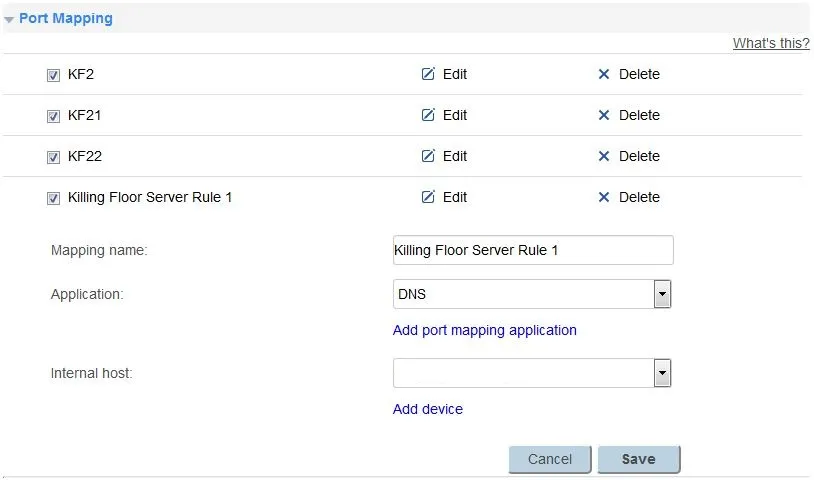 An example router port forwarding form (yours will differ).
Ports for Killing Floor 2: 7777, 27015 and 20560, and 8080 optionally for remote management. The external port must equal the internal port, and the protocol is TCP/UDP. Some routers only allow one port per rule. Saving may restart the router and briefly drop your internet.
Run the server and enable WebAdmin
- Open the server folder and double-click
KF2Server.batto launch with default parameters. - WebAdmin is not enabled by default. Close the window, go to
C:\SteamCMD\KF2Server\KFGame\Config, openKFWeb.ini, find[IpDrv.WebServer]and changebEnabled=falsetobEnabled=true. - Run
KF2Server.batagain from the base folder. - After a few seconds open
xxx.xxx.xxx.xxx:8080using your IPv4 address, or127.0.0.1:8080on the same PC. - Log in with the default
Adminand password123.
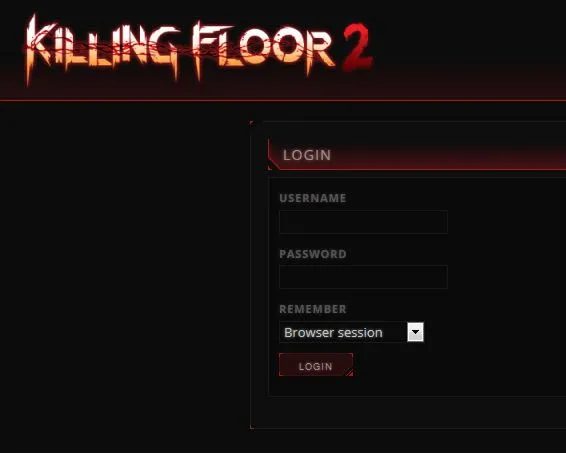 The WebAdmin login page at port 8080.
First, change the admin password and the server name under Access Policy, Passwords and Settings, General.
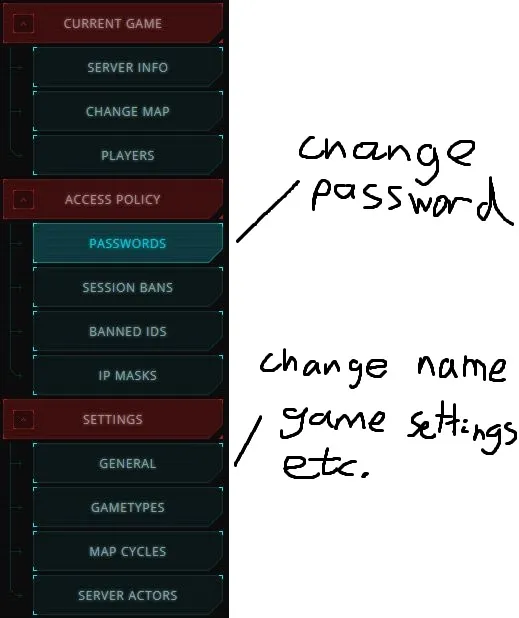 Set a new admin password and server name.
WebAdmin lets you see server status, connected players and in-game chat, and configure the server. The advanced section of the original guide was left unfinished; consult the Tripwire wiki for more settings and for running multiple servers.
FAQ
- Which ports does a KF2 dedicated server need?
- 7777, 27015 and 20560, plus optional 8080 for WebAdmin. External and internal ports should match, using both TCP and UDP in the router.
- What is the SteamCMD app ID for the server files?
- 232130. Use app_update 232130 validate for the first install and without validate for updates.
- Why can't I open WebAdmin?
- It is disabled by default. Edit KFWeb.ini in KFGame/Config, set bEnabled=true under [IpDrv.WebServer], and restart the server.
