
KF2 Dedicated Server on Ubuntu: SteamCMD, WebAdmin, systemd
This page is based on a Chinese-language Steam guide (translated here) for installing a Killing Floor 2 dedicated server on Ubuntu. The author picks Ubuntu because it is close to SteamOS (both derive from Debian) and because SteamCMD can be installed with apt instead of unpacking binaries by hand. For other approaches see KF2 Dedicated Server via SteamCMD and Docker on a VPS.
Install SteamCMD
Create a dedicated user and install SteamCMD:
sudo useradd -m -s /bin/bash steam
sudo add-apt-repository multiverse -y
sudo dpkg --add-architecture i386
sudo apt update -y
sudo apt-get remove needrestart -y
echo steam steam/license note '' | sudo debconf-set-selections
echo steam steam/question select "I AGREE" | sudo debconf-set-selections
sudo apt install steamcmd -y
On other Linux distributions follow the SteamCMD wiki.
Install the server files
sudo -u steam /usr/games/steamcmd +login anonymous +app_update 232130 +quitGenerate the default config
Run the server once so it writes its default configuration:
sudo -u steam /home/steam/.local/share/Steam/steamapps/common/kf2server/Binaries/Win64/KFGameSteamServer.bin.x86_64 kf-bioticslabQuick configuration (WebAdmin only)
For people unfamiliar with Linux the simplest route is to enable the web console and change everything else there. The files involved sit under .../kf2server/KFGame/Config/.
- In
KFWeb.ini, section[IpDrv.WebServer], setbEnabled=true. You may changeListenPortfrom 8080 for safety. A one-liner:sed -i "s/bEnabled=false/bEnabled=true/" .../KFWeb.ini - In
LinuxServer-KFGame.ini, section[Engine.AccessControl], setAdminPassword=(used for both WebAdmin and in-game admin login).GamePassword=is an optional room password. - Disable server takeover in
LinuxServer-KFEngine.ini:sed -i "s/bUsedForTakeover=TRUE/bUsedForTakeover=FALSE/" .../LinuxServer-KFEngine.ini
Ports
Cloud servers must allow these ports in the security group or firewall.
| Port | Protocol | Purpose |
|---|---|---|
| Game Port | UDP | Required. Main game port |
| Query Port | UDP | Optional. Controls whether the server appears in the public list |
| Steam Port | UDP | Optional. Steam communication, mainly Workshop downloads |
| NTP Port | UDP | Optional. Weekly mode only, syncs time with the official servers so weekly missions work |
| Web Admin | TCP | Optional. WebAdmin, default 8080 |
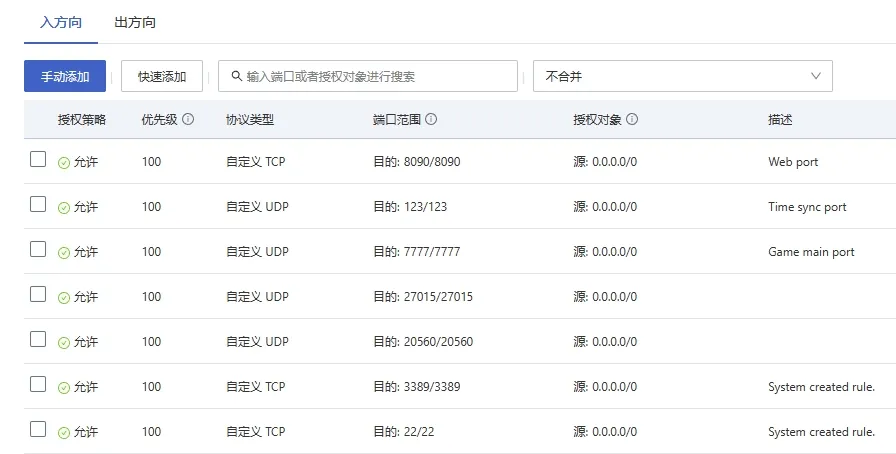 Example security group rules (the author uses Alibaba Cloud).
Finally open http://<server-address>:<ListenPort> and log in as Admin with the admin password to configure the remaining parameters.
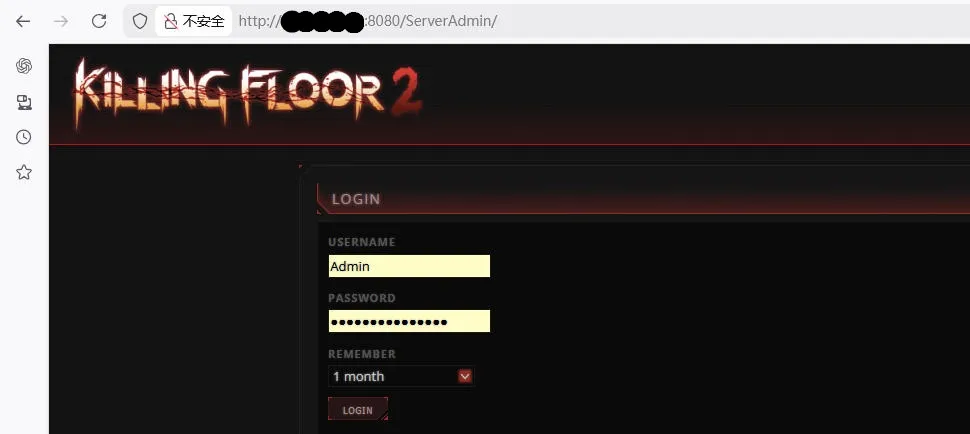 The WebAdmin console after logging in.
Install community mods
Example: a damage display mod (Workshop ID 2625647922) and a custom max players mod (ID 2143104493). Note the subscription IDs, make sure the server is stopped, and edit LinuxServer-KFEngine.ini:
[IpDrv.TcpNetDriver]
; add this line above all existing DownloadManagers= lines
DownloadManagers=OnlineSubsystemSteamworks.SteamWorkshopDownload

[OnlineSubsystemSteamworks.KFWorkshopSteamworks]
ServerSubscribedWorkshopItems=2625647922
ServerSubscribedWorkshopItems=2143104493
Restart the server and wait for the download. A folder named after each Workshop ID appearing in KFGame\Cache confirms success.
Manage the server
By default the server runs in the foreground and stops when you leave the session. Three options: run it in the background with nohup <command> &, use screen or tmux, or register a systemd service (strongly recommended by the author).
cat <<EOF > /usr/lib/systemd/system/killingfloor2-server.service
[Unit]
Description=killingfloor2-server.service
After=network.target

[Service]
User=steam
Restart=on-failure
RestartSec=30s
ExecStart=/home/steam/.local/share/Steam/steamapps/common/kf2server/Binaries/Win64/KFGameSteamServer.bin.x86_64 kf-bioticslab

[Install]
WantedBy=multi-user.target
EOF| Command | Purpose |
|---|---|
systemctl start killingfloor2-server | Start the server |
systemctl status killingfloor2-server | Show status |
systemctl stop killingfloor2-server | Stop the server |
systemctl restart killingfloor2-server | Restart the server |
To start it on boot: systemctl enable killingfloor2-server --now.
 The service running under systemd.
One-shot install script
The guide ends with a bash script that chains all of the steps above: it creates the steam user if missing, adds the multiverse repository and the i386 architecture, installs SteamCMD, downloads app 232130 into /home/steam/kf2server, runs the server once to generate configs, writes the systemd unit, enables the web console, sets the admin password with sed, disables takeover and finally enables and starts the service. It prints a success message or points to /tmp/killingfloor2_install.log. Change the admin password in the script before using it, and remember to open the ports in your security group.
FAQ
- What is the Steam app ID of the KF2 dedicated server?
- 232130. Install it with steamcmd using +login anonymous +app_update 232130.
- Which ports does a KF2 server need?
- The game port (UDP) is required. Optional: query port (UDP) for the public server list, Steam port (UDP) for Workshop downloads, NTP port (UDP) for Weekly mode time sync, and the WebAdmin port (TCP, default 8080).
- How do I keep the server running after I log out?
- Register it as a systemd service, or use nohup or screen/tmux. The guide recommends systemd.
