
Killing Floor 2 Item Server Connection - What Is It?
"Connection to item server" in Killing Floor 2 refers to the game's connection to Steam's item server, which manages cosmetic items, weapon skins, and inventory.
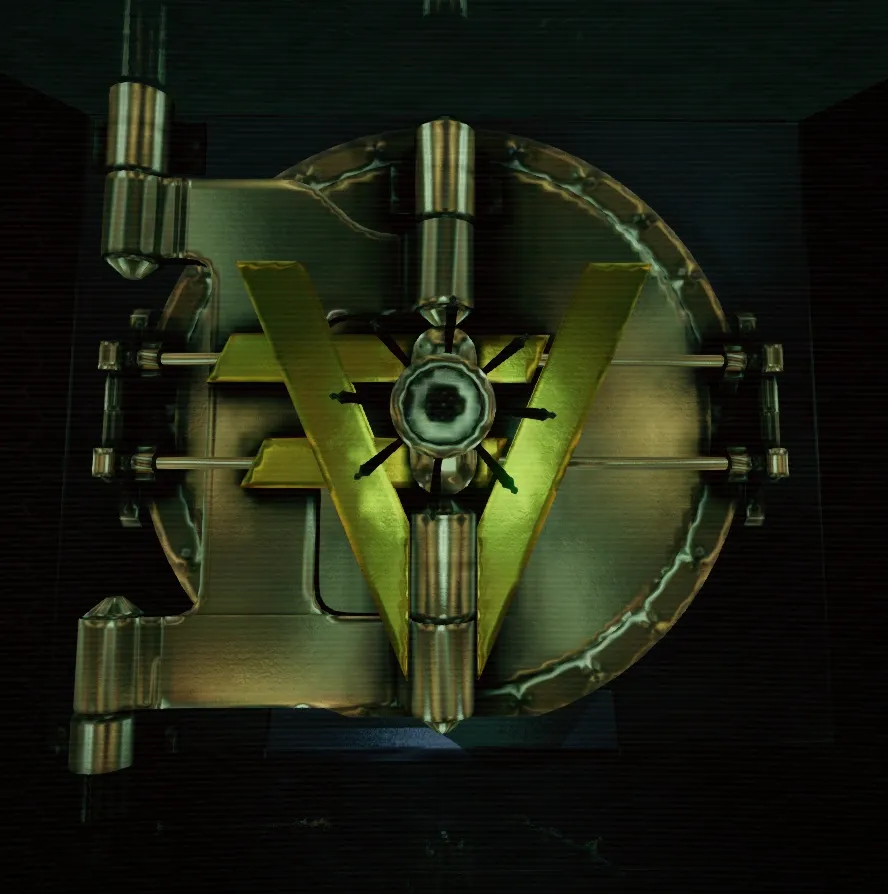 The Vault, where crates are opened and items are crafted in Killing Floor 2.
What Is the Item Server?
The item server is a Steam service that:
- Manages inventory - Tracks your cosmetic items
- Handles trading - Processes item trades
- Stores unlocks - Saves your unlocked content
- Syncs data - Keeps your items synchronized
Why Do You See This Message?
You may see "Connecting to item server" when:
- Starting the game - Initial connection attempt
- Opening inventory - Loading your items
- Trading items - Processing trades
- Unlocking content - Saving new unlocks
Is It Normal?
Yes, this is completely normal:
- Brief connection - Usually takes a few seconds
- Automatic process - Happens in background
- No action needed - Just wait for it to complete
Connection Issues
If Connection Fails
If you see connection errors:
- Check Steam connection - Make sure Steam is online
- Restart Steam - Close and reopen Steam
- Check firewall - Allow Steam through firewall
- Verify game files - In Steam properties
- Wait and retry - Sometimes servers are busy
Common Error Messages
- "Failed to connect to item server"
- "Item server unavailable"
- "Connection timeout"
Solutions:
- Restart Steam
- Check internet connection
- Wait a few minutes and retry
- Verify game files integrity
What Items Are Managed?
The item server manages:
- Weapon skins - Cosmetic weapon appearances
- Character skins - Player character appearances
- Emotes - Character emotes
- Cosmetic items - Various cosmetic unlocks
- DLC content - Purchased DLC items
