
Macros in Lineage 2: Step-by-Step Guide
Creating a macro and the commands it can use
A macro combines several actions - skills, shots, commands and chat messages - into a single icon that you can put on the shortcut bar. Below is a step-by-step walkthrough for a simple attack macro and a list of commands you can use in macros. A short table of macro variables is also in Chat and Commands.
Creating a macro
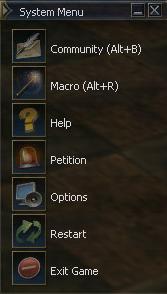
Step 1. Open the system menu and choose "Macro".
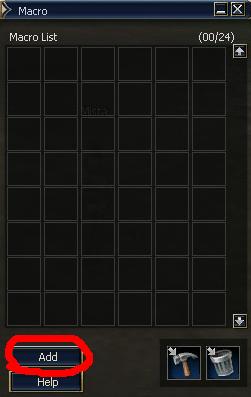
Step 2. The window that opens holds all your macros. It works like an inventory: each macro takes its own slot. Let's make a simple macro that makes the character attack: press the "Add" button.
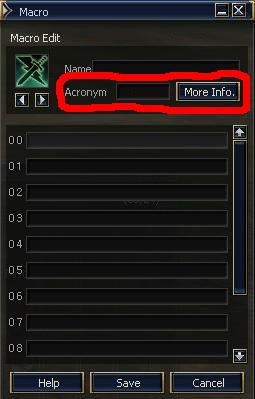
Step 3. The macro icon can be changed with the [<-] and [->] buttons.

Enter the macro name in the Name field - no longer than 12 characters including spaces. Acronym is a short label of up to 4 characters shown on the icon. More Info is a longer description of up to 32 characters. Our macro will attack a mob.
Step 4. Now for the main part - open the skills window.
Step 5. Start the attack macro with a special skill - an attack spell that damages mobs.
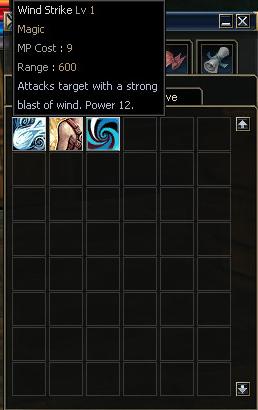
Step 6. To add the skill to the macro, drag it from the skills window into the macro window onto the line you want.
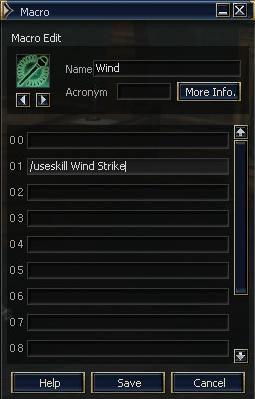
Step 7. Now let's make the macro use shots (soulshots or spiritshots). Macros take icons, not items, so first drag the shots onto the shortcut bar.
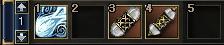
Step 8. Move the shot icon into the macro window the same way as the skill. If everything is right, the macro window looks like this:
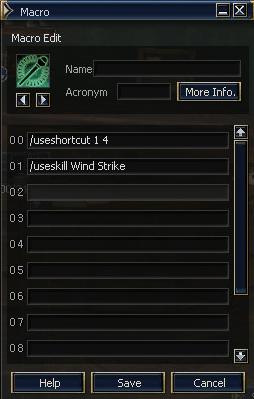
Step 9. The simplest macro is ready - press "Save". The macro appears in the macro window.
Step 10. Drag the new macro's icon onto the shortcut bar.

Macro commands
Skills. To use a skill, type "/" and the full skill name (with spaces) as it appears in the skills window, for example:
/skill power strike/useskillforceworks as if the Ctrl key were held (forced use)./fixed skillworks as if the Shift key were held (use without moving).
Shortcut bar. To use a shortcut from the bar, type /shortcut with the bar and slot numbers. Example - the 2nd shortcut of the 3rd bar:
/shortcut 3 2Actions. Type "/" and the full action name as it appears in the actions window, for example:
/sitstandTargeting. The /target command with a player's name selects that player if they are in view. To select yourself:
/target %selfVariables:
| Variable | Meaning |
|---|---|
%self | yourself |
%pet | your pet |
%party1 ... %party8 | party members in order |
%target | the currently selected target |
Chat messages. A macro can write to chat, and variables are substituted. If your name is ABC, the line !My name is %self outputs "My name is ABC" to chat. Variables must be separated by a space: the line My name is%self stays as "My name is%self".
Delay. The /delay X command pauses for X seconds.