
KF2 Photography Mode: Console Commands for Screenshots
Killing Floor 2 has no dedicated photo mode, but the console offers enough commands to stage clean screenshots and short scenes. This guide, written in the early access days and later annotated for update v1067, walks through the setup: enabling cheats, keeping a wave alive, hiding the interface, posing ZEDs and moving the camera.
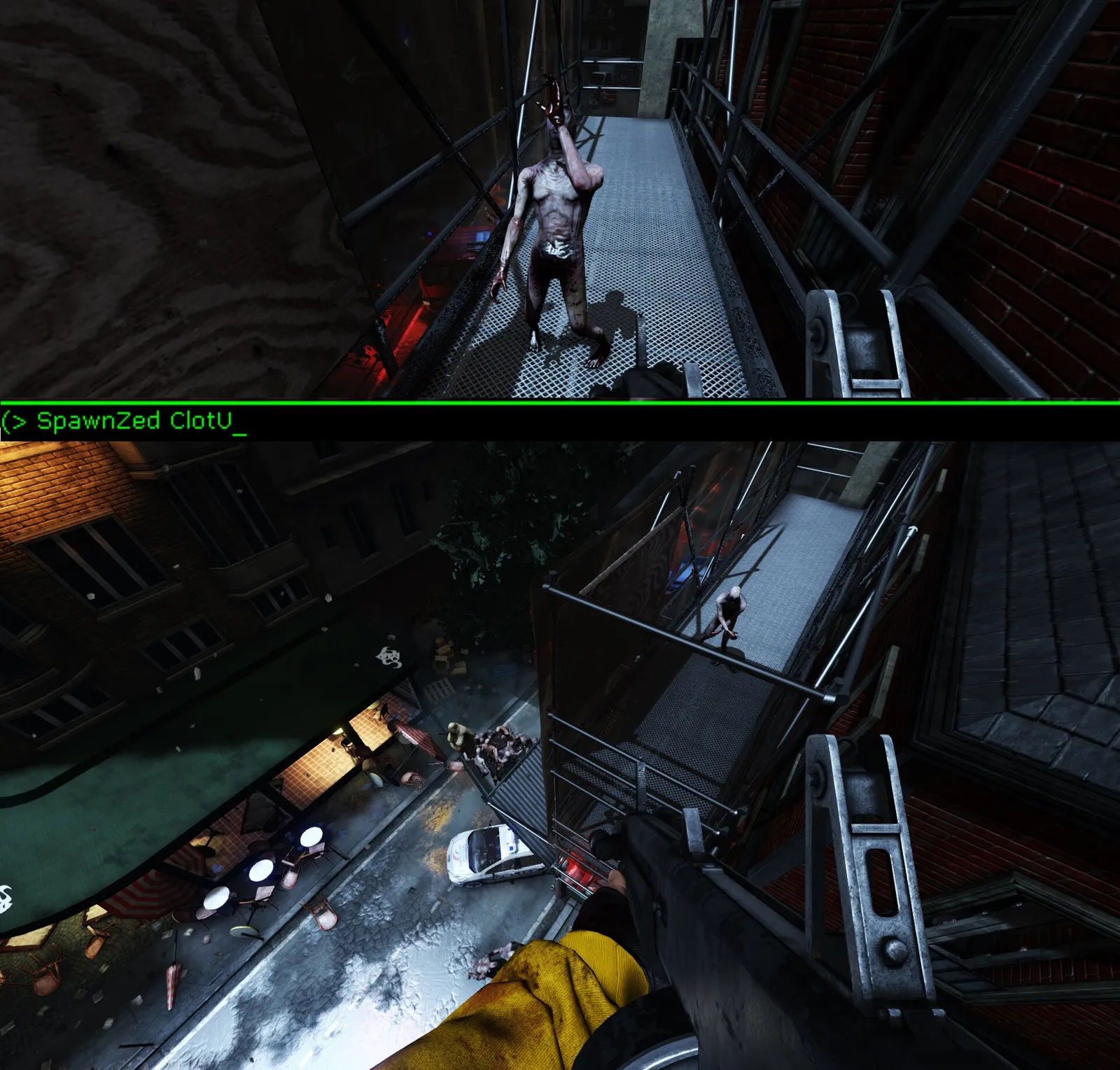 Spawning a placeholder ZED so the wave does not end while you shoot.
Getting started
- Start a solo game on any map and length. Hell on Earth is recommended because it unlocks the advanced ZED moves.
- In the lobby open the console (tilde or F3) and enter
EnableCheats. Most commands fail without cheats. Cheats also stop perk progression and stay on until another map loads. - Begin the first wave. Before clearing it, type
Ghost, fly to a spot out of reach and runSpawnZed ClotU. This dummy keeps the wave from ending. - Clean up with
ClearCorpsesandClearSplattersto remove bodies and blood you do not want in frame.
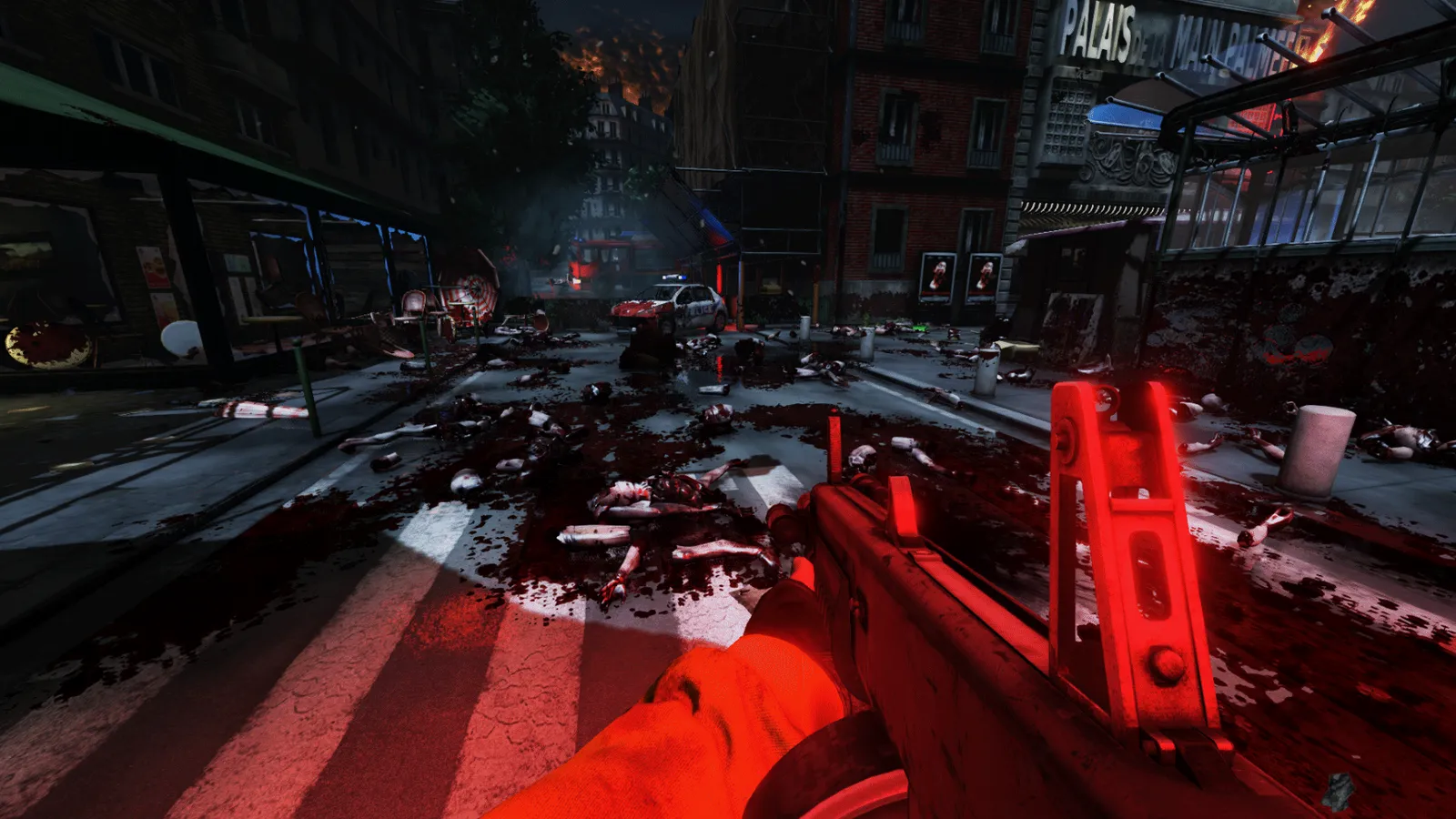 Corpses and blood can be removed with console commands.
Entering photography mode
Enter ToggleScreenShotMode. The HUD, arms and weapon disappear.
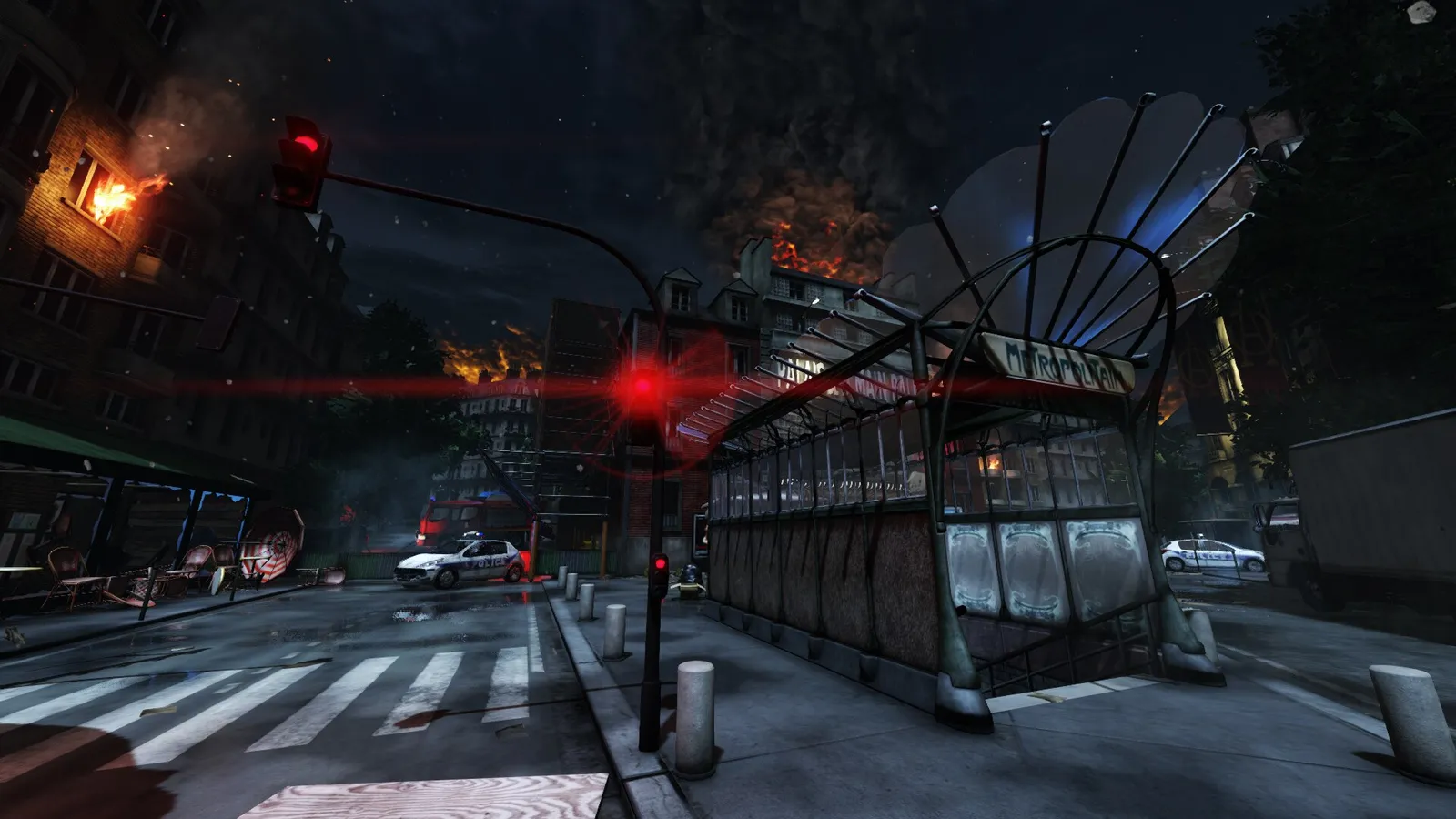 Screenshot mode hides the interface.
Other useful commands:
ToggleHUDorShowHud: toggle the HUD.ShowHands x: show (1) or hide (0) the weapon and arms.ToggleDoF: added depth of field on the weapon; no longer works.FOV x: change the camera zoom. Sprinting resets it. Since update v1067 this command no longer works.WeapFoV x: zoom the arms and weapon. It must be set for each weapon, and aiming down sights resets it.
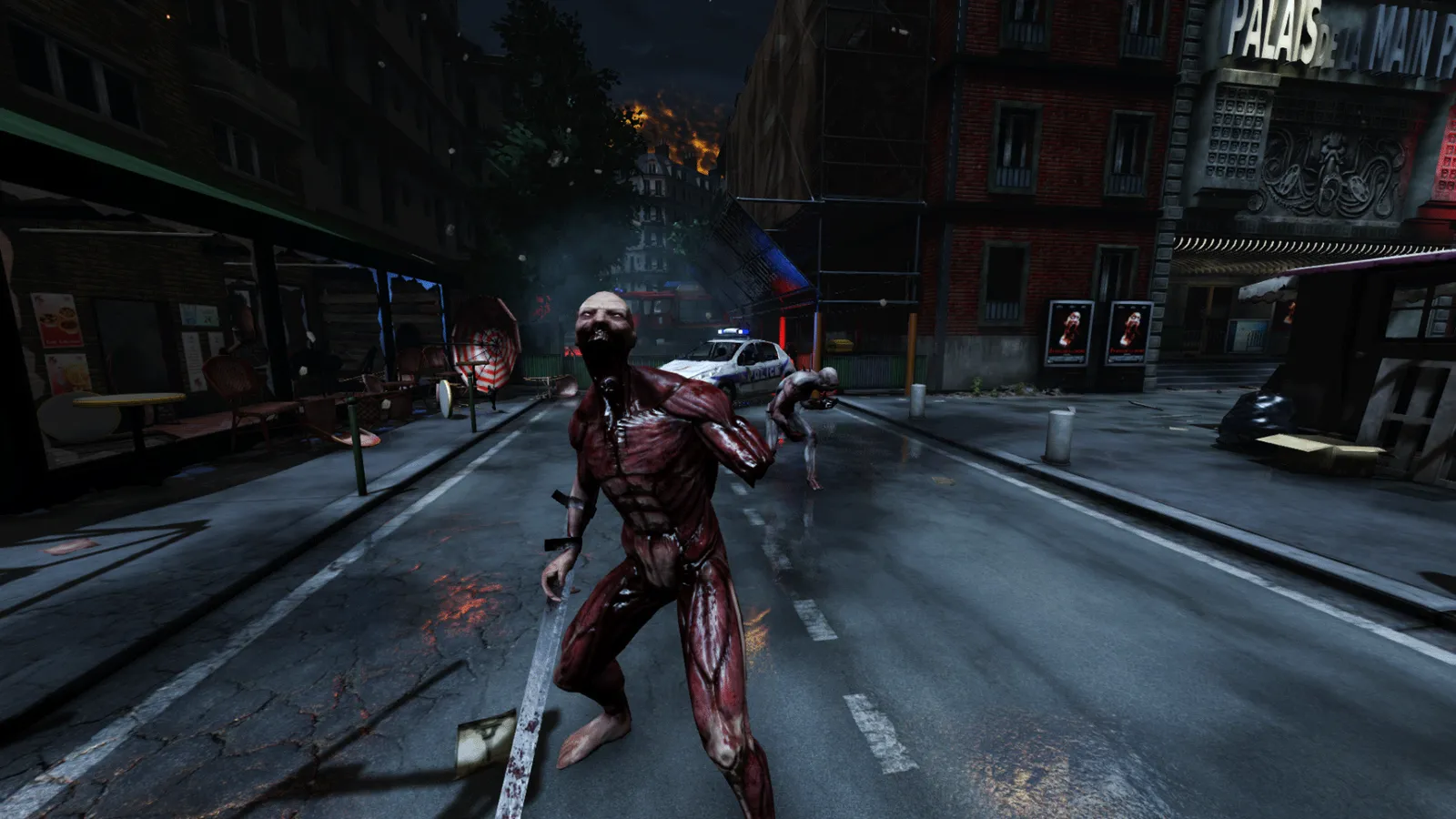 Changing field of view for the weapon.
Default camera keybinds
| Key | Effect |
|---|---|
| F4 | Pauses everything except you (some shadows vanish) |
| Left Bracket | Permanent slow motion without the white flash |
| Right Bracket | Back to normal speed |
| Backslash | Speeds up the game |
| Delete, PgDn | Third person view |
| End | First person view |
| Insert | Wide third person view |
| PgUp | Static camera, good for loadout shots |
| Home | Very close third person |
Custom keybinds
Use setbind yourKey yourCommand, for example setbind f1 enablecheats. Chain several commands with a pipe inside quotes: setbind F2 "doshme 999999|opentradermenu". Quotes are required for commands containing spaces. Very long chains may not work reliably.
Posing ZEDs
Use SpawnDebugAI instead of SpawnZed. It creates a ZED with working AI that you can steer from the console. Names mostly match the ZED names, but the Clots differ:
SpawnDebugAI ClotU: Cyst (Underdeveloped Clot)SpawnDebugAI ClotS: SlasherSpawnDebugAI ClotA: Clot (Alpha Clot)
Type AI in the console to list the available commands (the F3 console lets you scroll the list with the arrow keys). With them any debug ZED can wander, look at you, become enraged or perform special actions, such as forcing a Husk to explode.
 The AI command list for debug ZEDs.
Tips
- Weapon animations break at very high WeapFoV values (around 120 and above), so keep it moderate.
- If a debug ZED keeps respawning, try the
ToggleZedsIgnoreMetoggle, though it does not fix every case. - For more console commands see Console commands list.
FAQ
- How do I hide the HUD and weapon in Killing Floor 2?
- Enable cheats in the console, then type ToggleScreenShotMode. It removes the HUD, arms and weapon from view. ToggleHUD and ShowHands 0 do the same piece by piece.
- Which command spawns a ZED that I can control for a photo?
- Use SpawnDebugAI followed by the ZED name. Unlike SpawnZed, it creates a character with working AI that you can command through the AI console list.
- Does the FOV command still work?
- No. Since the Summer 2018 update (v1067) the FOV command no longer works. WeapFoV still changes the arms and weapon zoom.
