
KF2: Equip Conflicting Cosmetic Accessories With Console Commands
Killing Floor 2 blocks some accessory combinations in the menu, even though many of them look great together. This guide shows how to force them with a few console commands. It is a rewrite of an older guide that was taken down. For other console commands see the console commands list and the cosmetics page.
Step 1: enable cheats
Open the console with the tilde key (or your own bind) and type enablecheats.
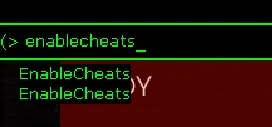 Opening the console and enabling cheats.
Step 2: open the log
Enter showlog. A command prompt window opens outside the game; do not close it.
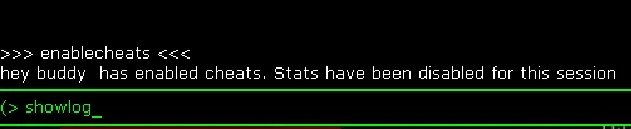 The showlog command.
Step 3: get the cosmetic info
Equip the accessory in the normal menu, then type PrintOutCharacterCosmeticInfo. The log prints the item's Mesh index, Slot index and Skin index.
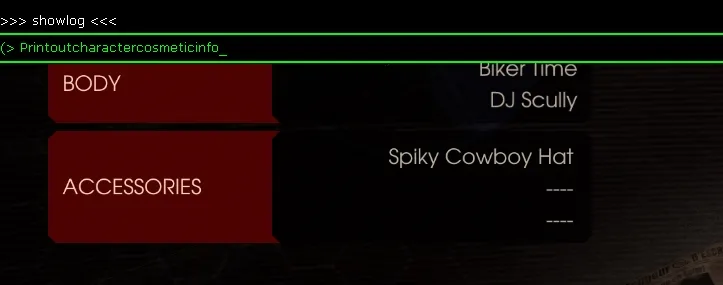 The command typed in the console with a Spiky Cowboy Hat equipped.
In the example, the Spiky Cowboy Hat has mesh index 10 and skin index 2.
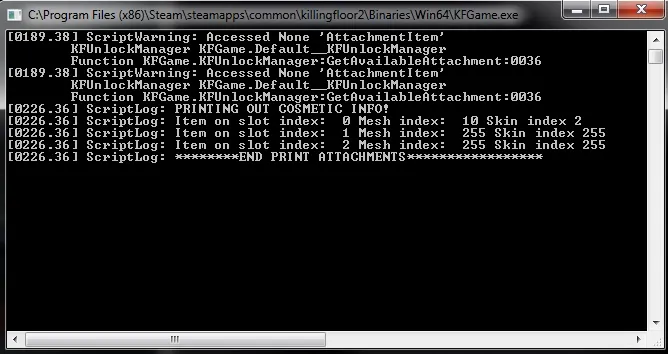 The log shows the mesh and skin indexes.
The slot index is one of the three accessory slots, numbered 0 to 2: the first equipped item is 0, the second 1, the third 2. Mesh and skin indexes are used exactly as printed. Never use the same slot for two cosmetics or it will not work.
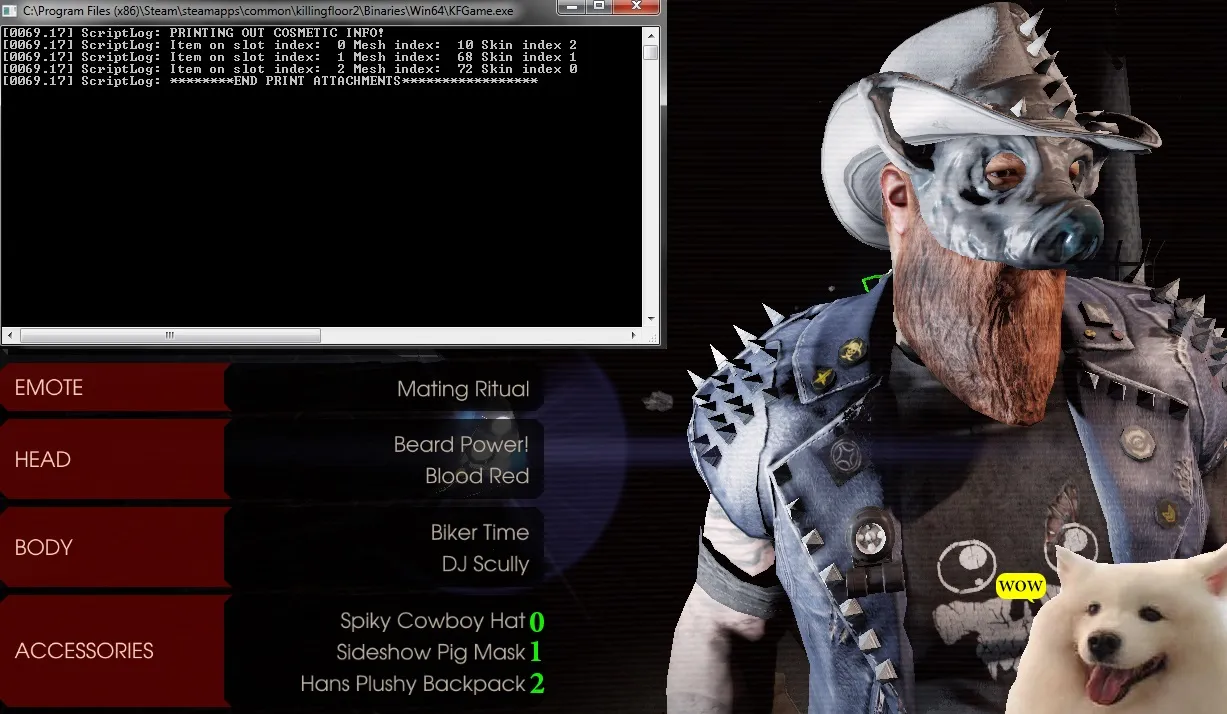 The three accessory slots in the loadout screen.
Step 4: equip
In the console type SetCharacterAttachment, then the mesh number, the skin number, a slot from 0 to 2 and TRUE. For the cowboy hat:
SetCharacterAttachment 10 2 0 TRUE The command with its parameters.
Repeat this for every accessory that will conflict. You absolutely must write TRUE at the end.
Quick method
Equip the non-conflicting accessories the normal way, then use the console only for the conflicting one. If only one cosmetic conflicts, you do not need to remember slots: set the slot index to 2 and you are done. For example, two accessories equipped in the menu automatically take slots 0 and 1.
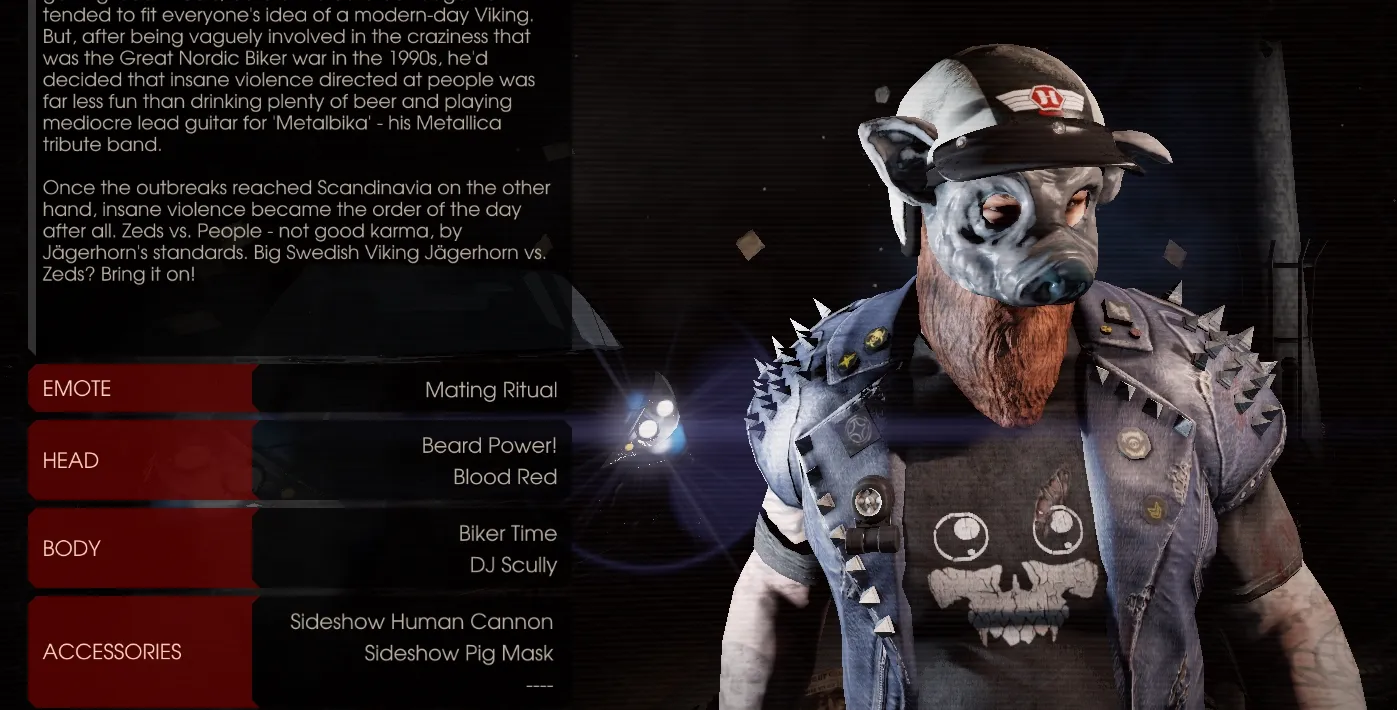 Two accessories equipped normally occupy slots 0 and 1.
The short version:
enablecheatsshowlog(if you do not know the mesh and skin index)printoutcharactercosmeticinfo(same)setcharacterattachment <mesh> <skin> <slot> TRUE
With two pieces already equipped the slot will probably be 2. The example equips the Fleshpound visor.
 The command for the Fleshpound visor.
Press Enter and the third accessory appears.
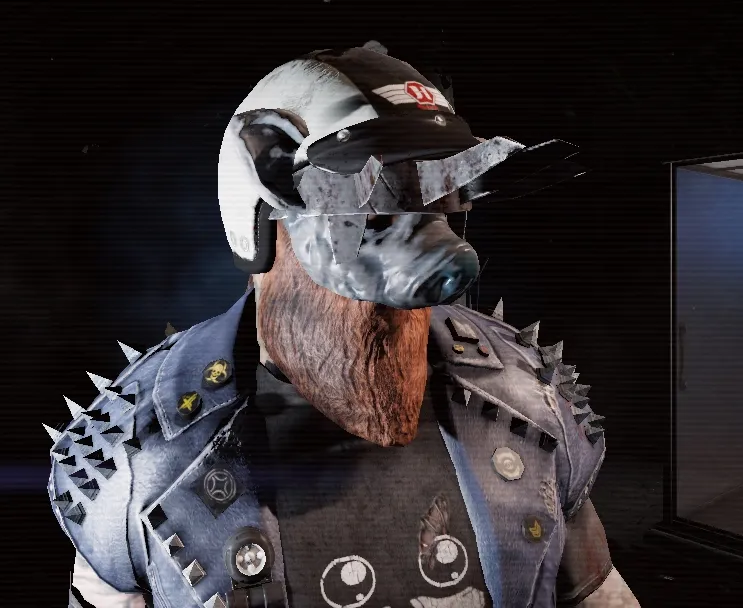 The character wearing all three accessories.
Restart the game when you are done, because you cannot play while cheats are enabled.
FAQ
- I entered the three numbers and nothing happened, with no error. Make sure you wrote TRUE at the end of the command.
- My numbers for one character do not work for another. Every character has unique cosmetic numbers, because the developers placed each item individually on each face.
- Can I put these hats on the E.D.A.R.? No.
- Will this get me banned? No; the console is allowed and your cosmetics show for other players.
- Can I equip items I have not unlocked? The author doubts it and does not recommend trying.
- I cannot join a game afterwards. Restart the game.
FAQ
- What is the SetCharacterAttachment command format?
- SetCharacterAttachment <mesh index> <skin index> <slot 0-2> TRUE. The final TRUE is mandatory.
- Will this get me banned?
- The guide author says no: the console commands are intended to be this simple and are allowed, and other players see your cosmetics.
- Why do I have to restart the game afterwards?
- You cannot play normally while cheats are enabled and you may be unable to join games until you restart.
