
KF2 BugSplat Crash on Launch: Launch Options and Config Reset
Sometimes Killing Floor 2 shows a BugSplat error window right after you press Play and never reaches the main menu. This short fix, originally written as a Korean Steam guide, uses two steps: change the launch options and reset the local config files.
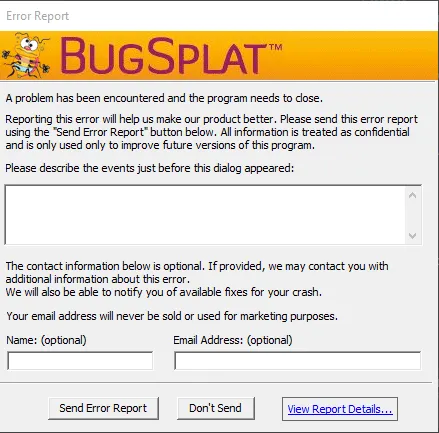 The BugSplat window that appears when the game fails to start.
Step 1: change the launch options
Right-click Killing Floor 2 in your Steam library, open Properties, and find the launch options field on the General tab. Enter:
-windowed -dx10This starts the game in a window and forces the DirectX 10 renderer, which avoids the crash on many setups.
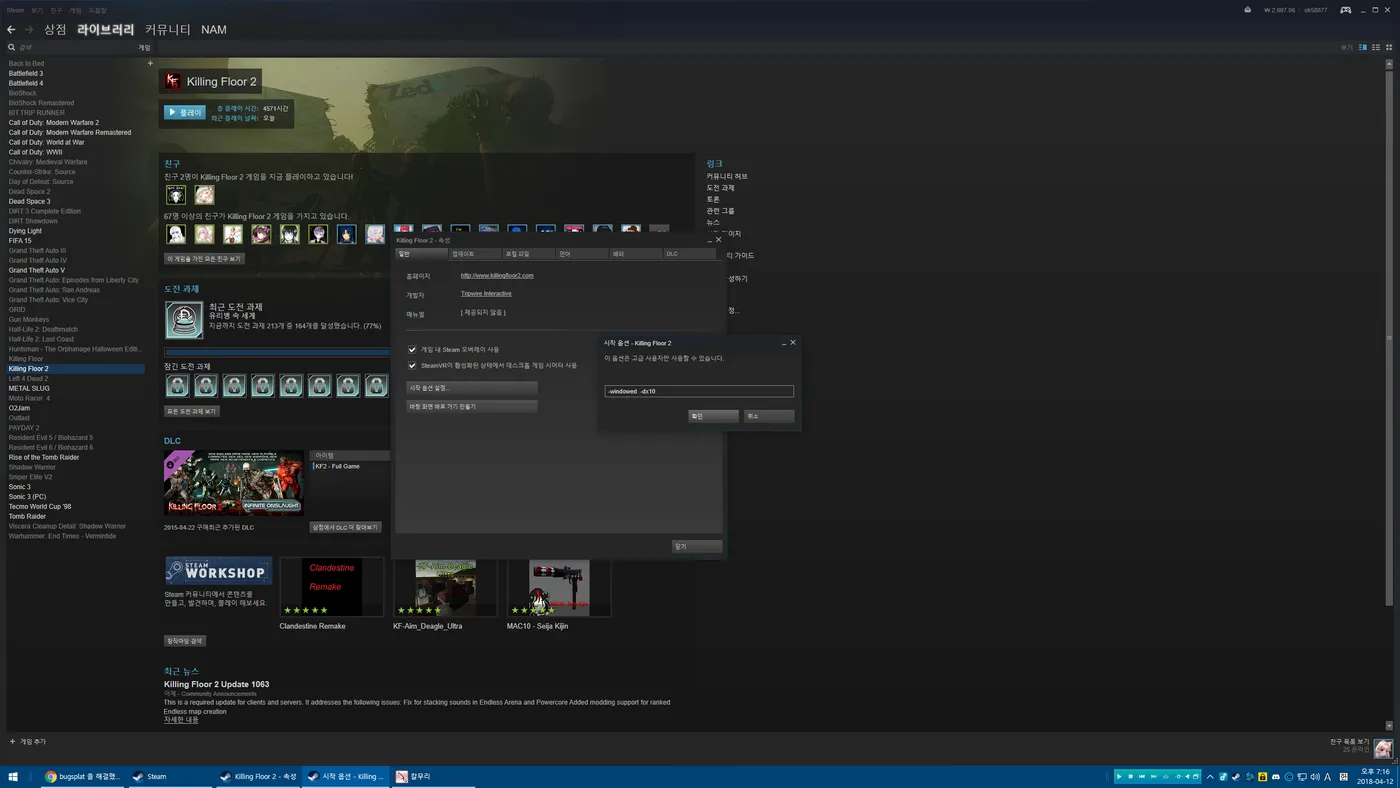 Launch options entered in the Steam properties window.
Step 2: delete the Config folder
Open Documents, then My Games, then KillingFloor2, then KFGame. Delete the Config folder. The game recreates it with default values the next time it runs, so any custom video or key settings will be reset.
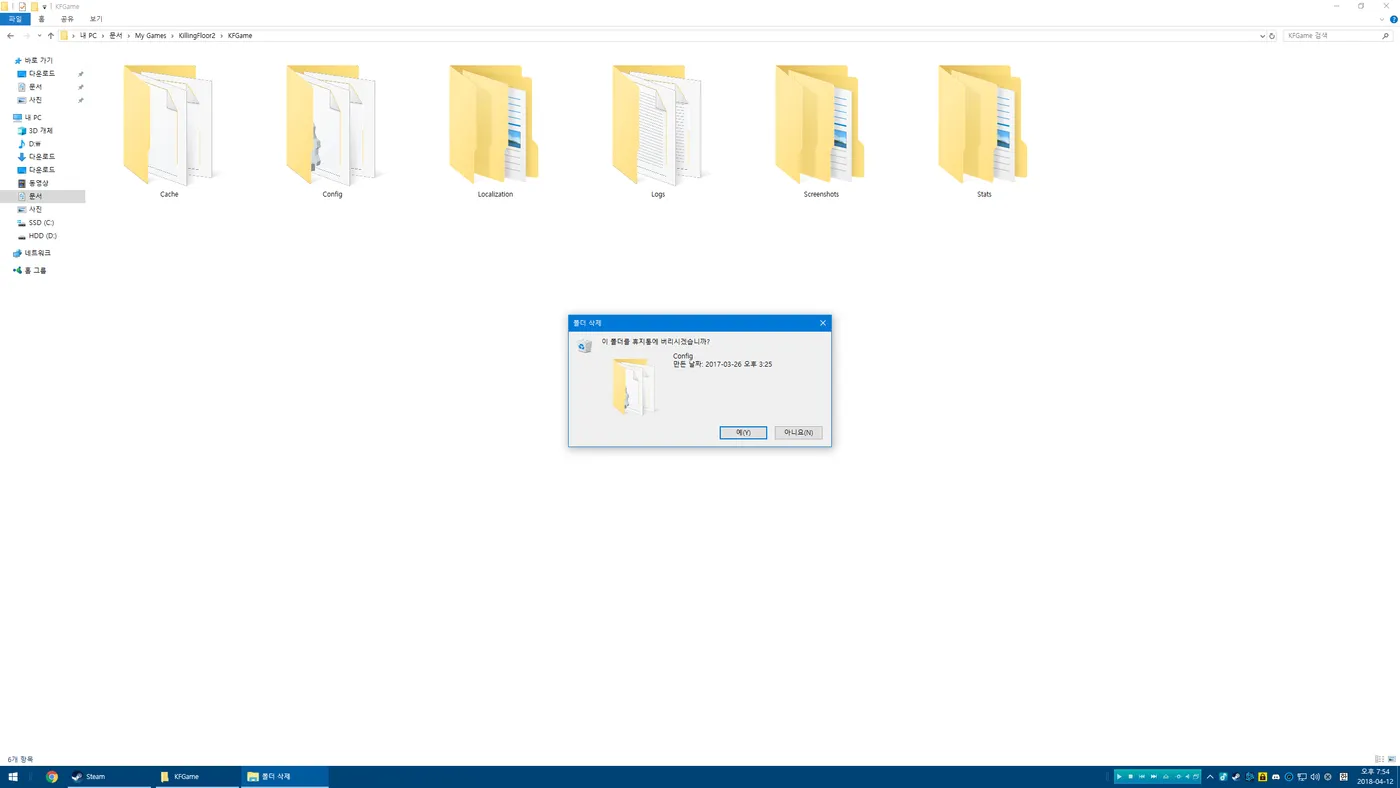 The Config folder inside Documents\My Games\KillingFloor2\KFGame.
Notes
- If you have custom key binds, copy the KFInput file somewhere safe before deleting the folder (see keeping key binds when switching beta branches).
- For other launch problems, see the startup crashes troubleshooting guide.
- Once the game starts, you can remove the -windowed option and switch back to fullscreen in the video settings.
FAQ
- Which launch options fix the BugSplat crash in KF2?
- Open the game's properties in Steam and enter -windowed -dx10 in the launch options field, then start the game again.
- Where is the KF2 Config folder?
- In Documents, under My Games, KillingFloor2, KFGame. Deleting the Config folder makes the game rebuild its default settings.
