
KF2: Keep Your Key Binds When Switching to or from the Beta
Switching Killing Floor 2 between the main branch and a beta branch often resets your controls. This guide, originally in Russian, describes a manual way to carry your key binds across the switch by editing the KFInput file.
Before you switch
Set the controls you want and then copy the KFInput file to a safe place before you enter or leave the beta. The usual location is:
C:\Users\<name>\Documents\My Games\KillingFloor2\KFGame\Config
The exact path can differ between users.
After the switch
- Wait until Steam has finished downloading the new branch and start the game once so it writes a fresh KFInput.
- Go back to the same Config folder and open the new KFInput in Notepad.
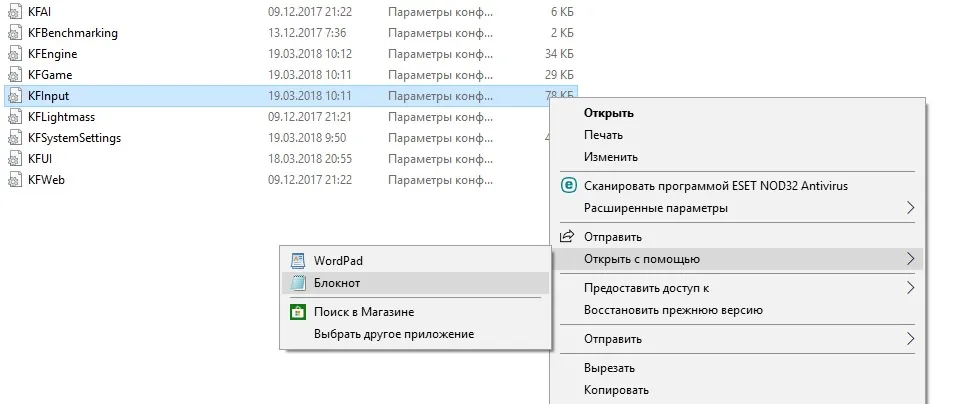 The freshly generated KFInput file.
- Scroll to the very bottom, press Ctrl+F and search for the text
Ini. - Copy the last two lines of the file, the two lines that follow the search result.
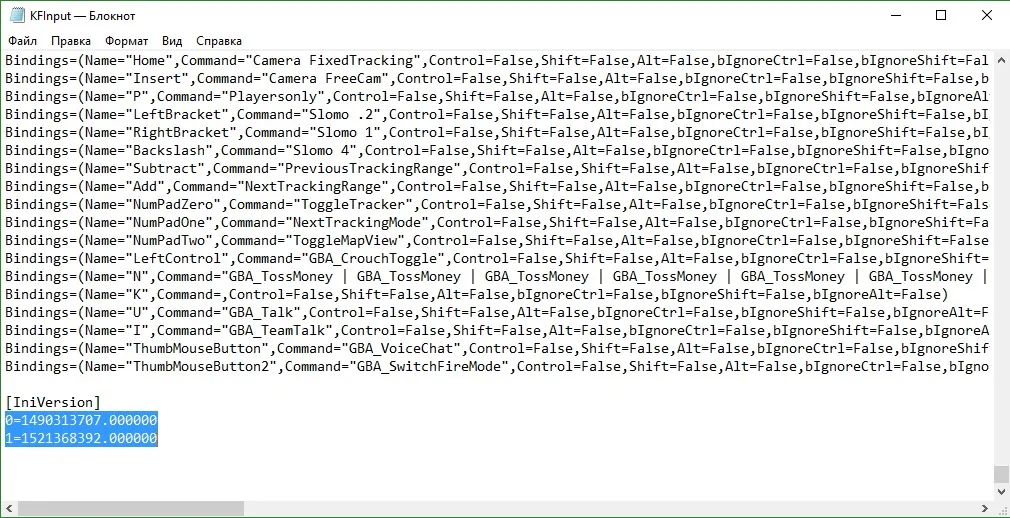 The two final lines that must be copied.
- Open your saved backup copy of KFInput in Notepad and replace its last two lines with the ones you copied.
- If this is your first time doing this after update v.1063 (10 April 2018), also copy every line that comes after those two lines in the new file and paste them at the end of your backup in the same order.
- Save the backup and copy it over the file in the Config folder, replacing the new one.
Result
Your own key binds work again and the game keeps the parts of the file that the new version needs. See also the BugSplat crash fix, which also touches the Config folder, and the preview beta guide.
FAQ
- Why do my key binds reset when I switch to the KF2 beta?
- Each branch writes its own KFInput file in the Config folder, so switching branches can replace your custom bindings with defaults.
- Which file stores the key binds?
- KFInput, in Documents\My Games\KillingFloor2\KFGame\Config.
