
KF2 Server with Game Server Manager - Setup, Updates, Backups
This guide is built around Game Server Manager (GSM), a free tool by a community member that automates running a dedicated server. Instead of hand-written batch files, GSM handles installation, monitoring, restarts, updates and backups. For manual setup compare Starting a dedicated server.
Features
- Automatic update checking and applying via SteamCMD (with configurable delay and a warning message to players)
- Players online graph and player list with ping, score, team and time online
- Built-in Telnet and RCON client that can send commands (for example shutdown notices) automatically
- Auto-restart if the server goes down; optional timed daily restart
- Message broadcasts and Discord notifications for server state and player changes
- INI parser listing settings across multiple files, sortable, filterable, importable and exportable
- CPU, RAM and bandwidth graphs, internal and external IP display, up-time
- Timed incremental backups to zip, one-click backup and maintenance
- Output of status, player count and server name to a file
- Game profiles for multiple instances; works with many other games using the standard query protocol
Initial setup
- Download and unzip Game Server Manager, and download SteamCMD.
- In GSM open Settings/Tools, Time Restart and Maintenance, and select the SteamCMD executable as the program location.
- In the command-line parameters box enter (change the path):
+login anonymous +force_install_dir "C:\KF2" +app_update 232130 +quit- Run the maintenance program from the Tools tab to install the server.
Ports and firewall
Forward these ports to the host machine and allow KFServer.exe through firewalls:
| Port | Protocol | Purpose |
|---|---|---|
| 7777 | UDP | game |
| 27015 | UDP | query, used by GSM |
| 8080 | TCP | WebAdmin |
| 20560 | UDP | Steam |
| 123 | UDP | NTP, Weekly Outbreak only |
If you change the defaults, change the rules too.
Telling GSM about the server
Under Server Details select KFServer.exe (in the install folder under Binaries\Win64). Enter the query address, normally 127.0.0.1:27015, and tick Detect via query in the Monitoring tab (recommended for KF2).
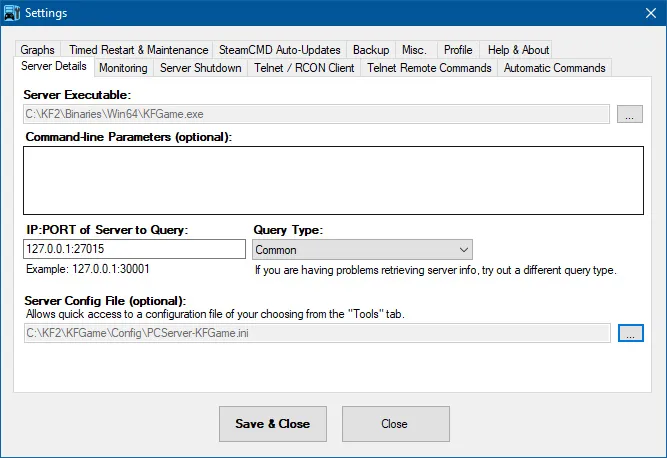 Server Details screen.
Monitoring and restarts
Tick "Check server status, every" in the Monitoring tab (increase the interval if your server is slow to become ready). This feeds the Main and Players Online tabs and enables auto-restart after a crash, graphs and status output.
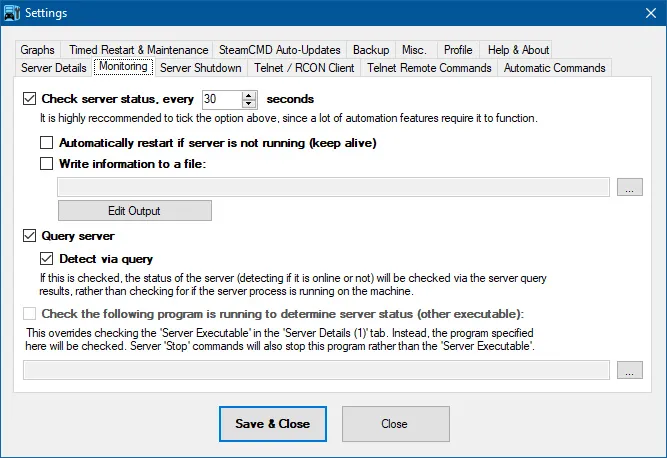 Monitoring tab.
Server configuration
For all other options use the official wiki guide. Setting a config file in Server Details gives quick access, and the INI Parser (Game Specific Tools tab) loads all INI files in that folder. A "Friendly Names" list can be downloaded from the author's site and unzipped into the GSM folder (merge it into an existing INIConfigList.txt without duplicates).
Updates and timed restarts
Under Timed Restart you can restart the server daily at a chosen time. Even without timed restarts you can pick a program to run before starting the server, such as SteamCMD to update the game.
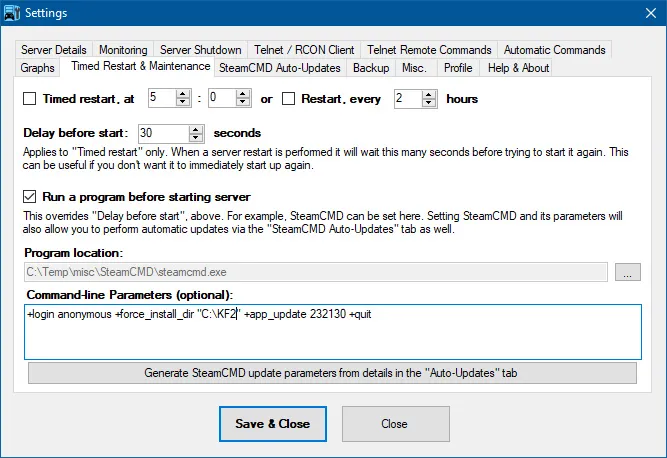 Timed Restart tab.
With a backup location set, "Perform Maintenance Now" backs up game data, stops the server, runs the maintenance program and starts the server again.
SteamCMD parameters
SteamCMD can update any KF2 install, even one made through the Steam client. Useful parameters (omit the angle brackets):
+login <username> <password>: required to download. The first login may ask for a Steam Guard code.+force_install_dir "<path>": where KF2 is.+app_update 232130: update KF2; addvalidateafter it (without a plus sign) to verify files.+quit: always last.
Example: +login MySteamUsername MySteamPassword +force_install_dir "C:\MyGameLocation" +app_update 232130 validate +quit.
Automatic updating
In the SteamCMD Auto-Updates tab enter your credentials, app id 232130 and branch public, choose how often to check and tick "Check for game updates, every". When an update is found, GSM stops, updates and restarts the server; you can delay it to warn players.
Remote commands via files
If you can reach the GSM folder (FTP or VPN), create a file with one of these names (content is irrelevant) and GSM performs the action and deletes the file:
| File | Action |
|---|---|
| start.txt | start the server |
| stop.txt | stop the server |
| backup.txt | perform a backup |
| update.txt | full maintenance cycle: backup, stop, maintenance program, start |
| restart.txt | restart the server |
| parm1.txt / parm2.txt | restart with command-line parameter set 1 or 2 (set in Telnet Commands) |
| telnetsend.txt | send the file's text to the server console |
Set a sufficient delay in the Server Shutdown tab so the server does not restart before it has shut down.
Basic port forwarding
Needed only for internet access, not for LAN play.
- Find the host's LAN address (shown on GSM's Main tab).
- Log into the router admin page (address and password are often on a sticker).
- Find "port forwarding" in the menus.
- Create rules forwarding the required UDP/TCP ports to the LAN address.
- Save. Use a static LAN address so rules do not point to the wrong machine after a reboot.
Troubleshooting
- Friends cannot join: check the firewall (Domain, Private and Public profiles, incoming and outgoing), port forwarding to the correct and static IP, and antivirus or VLAN software like Hamachi.
- GSM says Offline when the server is up: check the IP:port under Server Details (default 127.0.0.1:27015).
- Cannot connect from the host machine itself: there may be a port conflict; try changing the server's ports.
The author notes the program also works with Empyrion, Avorion, 7 Days to Die, Space Engineers and other games using the standard query protocol.
FAQ
- What does Game Server Manager do for KF2?
- It monitors the server, restarts it if it crashes, updates it through SteamCMD, makes backups, shows players and performance graphs and offers an INI parser and Telnet/RCON client.
- Which ports must be forwarded?
- UDP 7777, UDP 27015, TCP 8080, UDP 20560 and UDP 123 (Weekly Outbreak only).
- My friends cannot join, what should I check?
- Firewall (all Windows profiles, both directions), port forwarding to the correct and static internal IP, and any antivirus or VLAN software such as Hamachi.
