
Ultimate KF2 Launcher: Run a Light 50 MB Server Without SteamCMD
This guide, written in Russian by a community group and translated here, shows an alternative way to host a Killing Floor 2 server: use the Ultimate KF2 Launcher (by EvoSix) together with a small set of server files that run on top of your already installed game. The pitch is that a SteamCMD dedicated server is roughly 17.5 GB, about a third of the game, while this package is around 50 MB and takes under 10 minutes to set up. It is the genuine developer server, not a third-party reimplementation. For classic setups see the cheap VPS LinuxGSM server guide.
Notes before you start
- There is no 100% guarantee it works unless every condition is met.
- Other players can join only if your ports are open, firewall exceptions exist for the game and the server, and the game and server versions match. A server on version 1075s will not accept players on 1073 or 1076.
- Update the server whenever the game updates.
- Do not start the game until the server has fully loaded, or both can hang.
- The server needs about 500 MB of RAM and about 100 MB for each player.
- You need DirectX, Microsoft .NET Framework, Microsoft Visual C++ and the XNA Framework installed.
- If your archiver reports a damaged archive, update it or try another one.
Download and install
You need two sets of files: the server files (a Release build, current version at writing 1093, as an AIO 1090 package plus a 1093 update, and a Beta build) and the launcher (version 3.4.00). The guide provided MEGA links, and the launcher's News tab also has a Downloads block with current files. The author also posted a VirusTotal link for those worried about malware.
Extract both into the game's root folder, for example D:\Game Files\Steam Games\steamapps\common\killingfloor2. Then run UKF2Launcher.exe, choose the Steam license user type, and the Server tab will list the available maps.
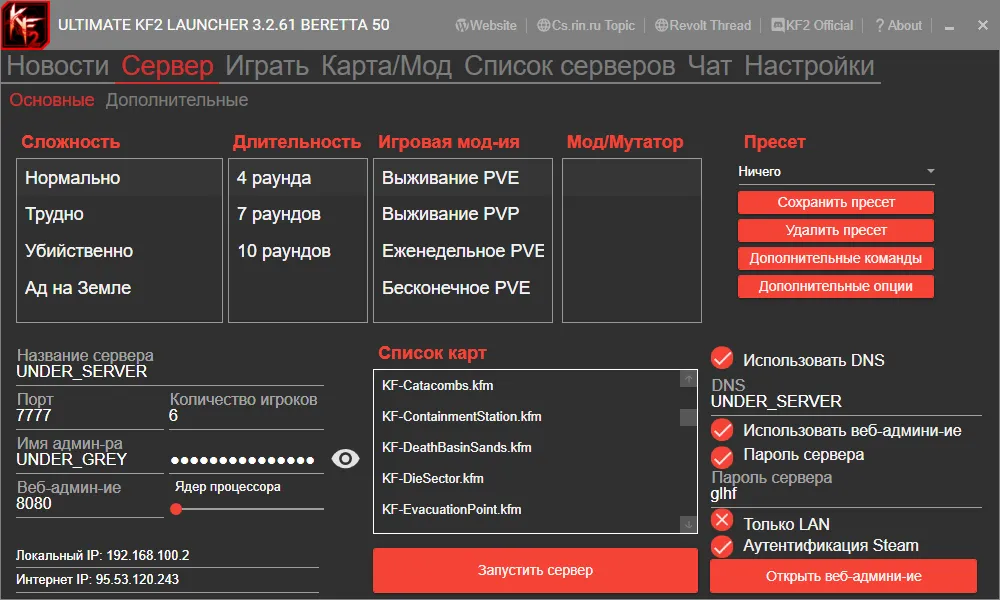
The Server tab: pick difficulty, wave length, game mode, name, map, password, DNS and web admin.
Set the difficulty, wave length, mode, optional server name, map, an optional password and DNS, and web administration if you want to manage it from a browser. Advanced options let you disable kickvote, disable player collision or enable friendly fire. Then press the big red Start Server button.
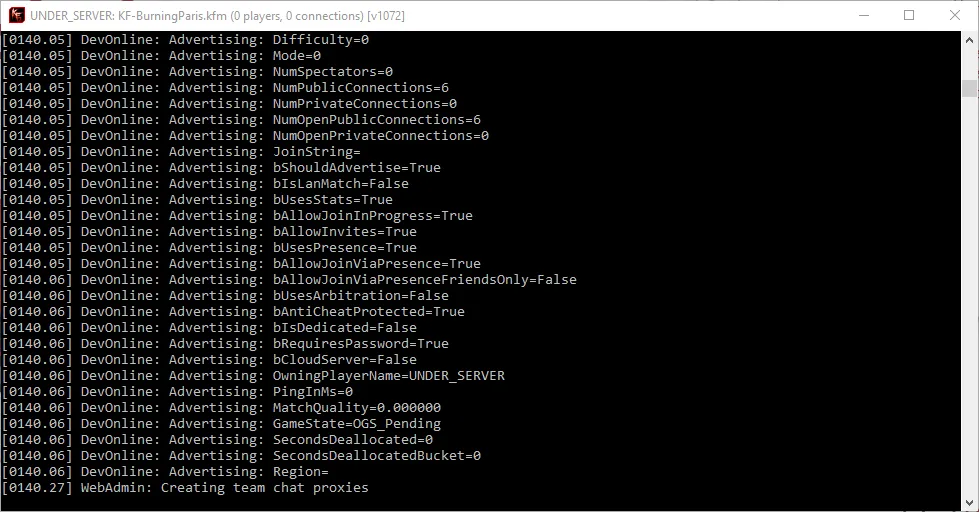
Press the red button to start the server and wait for the console window.
Startup takes one to five minutes depending on the PC and especially the disk. Two extra windows appear, the server console and KF2ServerMonitor. Do not close them; minimize them instead.
Connecting
- Use the in-game server browser, on the Local tab or sorted by ping (your own server should have the lowest, typically 5 to 15).
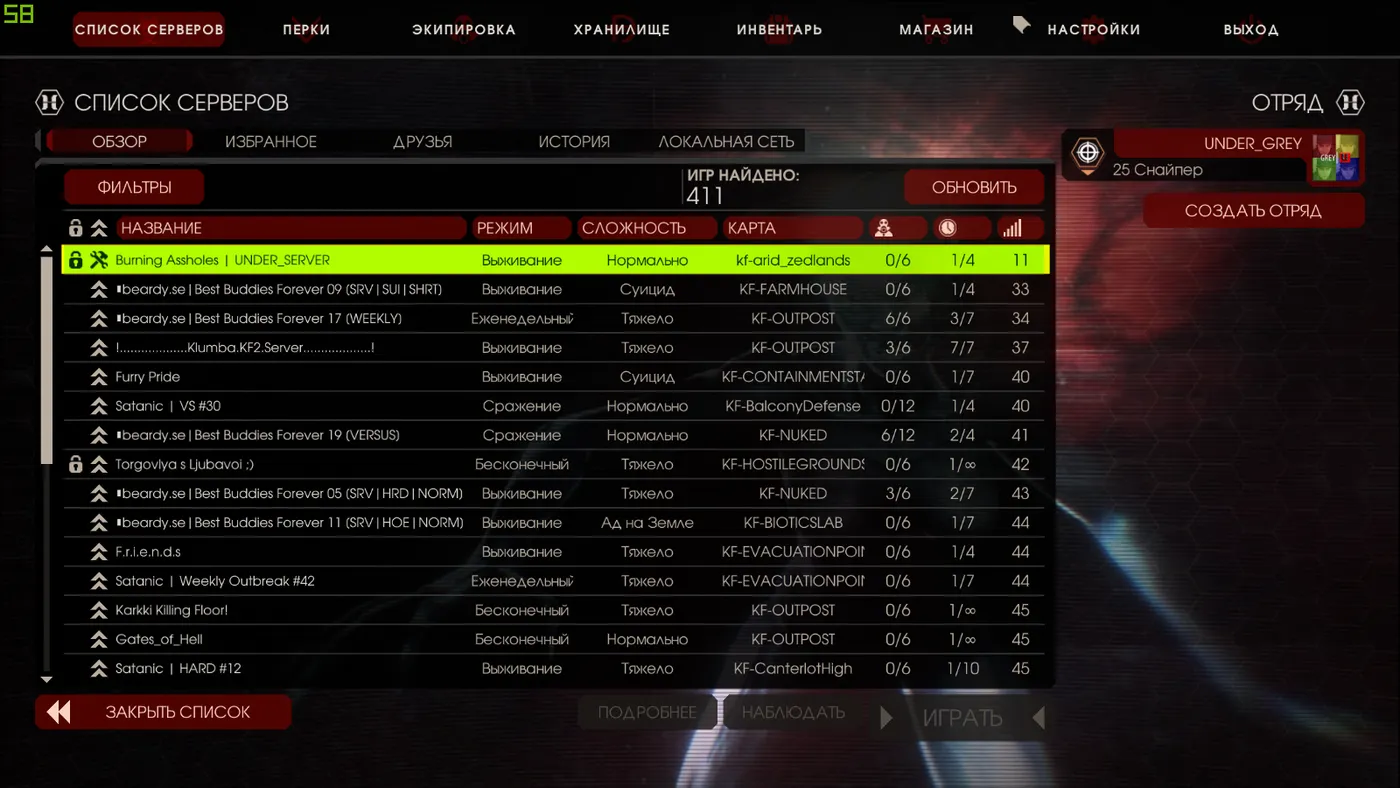
The server shown in the browser.
- Use the launcher's Play tab: enter the server IP and port and press Play.
- Use the console: press the tilde key and type
open <IP>, for exampleopen 5.12.51.52. For your own server useopen 127.0.0.1.
Ports
| Port | Protocol | Purpose |
|---|---|---|
| 7777 | UDP | Game port, main connections |
| 7778 | UDP | Peer port |
| 8777 | UDP | Client LAN beacon, inherited from Unreal Tournament, may be unused |
| 9777 | UDP | Server LAN beacon, same note |
| 27015 | UDP | Query port, talks to the Steam master server |
| 8080 | TCP | Web administration, if enabled |
| 20560 | UDP | Steam Workshop |
| 123 | UDP | NTP, only for weekly missions to find the correct outbreak |
The LAN beacon ports are named in the config files and not closed by any switch. If your server does not appear in the browser, opening them is worth a try.
Without correct port forwarding nobody can connect and you play alone, which is no different from offline solo. The author demonstrates on a Huawei HG8245H router, and the steps are generic:
- Enter your IPv4 default gateway (often 192.168.0.1 or 192.168.100.1) in a browser.
- Log in with the credentials from your ISP contract, or typical defaults such as admin and root.
- Find Forwarding or Port Forward, sometimes Virtual Server.
- Add a rule for each port: a name like KF2, your local IPv4 address and the start and end port.
- Save, and restart the router if needed.
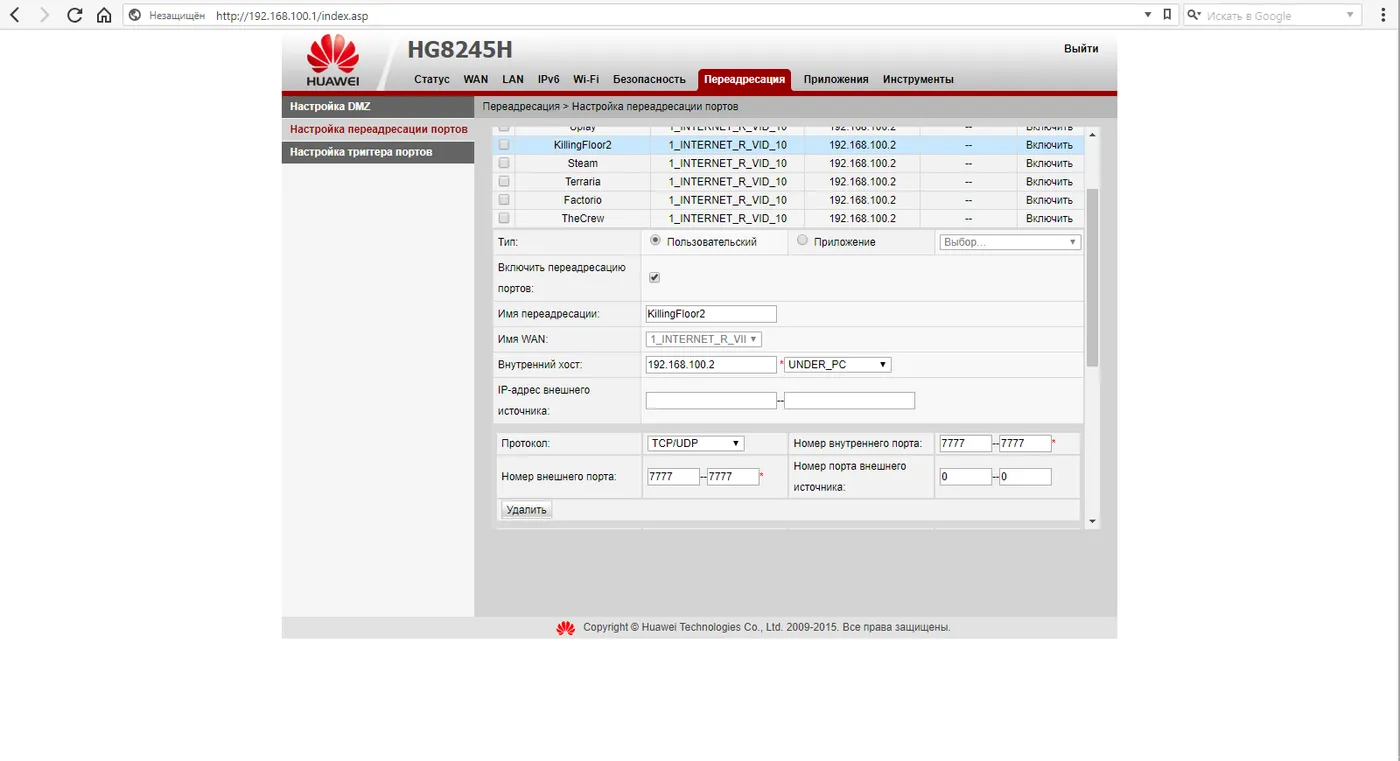
Creating a forwarding rule in the router.
Ports can stay closed even after all this, because of firmware faults or an ISP plan that does not allow open ports. The portforward.com site documents many router models.
Custom maps
Download maps from the Tripwire forums (beta and release custom map threads) or GameBanana. Extract them into KFGame\BrewedPC\Maps inside the game folder. In the launcher's Map/Mod tab move the map from Available Maps into the Map Cycle with the Add Selected Map button, and it will appear in map votes.
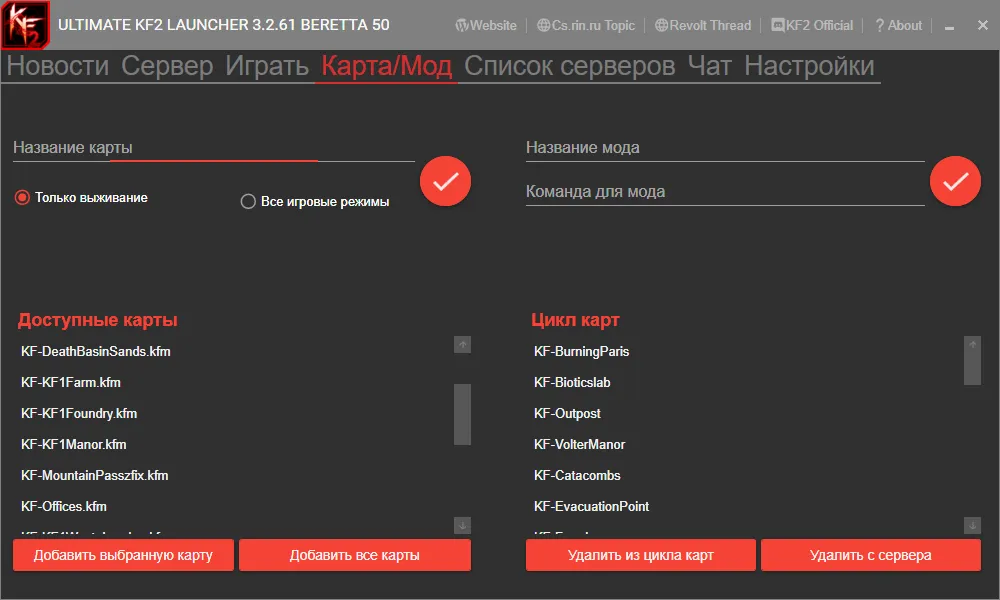
Adding a custom map to the map cycle.
Steam Workshop
If the server uses Workshop maps or skins, enable downloads through Steam Workshop. Make sure the server is not running, or the setting will be overwritten. In the Server tab open Advanced Options and press Workshop Configuration. Tick Enable Workshop and Enable download via Steam client, copy the item ID from the Workshop page URL (for example 733191110), paste it into Workshop ID and press Add. To remove an item, select it and press Delete Selected.
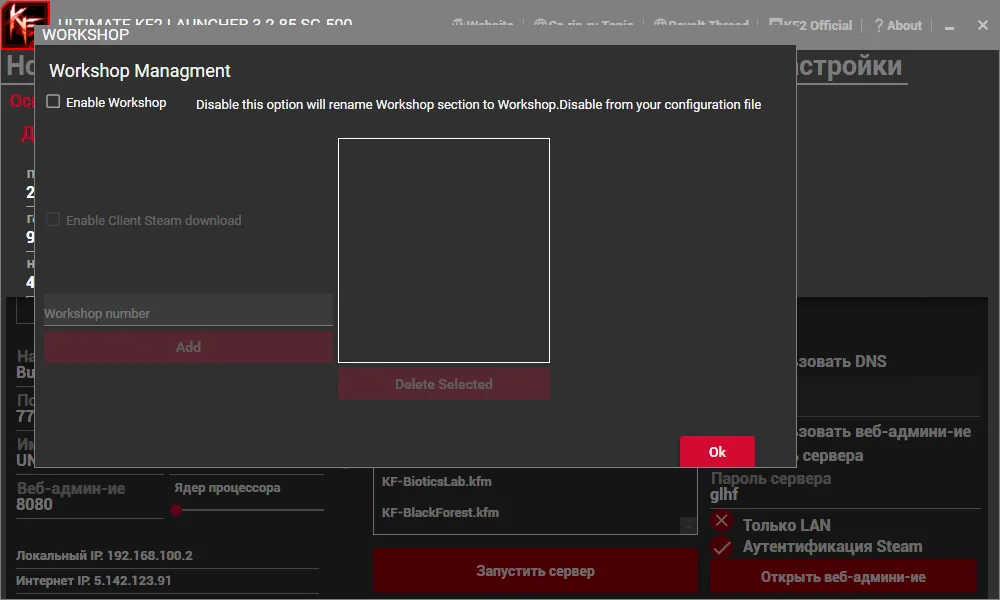
The Workshop configuration window.
Redirect server
Again with the server stopped, add RedirectToURL = <address> under [IpDrv.HTTPDownload] in PCServer-KFEngine.ini, or paste an address into the Redirect Server field on the launcher's Server tab (Advanced). Example addresses the guide lists are http://kf2.tripwirecdn.com/, http://skillzservers.com/kf2-redirect/ and http://bloodfloor.us.
Mutators
Download mutators from the Tripwire forums and extract them to KFGame\BrewedPC, or subscribe on the Workshop and run them from the cache. In the Map/Mod tab enter the mutator name in Mod Name and the launch command in Mod Command, then press the round red tick button. The mutator then appears in the Mod/Mutator section of the Server tab.
Resource usage
The author measured on an i5 2500K, 8 GB RAM and a GTX 1050 Ti at Ultra settings (medium shadows): screenshots show usage with only the server, the server plus game, and the server plus game with one and with three players.
Credits
The launcher is by EvoSix, and the project site is ukf2launcher.wordpress.com. The guide authors are a Russian community group who list their other guides and Discord.
FAQ
- How big is the server files package compared with SteamCMD?
- The guide says a SteamCMD server takes about 17.5 GB, while the launcher-based server files are about 50 MB because they reuse the installed game's resources. It also states the setup takes about 10 minutes.
- Which ports must be open for a KF2 server?
- Game 7777 UDP, peer 7778 UDP, query 27015 UDP, Steam Workshop 20560 UDP, web admin 8080 TCP, and NTP 123 UDP for weekly missions. LAN beacon ports 8777 and 9777 UDP are optional.
- How much RAM does the server need?
- About 500 MB for the server plus roughly 100 MB per player.
