
KF2: Host a Dedicated Server and Play on the Same PC
In the early days of Killing Floor 2 there was no built-in way to host a multiplayer game; the only option was a dedicated server, which usually means paying a hosting company every month. This French guide shows how to run the dedicated server on your own Windows PC and play on the same machine. Related pages: KF2 dedicated server via SteamCMD and common host problems.
1. Requirements and warnings
- Windows only. The KF2 dedicated server runs on Windows. On Linux or Mac you would need a Windows emulator, which the author describes as painful.
- Upload speed. At least 1 Mbit/s (128 KB/s) is strongly recommended; that should give teammates 40 to 100 ms ping. Avoid Wi-Fi and heavy downloads or streaming while the server runs.
- CPU. The server process uses about 1 to 5 percent of CPU, usually 1 to 2 percent, comparable to a Mumble or Steam client.
- RAM. 600 to 900 MB; 8 GB of RAM is plenty.
- Disk. About 5.25 GB for the install.
2. Install KF2Server with SteamCMD
- Download SteamCMD from Valve (steamcmd.zip), extract it and run the installer. It installs into the folder it sits in, so put it where you want it. Do not put it in your Steam folder or any folder containing HLDSUpdateTool.
- Start SteamCMD and let it update until you see the prompt.
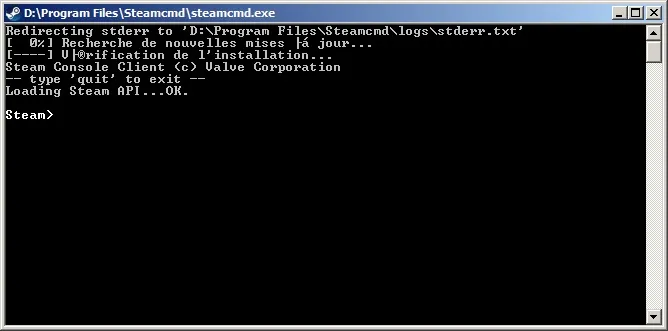 SteamCMD ready for commands.
- Log in anonymously (never use your own Steam account):
login anonymous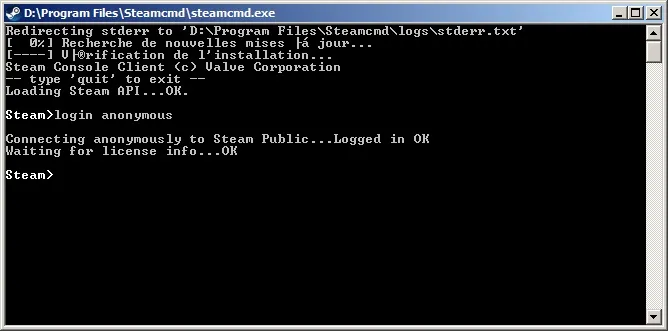 Logged in as anonymous.
- Optionally choose the install folder. There is no confirmation message; you simply return to the Steam prompt:
force_install_dir c:\KF2Server\- Download the server (5 to 30 minutes depending on your connection):
app_update 232130 validate- Type
quitto log out and close SteamCMD.
3. Forward the ports
Router menus differ, so check your router or ISP documentation. To find the router: open cmd, run ipconfig, and enter the Default Gateway address in your browser. Find the port forwarding menu and forward these ports to your PC's local IP:
| Port | Protocol |
|---|---|
| 7777 | UDP |
| 27015 | UDP |
| 8080 | TCP |
| 20560 | UDP |
Save and restart the router if needed.
4. First configuration
Run KF2Server.bat once so the config files are created. The console prints five final lines when the server goes online; then you can close it.
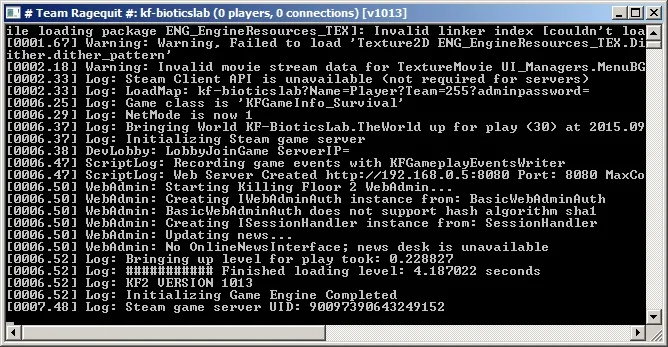 Server console. Note the KF2 VERSION log line.
Edit KF2Server.bat. The line looks like start .\Binaries\win64\kfserver kf-bioticslab. Append this directly at the end, with no space:
?adminpassword=yourpasswordThe default password is 123, so change it. Start the server again, wait until it is online and close it. Then open KFGame\Config\KFWeb.ini and change bEnabled=false to bEnabled=true to turn on WebAdmin.
5. WebAdmin
WebAdmin lets you configure and manage the running server in a browser, even Steam's in-game browser, so you do not need to alt-tab. Open your local IP followed by :8080.
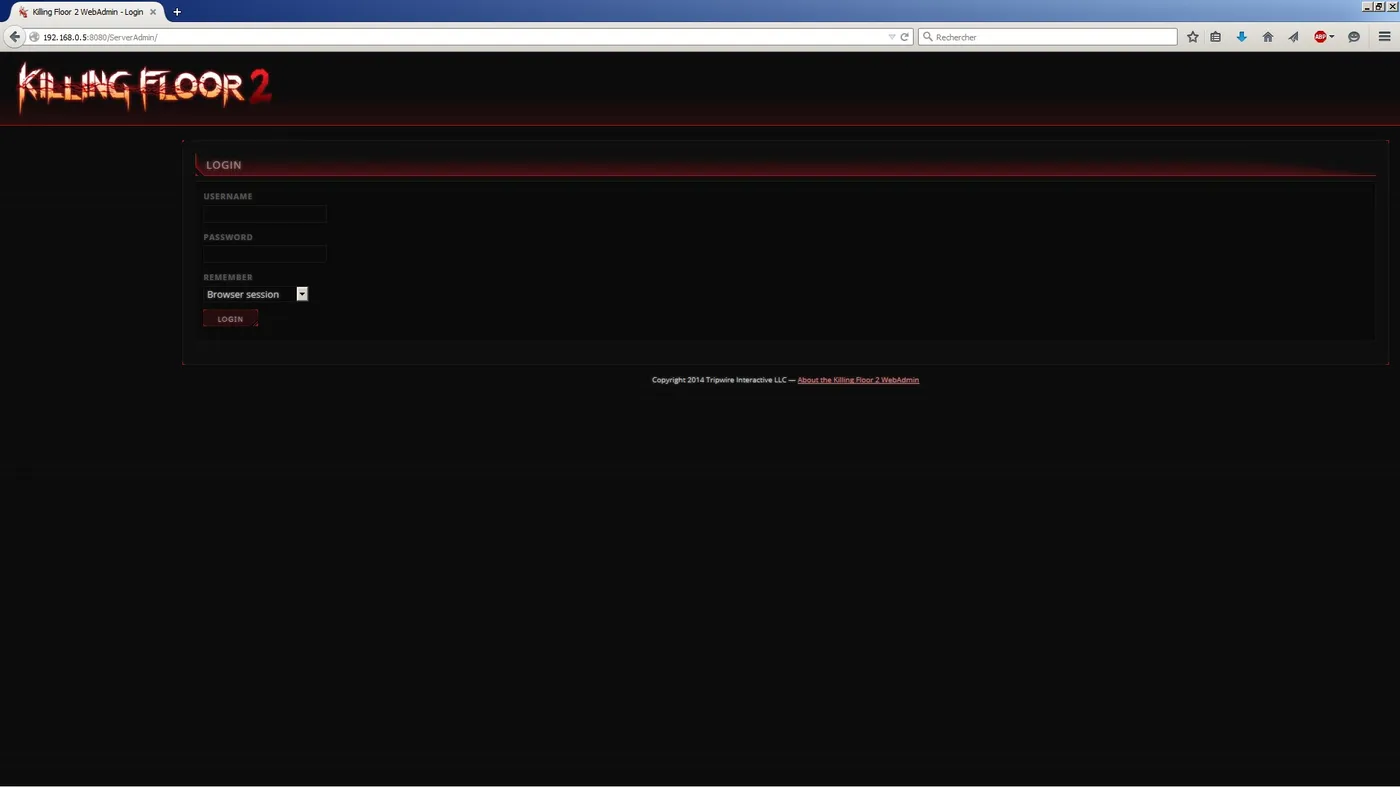 WebAdmin login: user Admin and the password you set. Set Remember to 1 Month to skip logging in again.
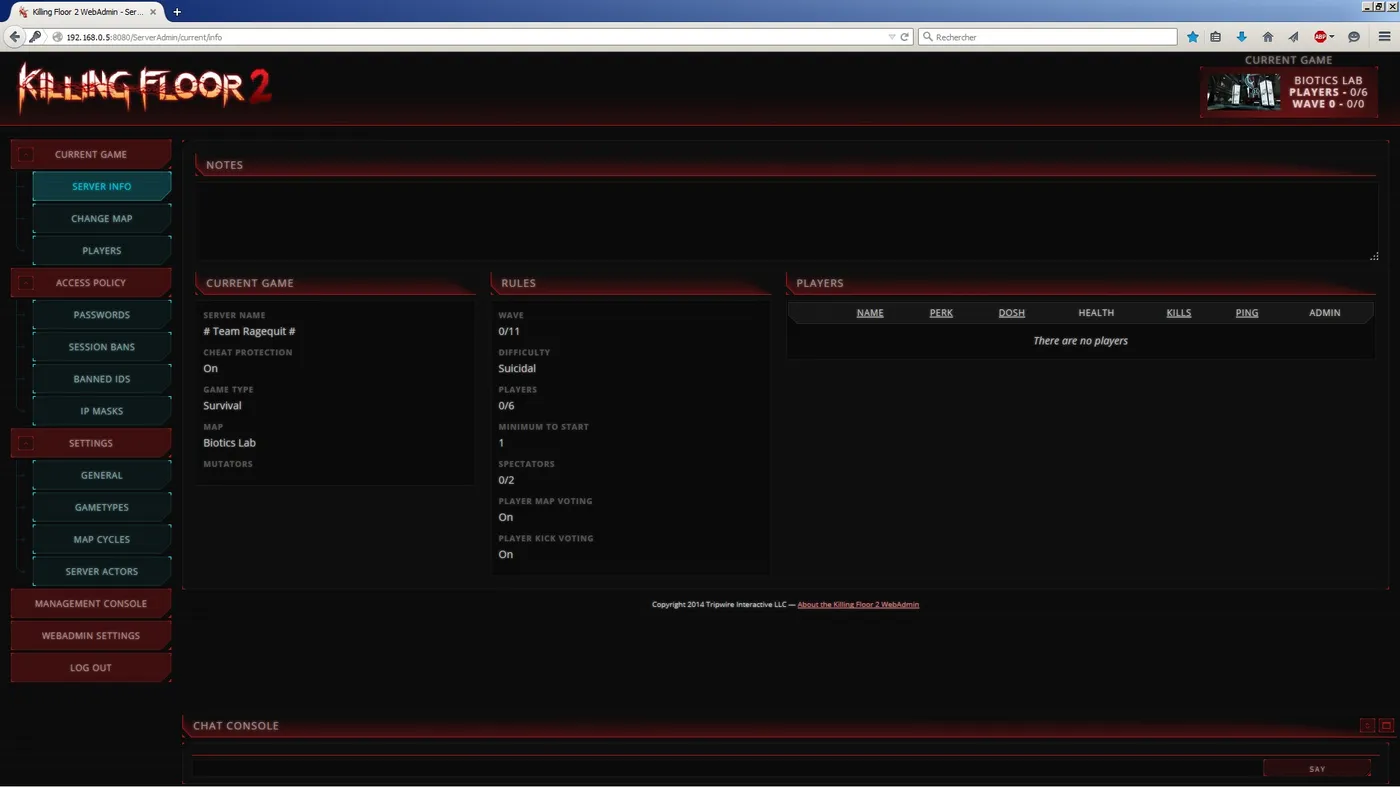 Current game overview.
- Change Map: pick a map, then press Change Game to confirm.
- Players: ping, Steam ID, Kick, session ban, IP ban, Steam ID ban, mute and unmute. Useful against a level 0 player on Hell on Earth.
- Passwords: change player and admin passwords live, with no map restart.
- Sessions Bans, Banned ID, IP Masks: review bans and set IP filters.
- General: Server Information changes the server name immediately; the Game tab changes difficulty, game length and player collisions, and needs a restart of the match.
- Gametypes: small timings such as the delay before a match starts or ends.
- Map Cycles: choose which maps appear, including custom maps.
- Server Actors, Management Console, WebAdmin Settings: advanced users only.
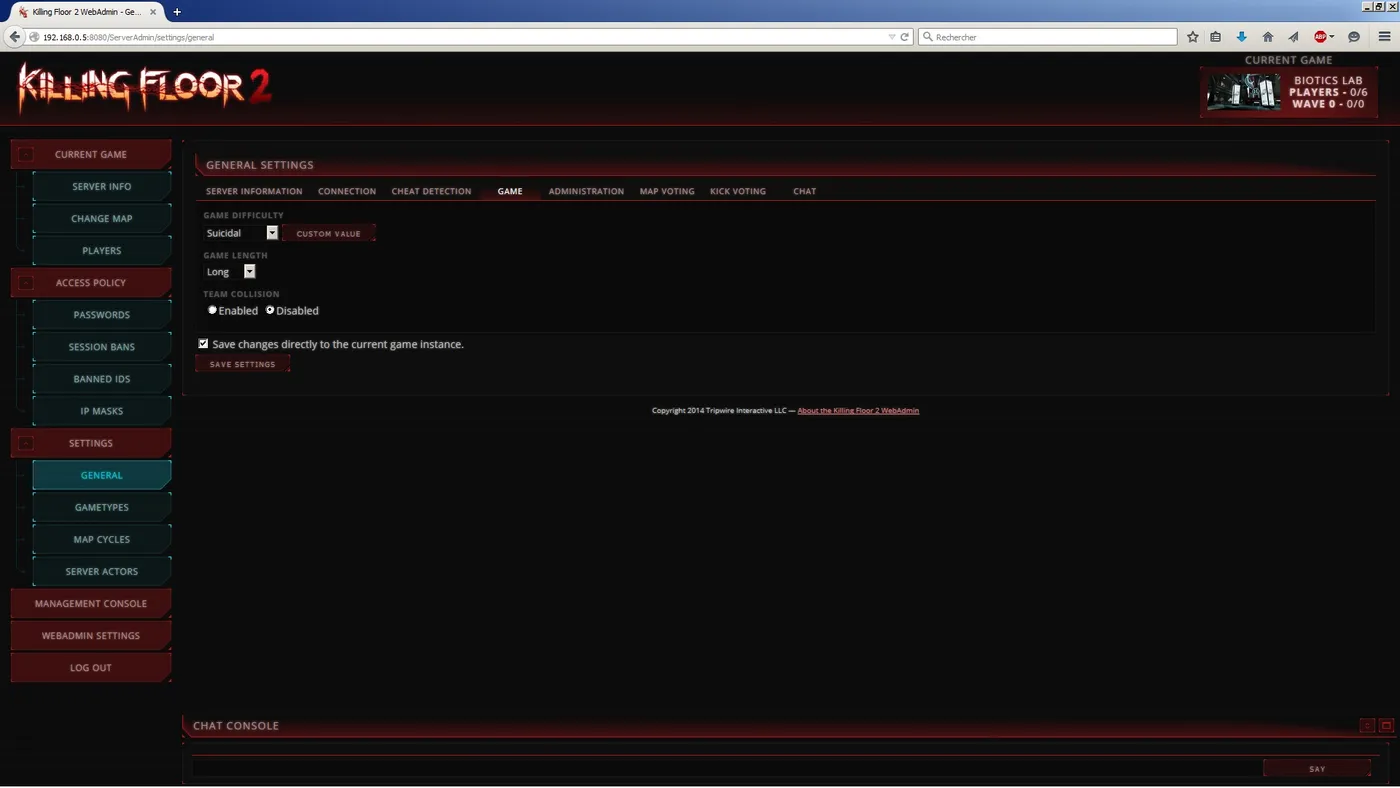 Game tab with difficulty and length settings.
Warning: custom values for difficulty or game length can change the server status from Official to Custom. On Custom servers players earn no perk experience and cannot unlock achievements.
6. Hosting and playing on the same machine
Start the server, wait for it to come online, then launch KF2 and open the server list on the Local or LAN tab. Your server should be the first entry. If you cannot see or join it:
- Check versions. In the server window find
Log: KF2 VERSION [XXXX]and make sure it matches your game version. If not, update the server. - Join directly. Open the console and run
open xxx.xxx.xxx.xxx:7777with your local IP, without a password. - Set a fixed local IP. Port conflicts can occur otherwise. In Windows, open the adapter settings, TCP/IPv4 properties, and set an IP in the same range as the router (192.168.0.x or 192.168.1.x, avoiding x values 0, 1, 254, 255). You can also set an ISP-independent DNS such as OpenDNS (208.67.222.220 and 208.67.220.222). Then update the port forwarding to the new IP.
- Change the ports. Add
-port=7787to the end of the batch command line (space before the dash). The query port shifts by the same amount (7787 gives 27025), so forward the new ports too. - Ask for help on the Tripwire forums, the Steam forums or the KF2 subreddit.
7. Updating the server
The dedicated server does not update itself. Create update_kf2_ds.txt in the SteamCMD folder with:
login anonymous
force_install_dir <KF2Server path>
app_update 232130
quit
Create a shortcut to SteamCMD and append +runscript update_kf2_ds.txt to its Target field (mind the space). Running the shortcut updates the server. To join a beta, use app_update 232130 -beta "Beta name".
Conclusion
With this setup you can save on hosting fees and still get a stable connection, often better than a cheap host.
FAQ
- Which ports does a KF2 dedicated server use?
- Forward 7777 UDP, 27015 UDP, 8080 TCP and 20560 UDP to the PC running the server.
- What is the SteamCMD app id for the KF2 server?
- 232130. Use app_update 232130 validate after login anonymous.
- Why do players on my server get no XP?
- Custom difficulty or game length can switch the server from Official to Custom status, where perks gain no experience and achievements are locked.
