
KF2 Dedicated Server: Fix Mismatch and Opening File Errors
This guide covers the most common problems when players connect to a Killing Floor 2 dedicated server running custom maps, and how to fix them. Related background is in Package Version Mismatch.
Fixing Package Version Mismatch
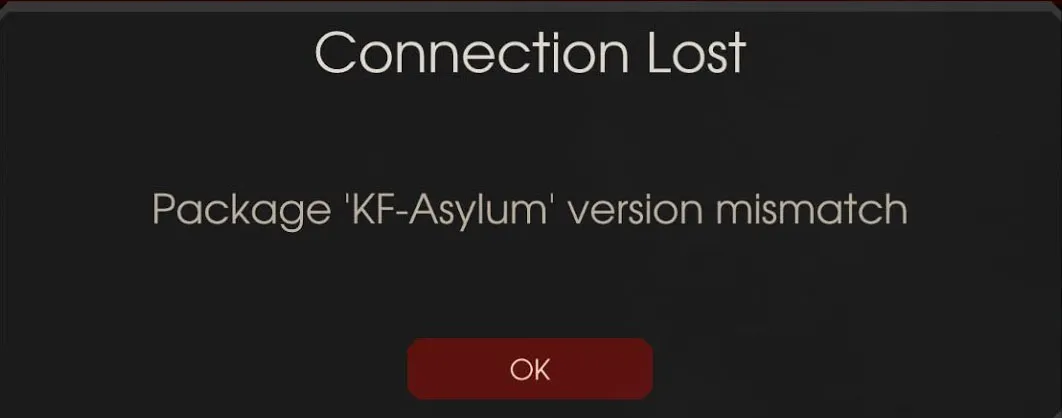 The mismatch error message.
The error usually means the map file installed on the server does not match the file players download from the map's source (Workshop or a redirect). It is usually server related, but not always.
Known causes
- A Workshop uploader renamed the map file when updating (for example KF-MapNameV1 became KF-MapNameV2). Mappers should avoid renaming files when updating.
- A recently updated Workshop map that the server has not downloaded yet. If Steam and the server run on the same computer, close Steam and launch the server so it can update maps.
- Redirect maps with the same filename but different file sizes (for example KF-BikiniAtoll 45 MB installed, 65 MB on the redirect).
- Custom map files in your My Documents path with the same filename but a different version.
- Tampering with Workshop maps inside the main installation path of Killing Floor 2 (affects only you).
Known fixes
- Clear cached map files you downloaded. Delete the folder
Documents\My Games\KillingFloor2\KFGame\Cache(or only specific numbered folders, which are Workshop IDs). If that fails, the problem is server-side. - Redirect mismatch. Make sure the maps on your redirect are identical to those in
KFGame\BrewedPC\Mapson the server; compare file sizes. - Workshop file renamed. Check the server's
KFGame/Cachefolder (numbers are Workshop IDs; search KF-*.kfm or the Workshop ID). The filename must match the one in PCServer-KFGame.ini. - Workshop map needs updating. Compare the update date on the Workshop page with the date of the file on the server. If the server runs on the same machine as Steam, close Steam and launch the server; a bug prevents map updates while Steam is running. Wait a couple of minutes.
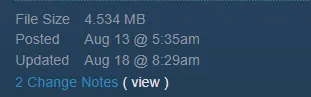 Check the update date against the file on the server.
- Workshop map not updating. Remove all traces of the map:
- Search for the Workshop ID in the server folder; two numbered folders appear.
- Delete the folder in
C:\KF2Server\Binaries\Win64\steamapps\workshop\content\232090. - Delete the folder in
C:\KF2Server\KFGame\Cache. Deleting only from Cache is not enough, because the server copies the same version back. - Open
KF2Server/Binaries/Win64/steamapps/workshop/appworkshop_232090.acfin a text editor such as Notepad++.
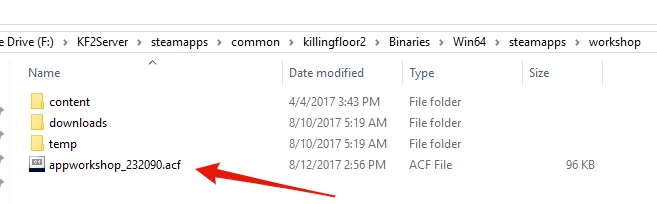 The appworkshop_232090.acf file.
- Search for the Workshop ID and delete the entire section for that map (both listings if there are two).
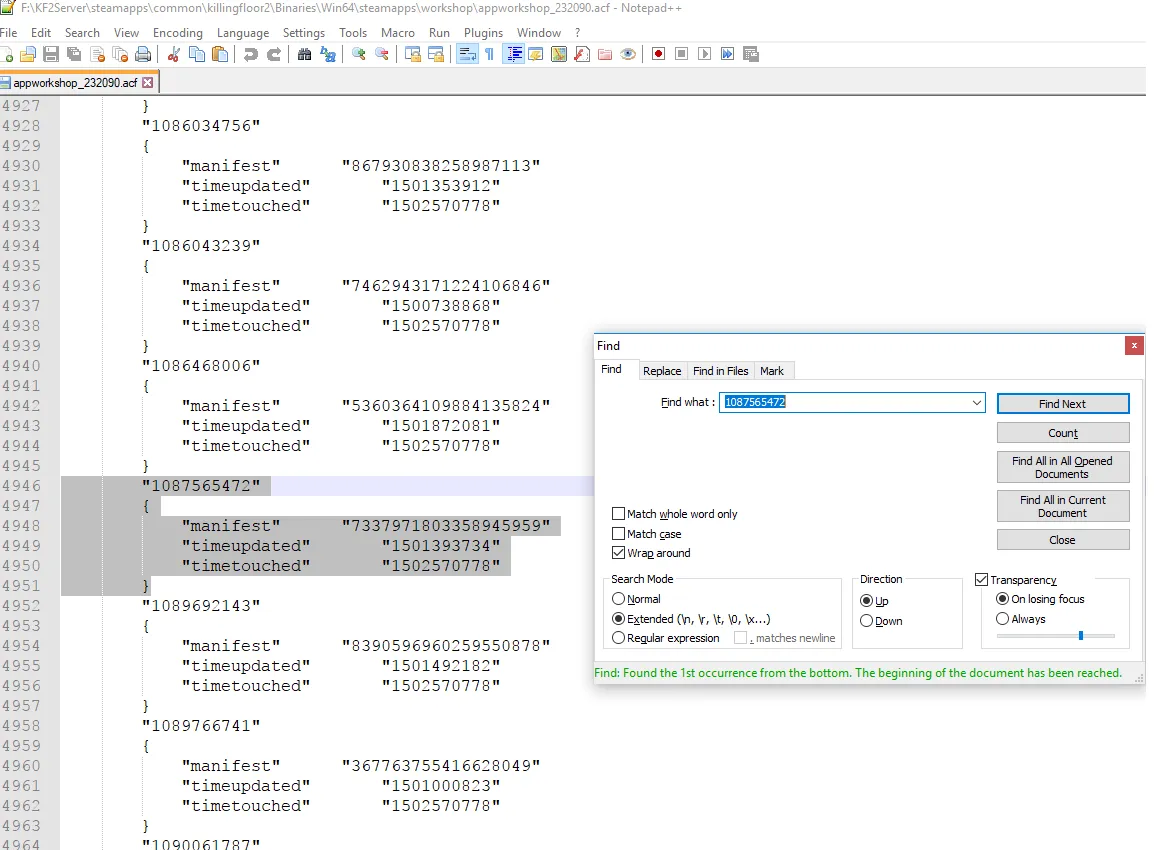 Delete the whole map section.
If several maps fail to update, delete the entire acf file (it will be recreated) and all map folders. Then launch the server so it downloads fresh copies.
- Non-server mismatch. Some cases are unsolved and unrelated to the server. After clearing your Documents cache, you may need to verify game files or reinstall.
Fixing Error Opening File
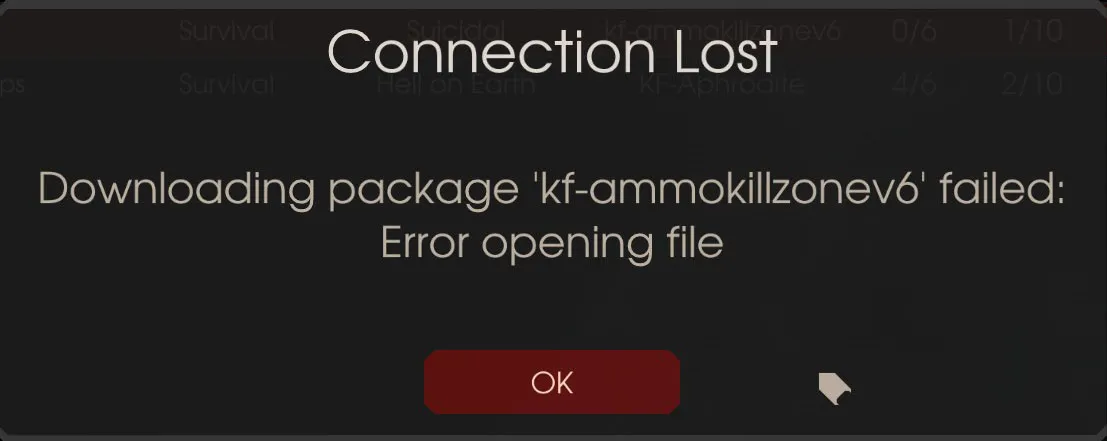 The error opening file message.
This means the server cannot provide the map file to connecting players, or there is a conflict. It is common with redirect setups but can happen with Workshop maps.
- Redirect: the .kfm in
KFGame/BrewedPC/Mapsdoes not exist on the redirect set in PCServer-KFEngine.ini; upload it. - Redirect: no redirect was specified in PCServer-KFEngine.ini at all, so players cannot download the map.
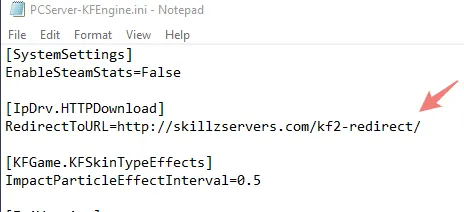 A map redirect must be configured.
- Redirect: filenames are case-sensitive. KF-Vava.kfm installed but KF-vava in the map cycle causes the error.
- Workshop: the server lacks this line under
[IpDrv.TcpNetDriver]in PCServer-KFEngine.ini:DownloadManagers=OnlineSubsystemSteamworks.SteamWorkshopDownload. - Workshop: the map was never installed; check
C:\KF2Server\KFGame\Cache. - Workshop: the map entry is missing in PCServer-KFGame.ini, for example
[KF-BikiniAtoll KFMapSummary]withMapName=KF-BikiniAtoll. - Workshop: the file was removed from the Workshop or made private; custom maps cannot load even if previously installed.
- Client side: maps in your Documents Cache conflict; delete the Cache folder and check the Published and Unpublished folders for conflicts. Verifying game file integrity may help for other opening-file errors.
- If all else fails, the .kfm may be faulty or missing additional .upk files.
Fixing Duplicate UID
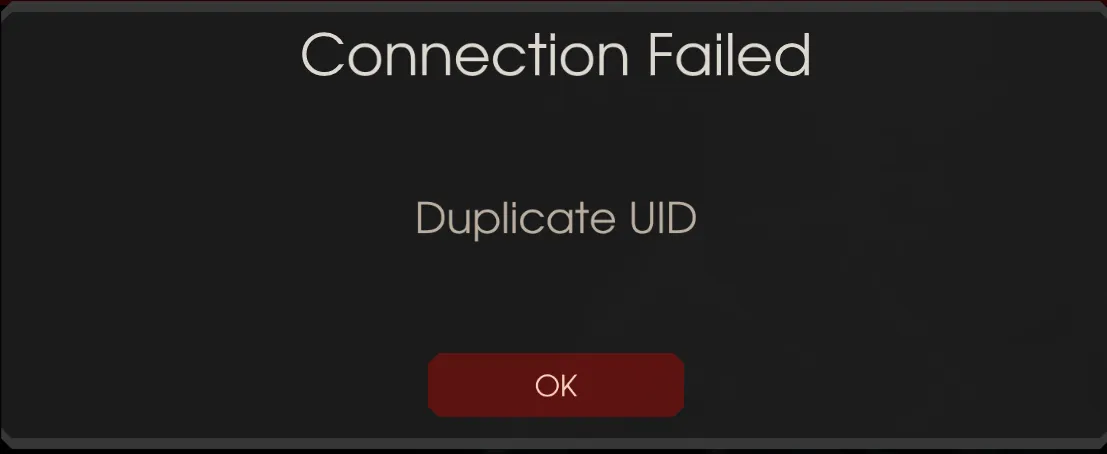 The Duplicate UID message.
The server thinks you are already in the game, usually because you tried to join twice. Wait around two minutes for the server to clear you out, or have the server reload the map.
Custom map loads BioticsLab instead
If you vote for a custom map and KF-BioticsLab loads, the server could not find the map file specified in PCServer-KFGame.ini. Check for spelling mistakes and make sure the map file is fully installed.
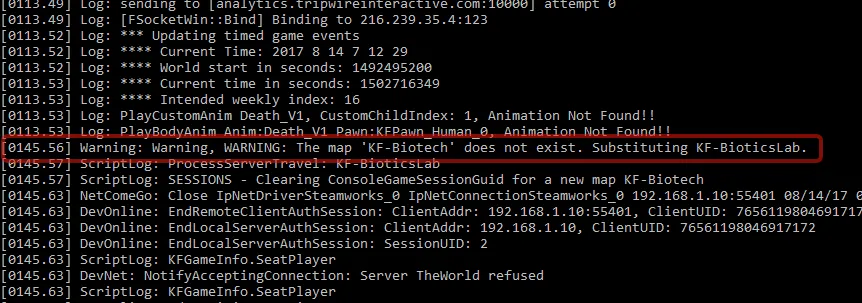 BioticsLab appears when the voted map cannot be found.
FAQ
- What does Package - Version Mismatch mean?
- The map file installed on the server does not match the version players download from the Workshop or the redirect. It is usually a server-side problem.
- Why does the server keep the old map after I delete it from the Cache folder?
- The server copies the same version back from the workshop content folder. Delete the map from both the workshop content and Cache folders and remove its entry from appworkshop_232090.acf.
- What does Duplicate UID mean?
- The server thinks you are already connected, usually because you joined twice. Wait about two minutes or let the server reload the map.
