
KF2: How to Join a Friend's Server (Party, Invite, IP)
This guide (originally written in Japanese) covers all the ways to get into the same Killing Floor 2 server as your friends. See also the general page play with friends on Steam and server connection errors.
Joining together: make a party
The simplest way is to form a party on the home screen first.
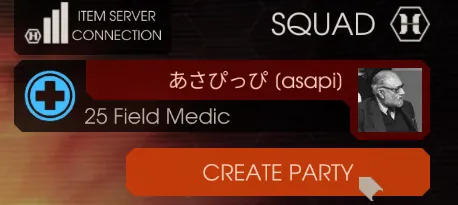 The Create Party button in the squad panel.
After choosing Create Party, invite friends from the in-game UI, or right-click them in your Steam friends list and invite them to the game.
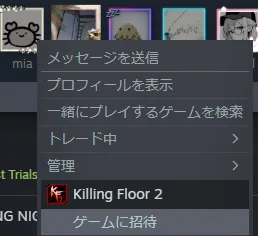 Inviting a friend through the Steam friends list.
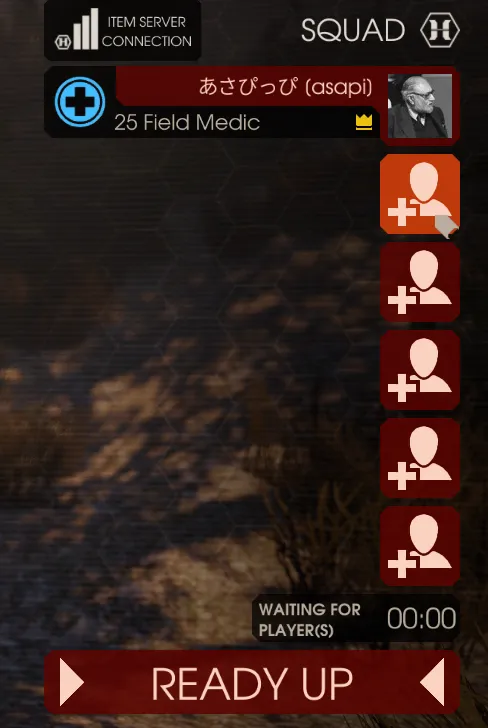 Squad slots waiting for invited players.
The party leader starts the match. Pick Find Match, Create Match or Server Browser; Create Match can also be set to private.
Inviting a friend into a server
A player who is already on a server can invite friends too, again from the in-game UI or by right-clicking a Steam friend.
Finding a friend's server
You can also locate your friends' server without an invite. The most common way is Server Browser, then the Public Friends tab, which shows only servers where your friends are playing. Server details show who is inside, so check before joining.
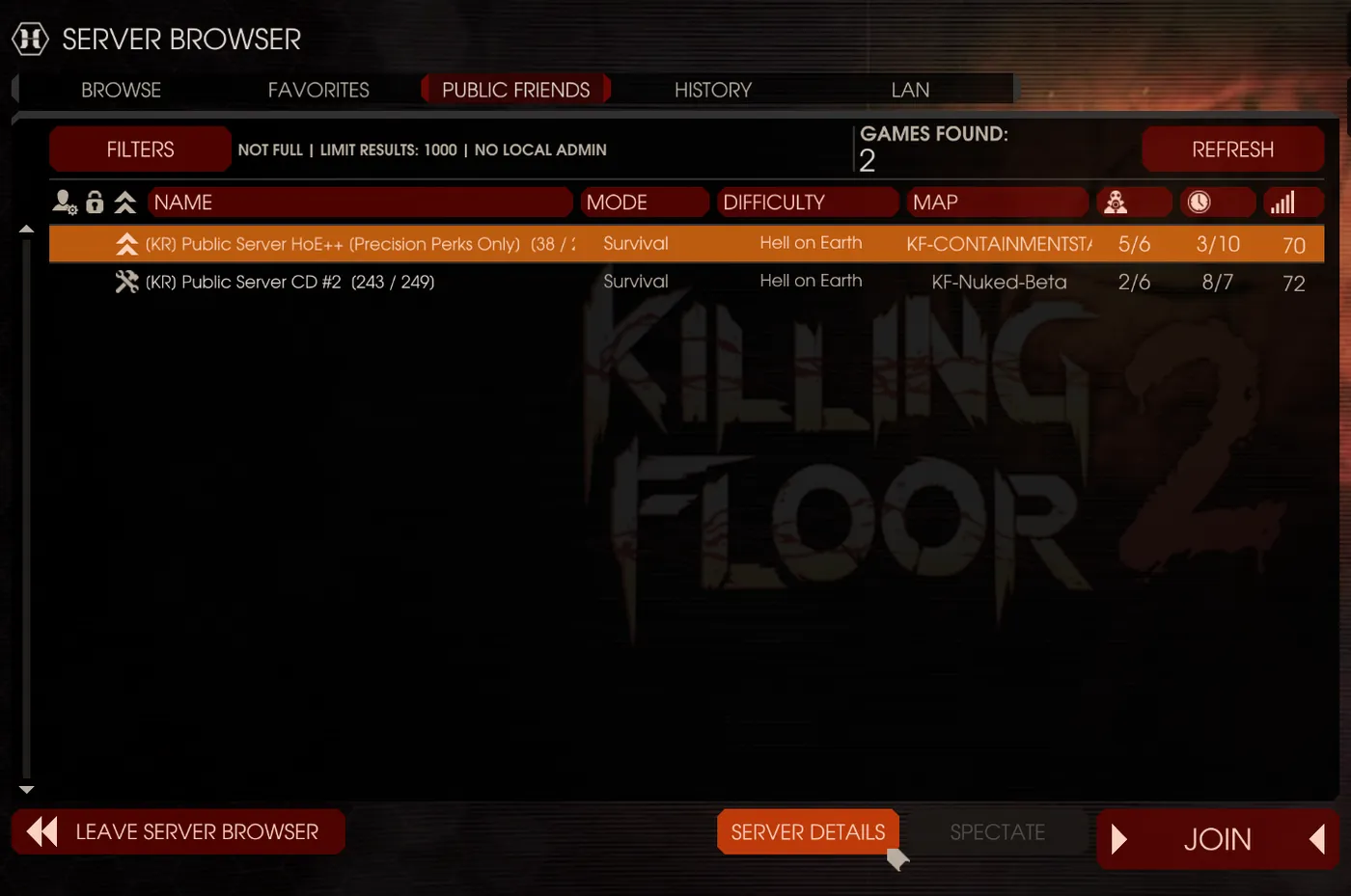 Public Friends tab in the Server Browser.
Another way is the Steam friend menu: right-click the friend and choose Join Game, or open the game details first.
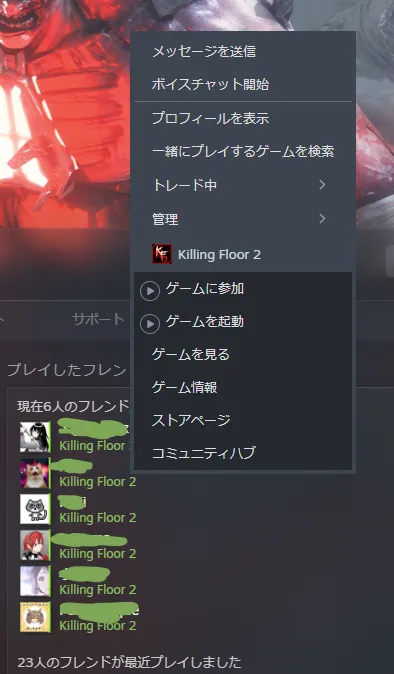 Join Game from the Steam friend menu.
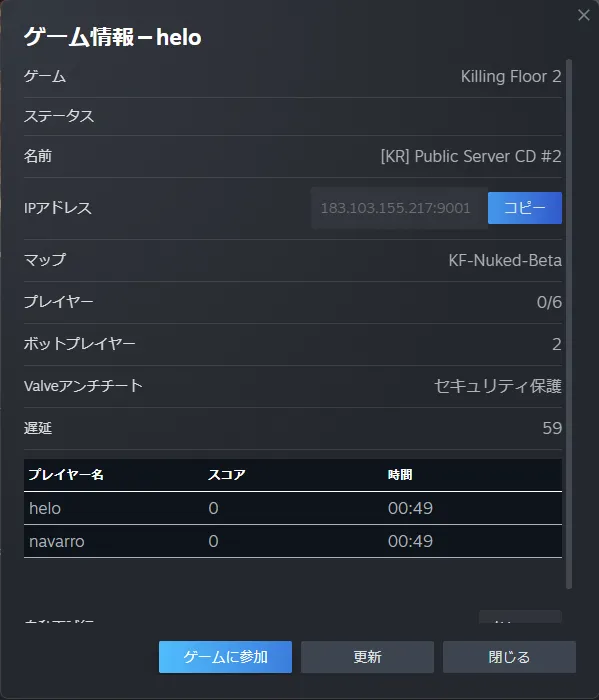 Steam game information shows the server name, IP, map and players.
If those fail, use the Steam server list: choose View in the top left of the Steam client, then Game Servers, and open the Friends tab to see servers with friends.
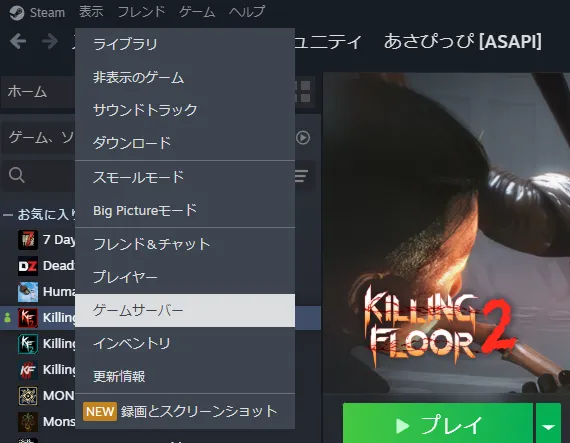 View, then Game Servers in the Steam client.
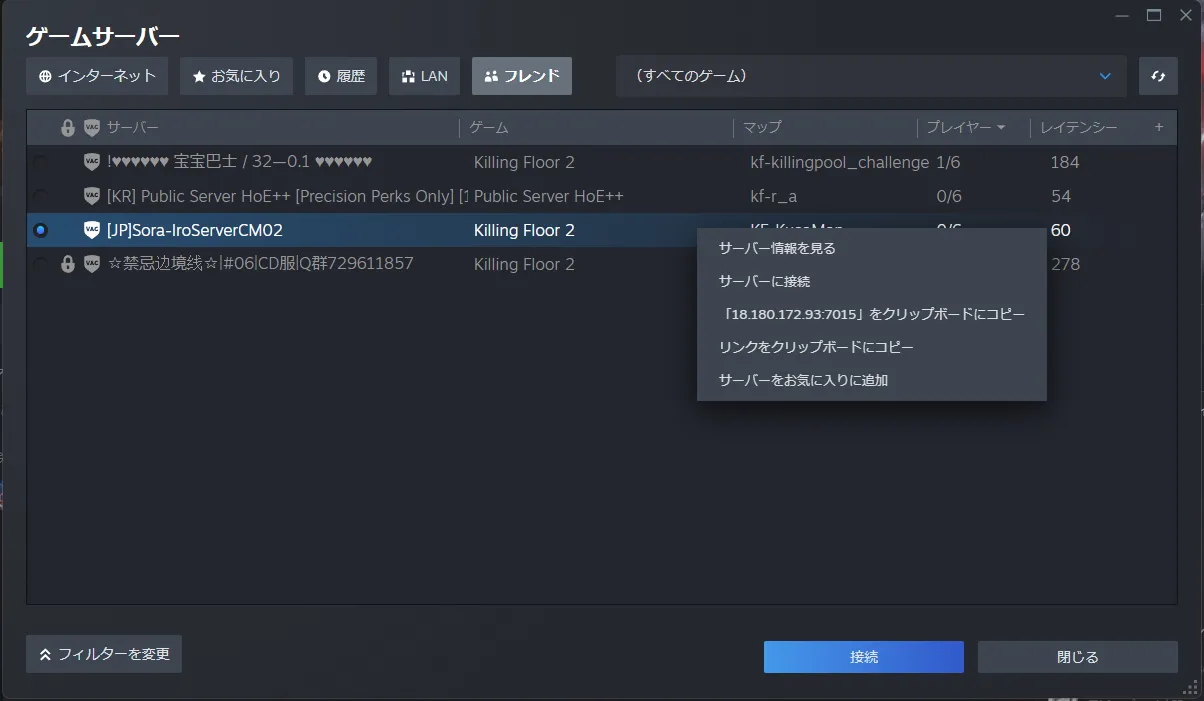 The Friends tab lists servers with your friends.
Last resort: connect by IP
If nothing works, find the server IP and connect directly. The IP is shown in the Steam friend menu or game server list; otherwise ask a player in the server to show you the end-of-match screen, where the server IP appears in the bottom right.
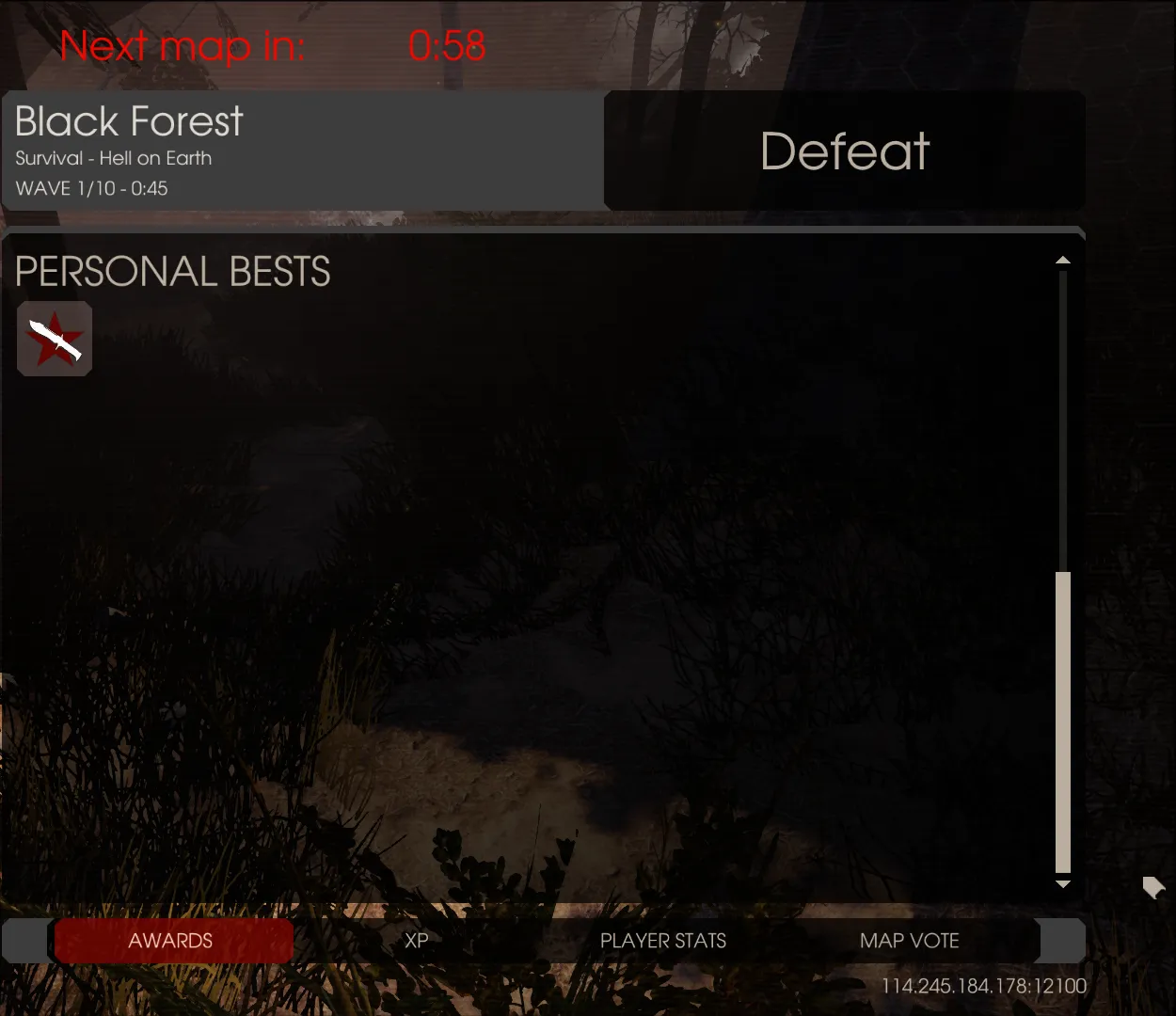 The server IP is displayed at the bottom right of the end-of-match screen.
Then press F3 to show the console input line at the bottom of the screen and enter:
open <IP>For example open 127.0.0.0.
FAQ
- How do I join a friend's match without an invite?
- Open Server Browser and choose the Public Friends tab, which lists only servers your friends are on. You can also right-click the friend in Steam and join their game.
- How do I connect by IP?
- Press F3 to open the console and type open followed by the server IP, for example open 127.0.0.0.
