
KF2 Dedicated Server on Windows With Workshop Maps: Full Setup
A Spanish-language Windows guide to setting up a Killing Floor 2 dedicated server with Workshop content, including admin accounts and the meaning of common console messages. It complements the SteamCMD dedicated server guide and the custom maps and mods setup. The default admin credentials shown in the original are weak; change them before opening the server to the Internet.
Requirements
| Minimum | Recommended | |
|---|---|---|
| CPU | Intel Core 2 Duo | Intel Core i3 |
| RAM | 2 GB on Linux, 3 GB on Windows 7/8/10 | 4 GB on Linux and Windows |
| Disk | 40 GB | 60 GB |
| Network | 2 Mbps upload (cable) or stable 2.4 GHz Wi-Fi | Fiber or stable 5 GHz Wi-Fi |
Open the ports
Open these ports on your router and in the firewall, otherwise the server stays on the LAN: 7777 UDP, 27015 UDP, 8080 TCP, 20560 UDP and 123 UDP. In an administrator command prompt you can add the firewall rules with netsh advfirewall firewall add rule name="KFServer-7777" dir=in action=allow protocol=UDP localport=7777, repeating with the other names, ports and protocols (27015 UDP, 8080 TCP, 20560 UDP, 123 UDP). See also ports and NAT.
Download and install
- Download and install SteamCMD, then start it.
- At the
Steam>prompt set the install directory withforce_install_dir C:\KF2Server\. - Log in anonymously with
login anonymous. - Install or verify the server with
app_update 232130(232130 is the KF2 server). - When it finishes with "Success! App '232130' fully installed.", type
exit.
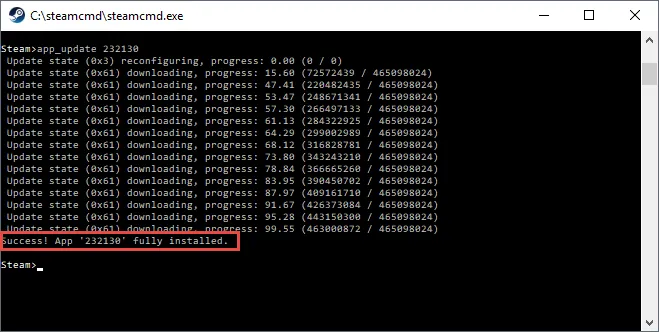
SteamCMD downloading the server files.
Start the server
Go to C:\KF2Server and run KF2Server.bat.
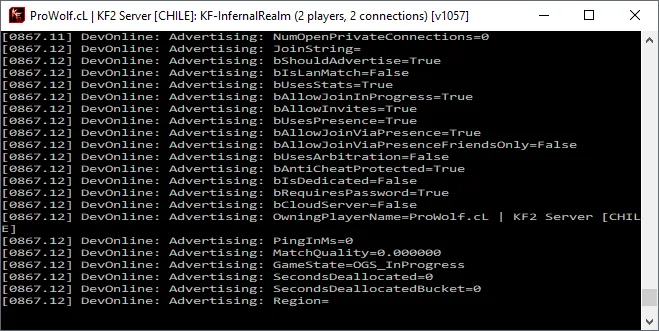
The server console after starting.
Basic configuration
Edit DefaultGame.ini in C:\KF2Server\KFGame\Config. To change difficulty, set under [Engine.GameInfo] the line GameDifficulty=2 (0 Normal, 1 Hard, 2 Suicidal, 3 Hell on Earth) and save.
Web admin
In KFWeb.ini in the same folder, change bEnabled=false to bEnabled=true, save, and open http://localhost:8080. The original uses the user admin and password 123.
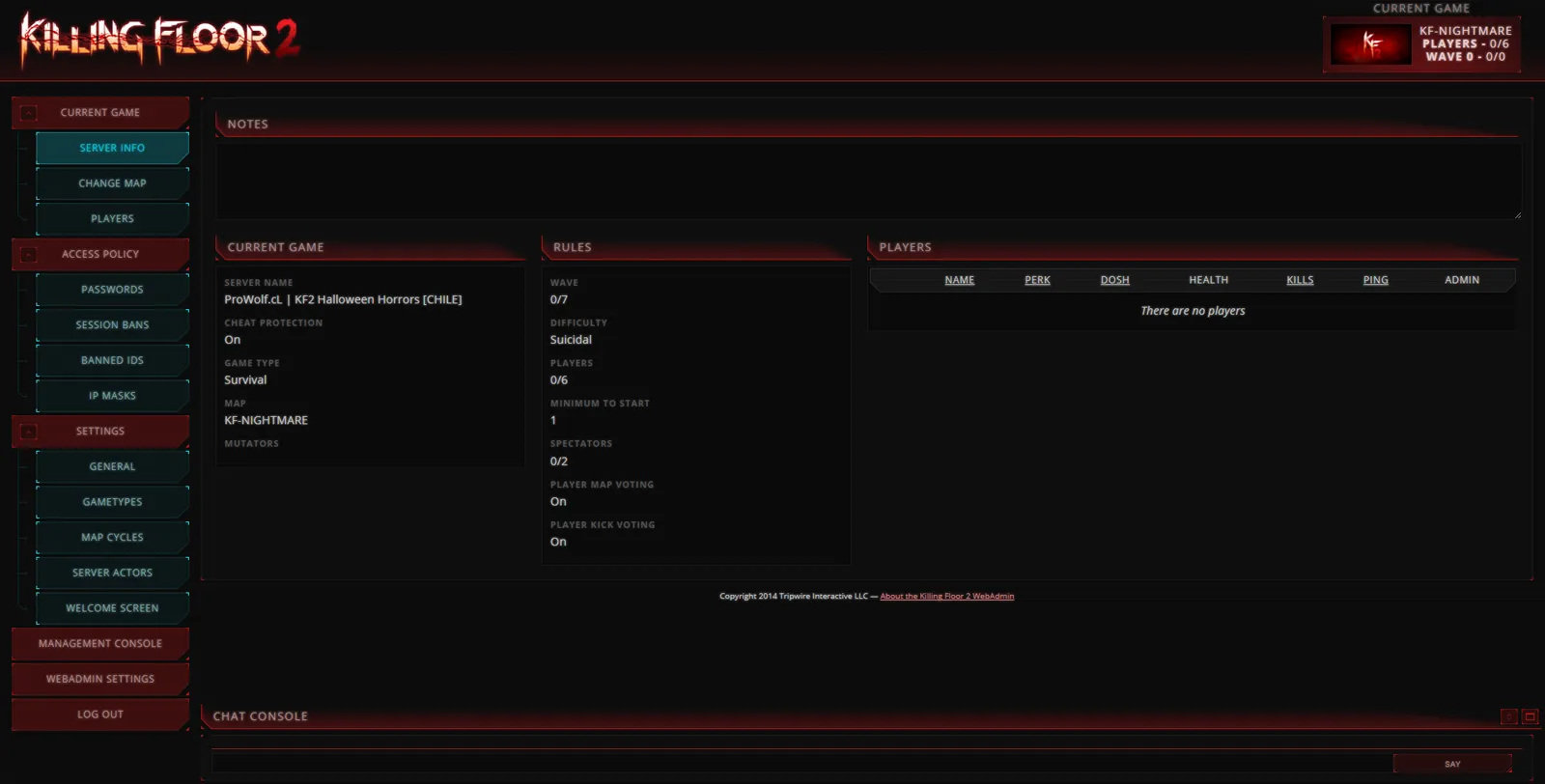
The web admin panel.
Download Workshop items
- Make sure the server is not running, or the Workshop settings are overwritten on the next restart.
- In
PCServer-KFEngine.iniadd a section[OnlineSubsystemSteamworks.KFWorkshopSteamworks]. - For every Workshop item, add a line
ServerSubscribedWorkshopItems=<id>in that section (the example uses 643383080).
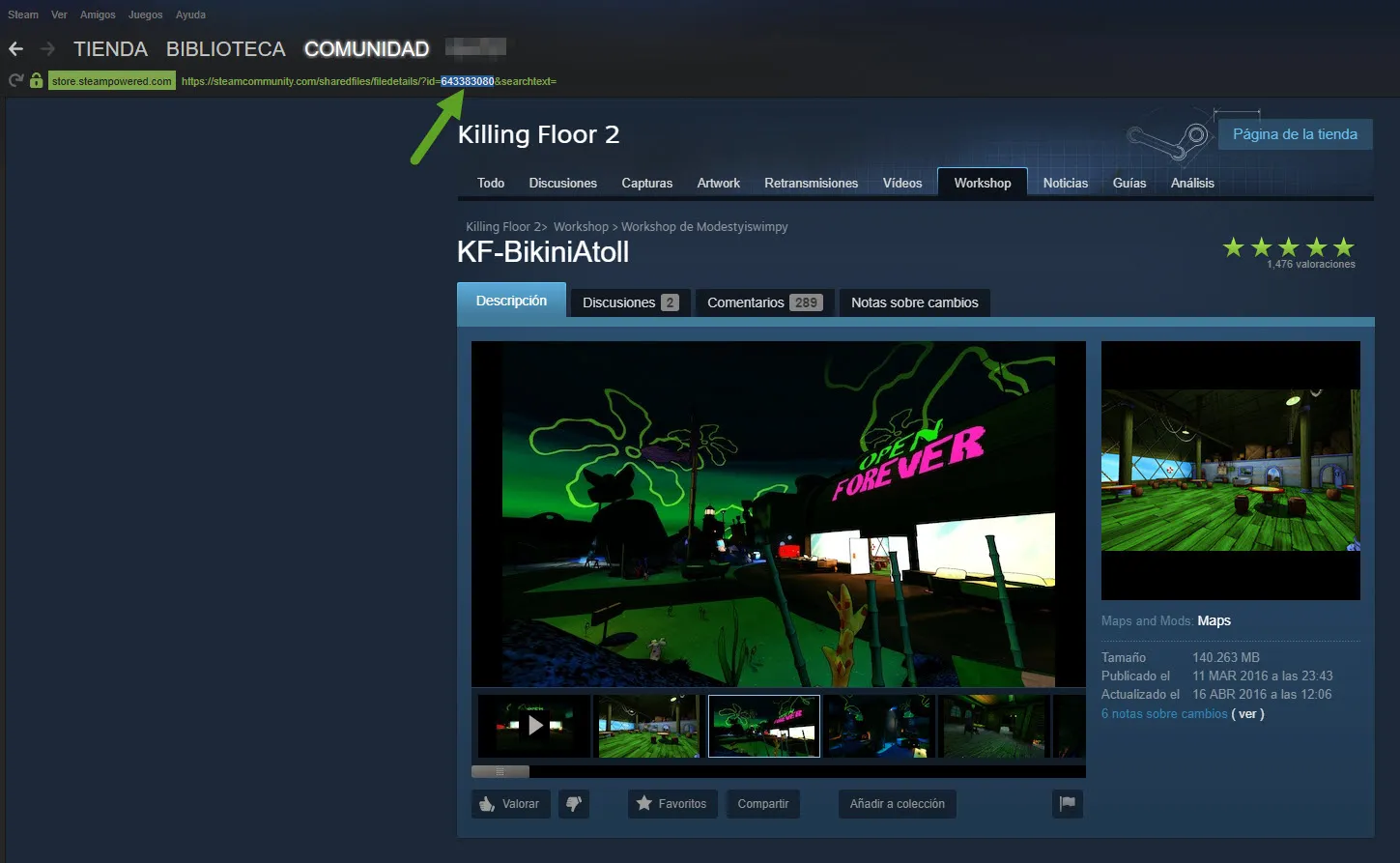
The Workshop section with item IDs.
- In the same file find
[IpDrv.TcpNetDriver]and addDownloadManagers=OnlineSubsystemSteamworks.SteamWorkshopDownloadabove the other DownloadManagers lines (which areIpDrv.HTTPDownloadandEngine.ChannelDownload).

The download manager order.
Save the changes.
Custom maps in the map list
For custom maps to appear in the map-change section of web admin, add a map summary datastore in PCServer-KFGame.ini. A section looks like [KF-Default KFMapSummary] with MapName=KF-Default and ScreenshotPathName=UI_MapPreview_TEX.UI_MapPreview_Placeholder. Stock maps such as [KF-BioticsLab KFMapSummary] also have MapAssociation=2 and a proper preview, but custom maps do not need the MapAssociation=2 line.
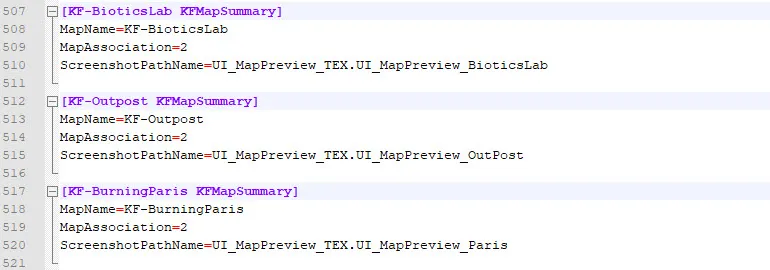
Map summary entries in PCServer-KFGame.ini.
Several administrators
- In
KFWebAdmin.iniadd under[WebAdmin.WebAdmin]the lineAuthenticationClass = WebAdmin.MultiWebAdminAuth. - Start the server so it creates
KFMultiAdmin.ini. Do not create admins or passwords by editing it; use it only to remove admins. - Open web admin and log in as
Admin(with a capital A) with the original password. A new Administrators section appears. - Choose Create administrator, give a login name, enable the account, set a password and a display name (the name players see in chat).
- Set Deny/Allow patterns by dragging items from the navigation preview, for example an admin who can only change maps.
- Save, log out and test the account.
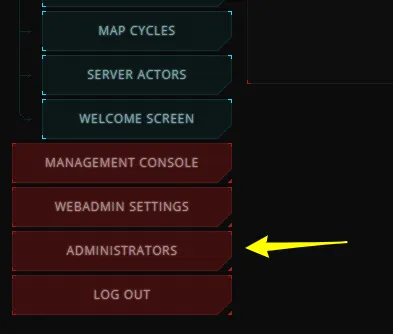
The new Administrators section.
Server icons

Ranked.
Ranked: stats and XP are enabled, no mutators or custom server settings are run, and custom maps do not change this unless they use scripts.

Ranked Stock.
Ranked Stock: the server is customized but stats and XP are still enabled; probably a whitelisted mutator or a setting such as friendly fire. See whitelist system.

Unranked.
Unranked: stats and XP are disabled, because it runs a non-whitelisted mutator or mod, or a custom map uses scripts (for example spawning extra ZEDs).
Item states
After adding Workshop maps you will see item states in the console:
- 4: the custom map is installed and up to date.
- 0: not installed yet; it will download for the first time.
- 12: installed but needs an update; it will download and replace the file.
- 20: probably the maps were not checked for updates and or the Workshop connection was temporarily lost; restart the server and make sure the connection is stable.
- 8: unknown, perhaps a download or status-check problem like 20.
- 36: unknown but always goes away by itself; no problems noticed.
Warnings
- "Workshop: Steam does not appear to be running. Unable to check Workshop": the server has no Workshop connection. Close and reopen Steam, then rerun the server, and make sure the server is updated. It can also occur if you start the server twice by mistake.
- "Workshop: Unable to download workshop item ": the item's page was set to private or removed, or the ID is invalid.
- "Workshop: Attempting to check if item is installed without having downloaded it": normal after adding new maps. Workshop installs maps in two locations. The server first checks
C:\KF2Server\Binaries\Win64\steamapps\workshop\content; if the map is there it copies it toC:\KF2Server\KFGame\Cachewithout downloading. If it is missing, the console shows Item state is 0, downloads it, then copies it and reports state 4.
FAQ
- Which ports must be open for a KF2 server?
- 7777 UDP, 27015 UDP, 8080 TCP, 20560 UDP and 123 UDP, in both the router and the firewall; otherwise the server stays LAN-only.
- How do I make the server download Workshop maps?
- Add a [OnlineSubsystemSteamworks.KFWorkshopSteamworks] section to PCServer-KFEngine.ini with one ServerSubscribedWorkshopItems line per item ID, and add DownloadManagers=OnlineSubsystemSteamworks.SteamWorkshopDownload above the other DownloadManagers lines.
- What does Item state is 4 mean?
- The custom map is installed and up to date.
