
KF2 Dedicated Server on Windows with SteamCMD: Easy Setup
This early-access guide shows how to run a Killing Floor 2 dedicated server on Windows. The author's advice: the process is easy and your worst enemy will be your router. For the modern flow see the dedicated server SteamCMD page.
Install SteamCMD
Download SteamCMD (the zip from Valve's media server) and extract it into its own folder, for example C:\SteamCmd\; a separate folder avoids a clutter of files. Launch it, and when it finishes type login anonymous. Most users should keep it on C:, as the author used another drive only for space.
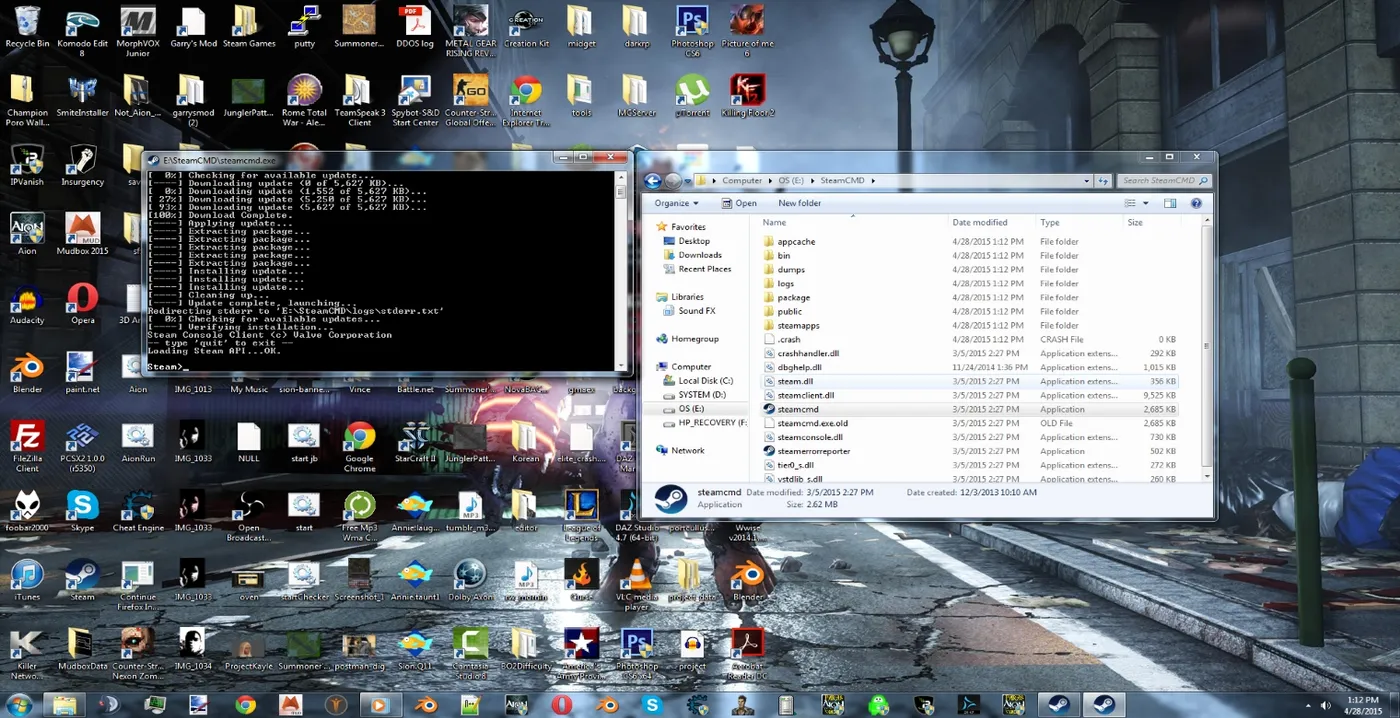 SteamCMD started in its own folder (the screenshot uses another drive letter; use your own folder).
Download the server
Set the install location with force_install_dir c:\KF2Server\ and install with app_update 232130 validate. While it downloads, set up port forwarding.
Port forwarding
How you do this depends on the router model; search for " port forwarding" or use portforward.com. The ports:
| Port | Use |
|---|---|
| 7777 | Game port, needed for players to connect |
| 27015 | Query port, needed to appear in the server browser |
| 8080 | WebAdmin, needed to reach the web interface |
| 20560 | Steam port, lets Steam see the server info |
All are required; if one is missing nobody can connect or see the server.
First boot
Launch the server once so it generates the core config files; you will need a text editor that keeps line endings intact, such as Notepad++. After app_update the batch file may already exist in the server folder; check first, create a shortcut and edit it as needed. The default .bat is:
start C:\KF2Server\Binaries\win64\kfserver kf-burningparis
The server opens quickly then closes; the console appears a moment later. Give it two minutes to write the config files before closing it.
Configuration through the .bat
Append options to the map name separated by question marks:
AdminName=,AdminPassword=,MaxPlayers=Difficulty=(0 Normal, 1 Hard, 2 Suicidal, 3 Hell on Earth)Port=(game port, default 7777),QueryPort=,WebAdminPort=(default 8080)Multihome=,PREFERREDPROCESSOR=,ConfigSubDir=are for heavy hosting machines and can be ignored.
Example: start C:\KF2Server\Binaries\win64\kfserver kf-burningparis?adminpassword=123?difficulty=1?adminname=Dispatch?maxplayers=6
Config changes take effect on map change, and some only after a server reboot. Options in the .bat overwrite earlier config changes on first boot.
WebAdmin
Much of the configuration can be done through WebAdmin, but you must enable it. In C:\KF2Server\KFGame\Config\KFWeb.ini, around line 13, change bEnabled=false to bEnabled=true. Then browse to your server address followed by :8080. The default admin name is admin and the default password 123 unless you changed them with adminname/adminpassword. WebAdmin lets you change difficulty, game length, server name and the current map.
PCServer-KFGame.ini
Other settings live in KFGame\Config\PCServer-KFGame.ini. The author listed these lines:
- Line 4:
bAdminCanPause= - Line 5:
MaxPlayers= - Line 6:
GameDifficulty= - Line 30:
AdminPassword= - Line 31:
GamePassword=(the password players need to join) - Line 350:
ServerName= - Line 351:
ShortName=
Line numbers can shift between builds, so search for the key names.
FAQ
- Which ports does a KF2 server need?
- Game port 7777, query port 27015 (server browser), WebAdmin port 8080 and Steam port 20560.
- What is the app id of the KF2 dedicated server?
- 232130, installed with app_update 232130 validate.
- How do you enable WebAdmin?
- In KFGame\Config\KFWeb.ini change bEnabled=false to bEnabled=true, then open your-IP:8080 in a browser.
