
KF2 Mapping: Precomputed Visibility Explained
There is a lot of confusion about Precomputed Visibility in Killing Floor 2 mapping. This tutorial paraphrases a short guide explaining what it is, why it matters and how to set it up in the SDK.
What it is
Precomputed Visibility culls (unloads) geometry, actors and lights that the player cannot see. For example, when a player stands in front of a wall, everything behind it is culled, reducing the geometry rendered in the scene and increasing performance. Unlike Dynamic Occlusion Culling, which does this automatically at runtime, Precomputed Visibility saves the information into the level.
Why use it
Dynamic Occlusion Culling culls hidden objects automatically but at a cost: each culled object requires an instruction, and more instructions lengthen the render thread time and lower the frame rate. When Precomputed Visibility is set up correctly it culls roughly 50-80 percent of hidden geometry, leaving Dynamic Occlusion Culling to handle the rest.
Setting it up
The Unreal Engine 3 documentation says to cover the entire playable area with a Precomputed Visibility Volume. For the KF2 SDK the author found that this gives poor results and needlessly increases light build time. Instead, use a combination of strips and boxes, no smaller than 256x256x256, to cover the whole playable area efficiently.
- Every area the player can reach must be fully covered by a volume, otherwise geometry may be culled when it should not be.
- Sink the volumes a few units into the floor or ground so the system properly detects the covered surface.
- After placing the volumes, make sure the feature is enabled in World Properties.
Debugging and stat views
Console commands:
TogglePrecomputedVisibilitytoggles the use of precomputed visibility data.ShowPrecomputedVisibilitytoggles debug visualization of the cells.
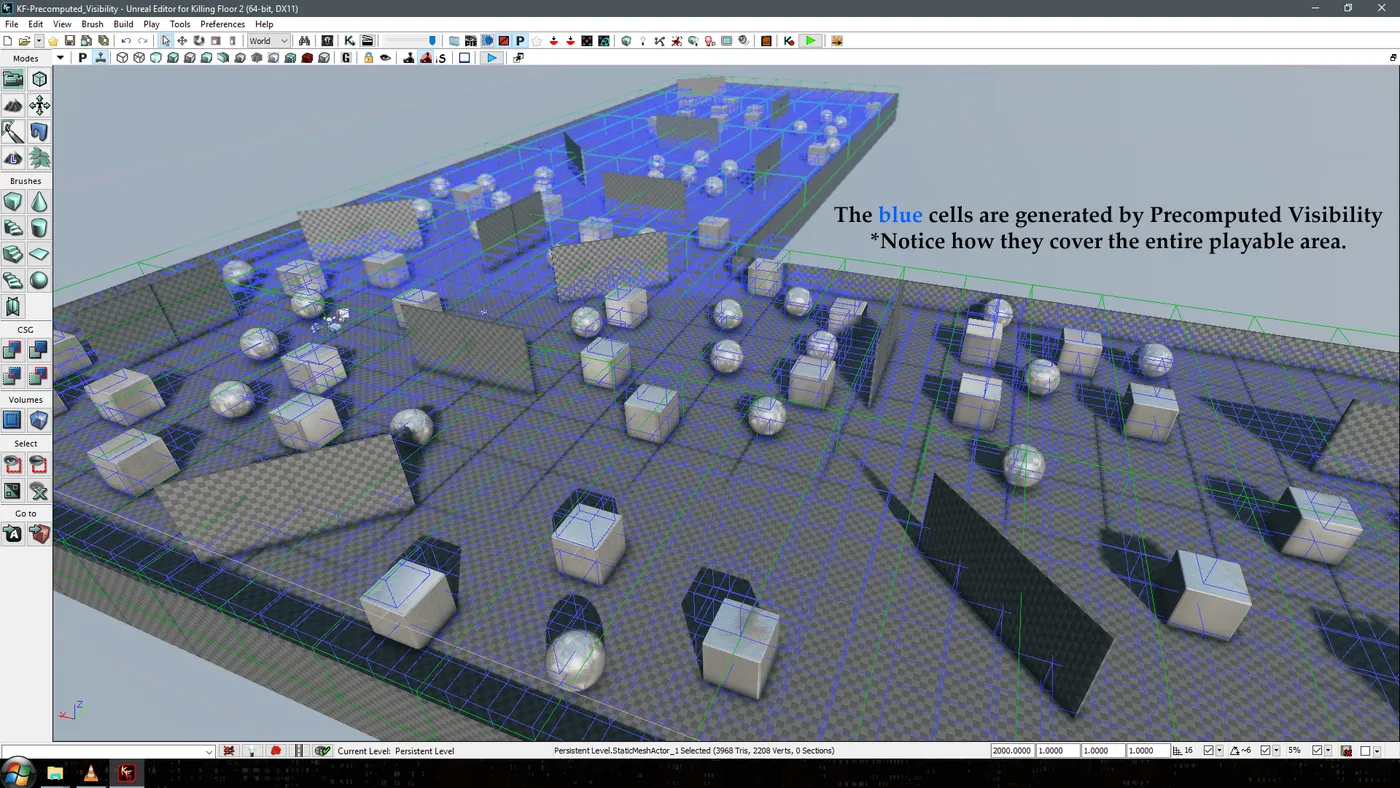 Visualization of precomputed visibility cells.
To read the numbers:
- Open the Log window via View > Browser Windows > Log to see whether your commands are enabled.
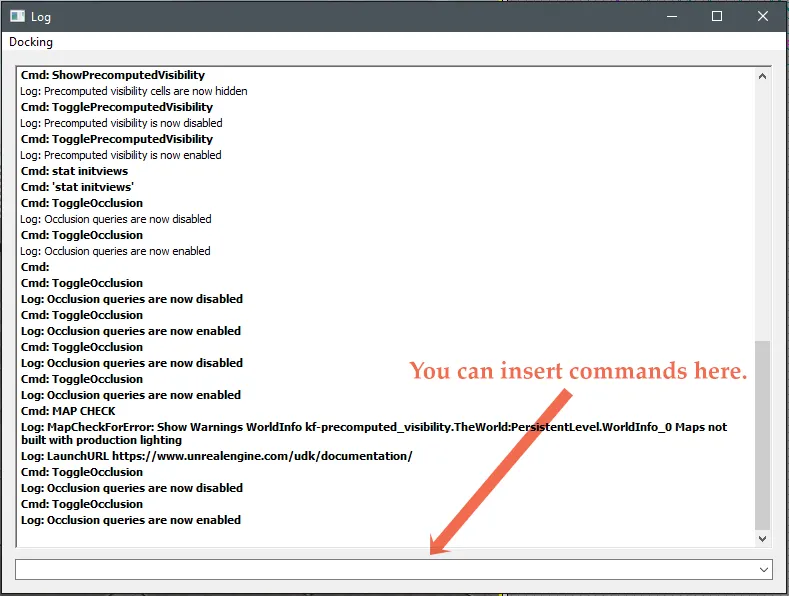 The Log window shows command results.
- Set the viewport configuration to a vertical split: View > Viewport Configuration > 1x1 Vertical Split.
- Run
stat initviews, then press Shift+L to bring up the InitViews information.
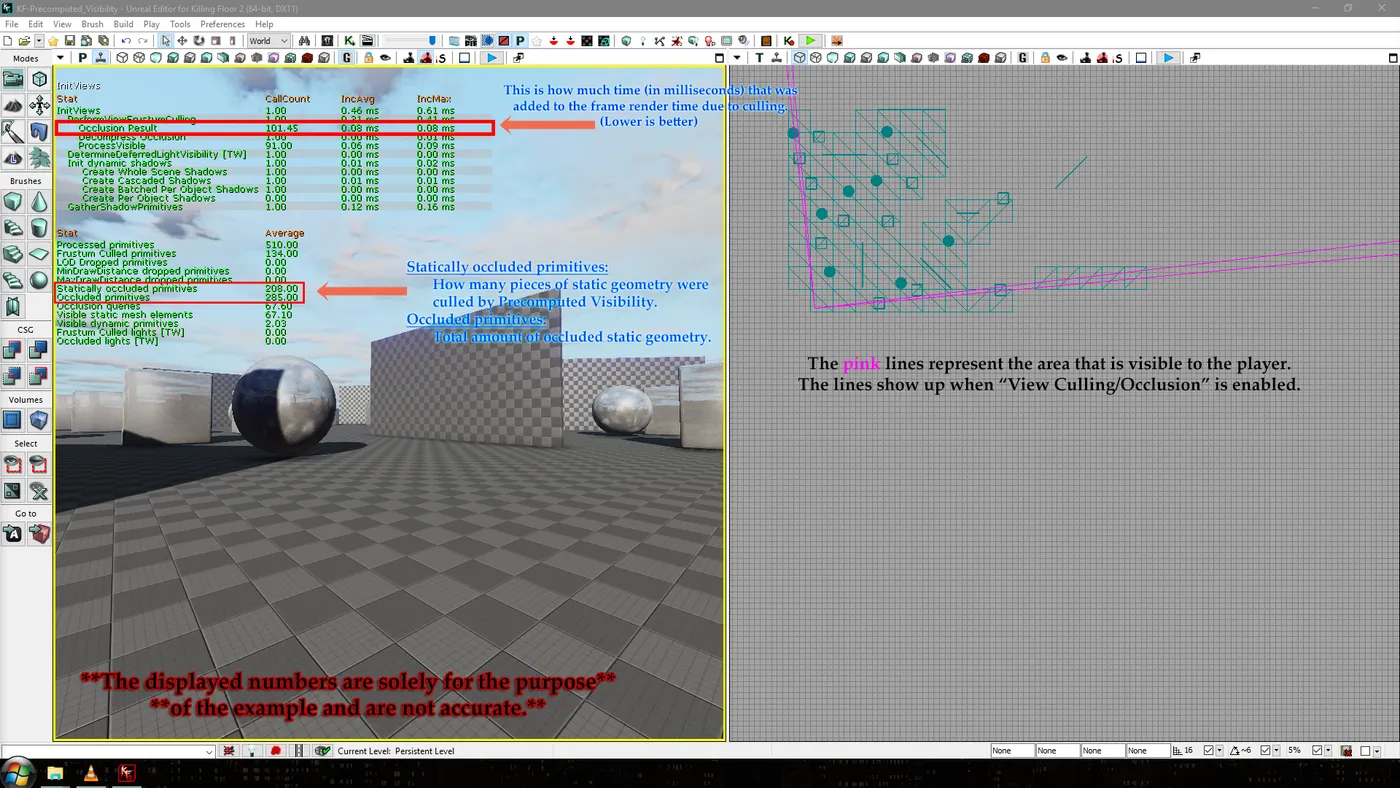 Three values to watch.
Stay inside the Precomputed Visibility cells, otherwise the data is inaccurate. With a correct setup the "Statically occluded primitives" value should be 50-80 percent of the "Occluded primitives" value.
To measure how much render time you save each frame, run ToggleOcclusion to disable Precomputed Visibility; the "Occlusion Result" value should increase. Run it again to re-enable it and subtract. Saving even 5 or 6 milliseconds is a good result.
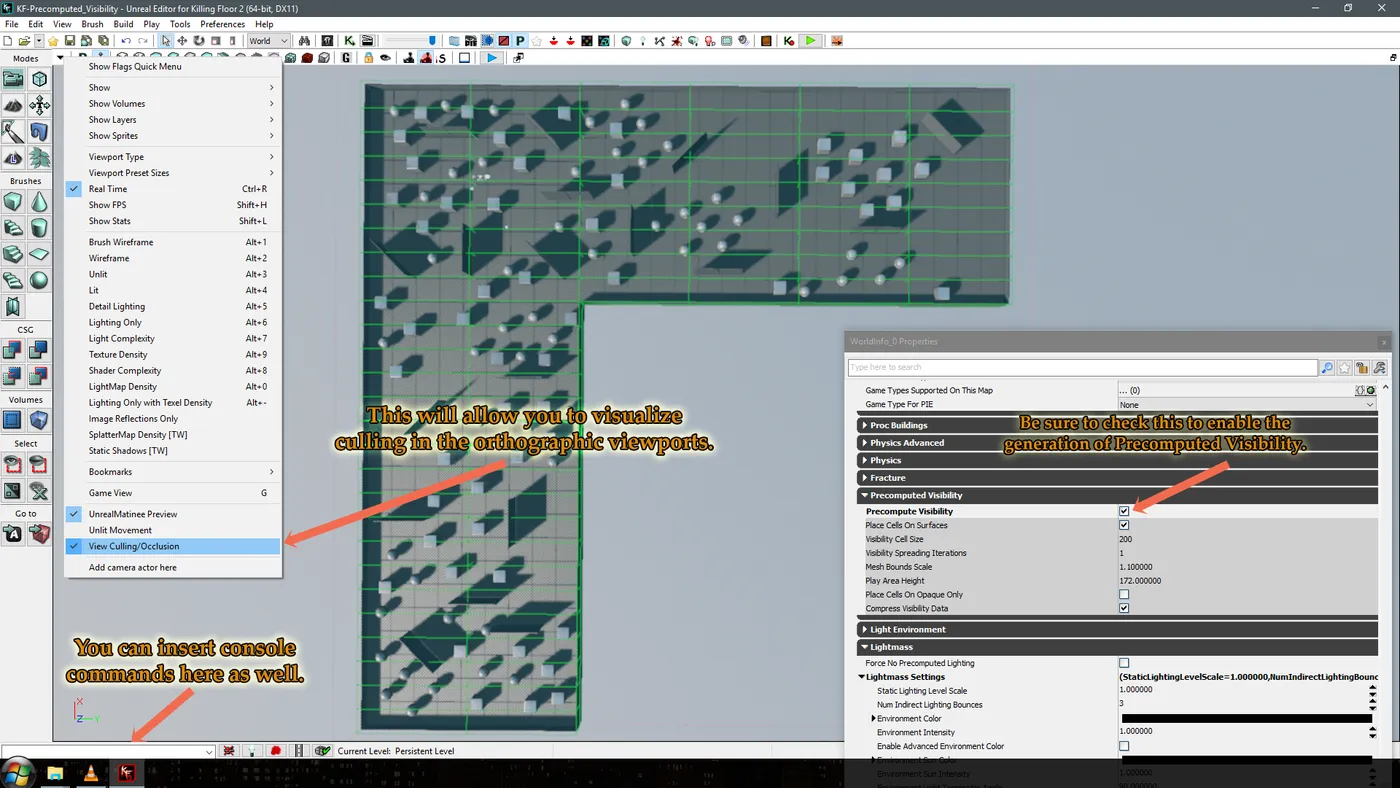 Enable Precomputed Visibility in World Properties and turn on culling visualization in the orthographic viewports.
The original guide also linked an example map download.
FAQ
- What is Precomputed Visibility?
- A feature that stores in the level which geometry, actors and lights are hidden from each location, so they are culled in advance, decreasing the rendered geometry and raising performance.
- How much should it cull?
- When set up correctly it should cull 50 to 80 percent of the hidden geometry; Dynamic Occlusion Culling handles the rest.
- What size should the volumes be?
- The author uses strips and boxes of no less than 256x256x256 units that cover the whole playable area, sunk a few units into the floor.
