
Killing Floor Advanced FPS Config & Tweaks
Unreal Engine 2.5 is old, but poorly optimized for modern multicore CPUs. Even powerful PCs can drop FPS when hundreds of Zeds and bodies pile up. Here is how to squeeze maximum performance via config edits.
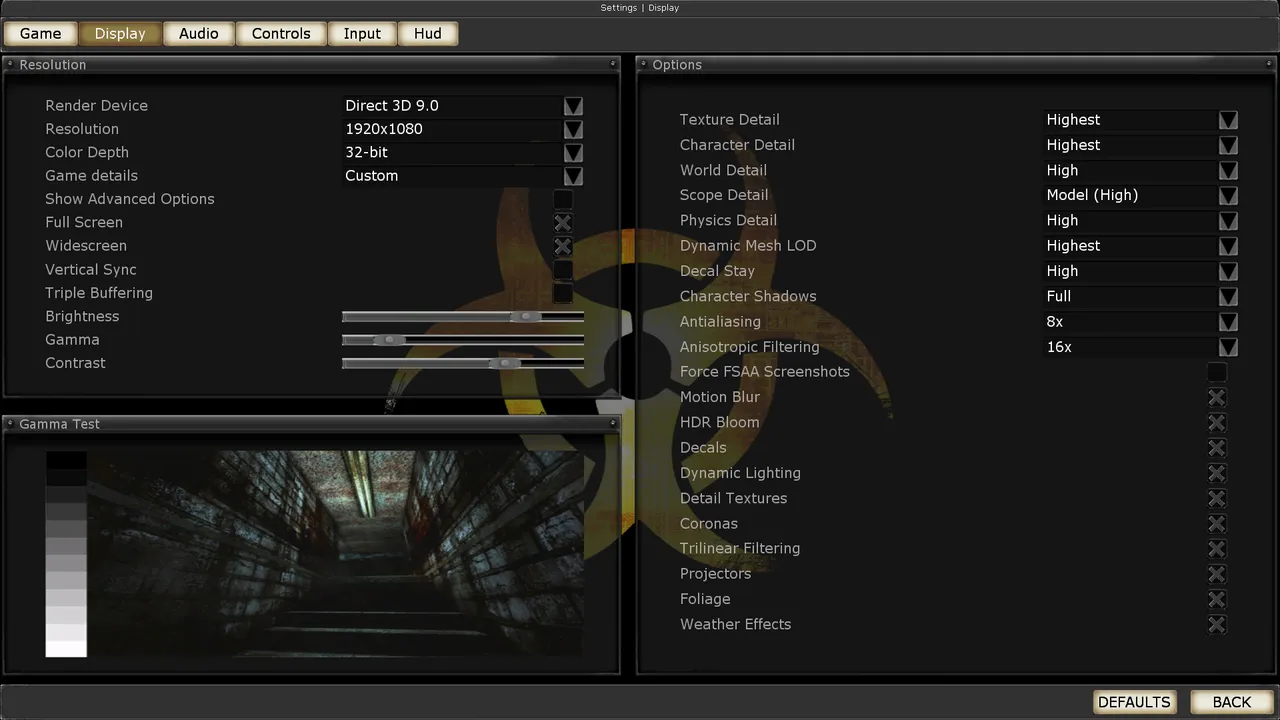 The Killing Floor Display menu: render device, resolution and detail levels. Screenshot: PCGamingWiki.
1. Disable Gore & Bodies (Huge FPS Boost)
Bodies and gibs (body parts) consume huge CPU resources because they have physics collisions.
ini
[UnrealGame.UnrealPawn]
bPlayDeathAnim=False
(This makes Zeds disappear instantly or play simpler death animations)
ini
TimeUntilVanished=1.0
(Sets body despawn time to 1 second)
2. Precache & Stutter Fix
If the game freezes for a second when a new weapon or zed appears, you have a caching issue.
ini
[Engine.GameEngine]
CacheSizeMegs=256
(Increase this if you have plenty of RAM. Default is usually 32 or 64. Don't set excessively high, 256 or 512 is safe)
Search for UsePrecache and set it to False in [D3D9Drv.D3D9RenderDevice].
Note: Sometimes True is better. Test both.
3. Graphics Settings (KillingFloor.ini)
Under [D3D9Drv.D3D9RenderDevice]:
ReduceMouseLag=False(Fixes input lag, slightly better FPS)UseTripleBuffering=False(Turn off VSync related buffering)Use16bit=False(Keep 32bit colors, 16bit looks terrible for minimal gain)UseTrilinear=False(Use Bilinear filtering for raw performance)
4. Launch Options
-useallavailablecores -sm4
-useallavailablecores: Forces engine to acknowledge multi-core (limited effect on UE2.5 but worth a try).
5. Audio Performance
Believe it or not, 3D audio kills FPS in KF1.
ini
MaxChannels=32
If you have it at 64 or 128, lower it to 32. This reduces CPU load significantly during intense waves with many sounds.
