
Killing Floor 4K & Widescreen Fix: FOV & HUD Scaling
Killing Floor was released in 2009 (built on 2005 tech), an era of 4:3 CRT monitors. Playing on modern 16:9, 21:9, or 4K monitors often requires manual tweaking to fix stretched graphics, wrong Field of View (FOV), or missing resolution options.
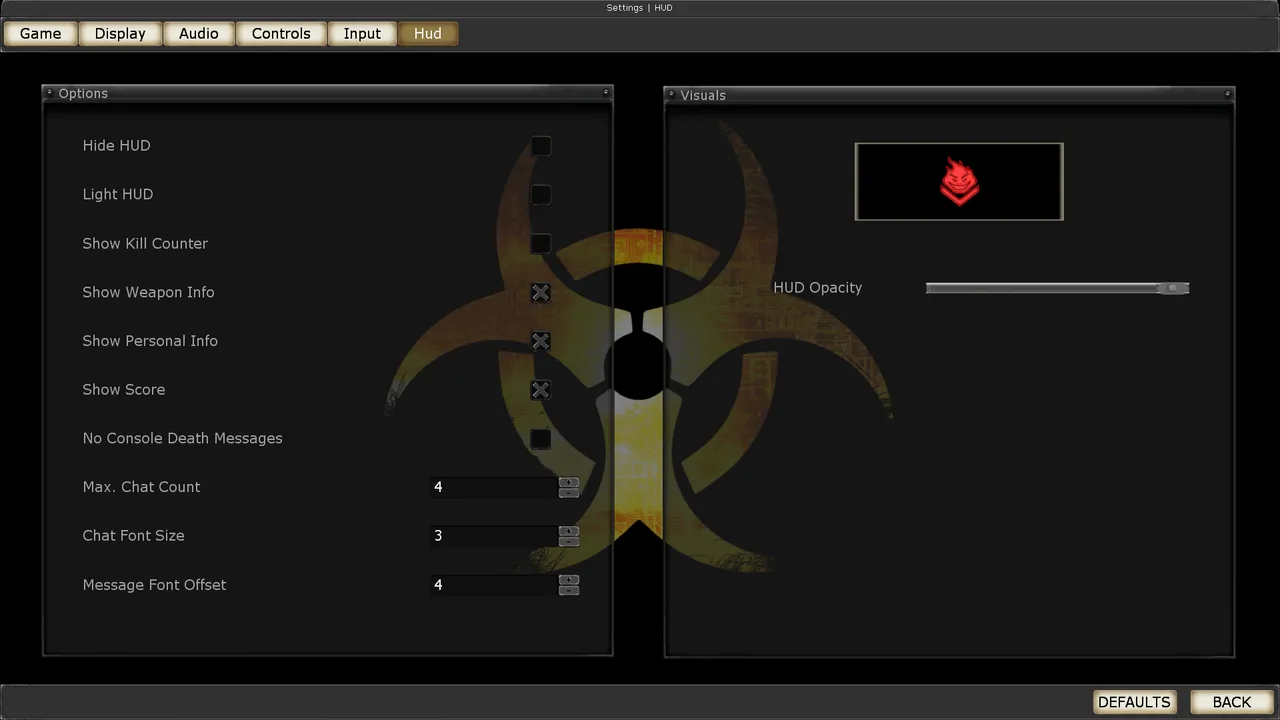 The Killing Floor HUD menu. Screenshot: PCGamingWiki.
1. Setting Custom Resolution (1080p, 1440p, 4K)
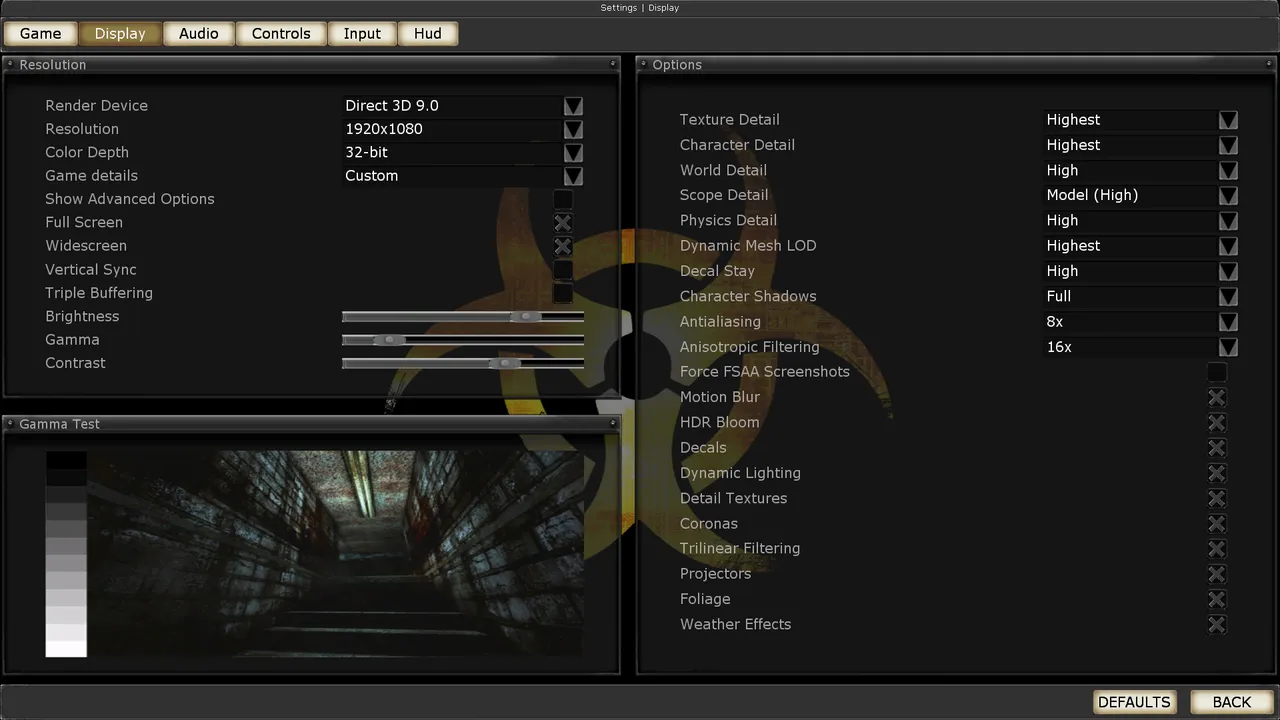 The Killing Floor Display menu: render device, resolution and detail levels. Screenshot: PCGamingWiki.
If your native resolution doesn't appear in the game options, force it via KillingFloor.ini.
- Go to
Systemfolder:...\Steam\steamapps\common\KillingFloor\System\ - Open KillingFloor.ini with Notepad.
- Find
[WinDrv.WindowsClient].
ini
[WinDrv.WindowsClient]
WindowedViewportX=1920
WindowedViewportY=1080
FullscreenViewportX=1920
FullscreenViewportY=1080
(Replace 1920/1080 with your desired resolution, e.g., 2560/1440 or 3840/2160)
Check the aspect ratio in the menu first. The resolution list in the graphics settings depends on the selected aspect ratio. On the killingfloor.ru forum (thread "Screen resolution", 2011) a player had no 1600x900, only 1440x900 and lower; the fix was to pick Widescreen / 16:9 in the aspect ratio option, after which wider resolutions appear (up to 1920x1080).
- Save and set the file to Read-only if the game keeps resetting it.
2. Fixing the FOV (Field of View)
By default, KF1 crops the top and bottom of the image on widescreen monitors (Vert-), making the view feel "zoomed in". You need to increase the FOV.
Ideally FOV Values:
- 4:3 Aspect Ratio: FOV 90 (Default)
- 16:9 Aspect Ratio (1080p/4K): FOV 106
- 21:9 Aspect Ratio (Ultrawide): FOV 121
How to apply permanently:
- Open User.ini in the
Systemfolder. - Find the key binding for moving forward (usually
W). - Combine the movement command with the FOV command so it resets every time you move (this prevents the game from resetting it to 90 during cutscenes/trader time).
W=MoveForward
W=MoveForward | FOV 106
Now, whenever you walk, your FOV is forced to the correct widescreen value.
3. The Tiny HUD Problem (4K / High Res)
Unreal Engine 2 does not natively support UI scaling. At 4K resolution, the health bars, ammo counters, and chat text become microscopically small.
The Solutions:
Option A: Play at 1080p/1440p (Recommended) The most stable way to play KF1 is to run it at 1920x1080 or 2560x1440, even on a 4K monitor. The UI is readable, and the game wasn't designed for 4K textures anyway.
Option B: Config UI Scale (Limited Success)
In KillingFloor.ini, under [Engine.HUD], there is a HudScale variable, but it typically does not work correctly in multiplayer or breaks menu alignment.
Option C: Chat Size Fix You can at least make the chat readable.
- Open console (
~tilde key). - Type:
SayFontSize 3(or 4). - Or edit
User.ini: search forSayFontSizeand set it higher.
4. Black Bars or Stretched Screen?
If you see black bars on the sides (or the image is stretched fat):
- Check your GPU Driver Settings (NVIDIA Control Panel / AMD Adrenalin).
- Look for "Scaling Mode".
- Set it to "Aspect Ratio" (to preserve shape) or "Full Screen" (to stretch, if you prefer).
- Ensure "Perform scaling on" is set to GPU.
5. Bottom buttons missing in the Russian menu
On the killingfloor.ru forum (thread "Screen resolution", 2011) a player with a 5:4 monitor at 1280x1024 found the bottom of the in-game Esc menu cut off: the Disconnect and Exit buttons were not visible, although the same copy of the game showed everything on a widescreen monitor. The cause was not the resolution but the 1C Russian localization: the Russian labels are longer and the font is wider. The buttons sometimes fit when the server's options removed some of the menu buttons.
Replacing KFGui.int (the strings of that menu) with the English one in KillingFloor\System\ fixed it: the English menu lays the buttons out in 2-3 rows so they all fit, while the rest of the interface and the voice-over stay Russian. Today, use the fixed localization files from KFRusGuiFix.
