
KF2 Custom Say Keybinds in KFInput.ini (2018 Method)
This method (confirmed working by the author on 23 December 2018) lets you press a single key to send a chat message such as "Scrake" to your team. It is useful for warning about dangers or asking for help without typing. Related guides: setbind chat binds and recommended keybinding layout.
Find the file
Close the game first.
- Go to your Documents folder, normally
C:/Users/<your name>/Documents/. - Open
My Games, thenKillingFloor2. - Open
KFGame, thenConfig. - Right-click
KFInputand open it in Notepad. - Press Ctrl+F, search for
[Engine.PlayerInput](with brackets) and scroll down to the lastBindingsline in that section. New entries go after it.
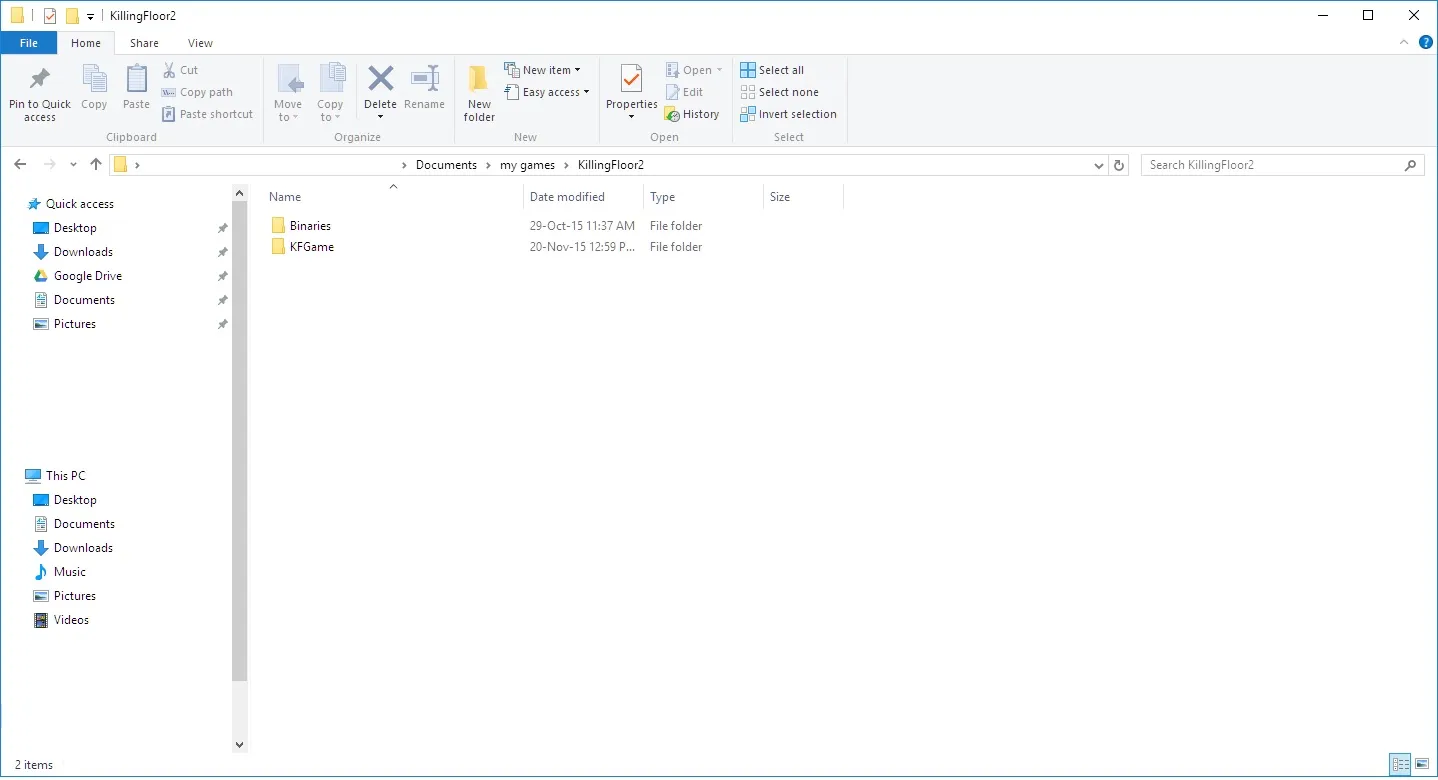 The KillingFloor2 folder inside Documents.
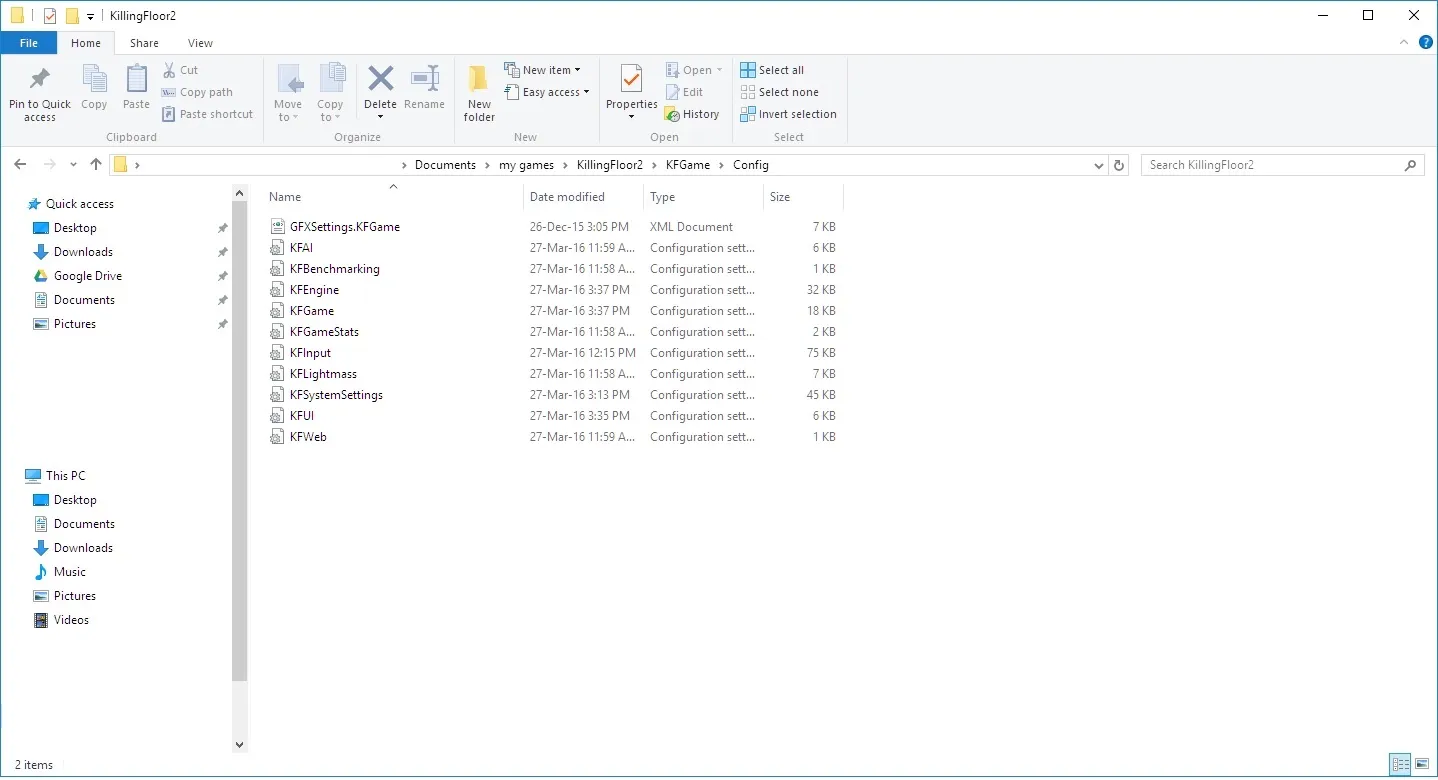 The Config folder that holds the KFInput file.
Create a bind
Paste this line after the last Bindings entry:
Bindings=(Name="J",Command="say Scrake!!",Control=False,Shift=False,Alt=False,bIgnoreCtrl=False,bIgnoreShift=False,bIgnoreAlt=False)- Change
Name="J"to the key you want, and make sure the key is not already used by the game. - Change the text after
sayto your message. Keep the wordsayand keep a space before your text. - Save the file and start the game.
Required extra step
Open the key bind controls in the game and click Reset All once. Custom binds added outside the game do not work until you do this, and you must then re-apply any of your own changed binds (for example a moved Alt-Fire). You only need to do it once; the binds stay until a big content update, after which you repeat the process.
Ready preset
Paste these after the last Bindings entry:
Bindings=(Name="J",Command="say Scrake",Control=False,Shift=False,Alt=False,bIgnoreCtrl=False,bIgnoreShift=False,bIgnoreAlt=False)
Bindings=(Name="K",Command="say Fleshpound",Control=False,Shift=False,Alt=False,bIgnoreCtrl=False,bIgnoreShift=False,bIgnoreAlt=False)
Bindings=(Name="N",Command="say Quarter Pounds ",Control=False,Shift=False,Alt=False,bIgnoreCtrl=False,bIgnoreShift=False,bIgnoreAlt=False)
Bindings=(Name="M",Command="say Medic, help me",Control=False,Shift=False,Alt=False,bIgnoreCtrl=False,bIgnoreShift=False,bIgnoreAlt=False)
Bindings=(Name="LeftAlt",Command="SpectateChangeCamMode",Control=False,Shift=False,Alt=False,bIgnoreCtrl=False,bIgnoreShift=False,bIgnoreAlt=False)
Bindings=(Name="L",Command="say Cheers Big Ears ",Control=False,Shift=False,Alt=False,bIgnoreCtrl=False,bIgnoreShift=False,bIgnoreAlt=False)| Key | Result |
|---|---|
| J | says "Scrake" |
| K | says "Fleshpound" |
| N | says "Quarter Pounds" |
| M | says "Medic, help me" |
| L | says "Cheers Big Ears" |
| Left Alt | changes the spectate camera mode |
Notes
- Use alphanumeric characters in the message text. Other keys such as Left Alt, Right Alt, Left Ctrl and Right Ctrl can also be used as the bind key.
- The author also published a large-Zed training guide and an etiquette guide; see the etiquette guide reloaded.
FAQ
- Why do my edited binds not work?
- After editing KFInput.ini you must open the in-game key bind menu once and press Reset All; binds added outside the game are otherwise ignored.
- Which characters are safe in the chat text?
- Stick to letters A-Z and digits 0-9; some special characters do not work.
