
KF2 Small Tweaks: Skip Intros, Old Menu, Mall Music, Trader Voice
Four small Killing Floor 2 tweaks collected from short Steam community guides: skipping the intro videos, restoring the old main menu background, silencing the Shopping Spree mall ambience and removing the trader's voice. They all edit local game files or launch options, so close the game first and keep a backup. If something breaks, "Verify integrity of game files" in Steam restores the originals. Related pages: muting traders and menu music and removing the 62 FPS limit.
Skip the intro videos
In your Steam library right-click Killing Floor 2, open Properties, click Set launch options and type -nostartupmovies. Press OK and the intro videos no longer play.
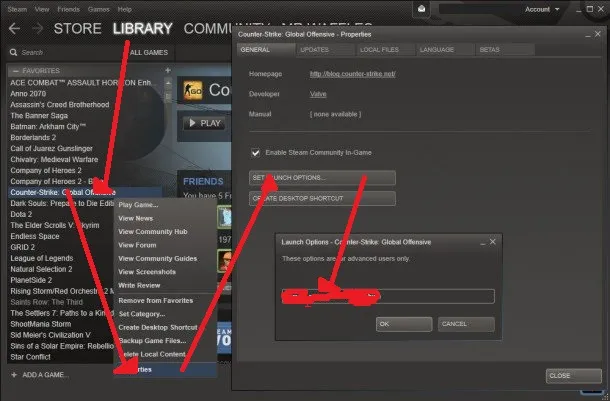 The launch options field with -nostartupmovies.
Restore the old menu background
The menu background is a Bink video file. To bring back the previous one you need that older .bik file (the guide author hosted it on a file-sharing link, which may no longer be available).
- Go to the KF2 folder
killingfloor2/KFGame/Movies. - Back up the current
MenuBG.BIK. - Put the older file in the folder under the same name.
- Start the game and the old background plays.
Disable the Shopping Spree mall music
Close the game first. The ambience of every map lives in KFGame\BrewedPC\Packages\Audio\Ambient, in files named like WW_ENV_<MapName>.upk.
- Open the game folder (default
C:\Program Files (x86)\Steam\steamapps\common\killingfloor2; in Steam use Properties, Local Files, Browse). - Go to
KFGame\BrewedPC\Packages\Audio\Ambient. - Move
WW_ENV_ShoppingSpree.upkout of the folder (keep a copy to undo). - Start a solo Shopping Spree match. The mall music is gone, and so are the Patriarch announcements in the pre-match lobby and the rain and lightning sounds; the author knew of no other important ambience on this map.
To bring it back, put the file back, or use Verify Integrity of Game Cache in Steam. The method originally came from a Reddit thread by another player.
Remove the trader's voice (Russian client)
This variant comes from a Russian guide for players tired of the trader's advice. In the Russian audio folder KFGame\BrewedPC\WwiseAudio\Windows\Russian find WwiseDefaultBank_WW_VOX_NPC_Trader.bnk and delete it.
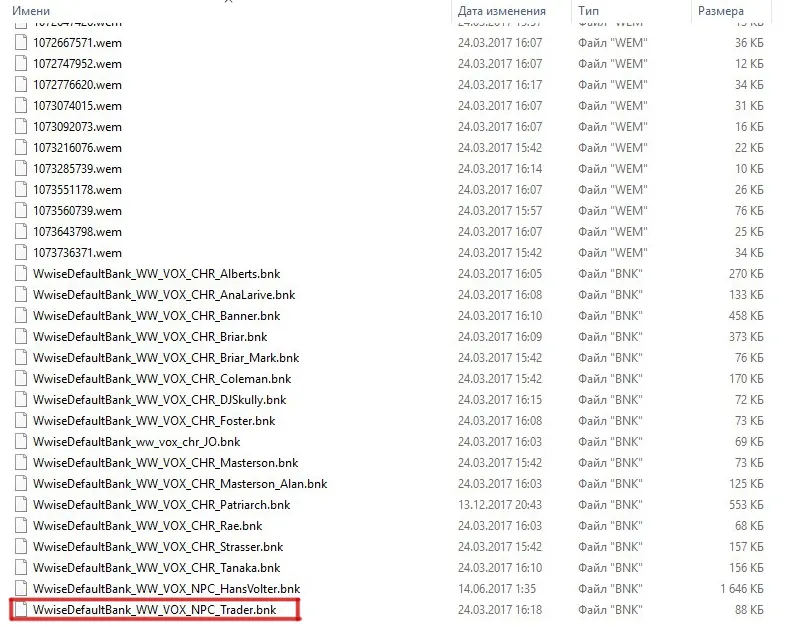 The trader voice bank file to delete.
Then in Steam open the game's Properties, Updates tab, and turn off Steam Cloud sync as the author describes, otherwise the missing file may be downloaded again.
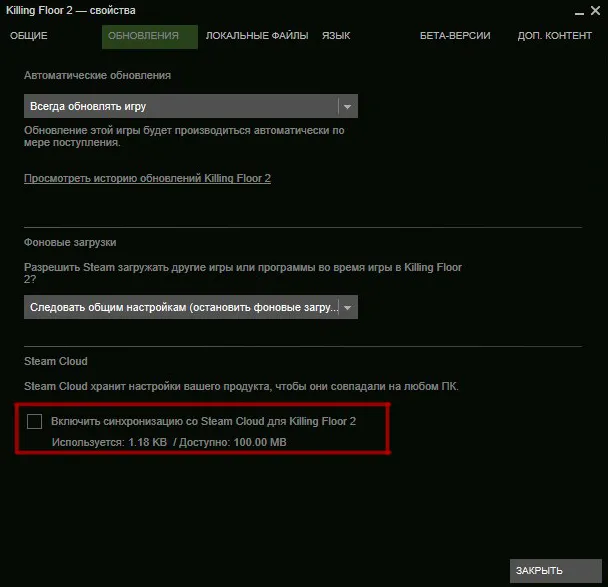 The Steam Cloud checkbox the guide asks you to clear.
