
KF2 FPS Boost on Big Modded Servers: KFEngine.ini Tweaks
This guide collects KFEngine.ini and launch-option tweaks aimed at one problem: low and unstable FPS in late waves on big, heavily modded Killing Floor 2 servers. The author reports going from roughly 40 to roughly 75 FPS on large waves with an 8 GB GTX 1080. Results depend on your CPU, VRAM, RAM and server load, so test changes one at a time. All edits are for Ultra graphics; on a weak PC, lowering in-game settings is the better route. See also advanced FPS config for the original game.
All files are in Documents\My Games\KillingFloor2\KFGame\Config\. Back them up first.
Step 1: texture cache (PoolSize)
In KFEngine.ini, section [TextureStreaming], change PoolSize (default range 160 to 2000) to fit your VRAM in megabytes:
| VRAM | PoolSize |
|---|---|
| 2 GB | 1000 |
| 4 GB | 2000 |
| 6 GB | 3000 |
| 8 GB | 4000 |
| 10 GB | 5000 (6000 is the maximum) |
If you get stutter, the value is too high: lower it.
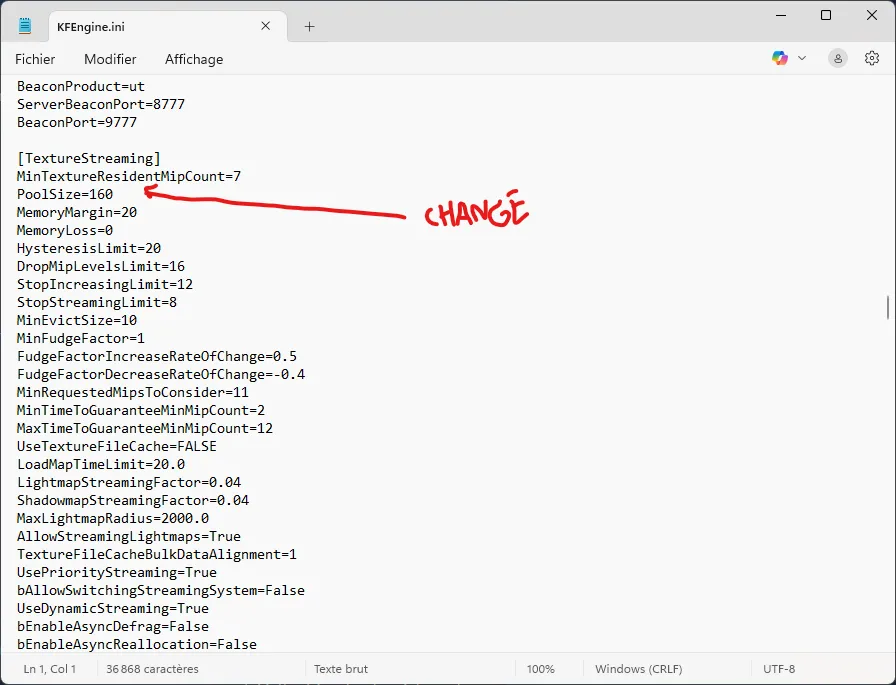 PoolSize under [TextureStreaming].
Step 2: streaming pool
In [SystemSettings] add r.Streaming.PoolSize=4000 (4000 suits 8 GB; scale to your card). This makes the engine keep more streamed textures in memory.
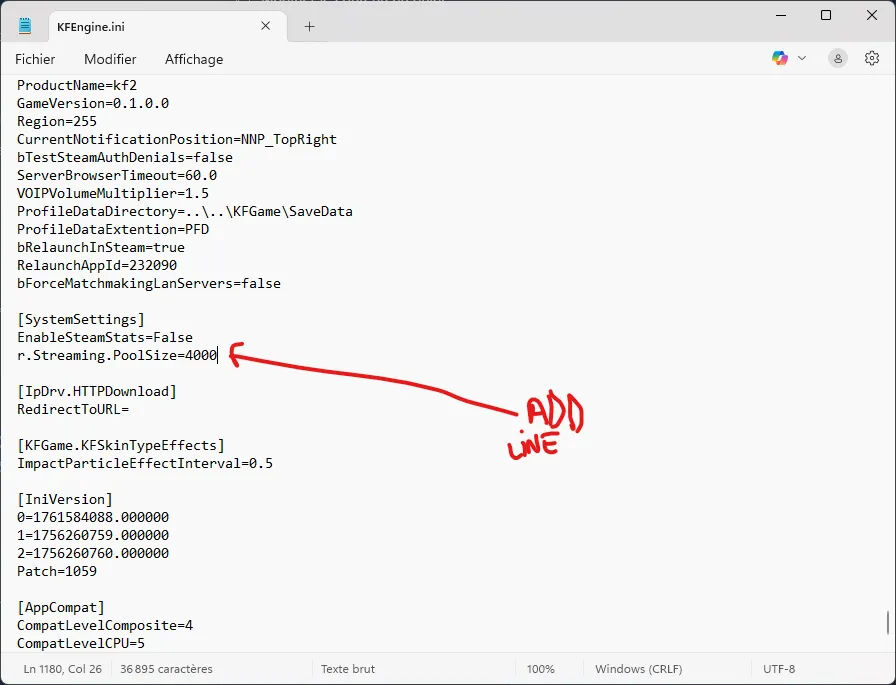 The streaming pool line in [SystemSettings].
Steps 1 and 2 are the most important; usually they alone give most of the gain.
Step 3: disable streaming limits
Add these lines to [SystemSettings] so used textures stay in memory, reducing pop-in and freezes:
r.Streaming.FullyLoadUsedTextures=1
r.Streaming.HLODStrategy=2
r.Streaming.UseFixedPoolSize=1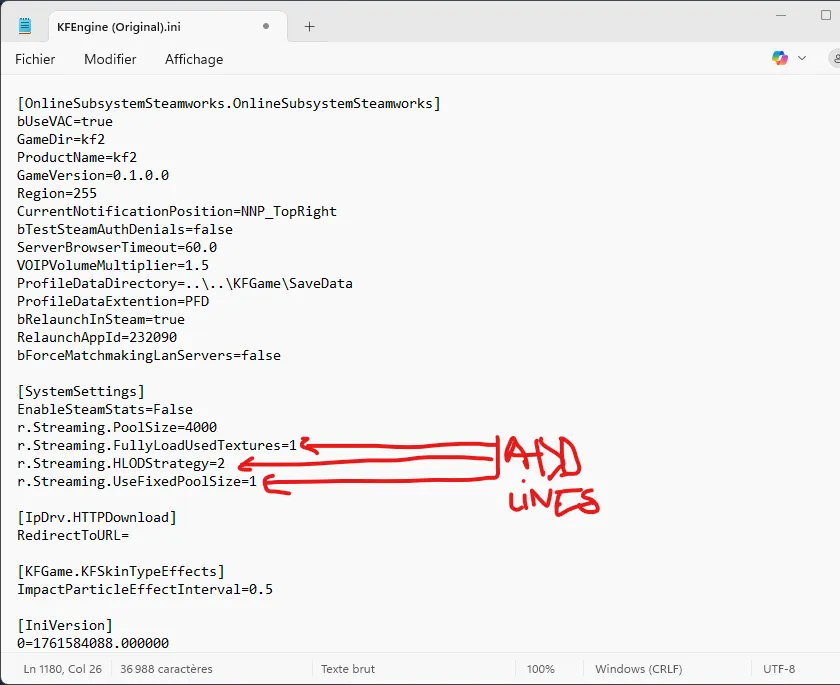 Streaming limit settings.
Step 4: advanced options
Only for cards with 6 GB VRAM or more. In [TextureStreaming]:
MemoryMargin=128
MemoryLoss=0
HysteresisLimit=40
DropMipLevelsLimit=16
StopIncreasingLimit=12
UsePriorityStreaming=True
UseTextureFileCache=True
Priority streaming smooths loading and avoids memory spikes with a large pool, especially on an HDD. The texture file cache matters on an HDD and gives only a small boost on an SSD.
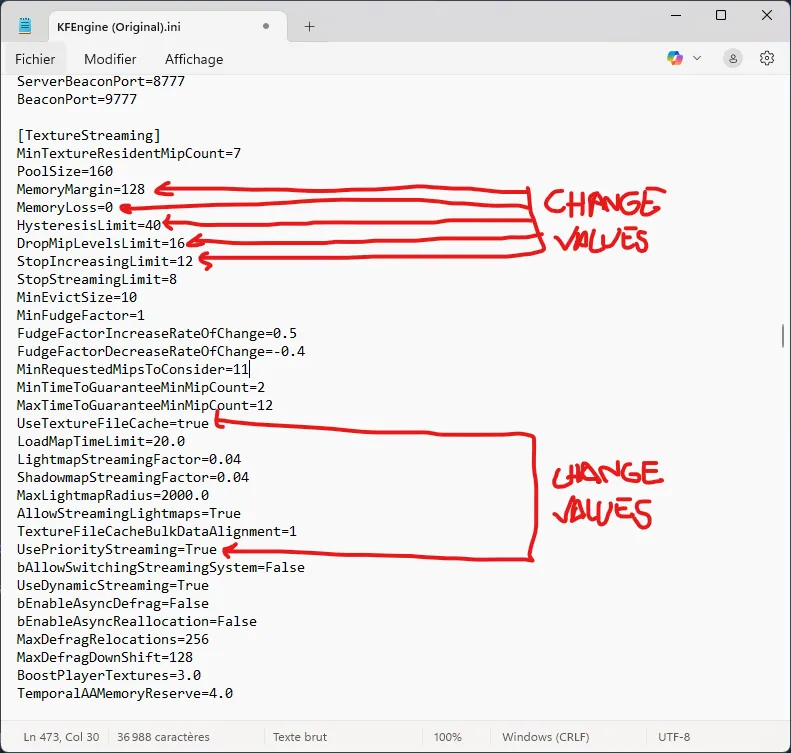 The [TextureStreaming] block.
In [SystemSettings] you can also add r.OneFrameThreadLag=0 and r.Streaming.DefragDynamicBounds=1 (some may be ignored by your build, which is harmless).
To avoid shadow micro-stutter, create a [MemoryPools] section if missing and set both values to match your PC:
FLightPrimitiveInteractionInitialBlockSize=2048
FModShadowRenderPrimitiveInteractionInitialBlockSize=2048
The default is 512. Suggested values: 1024 for a low PC (8 GB RAM, GTX 960 or weaker), 2048 for mid (16 GB, GTX 1060-1070), 4096 for high (32 GB, GTX 1080 / RTX 3060 and up), 8192 for extreme and mostly pointless.
Step 5: Steam launch options
Right-click Killing Floor 2 in Steam, open Properties and add to Launch Options:
-USEALLAVAILABLECORES -PREFERPROCESSOR=1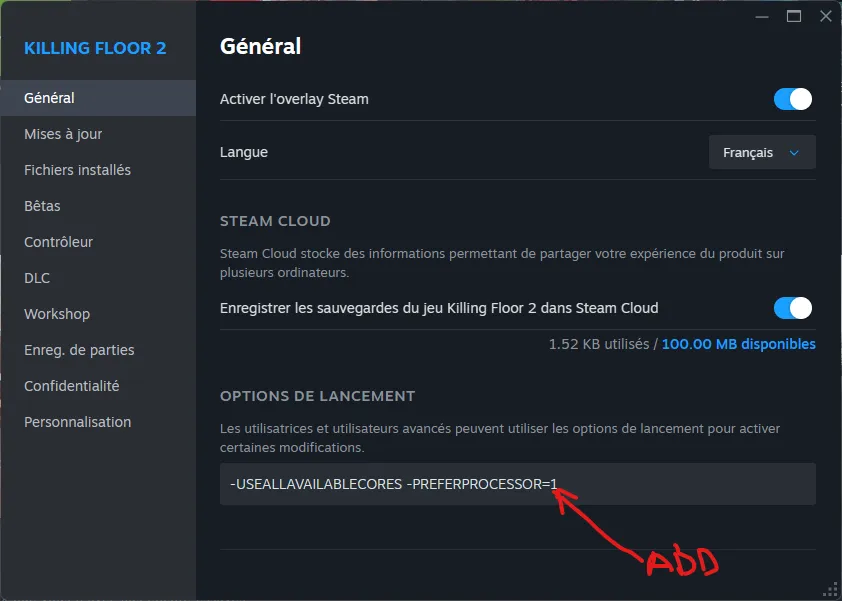 Launch options field in the game properties.
CPU and physics tweaks
These improve thread handling and reduce PhysX micro-lag without changing graphics.
[SystemSettings]:r.OneFrameThreadLag=0,r.FinishCurrentFrame=0,r.Streaming.NumStaticComponentsProcessedPerFrame=500,r.Streaming.NumDynamicComponentsProcessedPerFrame=200. Removes the one-frame CPU/GPU lag and loads weapons and effects faster.[Core.System]:bUseBackgroundLevelStreaming=False,bDisableLogging=True. Cuts background loading work, which is unnecessary on SSDs.[Engine.Physics]:bPhysicsAsyncScene=True,bEnableAsyncScene=True,PhysXGpuHeapSize=128,PhysXMeshCacheSize=32. Asynchronous physics offloads the main thread.[Engine.Engine]:bSmoothFrameRate=True,MinSmoothedFrameRate=60,MaxSmoothedFrameRate=120,bUseVSync=False,bUseThreadedRendering=True,bUseThreadedUpdate=True.[MemoryPools]:FParticleRenderDataPoolSize=1024,FPrimitiveSceneProxyPoolSize=2048. Fewer reallocations during big blood-heavy waves.
Crash prevention
For long sessions (2+ hours), heavy mod maps and many mods, set these [Core.System] values to 0:
MaxObjectsNotConsideredByGC=0
SizeOfPermanentObjectPool=0
StaleCacheDays=0
MaxStaleCacheSize=0
MaxOverallCacheSize=0
PackageSizeSoftLimit=0
They stop obsolete objects and caches from accumulating, which reduces memory-saturation crashes and freezes on modded multiplayer.
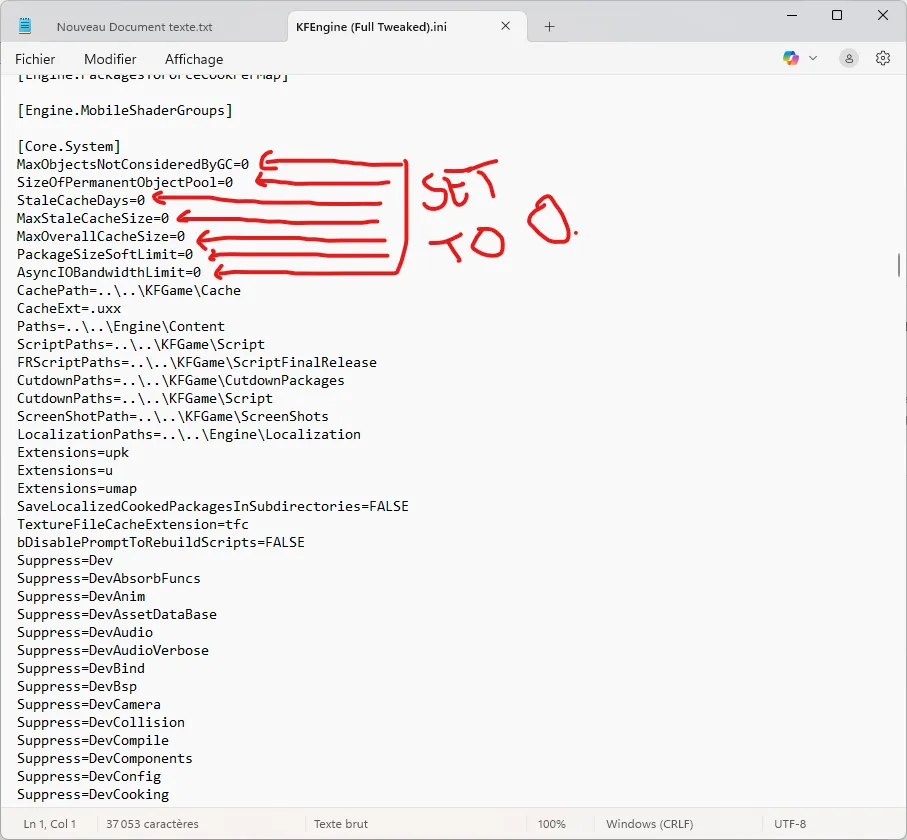 Core.System memory settings set to zero.
Extra tips
- Disable logging with
bDisableLogging=Trueunder[Core.Log]for a small gain. - Audio: under
[Audio]setMaxChannels=64,UseEffectsProcessing=True,Use3DSound=True,TimeBetweenHWUpdates=15,bUseThreadedAudio=True. - Async preloading: under
[Engine.Streaming]sets.MinBulkDataSizeForAsyncLoading=0ands.AsyncLoadingThreadEnabled=True, so assets load in the background.
The author's profile and results
Setup: i7-5820K, GTX 1080 8 GB, 32 GB RAM, Ultra graphics, gore on, NVIDIA Flex off. Key values: r.Streaming.PoolSize=3500 and PoolSize=3500, r.Streaming.UseFixedPoolSize=0, PhysX heap 256 and mesh cache 64, r.ShadowQuality=3, r.MotionBlurQuality=0, r.MaxAnisotropy=8, memory-pool blocks 2048, and the Core.System zeroes above with logging left on for crash diagnostics. Reported FPS on an ultra-modded server:
| Waves | Min/Max | Average |
|---|---|---|
| 0-25 | 40/60 | 55 |
| 26-30 | 30/60 | 45 |
| 31-35 | 25/50 | 30 |
FAQ
- The game will not start after edits. Delete the modified ini files; they are regenerated with defaults.
- FPS did not improve. Test one change at a time and do not set the pool above what your VRAM allows (for 4 GB stay under about 2000-2500).
- How to check? Use F3 in-game or the Steam FPS overlay.
- Restore defaults. Delete
KFEngine.ini,KFSystemSettings.iniandKFGame.iniin the Config folder. - Modded servers and custom maps. The tweaks help most on servers with many Zeds and heavy effects.
FAQ
- Which KF2 ini settings matter most for FPS?
- Steps 1 and 2: the PoolSize value in [TextureStreaming] and r.Streaming.PoolSize in [SystemSettings], both scaled to your video memory.
- What if the game breaks after editing the ini files?
- Delete the edited ini files in Documents\My Games\KillingFloor2\KFGame\Config. The game recreates them with defaults on the next launch. Keep backups.
- Can this get me banned?
- The guide states that these edits only change local configuration and do not touch the executable or network files.
