
KF2 Custom Server Guide (JP): Workshop, Map Cycle, WebAdmin
This is a translated summary of a Japanese guide that collects what the author learned while building a custom KF2 server. It assumes the basics are already done (see the basic setup in KF2 dedicated server guide (Japanese)). Remember to open the ports in Windows Firewall, any antivirus and the router, and use a static IP for the host PC so that forwarding does not need to be redone. If something does not work, restart the router and PC.
Connect the server to the Workshop
The easiest way to add custom maps and mutators is to let both the server and players download from the Workshop.
- Edit
kf2server\KFGame\Config\PCServer-KFEngine.ini. - In the
[IpDrv.TcpNetDriver]section addDownloadManagers=OnlineSubsystemSteamworks.SteamWorkshopDownloadand put it first among the DownloadManagers. If you only use the Workshop, delete the others; if downloads fail, delete them anyway. - In the same section raise
MaxDownloadSize=1024000toMaxDownloadSize=102400000. - Under
[IpDrv.HTTPDownload]setRedirectToURL=http://steamcommunity.com/app/232090/workshop/because the default URL is too slow.
Choose what to download
Still in PCServer-KFEngine.ini, add a section [OnlineSubsystemSteamworks.KFWorkshopSteamworks] and list item IDs:
ServerSubscribedWorkshopItems=1554427429 // ControlledDifficultyThe ID is the last part of the Workshop page link. Files are downloaded on server start into kf2server\KFGame\Cache. A // comment is allowed.
Set up custom maps
Edit PCServer-KFGame.ini and create a section for each custom map, copying the pattern of the existing ones:
[KF-BioticsLab KFMapSummary]
MapName=KF-BioticsLab
Use the actual .kfm file name from the Cache folder.
 Map summary entries in PCServer-KFGame.ini.
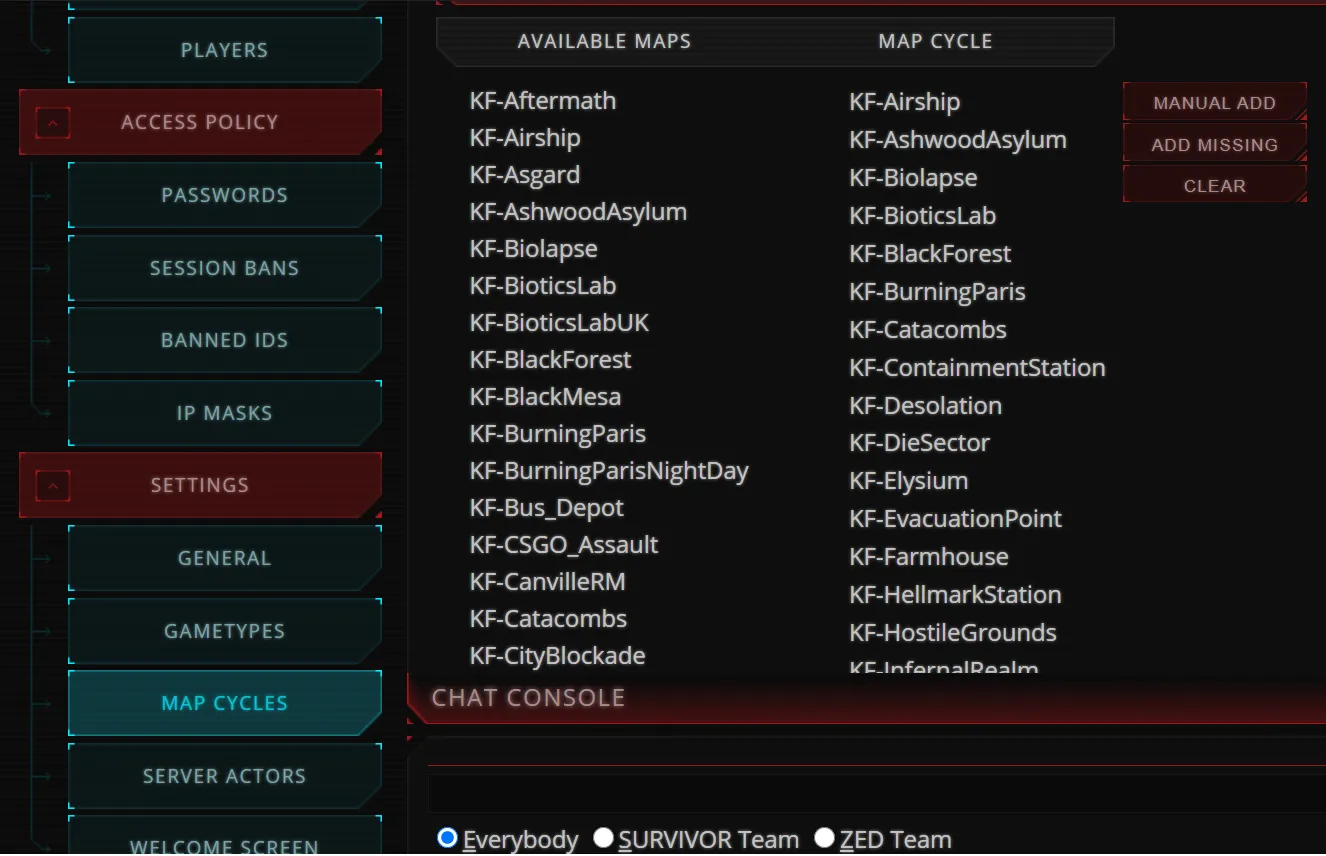
Start the server, open WebAdmin, go to Settings > Map Cycles and drag the new maps from AVAILABLE MAPS into MAP CYCLE. They then appear in the vote list.
Launch options and mutators
Game mode mods and mutators are set in the launch line. The default kf2server.bat contains start .\Binaries\Win64\kf2server kf-bioticslab?adminpassword=123. Add options joined by question marks:
start .\Binaries\Win64\kf2server kf-corridor?game=ControlledDifficulty_Eternal.CD_Survival?difficulty=3?gamelength=2?maxmonsters=50?spawncycle=dtf_v1?mutator=ClassicScoreboard.ClassicSCMut,FriendlyHUD.FriendlyHUDMutatorSeveral mutators are separated by commas.
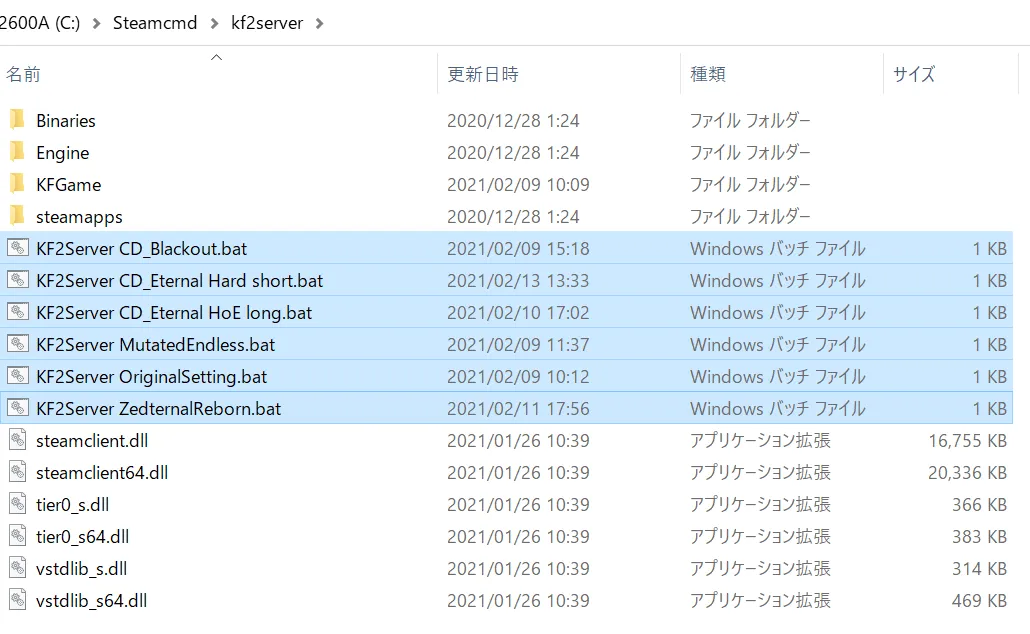 A kf2server.bat with launch options.
Keep several bat files with different names for different setups. Several bat files do not give you several servers, though: that needs different ports. Note that Change Map in WebAdmin drops the game mode mod and mutators, while picking a map in the end-of-match vote does not.
Tidy the map list
In PCServer-KFGame.ini, section [KFGame.KFGameInfo], you find ActiveMapCycle=0 (the zero-based index of the active cycle) and GameMapCycles=(Maps=(...)). You can edit the cycle here instead of WebAdmin. Adding fake maps such as "-------KF1-------" to the cycle creates headings in the list; choosing one opens the default map (BioticsLab) instead.
Item states and warnings
At server start the black console shows lines such as NetComeGo: Item State is 0:
- 0: not downloaded yet, will download.
- 4: downloaded and up to date.
- 12: downloaded, update needed, will update.
- 20: check failed or Workshop connection lost, restart the server.
- 8 and 36: the author is unsure (8 may be an update check problem, 36 seems harmless).
Warnings: "Steam does not appear to be running" means the Workshop link is lost and the server needs a restart. "Unable to download workshop item" means the item is private or the ID is invalid.
Server icons
In the server browser, a plain ranked icon means XP can be earned and no mutators or custom settings are used (custom maps are possible). Ranked Stock means XP can be earned but whitelisted mutators or settings like friendly fire are used. Unranked means no XP: non-whitelisted mutators or mods, or settings that unrank the server.
Server settings (PCServer-KFGame.ini)
Restart after editing. These keep the server ranked:
- ReadyUpDelay=90 seconds wait in the lobby when all but one are ready.
- GameStartDelay=4 seconds from everyone ready to start (minimum 1; 0 stops the game from starting).
- TimeBetweenFailedVotes=10, VoteTime=60.0, MaxSpectators=2.
- KickVotePercentage=0.66 (0.83 equals 5 of 6 players).
- bDisableTeamCollision=False, bEnableDeadToVOIP=true, bAdminCanPause=True, bDisableVOIP=False, bDisablePublicTextChat=False, bDisableMapVote=False, bDisableKickVote=False.
- MaxIdleTime=0 (max 300 seconds before idle players are kicked).
- bSilentAdminLogin=False, bPartitionSpectators=False.
- bEnableMapObjectives=True (false removes objectives); look under
[KFGameContent.KFGameInfo_Survival]or Endless, keep True under[KFGame.KFGameInfo]. - In PCServer-KFEngine.ini: bUsedForTakeover=False (true lets matchmaking use the server).
These change the server to Ranked Stock: bDisablePickups=True (ammo boxes still spawn) and FriendlyFireScale above 0.
WebAdmin tweaks
Files are in kf2server\KFGame\Web\ServerAdmin; back them up first. Changes apply on page refresh, no restart needed.
Show the Endless wave number:
- In gamesummary.inc replace the TIME lines (7 and 8, the last lines) with
<dt class="gs_wave">Wave <%wave.num%></dt>and<dd class="gs_wave"><%wave.monsters.dead%>/<%wave.monsters.total%></dd>.
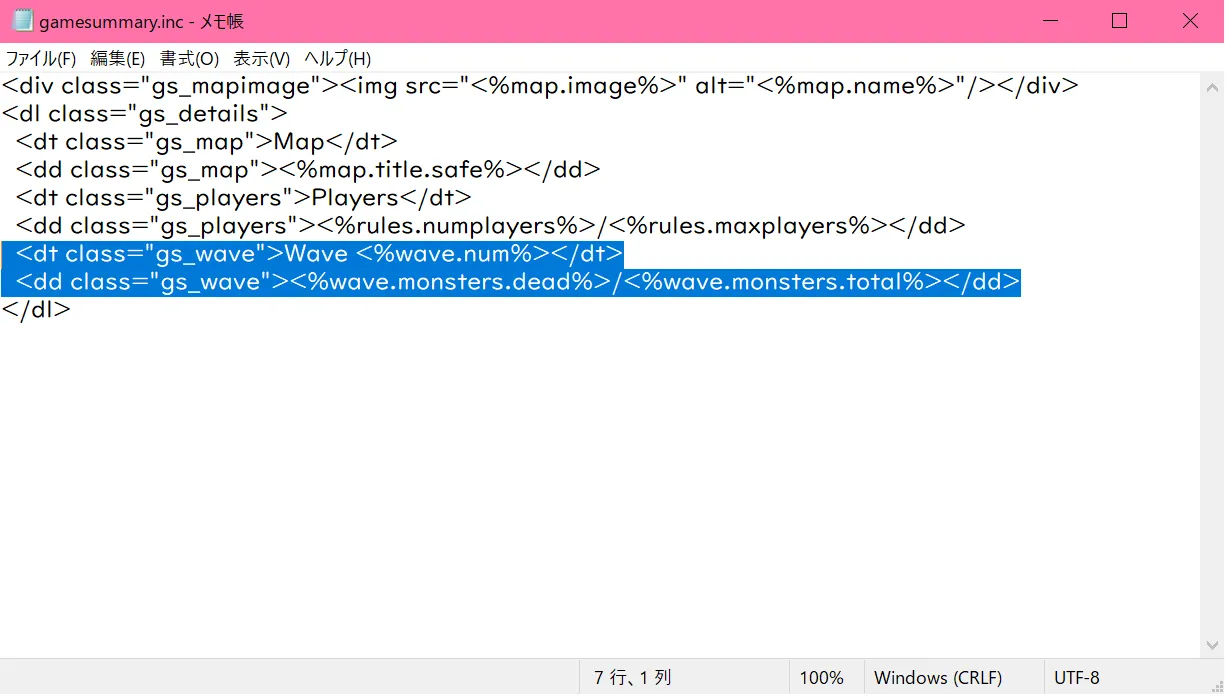 Editing gamesummary.inc to show the wave.
- In current_rules.inc add
<dt>Wave</dt>and<dd><%wave.num%></dd>at the top, plus Difficulty rows (<%rules.difficulty.text%>) if missing.
Show perk level: edit current.html (add <th>Level</th> after the Perk row, line 63), current_players.html (add <th>Perk</th> and <th>Level</th> under Player Name), current_player_row.inc (add <td class="right"><%player.perk.level%></td> under player.perk.name) and current_players_row.inc (add <td><%player.perk.name%></td> and <td class="center"><%player.perk.level%></td> under player.name, and change the ping class from right to center). The author warns that in his test every player showed level 25, so the perk-level part may be wrong.
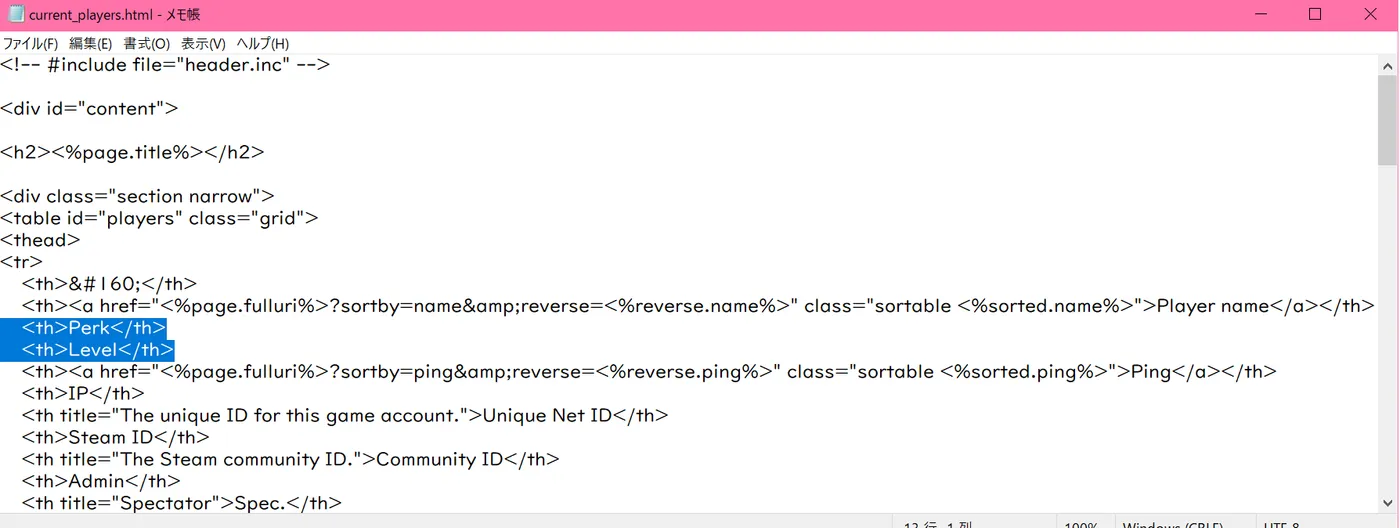 The perk and level columns added to the players table.
Controlled Difficulty servers
- Client side: without editing the player's own KFEngine.ini (in Documents\My Games\KillingFloor2\KFGame\Config), the game almost always crashes from the second match. Change MaxObjectsNotConsideredByGC=179220 to 33476 and SizeOfPermanentObjectPool=179220 to 0.
- Chat commands: !cd commands start with only READ rights. To allow WRITE for everyone, set DefaultAuthLevel=CDAUTH_WRITE in KFControlledDifficulty.ini. For individuals, convert the SteamID to the STEAM_0:x:xxxx form with a Steam ID finder and add
AuthorizedUsers=(SteamID="STEAM_0:1:485188694",Comment="Asapi").
Related: Controlled Difficulty beginner guide.
FAQ
- How do I make a KF2 server download Workshop content?
- In PCServer-KFEngine.ini add DownloadManagers=OnlineSubsystemSteamworks.SteamWorkshopDownload under [IpDrv.TcpNetDriver], then list item IDs under [OnlineSubsystemSteamworks.KFWorkshopSteamworks] with ServerSubscribedWorkshopItems.
- Why do clients crash on the second game of a Controlled Difficulty server?
- The guide says the client's KFEngine.ini must use MaxObjectsNotConsideredByGC=33476 and SizeOfPermanentObjectPool=0 instead of the default 179220 values.
- How do I let all players use CD write commands?
- In KFControlledDifficulty.ini change DefaultAuthLevel=CDAUTH_READ to CDAUTH_WRITE, or list specific users with AuthorizedUsers and their SteamID.
