
KF2: Join a Server by IP and Add It to Favorites
Some servers do not show up in the browser filters, or you simply want a permanent shortcut. This page paraphrases a bilingual (English and Russian) guide with two ways to do it. See also enabling the console and connecting by IP and joining a friend's server.
Method 1: Steam server browser
- In Steam open View, then Servers. You do not need to launch the game.
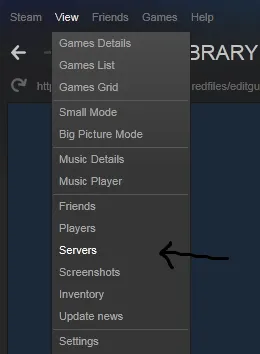
View, Servers in the Steam client.
- In the server browser choose Killing Floor 2 in the game filter.
- Open the Favorites tab, right-click and choose "Add server by IP address", or press the "Add a server" button.
- Enter the IP and confirm.
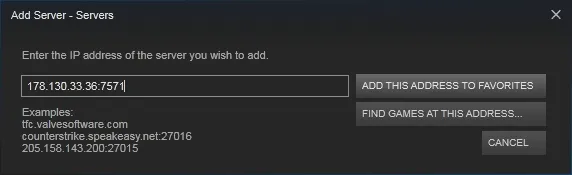
The Favorites tab with the add-server prompt.
Method 2: console and in-game history
- Start the game.
- Open the console (the default keys are ~ and F3).
- Type
open <IP>, for exampleopen 123.45.67.89.
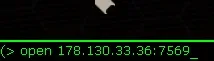
The open command in the console.
- For a passworded server type
open <IP>?password=<password>. You can also use plainopen <IP>and enter the password when asked.
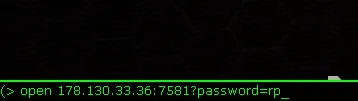
Joining with the password in the command.
- Go to the in-game server browser and open the History tab.
- Find your server (usually the first entry), select it, press Server details and press the star button at the bottom right.
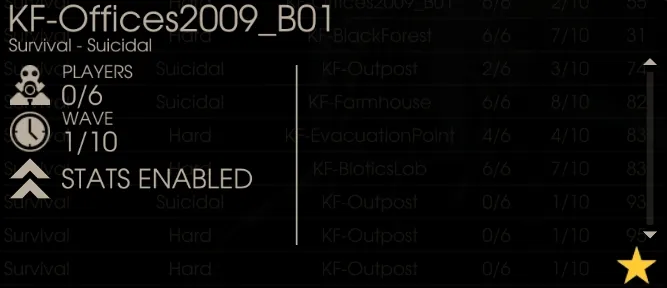
The star adds the server to favorites.
For Russian-speaking players
The author adds a short Russian recap: in Steam choose View, Servers, pick KF2, go to Favorites and add the server by IP with a right-click, just as in Counter-Strike 1.6 and other Valve games. The second way is to join through the console, then find the server in the History tab, press Details and use the star.
A server list in console suggestions
A guide from the killingfloor.ru forum thread "Как создать свой список "Избранное" ... kf 2" for players who join servers with the open command. The file is C:\Users\YOUR_PROFILE\Documents\My Games\KillingFloor2\KFGame\Config\KFInput.ini (easiest to edit in Notepad++).
Option 1: an autocomplete suggestion. Find the ManualAutoCompleteList lines and, between the last of them and the HistoryTop= line, add your own:
ManualAutoCompleteList=(Command="StopMemLeakChecking",Desc="Stops the periodic MemLeakCheck that was started via DoMemLeakChecking")
ManualAutoCompleteList=(Command="Open 00.00.000.00:7777",Desc="(ХХХХХХХХ)")
HistoryTop=..
Here 00.00.000.00:7777 is the server IP and port (the port depends on the server), and ХХХХХХХХ is the server name (it does not have to be complete; you can add the IP for convenience). Now when you type open in the console, the game suggests the saved servers; if there are several, type the first digits of the IP.
Option 2: console history. In the same file find HistoryTop and HistoryCur, set both to 15, and enter addresses in the History[0]= ... History[15]= lines. You pick a server with the up and down arrows in the console. This is less reliable: joining new servers overwrites the entries, so it suits players who stick to a few regular servers.
FAQ
- How do I join a server by IP in the console?
- Open the console and type open <IP>. For a passworded server use open <IP>?password=<password>.
- Where do I find the server I joined?
- In the in-game server browser on the History tab; open Server details and press the star button to add it to favorites.
