
KF2 Dedicated Server with Steam CMD GUI: Router to Web Admin
This guide, originally written in Brazilian Portuguese, walks through building a Killing Floor 2 server on a Windows PC with the Steam CMD GUI tool: opening router ports, installing, configuring the ini files, using the Web Admin, adding more player slots and custom maps, and updating. It is a different, GUI-based route from the plain command-line method in KF2 dedicated server with SteamCMD; for custom maps in general see server custom maps and mods setup.
1. Open router ports
Without this the server cannot be reached. Find the router's IP and login (often on a sticker underneath) and your computer's IPv4 (run ipconfig in CMD). In the router's advanced section, open "virtual ports" (the name varies by router) and add:
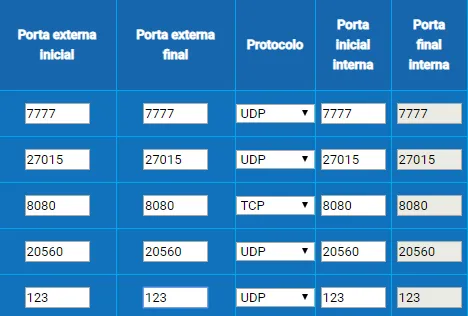 Ports to forward, all pointing to your IPv4.
| Port | Protocol |
|---|---|
| 7777 | UDP |
| 27015 | UDP |
| 8080 | TCP |
| 20560 | UDP |
| 123 | UDP |
Check numbers, protocols and the IPv4 carefully. Then, in the router's DMZ tab, put your IPv4 in the field (clearing any old value; some IPv4 addresses change over time, leaving the DMZ pointing at a stale one). Save, and keep the IPv4 for later.
2. Preparation
- Download Steam CMD GUI (from GitHub).
- Create a folder called
KF2 Serverat the root of a drive and extract the tool into it. - Run it and click "download steam cmd" (it downloads a .rar). Create a
steamcmdfolder next to it and extract the archive there.
3. Configure the GUI and install
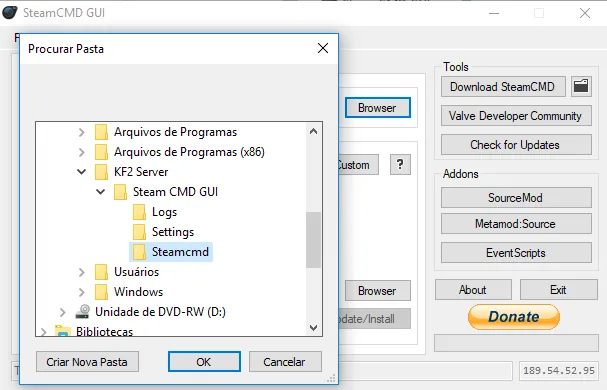 Pointing the GUI at the steamcmd folder.
- In "Steam CMD Path" browse to the
steamcmdfolder, and do the same for the second path. - In "Server Configuration" click "Add Custom", enter the name (Killing Floor 2) and the server app ID 232130.
- Keep "Login as Anonymous" ticked and click "Update/Install". Wait for 100%, since the download is large.
4. Configure the server
- Close everything and go to
KF2 server/Steam CMD GUI/steamcmd/steamapps/common/kf2server/binaries/redist; runUE3Redistto install the required libraries. - In
kf2server, right-clickKF2Server(the batch file) and choose Edit. By default there is no password, no admin and Normal difficulty. Use a line such as:
start .\Binaries\win64\kfserver kf-bioticslab?WebAdminPort=8080?AdminName=admin?MaxPlayers=6?Difficulty=0?AdminPassword=123Change AdminName, Difficulty and AdminPassword. Difficulty: 0 Normal, 1 Hard, 2 Suicidal, 3 Hell on Earth. Any map name works, for example kf-TragicKingdom.
- Make a desktop shortcut and start the server once so it creates its config folders, then close it.
- In
KFGame/Configedit three files in Notepad (change only the values after the equals sign, do not paste over the file):
KFWeb.ini:            ListenPort=8080  and  bEnabled=true
PCServer-KFEngine.ini: Port=7777
PCServer-KFGame.ini:  bAdminCanPause=true, MaxPlayers=6, GameDifficulty=<yours>,
                      MaxSpectators=2, AdminPassword=<yours>,
                      bDisableTeamCollision=True, ServerName=<your server name>
5. Web Admin
Start the server, let it load, and open http://<your IPv4>:8080 in a browser (for example 192.168.0.10:8080). Log in with the AdminName and AdminPassword from the launch line. From the left menu you can change passwords, maps, difficulty, map cycles and more. The Web Admin works only while the server is running.
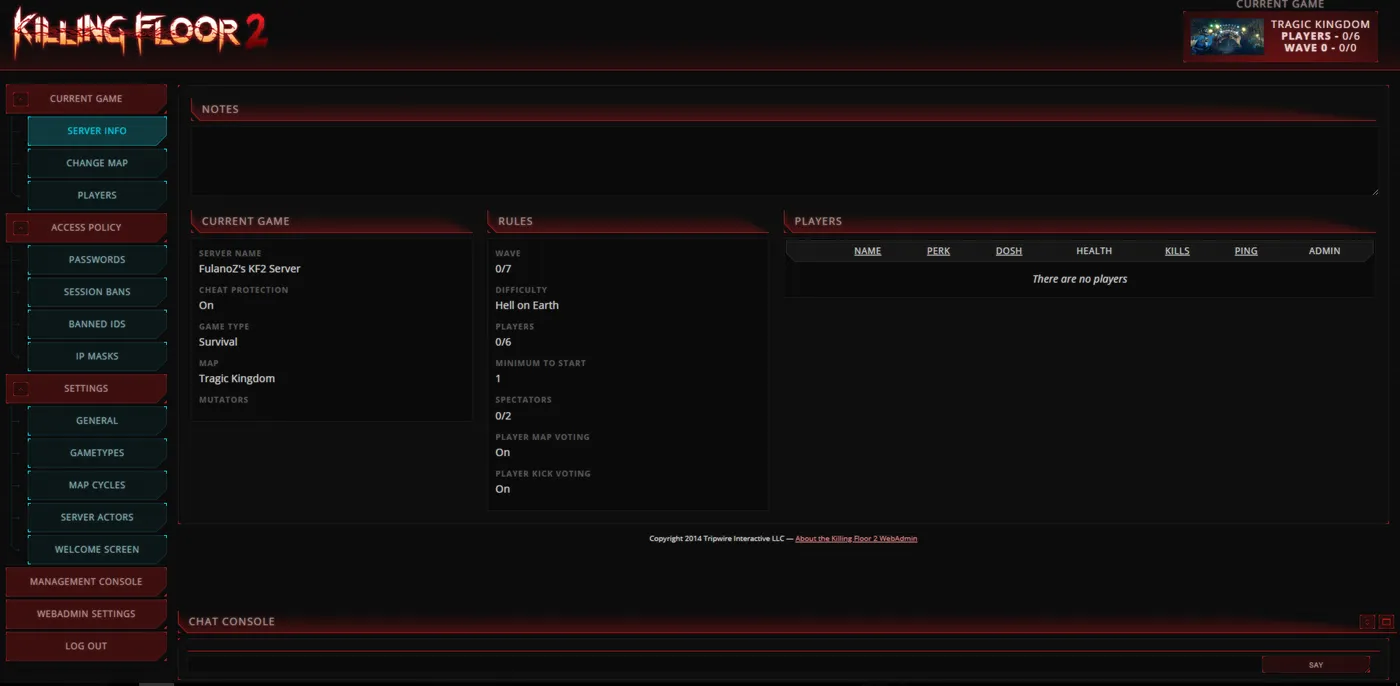 The Web Admin main screen.
6. Optional: more players, more ZEDs, custom maps
KF2 allows 6 players by default. The official MaxPlayers mutator adds slots, increases the ZED limit and lets you add maps.
- Subscribe to the mutator on the Workshop (one small file), and launch the game once so it downloads.
- In
Documents/My Games/KillingFloor2/KFGame/Cachesearch forkfmutator.uand copy it intokf2server/KFGame/BrewedPC. - In the Web Admin, open "Change Map", and under "Miscellaneous" paste a line like:
?Difficulty=3?GameLength=1?Mutator=KFMutator.KFMutator_MaxPlayersV2?MaxPlayers=10?MaxMonsters=360Remove MaxMonsters=360 if you do not want the higher ZED limit. Click "change game" so the server restarts with the settings. More players need more bandwidth, so limit them to what your connection supports.
Adding a custom map
- Find the map file in the same Cache folder (or your downloads) and copy it to
kf2server/KFGame/BrewedPC/Maps. - In
KFGame/Config/PCServer-KFGame.ini, search forKFMapSummary(press Find Next three times to reach the map list) and add a block like:
[KF-YourMapName KFMapSummary]
MapName=KF-YourMapName
MapAssociation=0
ScreenshotPathName=UI_MapPreview_TEX.UI_MapPreview_Placeholder
The name must match the file you copied. 3. Start the server, open the Web Admin's "Map Cycles", press "Add Missing", then "Save map cycle". Drag a map to the other list to remove it from the cycle. Restart to be sure.
Warning: the mutator can break after a game update. If the game and the server are on the same version but it fails, remove the mutator file from the server and update; you then wait for the mod to be updated, which usually takes about a week.
7. Updating the server
After each game update, update the server too, otherwise it will not work. Run steamcmd from KF2 Server/Steam CMD GUI/Steamcmd, then type line by line:
login anonymous
app_update 232130 validate
For the preview beta use app_update 232130 -beta preview. Batch files do not work for this; enter the lines manually.
8. Finish
You may need to restart the PC. The server should then be listed under the LAN tab in the game.
FAQ
- Which ports must be opened for a KF2 server?
- This guide forwards 7777 UDP, 27015 UDP, 8080 TCP, 20560 UDP and 123 UDP, to the host's IPv4 address.
- What is the KF2 dedicated server app ID?
- 232130. Install it with Steam CMD (anonymous login) using app_update 232130 validate.
- How do I get more than six players?
- Install the official MaxPlayers mutator (kfmutator.u) into KFGame/BrewedPC and add Mutator=KFMutator.KFMutator_MaxPlayersV2 and MaxPlayers=<n> to the game line.
