
KF2 Custom Music: Replace Tracks With Wwise and WEM Files
Killing Floor 2 uses Wwise .wem audio files, so the KF1 trick of dropping an .ogg into a folder no longer works. This guide shows a method that the author used for dozens of tracks: convert your song into a .wem with Wwise and give it the number of a track you want to replace. For the numbers of every track see the music files list.
What you need
- Wwise (32 or 64-bit) from audiokinetic.com. KF2 was made with it. Avoid anything newer than v2015.1.9: newer versions have serious compatibility problems. The author uses v2015.1.6 (64-bit); versions back to v2014.1.6 are sufficient. Older versions need a free Audiokinetic account.
- A sound file converter: whatever your song is (MP3, FLAC and so on), convert it to .WAV, the type Wwise recognizes. 16-bit WAV is ideal; 32-bit may not work depending on your Wwise version.
The process
The example track is "All Hail" by the Lions.
Step 1. Create a new folder on the desktop and put the .WAV file in it.
 Desktop folder containing the song.
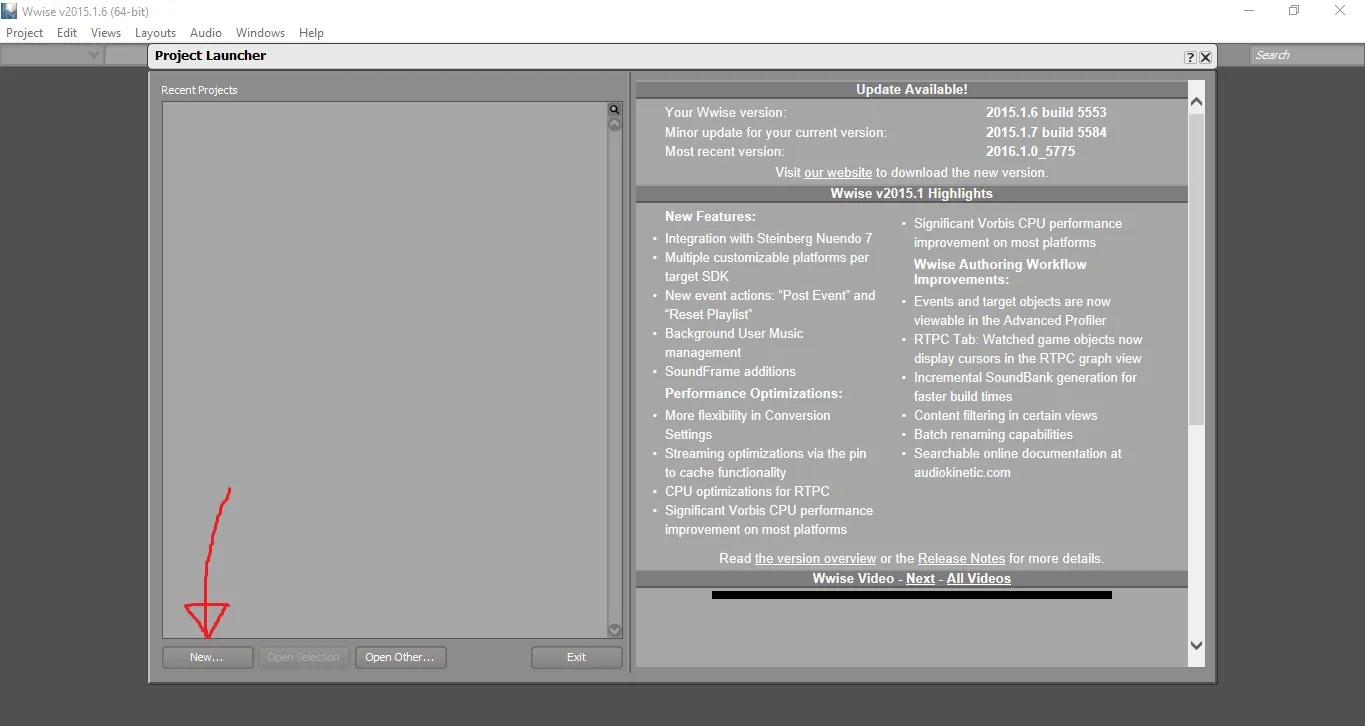
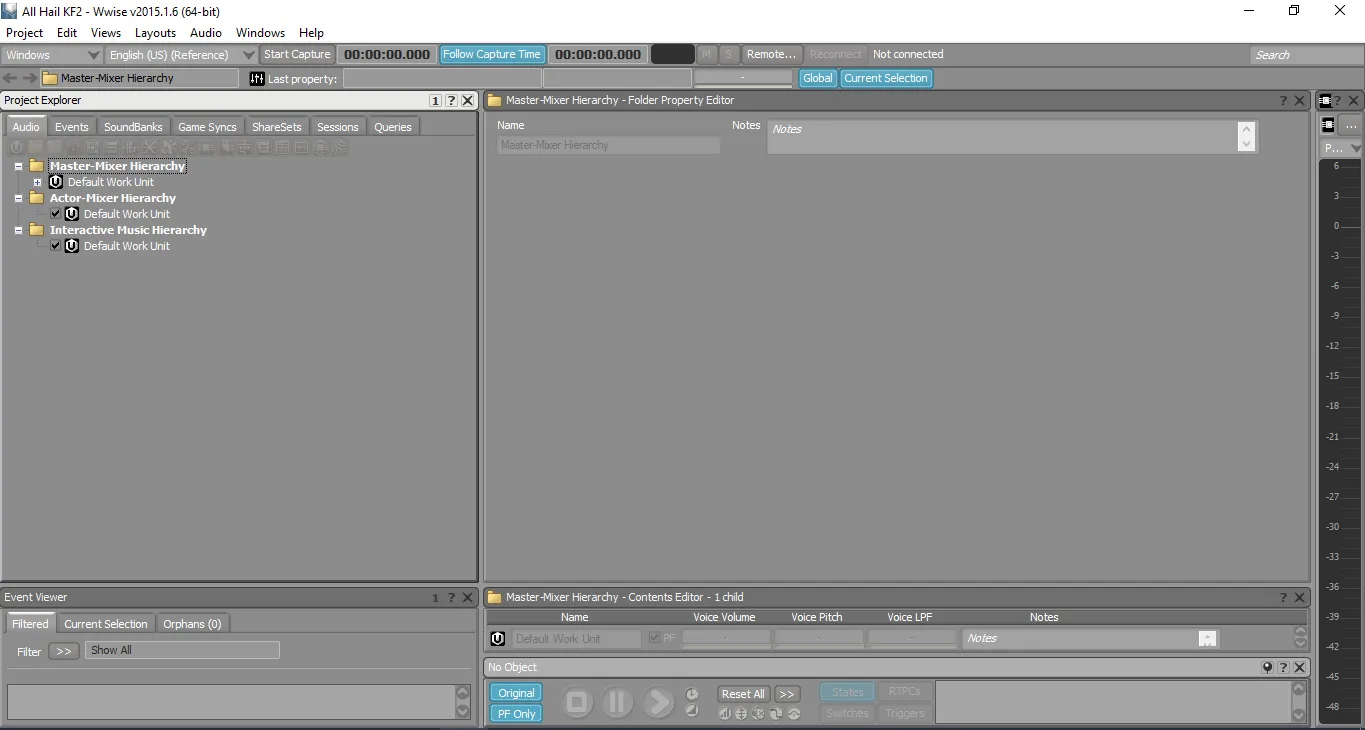
Step 2. Start Wwise. In the first box click New, name the project (for example "All Hail KF2"), set Location to your desktop folder and untick all options under Import Assets to Project. Click OK and close any license box.
 Naming the new project.
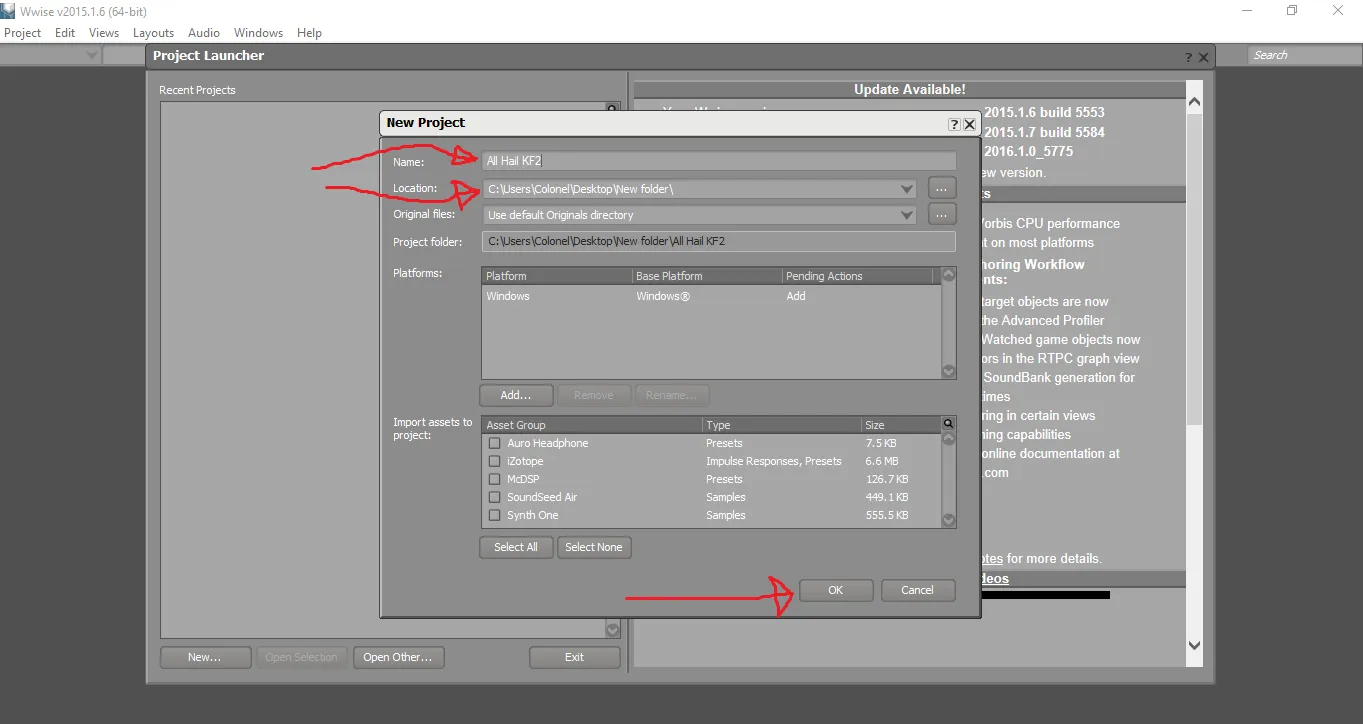 Setting the location and unticking asset import options.
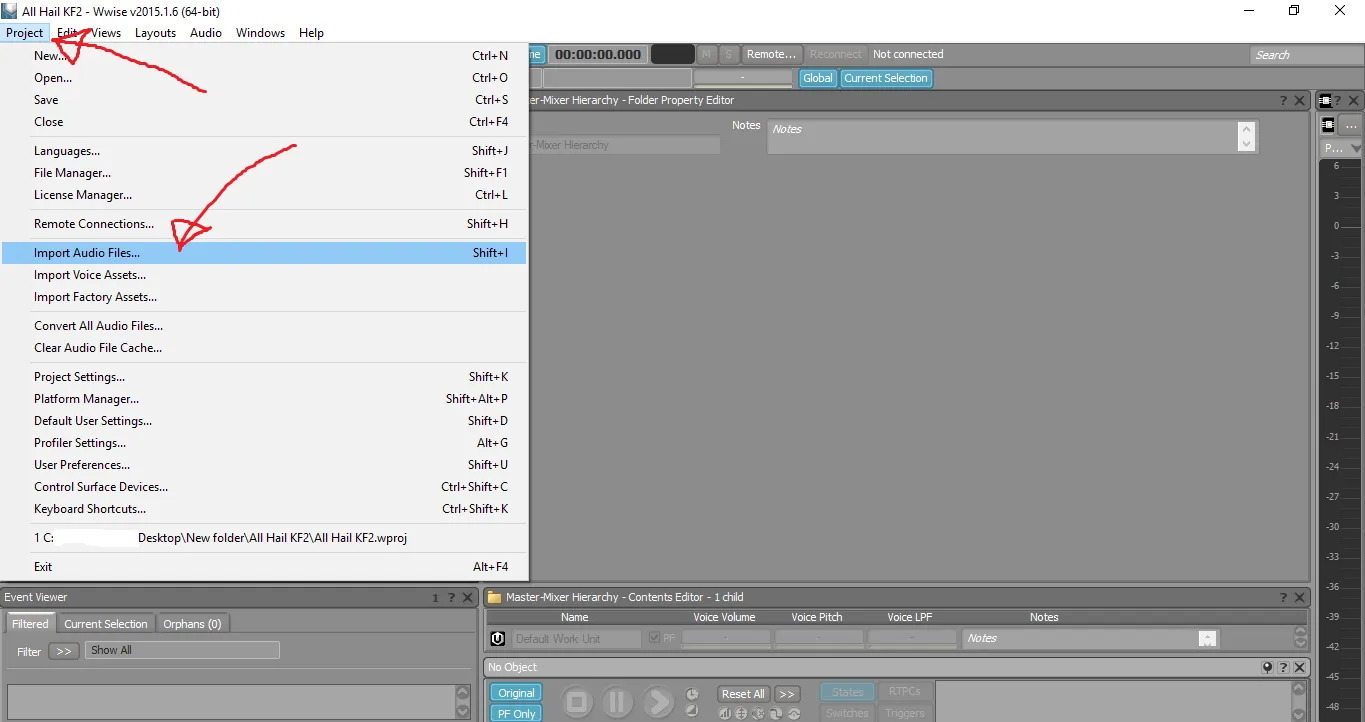
Step 3. Click Project, Import Audio Files, Add Files, pick your .WAV from the desktop folder (ignore the new folders there) and click Import.
 Import Audio Files.
 Adding the WAV.
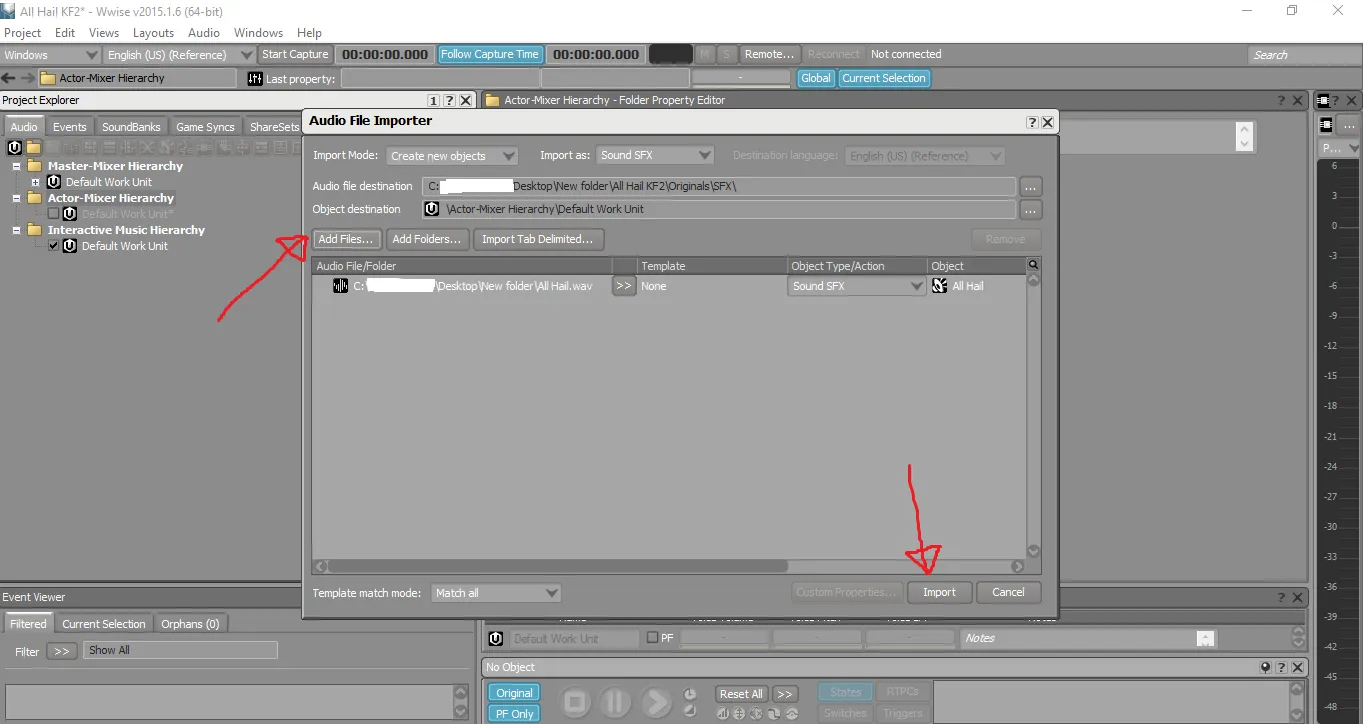 Importing.
Step 4. In Project Explorer, under Actor-Mixer Hierarchy, open Default Work Unit and select your .WAV.
Step 5. In General Settings set Voice Volume to the maximum (12), then tick Stream and under it Zero Latency.
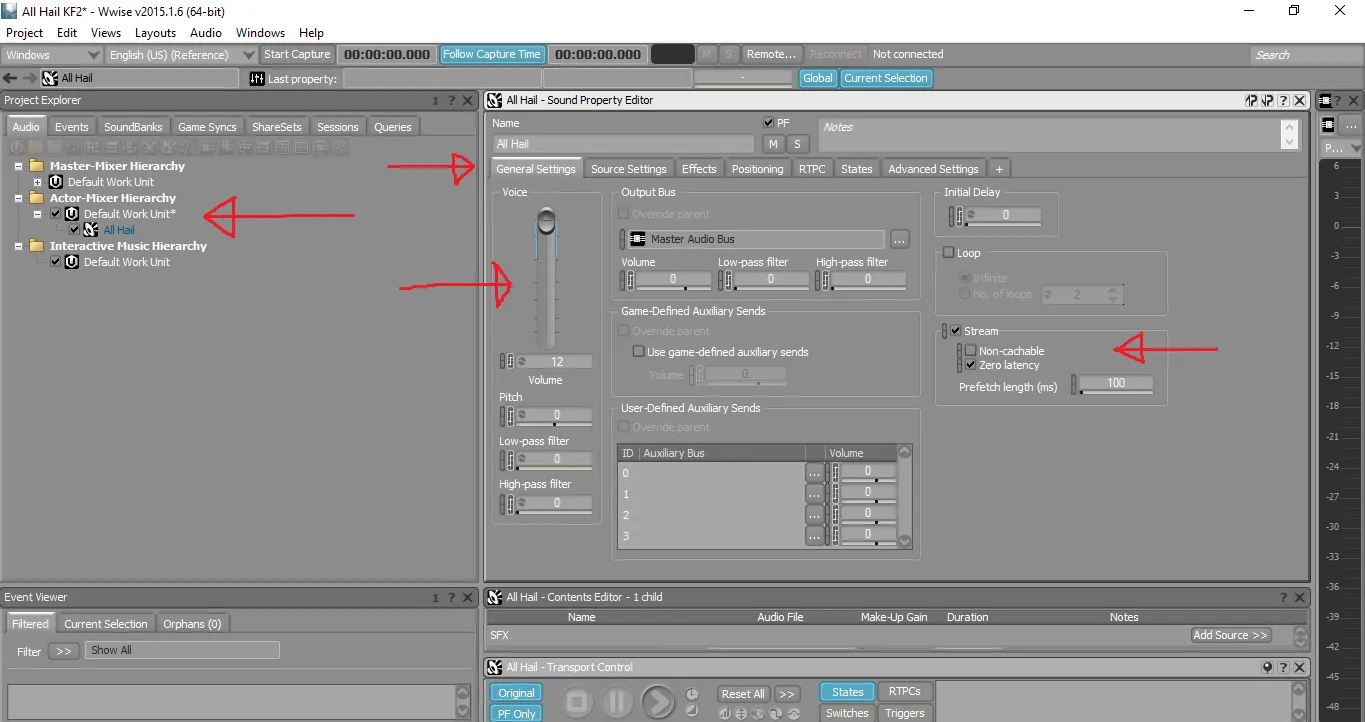 Voice volume 12, Stream and Zero Latency.
Step 6. In Source Settings click the double arrow and choose Factory Conversion Settings, Vorbis, Vorbis Quality High. The author is emphatic: if you get this wrong you have failed; nothing else is acceptable.
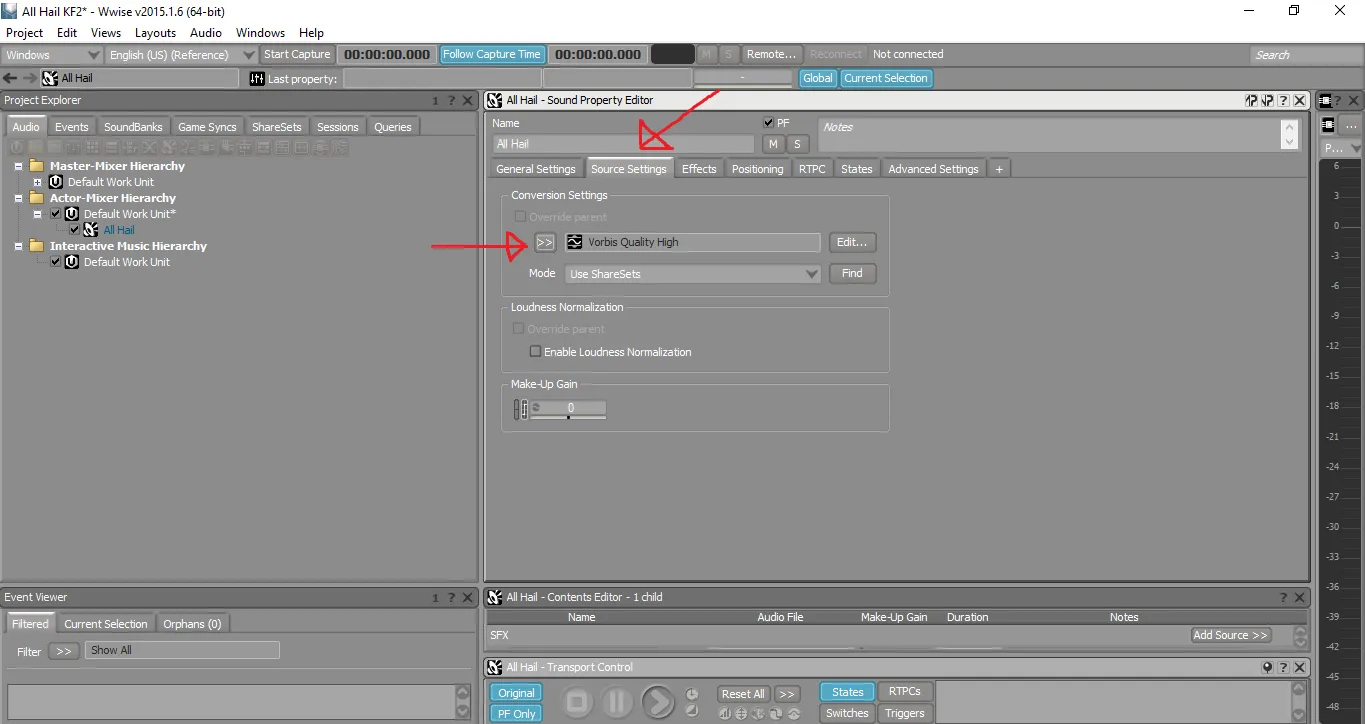 Choosing Vorbis Quality High.
Step 7. Still in Source Settings click Edit next to Vorbis Quality High and change only these: Channels to Stereo, Sample Rate to 48000, Quality to 8 (about 128 kbps) and Seek Table granularity to 16384.
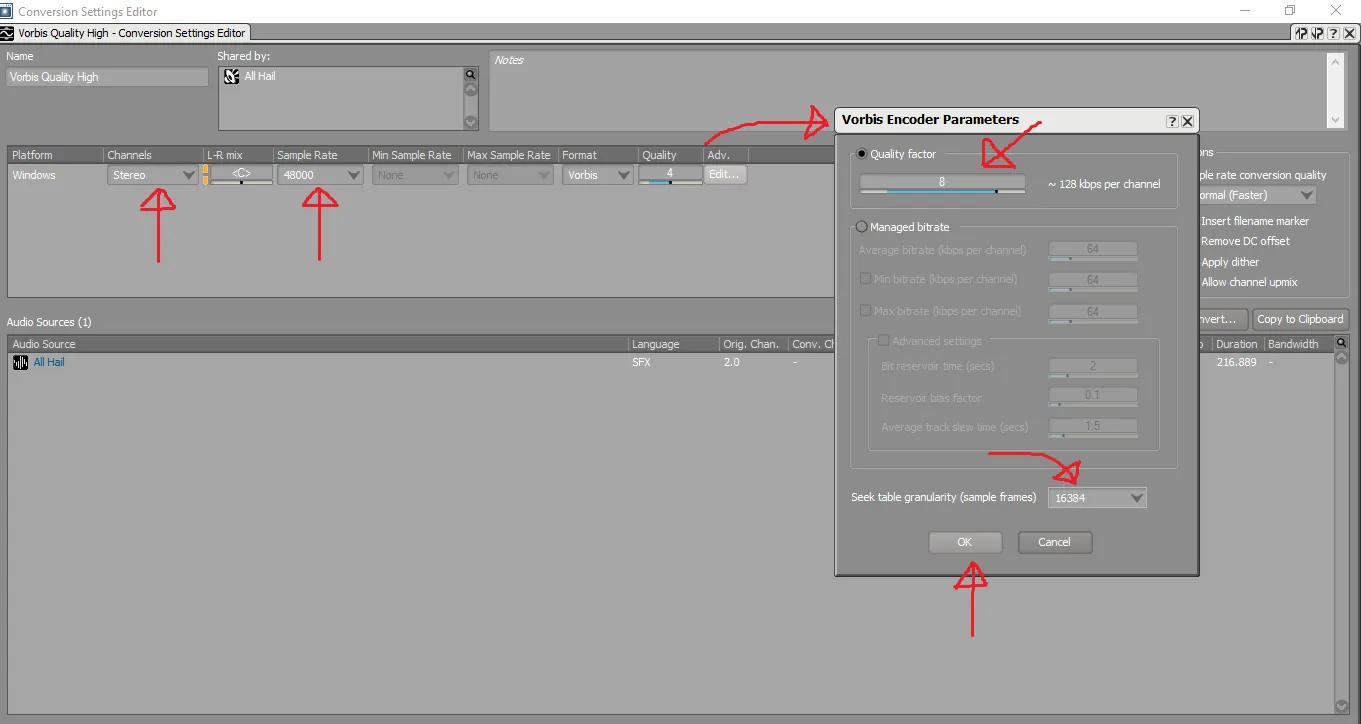 Editing the conversion options.
Step 8. Click Convert, then OK in the Audio File Conversion box, and wait for the progress bar to finish.
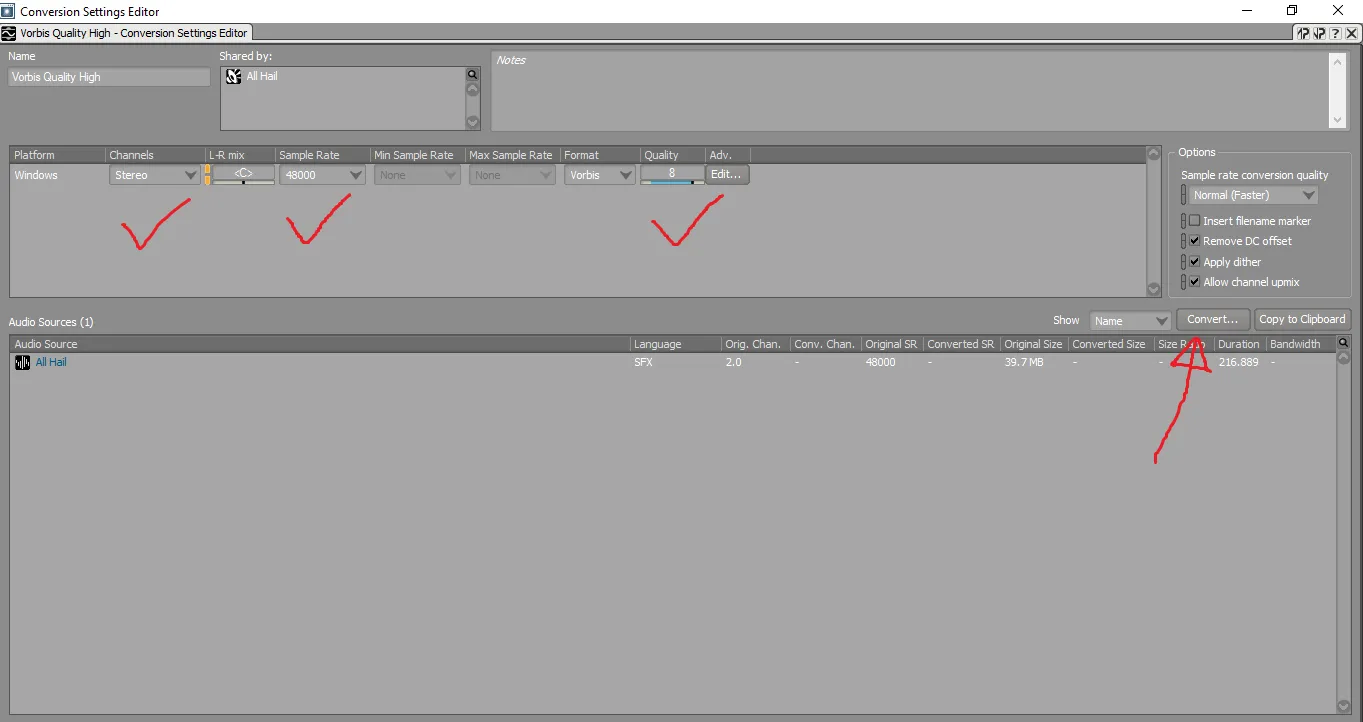 Starting the conversion.
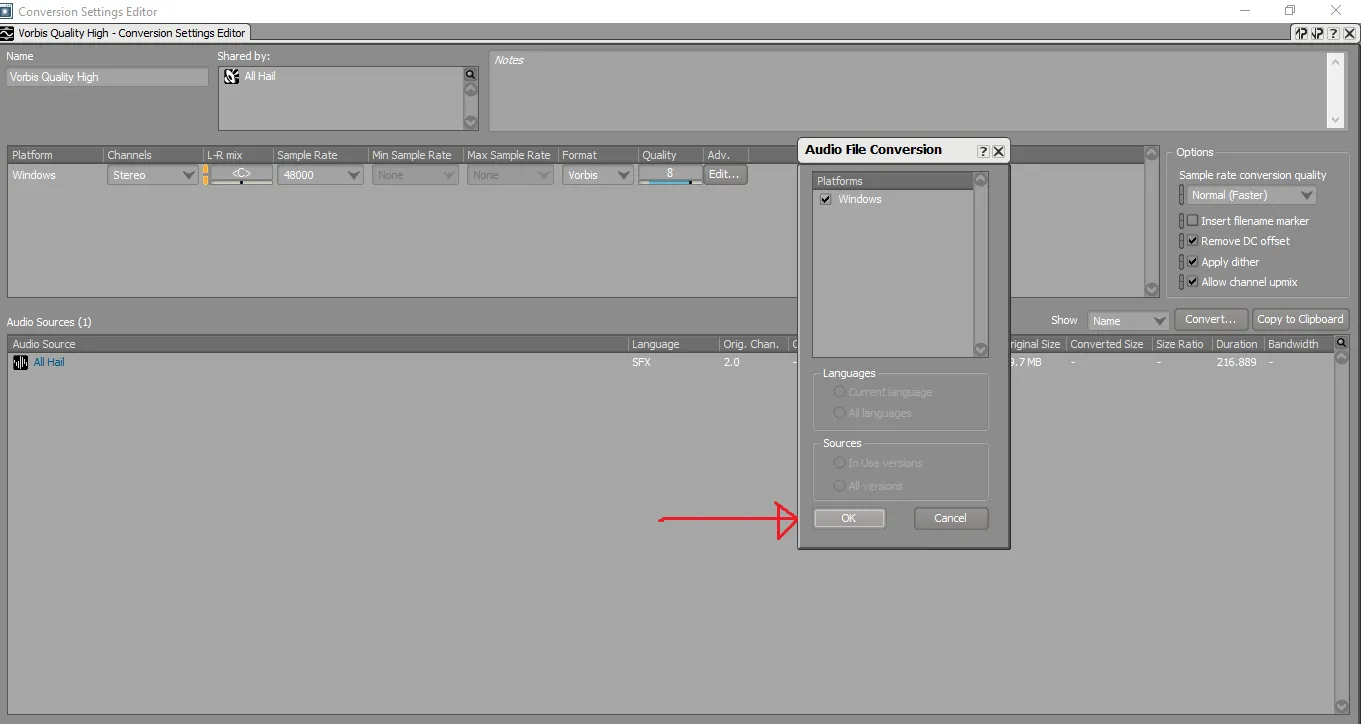 Audio File Conversion dialog.
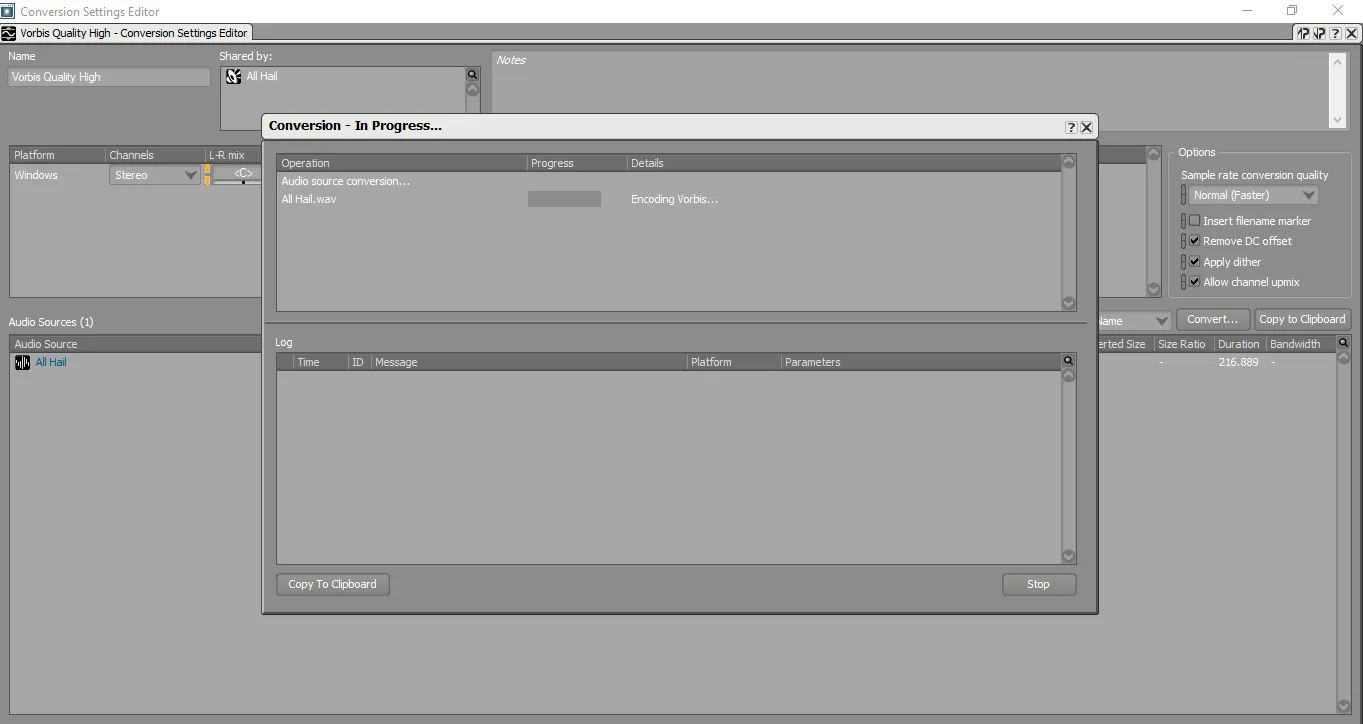 The progress bar.
Step 9. Without closing Wwise, go to Desktop\New folder\<Your project name>\.cache\Windows\SFX. Your song is there as a .WEM file; copy it to the desktop. You can then close Wwise (no need to save) and delete the folder.
Step 10. Back up your .WEM, then go to \Steam\steamapps\common\killingfloor2\KFGame\BrewedPC\WwiseAudio\Windows. Do not just drop the file in: KF2 identifies each song by a number, so you can only replace an existing song, not add one. The files WwiseDefaultBank_WW_MACT_Default.txt list the numbers of combat tracks (Tripwire has since removed these text files from the game folders). Popular ones:
799659999.wem: Main Menu theme666327332.wem: Hans theme655856778.wem: Patriarch theme221668755: Matriarch theme
Final step. To replace the Main Menu theme with All Hail, rename All Hail.wem to 799659999.wem and paste it into that folder, confirming the replacement. The new song plays in game.
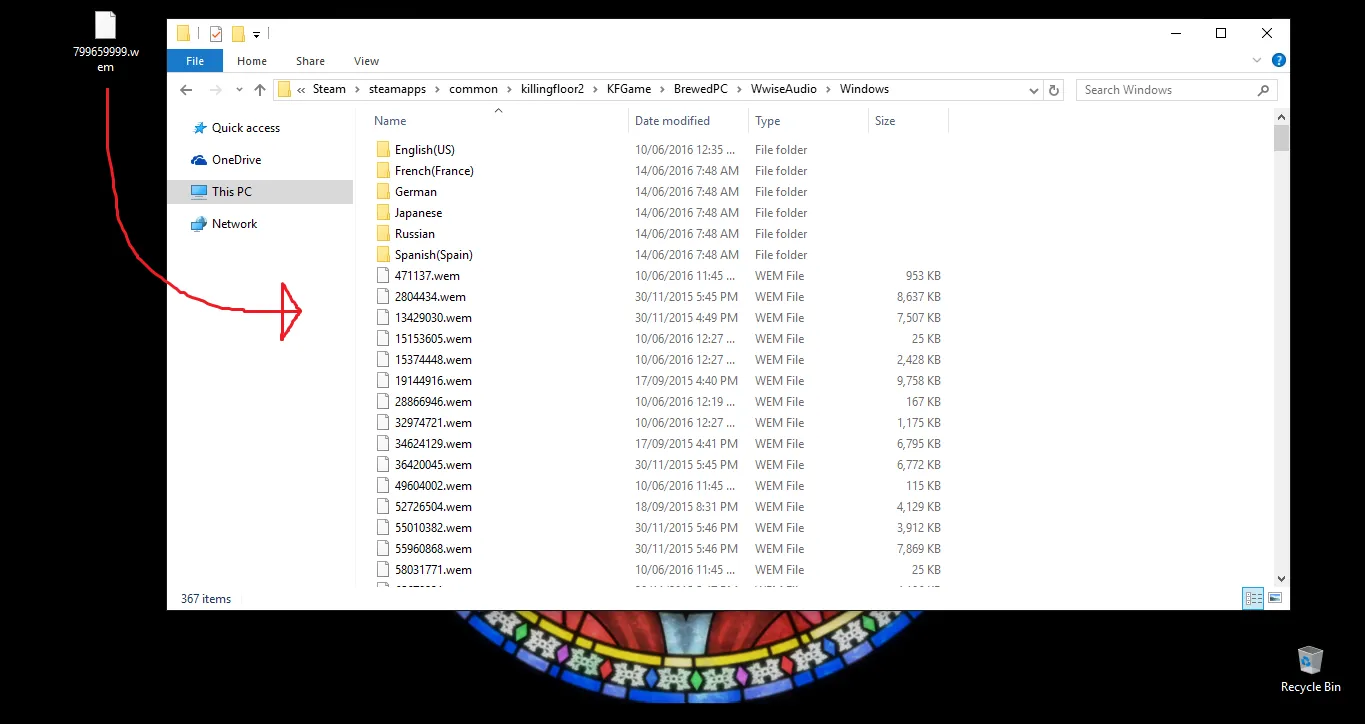 Pasting the renamed .wem and confirming the replacement.
Code numbers
The author's complete list of combat (MACT) and trader (MAMB) numbers, plus the event tracks (Summer Sideshow 2017, Christmas 2017, Infinite Onslaught 2018, Summer Sideshow 2018, Halloween 2018), matches the table in the music files list. A few from it: trader tracks such as 65679231 Bone Shards, 91775572 Assembly Lab and 1053015750 Prey For The Wicked; boss themes 55897455 King Fleshpound (Spike Grinder) and 636333252 Abomination (Hack Attack); and the default main menu theme 799659999 Pandemic Outbreak.
Important notes
- Do not make these changes while KF2 is running (Steam itself may run).
- You can convert several songs at once, but each needs its General and Source settings corrected.
- You cannot change a song's length without losing online play, so a too-long song is cut off and a short one leaves a short silence. The same applies to changing the song name shown in the announcer: the replaced vanilla track's name will appear.
- Game updates can wipe your custom tracks, so keep backups of your .wem files.
- A few people reported crashes after sound modding; the cause is unknown. If it happens, verify the game cache in Steam to restore vanilla audio. The author tested the process thoroughly with DRM-free music and received no crash reports from shared soundtracks.
- Since Christmas 2018 the Shopping Spree map has ambient mall music; delete
Shopping Spree.UPKin\Steam\steamapps\common\killingfloor2\KFGame\BrewedPC\Packages\Audio\Ambientto remove it, which also removes the map's Patriarch mall announcements and external weather effects.
FAQ
- Which Wwise version should I use for KF2 music?
- Do not go above v2015.1.9; the author uses v2015.1.6 and older versions down to 2014.1.6 are fine. Newer versions cause serious compatibility problems.
- Can I add new songs to KF2?
- No. You can only replace existing tracks by giving your .wem the number of the track you replace, for example 799659999.wem for the Main Menu theme.
- What if the game crashes after modding?
- Verify the integrity of the game cache in Steam; it restores the vanilla audio files.
