
KF1 Linux Dedicated Server with SteamCMD: Full Setup Guide
Want more than the in-game "Host Game" button for Killing Floor 1? This guide walks through a proper dedicated server on Linux: one that shows up in the public browser, runs custom maps that players download automatically, and loads a small set of quality-of-life mutators. It is written for Debian-style systems with notes for Windows hosts, and it assumes you can find your way around a shell. For the general concepts (listen vs dedicated, what to configure first) see the KF1 dedicated server overview.
 The goal: a self-hosted KF1 server running around the clock.
Conventions used in this guide
$means a command run as a normal user,#means root.kfuseris the system user,kf1serveris the server folder,10.20.30.40stands for your public IP. Replace them with your own values.- Switching between the normal game mode and Objective mode (KFO) from the command line is not covered; you can change it manually in WebAdmin.
Useful extra reading: Tripwire's official dedicated server wiki page, the archived 2010 KF-Wiki hosting guide and the "Killing Floor Portable" project on GitHub, a ready set of server configs and mutators.
Step 0: requirements and ports
The KF1 server is light. It runs on one thread and uses about 300 MB of RAM at most, so an entry-level VPS or an old computer is enough. Linux is the focus here because most rented servers run it; the Windows server works the same way, only paths and some procedures differ.
The source setup used Debian 12. Any distribution works as long as it can run 32-bit applications (on Debian and Arch you must enable 32-bit support first).
Open these ports in your firewall or on your router:
| Port | Protocol | Purpose |
|---|---|---|
| 7707 | UDP | Game port |
| 7708 | UDP | Query port |
| 7717 | UDP | GameSpy query port |
| 28852 | TCP + UDP | Master server browser listing |
| 8075 | TCP | WebAdmin (the ListenPort value) |
| 20560 | UDP | Steam port |
| 10707 | UDP | Used by the server, purpose undocumented |
On a typical VPS the ports are already exposed unless you set up a firewall. At home you need port forwarding on the router. If your ISP or dormitory network does not allow it, renting a cheap VPS is the simpler path. More on routers: ports and NAT.
Tip from the comments: if you only want friends to join and do not care about the public browser, opening just 7707 UDP is enough; players then connect with open <ip> in the console, at the cost of some features.
Step 1: install SteamCMD and the server
Install SteamCMD from your distribution's repositories (Valve's developer wiki covers every distro). Create a separate system user to run SteamCMD and the server, and keep game files in that user's home folder.
You also need a separate Steam account for SteamCMD. Do not use the account you play on. It does not need to own Killing Floor; it is only used to log in and download the server. A bare account without Steam Guard keeps things simple, but Steam will usually still email a code on first login, so use a real mailbox.
$ cd ~
$ mkdir kf1server
$ steamcmd
Steam> force_install_dir /home/kfuser/kf1server/
Steam> login USERNAME PASSWORD
Steam> app_update 215360
Steam> quit
$ ls kf1server
AppID 215360 is the Linux server. Use 215350 for Windows. After quit you should see a set of game folders inside kf1server.
Step 2: run a basic server
The System folder holds the server binary, the config file and the place where mutators go. Create a start script:
$ touch kfserverstart.sh
$ chmod +x kfserverstart.sh
$ nano kfserverstart.sh
Minimal version:
#!/bin/bash
export LD_LIBRARY_PATH=/home/kfuser/.local/share/Steam/steamcmd/linux32
/home/kfuser/kf1server/System/ucc-bin server KF-westlondon.rom?game=KFmod.KFGameType?VACSecured=true?MaxPlayers=6 -nohomedir
Recommended version using screen (named session, 1024 lines of scrollback, detached on start):
#!/bin/bash
export LD_LIBRARY_PATH=/home/kfuser/.local/share/Steam/steamcmd/linux32
/usr/bin/screen -d -m -S "kf1server" -h 1024 /home/kfuser/kf1server/System/ucc-bin server KF-westlondon.rom?game=KFmod.KFGameType?VACSecured=true?MaxPlayers=6 -nohomedir
Run it with ./kfserverstart.sh. Without screen the terminal fills with startup messages and then status output. With screen, check the session with screen -ls and attach with screen -r kf1server. Stop the server with Ctrl+C: it is the most graceful shutdown the KF1 server offers.
Fix the server listing (outdated Steam libraries)
Do this before anything else. The server ships with old Steam libraries that no longer work, so the server never appears in the in-game browser and its info does not show. The fix (credited to a community member) is to back up the three bundled libraries and replace them with symlinks to the SteamCMD copies:
$ mv ~/kf1server/System/steamclient.so ~/kf1server/System/steamclient.so.bak
$ mv ~/kf1server/System/libtier0_s.so ~/kf1server/System/libtier0_s.so.bak
$ mv ~/kf1server/System/libvstdlib_s.so ~/kf1server/System/libvstdlib_s.so.bak
$ ln -s ~/.local/share/Steam/steamcmd/linux32/steamclient.so ~/kf1server/System/steamclient.so
$ ln -s ~/.local/share/Steam/steamcmd/linux32/libtier0_s.so ~/kf1server/System/libtier0_s.so
$ ln -s ~/.local/share/Steam/steamcmd/linux32/libvstdlib_s.so ~/kf1server/System/libvstdlib_s.so
On Debian 12 the SteamCMD libraries live in ~/.local/share/Steam/steamcmd/linux32/ by default. Both start scripts above already point LD_LIBRARY_PATH there. Windows users can create the equivalent links with mklink. If the server list is still empty on the client side, see master server list empty.
Enable WebAdmin
The first run generates KillingFloor.ini, the main config. Editing everything by hand is painful, so turn on WebAdmin and do the rest in the browser. Use your editor's search (Ctrl+W in nano; it is case-sensitive):
| Section | Setting | What it does |
|---|---|---|
[UWeb.WebServer] | bEnabled=True | Turns on the web server |
[UWeb.WebServer] | ListenPort=8075 | WebAdmin port (8075 is the default) |
[Engine.GameReplicationInfo] | AdminName=YOURNAME | Admin login name |
[Engine.AccessControl] | AdminPassword=YOURPASSWORD | Admin password |
WebAdmin runs over plain HTTP, so use a unique password that you do not use anywhere else. Restart the server and open http://10.20.30.40:8075/. On a home network you may need the LAN IP (from ifconfig) instead of the public one.
WebAdmin notes
- The interface is designed for old low-resolution screens, so zoom in.
- Current shows players, a kick/ban view, direct server console access and the mutator list.
- Defaults holds everything else: server name, game password, map lists, chat, map and kick voting, sandbox options, game length and difficulty, bans.
- Set a server name, configure map voting and pick Long game length for 10 waves.
- Maps: only the launch maps are active by default. Maps on the left are installed but not in rotation; maps on the right are playable. Press
>>to move all of them over, then moveKF-Menuback with<(it is the client's menu scene, not a playable map). - Set a game password if you want the server private.
- Restart Level/Map acts as a warm restart. WebAdmin changes, including mutators, apply after a map restart or a normal map change. It is the fastest way to change difficulty.
At this point you have a listed server that runs all official maps.
Step 2.5: start with systemd
A simple unit file lets the server start with the machine and be managed via systemctl:
[Unit]
Description=Killing Floor 1 Server
After=network.target

[Service]
WorkingDirectory=/home/kfuser/kf1server/System/
User=kfuser
Group=kfuser
Type=forking
Restart=always
Environment=LD_LIBRARY_PATH=/home/kfuser/.local/share/Steam/steamcmd/linux32/
ExecStart=/usr/bin/screen -d -m -S "kf1server" -h 1024 /home/kfuser/kf1server/System/ucc-bin server KF-westlondon.rom?Mutator=MutLoader.MutLoader?game=KFmod.KFGameType?VACSecured=true?MaxPlayers=6 logs=./kf1dslogs.log -nohomedir

[Install]
WantedBy=multi-user.target
You can point ExecStart at your script instead. Because MutLoader (Step 4) handles mutators, the start command rarely needs to change. Check your distribution's wiki for how to install and enable services.
Step 3: custom maps and a download server
Getting the maps
The Steam Workshop is the main source, but it has a nasty trap: Killing Floor will not download Workshop items if your account is subscribed to more than 50 Workshop items across all games, not just KF. With hundreds of old subscriptions in other games, KF maps will simply never arrive (or only after many restarts). Your options:
- Unsubscribe from everything (Steam has a single button for it), restart Steam, grab the KF maps, then resubscribe. Save the old items to a collection first.
- Get maps outside the Workshop: GameBanana, ModDB, old open download servers.
- Use the guide author's archive.org upload "Killing-Floor-2009-Custom-Maps": 700+ dependency-free maps in
.romformat in one 7z file. Not all of them work; test them in your client'sMapsfolder.
When a Workshop map downloads, a small white notice appears in the top right. If it does not, open the Multiplayer tab and go back to the main menu, which usually kicks off the download. You can confirm by checking the solo map list. More details: Steam Workshop guide.
Which files go where
- The
.rommap goes into the server'sMapsfolder (WinSCP is handy for this). - Extra content (textures, sounds, code) goes into the same folders as on your client. The Workshop description usually lists them; otherwise compare folder modification dates.
- Ignore the small
.uclfile named after the map inSystem; the server generates it. - Copy all of these files into one flat folder as well: it becomes the base of your download server.
Why a download server
You could make every player download each map from the Workshop or pass files around, but that excludes random players and requires everyone to clean up their subscriptions. KF1 supports fetching missing files from a plain HTTP server, which is the clean solution. No domain or website is needed, and it is separate from WebAdmin. Background: fast download / redirect.
Apache2 on Debian
Apache2 on Debian serves /var/www/html/ on port 80 out of the box. Copy or symlink (ln -s) the map files there, keeping the exact filename case. Replace the default page with an empty one (touch /var/www/html/index.html) so the folder contents are not listed.
KillingFloor.ini settings
In the [IpDrv.HTTPDownload] section set:
RedirectToURL=http://10.20.30.40:80/
UseCompression=False
UseCompression=False is required if you serve plain .rom files instead of compressed .uz2. A domain name works in RedirectToURL as well (handy with DynDNS on a home connection), but keep the port in the URL. Fully restart the server, then test: have a friend join, or unsubscribe from the map and delete its files from your client. The map should download quickly and load normally.
Notes:
- Compressed
.uz2maps from old sites can be unpacked with theucc-binserver binary or the KF SDK (install the SDK separately from your game). - Filename case must match exactly.
- Symlinks save disk space and keep things tidy.
Step 4: mutators ("mods")
In KF1, "mods" and "mutators" mean the same thing here. The aim of this setup is "Vanilla+": bug fixes and quality-of-life additions without changing balance, economy, weapons or perk progression.
Uncap FPS and netspeed
The KF1 client is capped at 85 FPS by default. A separate Steam guide (ID 971828546) explains how to raise it to 144 or higher; it needs changes on both server and client. See also advanced FPS config.
MutLoader
MutLoader is a mutator that loads other mutators, so you do not have to keep growing the start command. Get it from the Workshop, copy its files to the server's System folder and add ?Mutator=MutLoader.MutLoader to the launch line:
ucc-bin server KF-westlondon.rom?Mutator=MutLoader.MutLoader?game=KFmod.KFGameType?VACSecured=true?MaxPlayers=6 logs=./kf1dslogs.log -nohomedirTo load a mutator through MutLoader you need its class name. The Workshop description often lists it; otherwise open the mod's .ucl file in a text editor and copy the ClassName value.
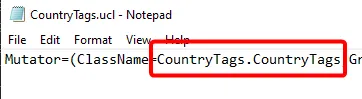 The class name to use is the value after ClassName= in the mod's .ucl file.
Example MutLoaderV2.ini that loads CountryTags on every difficulty and renames the server to show the current difficulty:
[MutLoaderV2.MutLoader]

[Settings1 MutLoaderObject]
sGameTypeName=KFGameType
fGameDifficulty=2.0
bAppendFaked=false
bUpdateServerName=true
sServerName=My Own KF Server | Diff: NORMAL
Mutator=CountryTags.CountryTags

[Settings2 MutLoaderObject]
sGameTypeName=KFGameType
fGameDifficulty=4.0
bAppendFaked=false
bUpdateServerName=true
sServerName=My Own KF Server | Diff: HARD
Mutator=CountryTags.CountryTags

[Settings3 MutLoaderObject]
sGameTypeName=KFGameType
fGameDifficulty=5.0
bAppendFaked=false
bUpdateServerName=true
sServerName=My Own KF Server | Diff: SUICIDAL
Mutator=CountryTags.CountryTags

[Settings4 MutLoaderObject]
sGameTypeName=KFGameType
fGameDifficulty=7.0
bAppendFaked=false
bUpdateServerName=true
sServerName=My Own KF Server | Diff: HoE
Mutator=CountryTags.CountryTags
Each new mutator must be added to every difficulty block as an extra Mutator=Package.ClassName line. Check what loaded on the WebAdmin mutator page. MutLoader reads its list at startup, so fully restart the server after changes (a good habit anyway).
Serve client-side mods
Purely server-side mods need nothing else. Mods that must run on the client (a damage numbers mod, for example) and any other custom content should go onto the download server next to the maps. MutLoader itself does not need to be served.
Where to find mutators
The guide author keeps a Workshop collection of "Vanilla+" picks (ID 3053950873), and the Killing Floor Portable project on GitHub has more QoL fixes worth borrowing. For installation basics see how to add a mutator to the server.
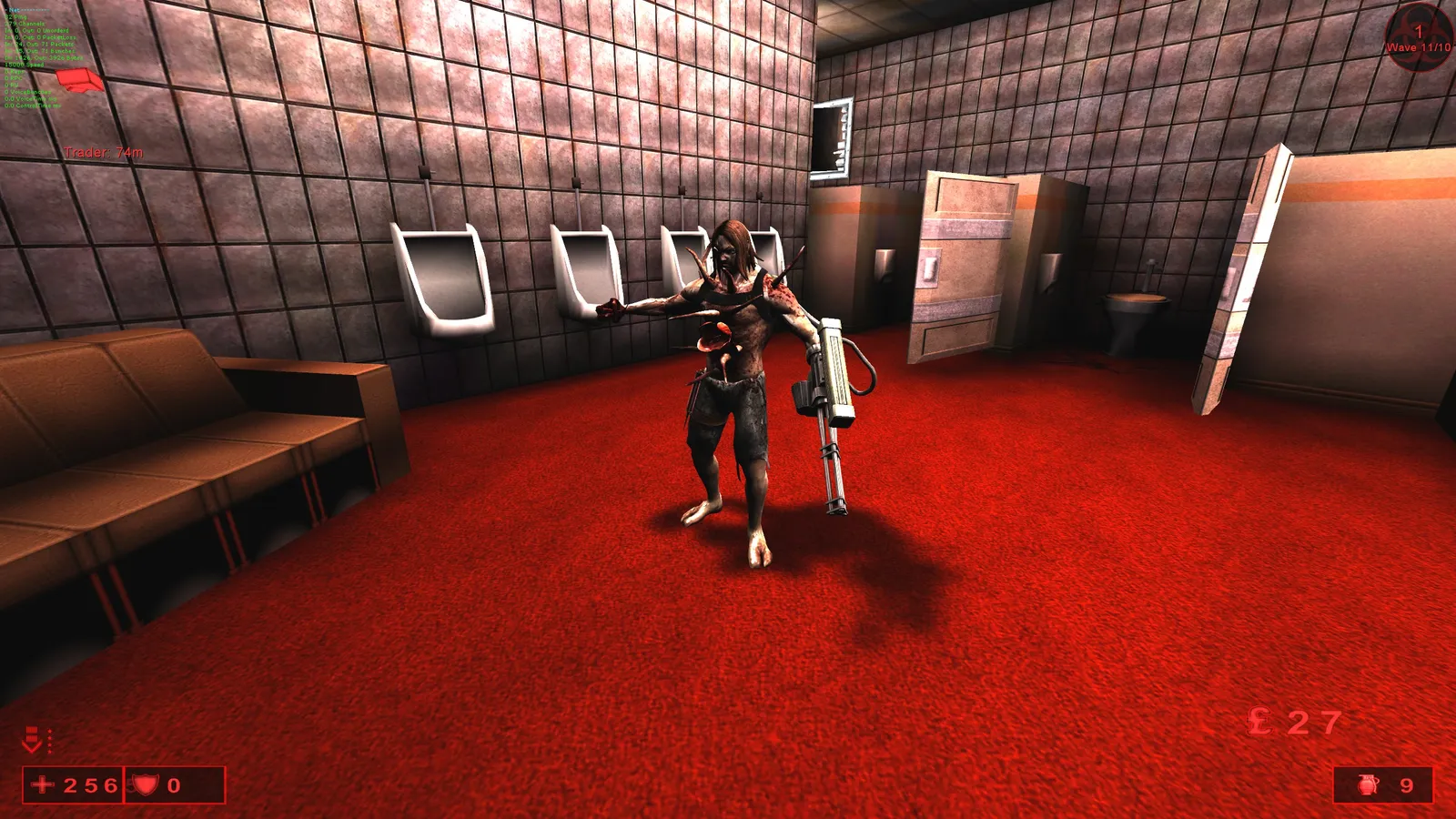 Wave 11 of 10: the Patriarch boss wave, the reward for getting all of this working.
Common questions from the comments
- Host on the same LAN keeps disconnecting while remote friends stay connected. This is a known oddity; the author pointed to a separate Workshop fix (ID 3310370082).
- What is
LD_LIBRARY_PATHon Windows? It is a Linux-only setting. On Windows, putting the right DLLs in theSystemfolder is enough. - Redirect does not work. Check the URL format:
RedirectToURL=http://IP/with thehttp://prefix and the trailing slash.
Older SteamCMD problems on Linux
Source: killingfloor.ru forum.
From the thread "Создание выделенного сервера на Linux через SteamCMD" (Creating a Linux dedicated server via SteamCMD, REGETT, 2012). SteamCMD was installed by hand from an archive back then, but these errors still show up:
error while loading shared libraries: libstdc++.so.6on a 64-bit system: the 32-bit library is missing. On Debian-based distributions:apt-get install lib32stdc++6; on Red Hat-based ones:yum install libstdc++ libstdc++-4.4.6-4.el6.i686(package version from 2012).ERROR! Failed to request AppInfo update, not online or not logged into Steam: delete the Steam folder in your home directory (rm -rf ~/Steam) and log in again.- No
Steam>prompt over SSH: on the author's Ubuntu Server 11.04 it simply was not displayed; input worked after pressing Enter. - SteamCMD made every file executable. Reset the permissions and give
+xback only to the files that need it:
find . -type d -exec chmod 0755 "{}" \;
find . -type f -exec chmod 0644 "{}" \;
chmod +x ./System/libgcc_s.so.1
chmod +x ./System/libstdc++.so.6
chmod +x ./System/libsteam_api.so
chmod +x ./System/libtier0_s.so
chmod +x ./System/libvstdlib_s.so
chmod +x ./System/steamclient.so
chmod +x ./System/ucc-bin
chmod +x ./System/ucc-bin-real- No
KillingFloor.ini. The config lives in theSystemfolder and appears after the first server launch. Forum members also suggested copyingDefault.iniasKillingFloor.ini. - The server stops when you close the SSH window: run it inside
screen(see step 2 and the screen and cron scripts).
Other Linux server problems
Source: killingfloor.ru forum.
- Perks stop working after a restart. From the "Perks do not work after a server restart" thread (Pir@tehnic, Debian amd64 6.0.6, clean Steam server). After the server was stopped and started again, the perk selection menu disappeared and perks stopped leveling, until the machine itself was rebooted. The log showed:
[S_API FAIL] SteamAPI_Init() failed; SteamAPI_IsSteamRunning() failed.
CreateBoundSocket: ::bind couldn't find an open port between 28852 and 28852
STEAMAUTH : Steam auth system activation failed
The cause was a stop script that ended the ucc process incorrectly. The same thing happens if you start the server by hand without screen and then press Ctrl + Z; with Ctrl + C everything is fine. If the server has hung or crashed and perks do not work after it comes back up (the log has STEAMAUTH : Steam auth system activation failed), the author did this instead of rebooting the machine:
/etc/init.d/kf-server stop- stop the hung server.ps axu | grep ucc- find the PIDs of all processes left by that server (or look at them intop).killeach of them with signal 9: signal 15 (Terminate) may fail to kill the process.- Start the KF server again, and perks work.
-
The server will not start after patch 1039. REGETT's advice from the "If the Linux server will not start after 1039" thread: rename or delete the
libgcc_s.so.1file in theSystemfolder. -
Two servers in different folders take the same ports. From the "2 сервера на одной машине" thread (CentOS 6.2, Steam server version 1033). The second folder's config had its own ports (
Port=7709,OldQueryPortNumber=7719,ListenPort=8077), yet after both servers started,netstat -na|grep 770showed two entries each on7707and7708. offutt explained that the?ini=parameter in the launch line is for two servers living in one folder with different configs; with separate folders the default config is used. When the author deleteddefault.iniandkillingfloor.inifromSystem, a folder/home/kf2/.killingfloor/Systemturned up with its ownkillingfloor.ini,User.ini,ucc.log,steam_appid.txtand*.uclfiles, and after deleting/home/kf2/.killingfloorthe server failed with aMissingInierror. The author then posted the contents of theucc-binscript (export LD_LIBRARY_PATH=.andexec ./ucc-bin-real $*), saying "this is apparently where the problem lies", and wrote that he had sorted it out, without saying exactly what he changed.
FAQ
- Which SteamCMD AppID is the Killing Floor 1 server?
- 215360 for the Linux server and 215350 for the Windows server. You do not need to own the game on the account you use to download it.
- Why does my KF1 server not show up in the server browser?
- The Steam libraries shipped with the server are outdated. Replace steamclient.so, libtier0_s.so and libvstdlib_s.so in the System folder with symlinks to the copies from your SteamCMD install.
- How much hardware does a KF1 server need?
- Very little. The server uses a single thread and around 300 MB of RAM at most, so a cheap VPS or an old PC is enough.
- How do players get custom maps automatically?
- Put the map files on a plain HTTP server and set RedirectToURL in the [IpDrv.HTTPDownload] section of KillingFloor.ini. Set UseCompression=False if you serve uncompressed .rom files.
