
KF2: Change the Voice Language by Renaming a Folder
This is a translated and condensed version of a Spanish community guide. It explains how to change the spoken language of Killing Floor 2 without touching any game text, using nothing more than a folder rename.
What you can change
The game ships voice packs for English, French, German, Japanese and Russian. Only one can be active at a time. The change is purely cosmetic: it does not affect performance, achievements or balance, and nobody else in a match hears it. In online play each person hears the voices in the language their own game uses. If you set a different language, you will hear everyone else in that language too. Only audio changes, all menus and text stay as they were.
Step by step
- Open the audio folder. The path is
C:\Program Files (x86)\Steam\steamapps\common\killingfloor2\KFGame\BrewedPC\WwiseAudio\Windows. - If you do not know how to get there, open your Steam library, right-click Killing Floor 2 and choose Properties.
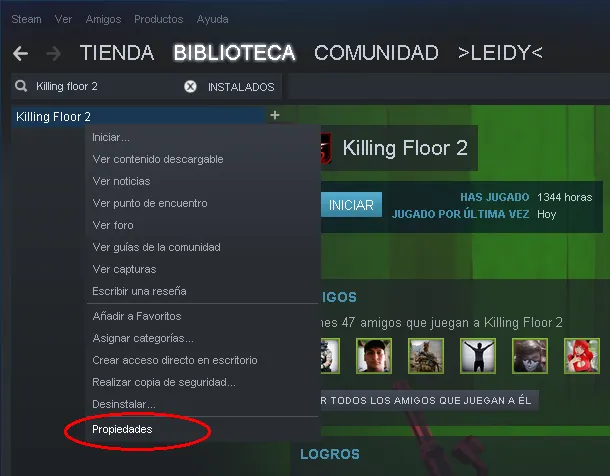 Right-click the game in the Steam library and open Properties.
- Go to Local Files and click Browse Local Files.
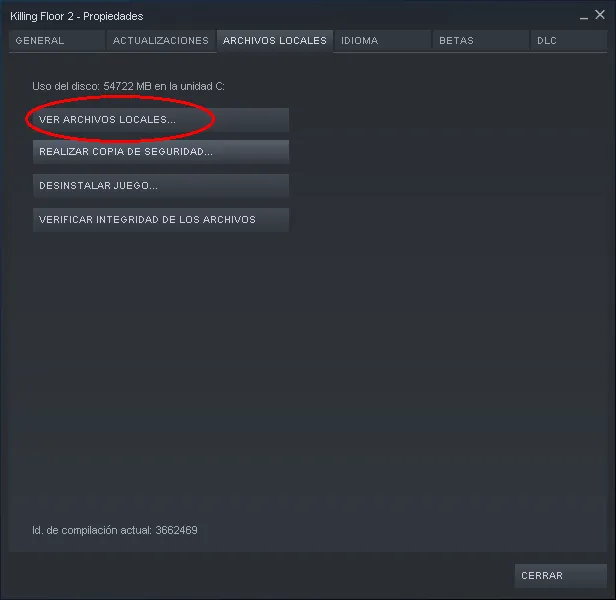 The Local Files tab with the Browse button.
- Open the folders in this order: KFGame, BrewedPC, WwiseAudio, Windows.
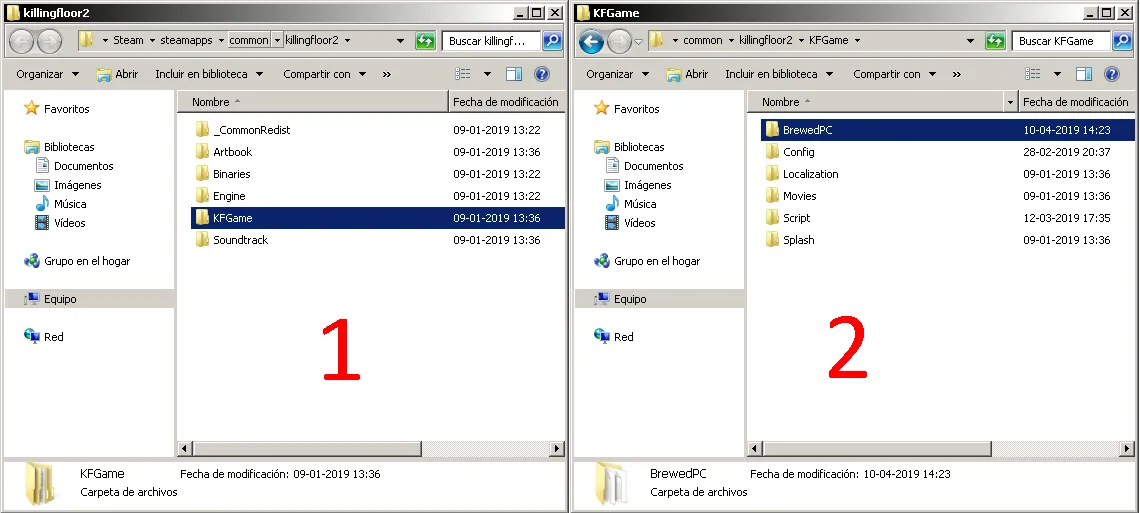 First two levels: KFGame, then BrewedPC.
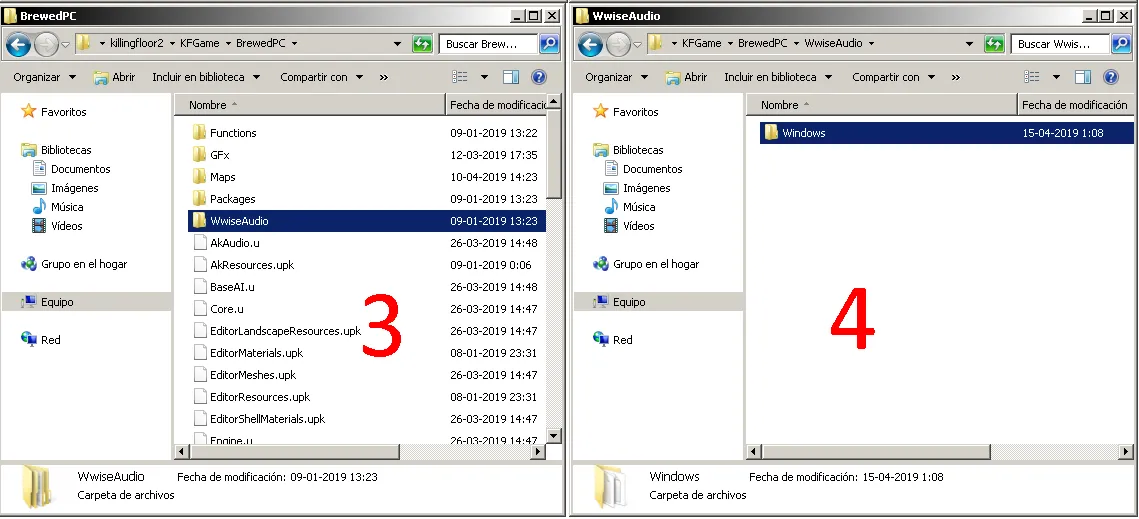 Inside WwiseAudio, open the Windows folder to see one folder per language.
- Take the folder for your current default language (in the original guide this is
Spanish(Spain)) and move it to your desktop as a backup. If your game uses another language, work with that folder instead. - Rename the folder of the language you want so that it carries the name of the default one. For example, to hear Japanese, rename the
Japanesefolder toSpanish(Spain).
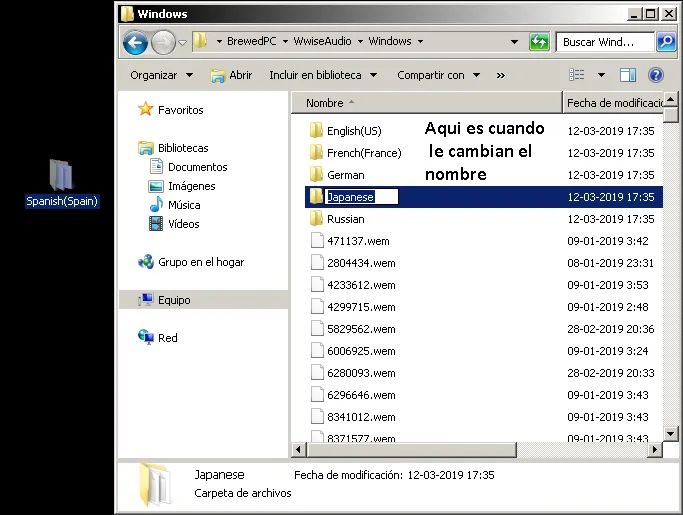 The renamed folder in place.
- Start the game. Voices now use the language you picked.
Undoing the change
Rename the swapped folder back to its original name (for the Japanese example, remove the added name and call it Japanese again), then move the backed-up default folder from the desktop back next to the others.
Mixed languages after an update
Sometimes an update leaves two languages playing together. To fix it:
- Go back to the
Windowsaudio folder and delete both folders involved: the default language and the one you renamed. - In Steam, open the game's Properties, go to Local Files and click Verify integrity of game files. The game is large (around 50 GB), so the check takes a while, but it only re-downloads what is missing.
- When the download finishes, repeat the rename procedure.
Keeping English text with other voices
Readers asked for English menus with Spanish voices. The author's answer: set the game language to English in Steam properties (this changes both text and voices to English), then rename the folder of your preferred voice language over the English (US) folder. See also Change voice language and keep English text for a related walkthrough.
FAQ
- Which voice languages can I use in Killing Floor 2?
- English, French, German, Japanese and Russian are available as audio packs, and only one can be active at a time.
- Does changing the voice language give an advantage or hurt performance?
- No. It only swaps the voice audio, has no effect on performance or achievements, and only you hear it. In multiplayer every player hears voices in the language set on their own machine.
- What if two languages play at once after an update?
- Delete the two audio folders you renamed (the default one and the extra one), then run Verify integrity of game files in Steam so they are downloaded again, and repeat the swap.
