
KF2 Tweaks and Improvements: Full INI Guide (FPS, Textures, Gore)
This is one of the long-running Killing Floor 2 tweak guides, originally written in 2015 and extended through 2017. It can be used either to improve FPS or to make the game look fancier: you just raise or lower values and enable or disable settings in a few ini files. Read each section fully before editing anything, since mistakes can break the config. For shorter lists see this ini tweaks page and the texture streaming tweaks.
Before you start
Do not change any DefaultXXX.ini file. They are reset on every KF2 update because the game thinks something was replaced, and Steam downloads them again. Edit only the user files in:
C:\Users\<your user>\Documents\My Games\KillingFloor2\KFGame\Config
If a command is missing or performance gets worse, delete the ini files and let the game regenerate them. This guide edits KFEngine.ini, KFGame.ini and KFSystemSettings.ini.
Unlocking the FPS cap
In KFEngine.ini search for bSmoothFrameRate and set:
bSmoothFrameRate=FALSE
MinSmoothedFrameRate=22
MaxSmoothedFrameRate=144bSmoothFrameRate: set to FALSE to unlock.MinSmoothedFrameRate: leave at the default.MaxSmoothedFrameRate: your target maximum, for example 144 for a 144 Hz monitor.
These lines appear twice in the file; change both. There is a third SmoothFrameRate setting in KFGame.ini which you should change as well if the frame rate is still locked. (Another guide, with a different bSmoothFrameRate value, suggests keeping it TRUE for multiplayer; test which works for you.)
PhysX Flex (GeForce 970 and above only)
In KFSystemSettings.ini search for FlexInvisibleFramesBeforeSleep:
FlexInvisibleFramesBeforeSleep=60
FlexDistanceBeforeSleep=1500.000000
AllowSPHFluidMipmap=True
FlexRigidBodiesCollisionAtHighLevel=FalseFlexInvisibleFramesBeforeSleep: how long invisible fluid or blood stays before disappearing.FlexDistanceBeforeSleep: distance beyond which fluid stops moving for you.AllowSPHFluidMipmap: allow mipmaps on fluid.FlexRigidBodiesCollisionAtHighLevel: body parts collide with each other.
PhysX Flex was re-enabled on 14 April 2016 and marked Stable by the developers.
Audio quality and stutter
In KFEngine.ini, under [XAudio2.XAudio2Device]:
MaxChannels=32
CommonAudioPoolSize=0MaxChannels: how many sounds can play at once. 32 works on almost every card; allowed values are 16, 32, 48, 64, 96 and 128 (the author's Asus Xonar Essence STX supports 128). If you hear weird noises, lower it.CommonAudioPoolSize: memory reserved for always-resident sounds (32, 64, 128 or 256). Pre-buffering may fix audio stutter.
Shadow quality
Only use this if your average FPS is 80 or higher. In KFSystemSettings.ini search these entries one by one:
MaxShadowResolution=1024
MaxWholeSceneDominantShadowResolution=1280
UseHighQualityReflections=False
bEnableForegroundShadowsOnWorld=False
bEnableForegroundSelfShadowing=False
MaxDrawDistanceScale=1.0
MinShadowResolution=64
MinPreShadowResolution=24
MobileShadowTextureResolution=1280
ShadowFadeResolution=64
PreShadowFadeResolution=16
UnbuiltNumWholeSceneDynamicShadowCascades=9
ShadowFadeExponent=0.5
WholeSceneShadowCutoffDistance=1400
WholeSceneShadowFadeOutDistance=1200
GlobalShadowDistanceScale=1.5
Your original values may differ. bEnableForegroundShadowsOnWorld is not recommended (it only shows your arms and weapon), while bEnableForegroundSelfShadowing renders shadows on your arms, hands and weapon. Credit for some of the extra shadow commands goes to Dobes.
Reflection quality
Again only for an average FPS of 80 or more. In KFEngine.ini search ImageReflectionTextureSize and set a larger value such as 1024 up to 4096.
Texture quality
Only with 80+ FPS. In KFSystemSettings.ini, near the top, find the texture group lines (around lines 181 to 207 and 247 to 254 in Notepad++, depending on your file). For every line containing MaxLODSize=XXXX, change the value to 4096.
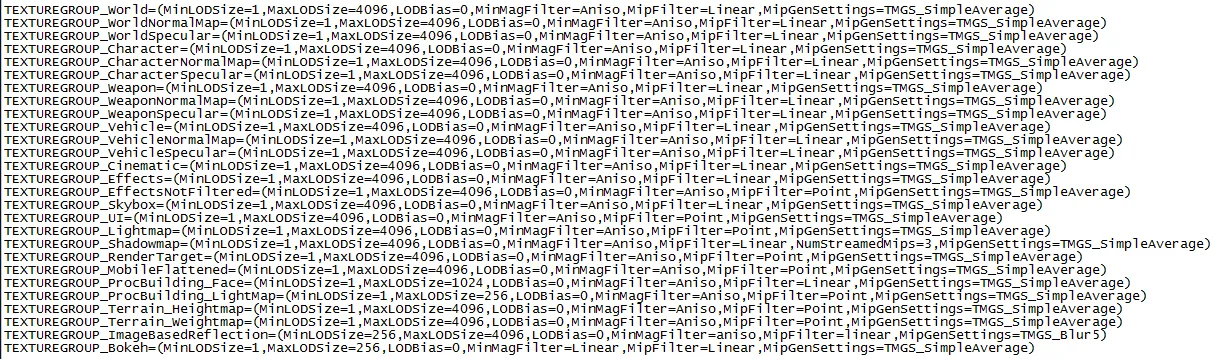 First block of texture lines (about lines 181 to 207).
 Second block (about lines 247 to 254).
Note that TEXTUREGROUP_ProcBuilding_Face and TEXTUREGROUP_ProcBuilding_LightMap are bound to MaxProcBuildingLODColorTextureSize and MaxProcBuildingLODLightingTextureSize in KFEngine.ini, so keep those sizes the same as the values you set in KFSystemSettings.ini.
For higher quality models and particles, in KFSystemSettings.ini change:
SkeletalMeshLODBias=0   ->  -5
ParticleLODBias=0       ->  -5
and in KFGame.ini change MeshLODRange=0 to -5 to see high-quality models further away.
Improving texture streaming
Unlike advice to disable texture streaming, this guide keeps it on and improves it. In KFEngine.ini, in the TextureStreaming section:
PoolSize=3072
MemoryMargin=768PoolSize: your GPU VRAM in MB.MemoryMargin: memory reserved for incoming textures, about 10 to 20 percent of VRAM.
Suggested pairs: 1 GB = 1024 / 128, 2 GB = 2048 / 256, 3 GB = 3072 / 768.
If textures pop in, make streaming more aggressive:
MipFadeInSpeed0=0.2
MipFadeOutSpeed0=0.1
MipFadeInSpeed1=1.0
MipFadeOutSpeed1=0.5
Speeds 0 are for first-person mode, speeds 1 for spectating or when dead. Lowering them to 0.0 breaks streaming. For pop-in with SLI (tested by the author with two GTX 970), also set in MemoryPools:
FLightPrimitiveInteractionInitialBlockSize=2048
FModShadowPrimitiveInteractionInitialBlockSize=2048
These two values should be about 10 to 20 percent of your RAM. If you disabled texture streaming earlier, set bUseTextureStreaming back to True.
Disabling texture streaming (at your own risk)
Some say it helps and some say it makes things worse. In KFEngine.ini set to False: bUseTextureStreaming, bUseBackgroundLevelStreaming (also present in KFGame.ini), AllowStreamingLightmaps, UsePriorityStreaming, UseDynamicStreaming. Make sure you have a high-end GPU with at least 6 GB of VRAM; if it does not work, switch them back to True.
More gore and dead bodies
Do not set the values too high or the game may crash. In KFGame.ini find [KFGame.KFGoreManager] and adjust:
| Setting | Meaning |
|---|---|
| MaxImpactEffectDecals | Maximum impact decals on objects (bullet holes, melee cuts) |
| GoreFXLifetimeMultiplier | How long gibs and gore stay |
| BodyWoundDecalLifetime | Lifetime of bullet impacts and holes |
| BloodSplatterLifetime | Lifetime of splatters on ground and walls |
| BloodPoolLifetime | Lifetime of blood pools |
| GibletLifetime | Time before giblets vanish |
| MaxBodyWoundDecals | Wound decals applied to enemies |
| MaxBloodSplatterDecals | Decals per splatter |
| MaxBloodPoolDecals | Blood pools at once |
| BloodSplatSize / BloodPoolSize | Sizes (do not set too high) |
| MaxDeadBodies | Maximum ragdolls; they have no timer, only this cap |
| MaxBloodEffects | Maximum blood effects |
| MaxGoreEffects | Maximum severed body parts before they vanish |
| AllowBloodSplatterDecals / bAllowBloodSplatterDecals | Extra non-permanent splatters |
| PersistentSplatTraceLength | Length of splats |
| MaxPersistentSplatsPerFrame | Permanent splats per frame |
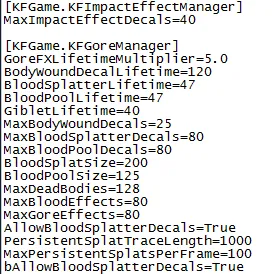 The gore settings in KFGame.ini.
To keep decals longer, change DecalLifeSpan=10.0 under [Engine.DecalManager] in KFGame.ini (seconds).
Quake-like field of view
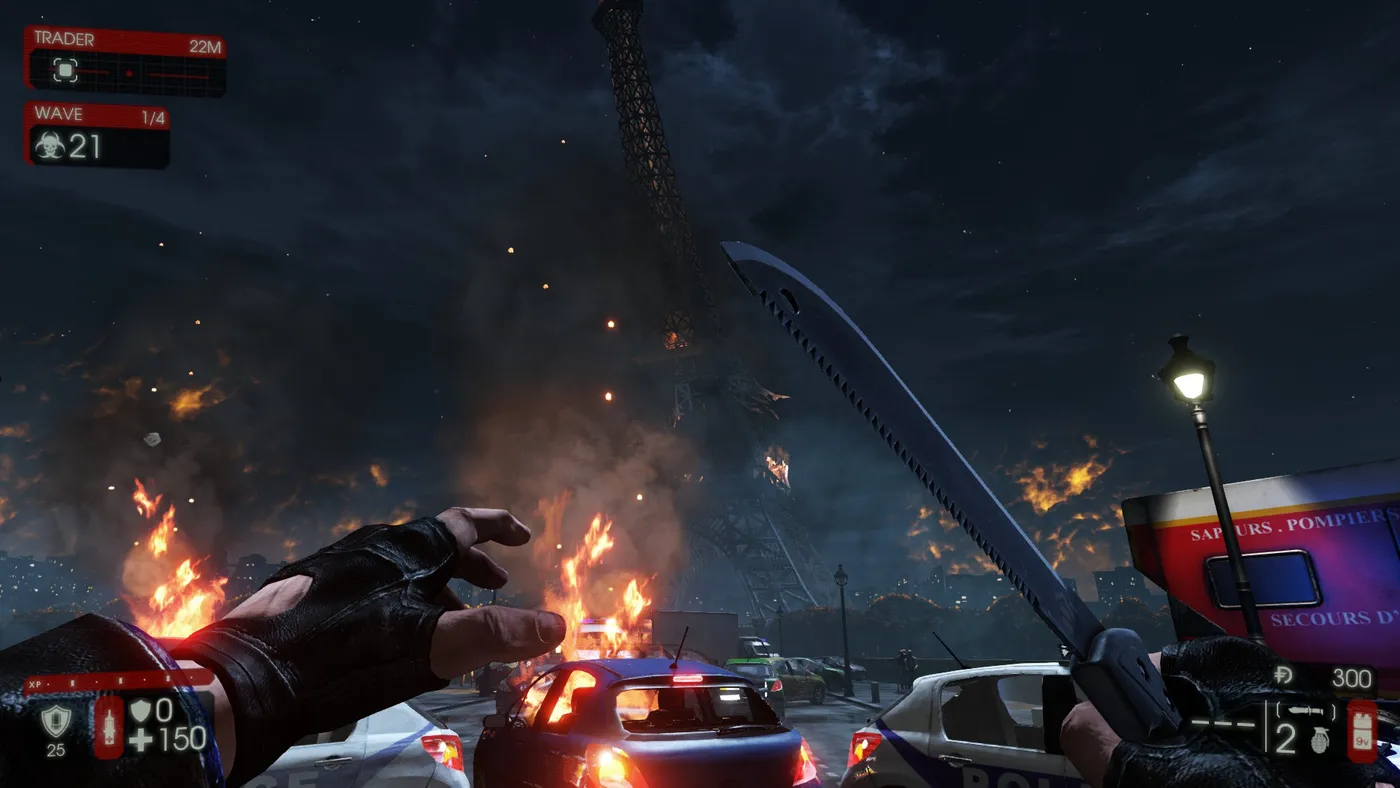
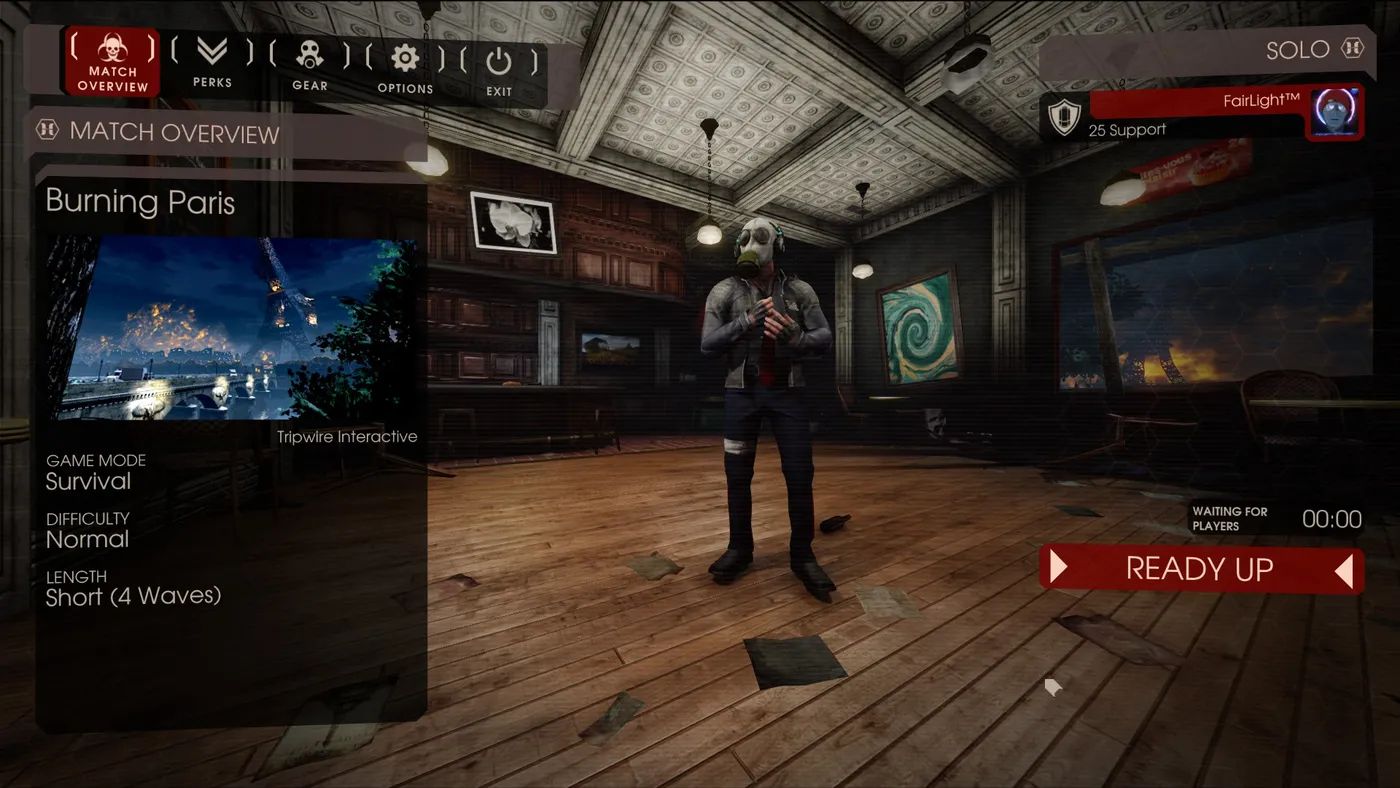
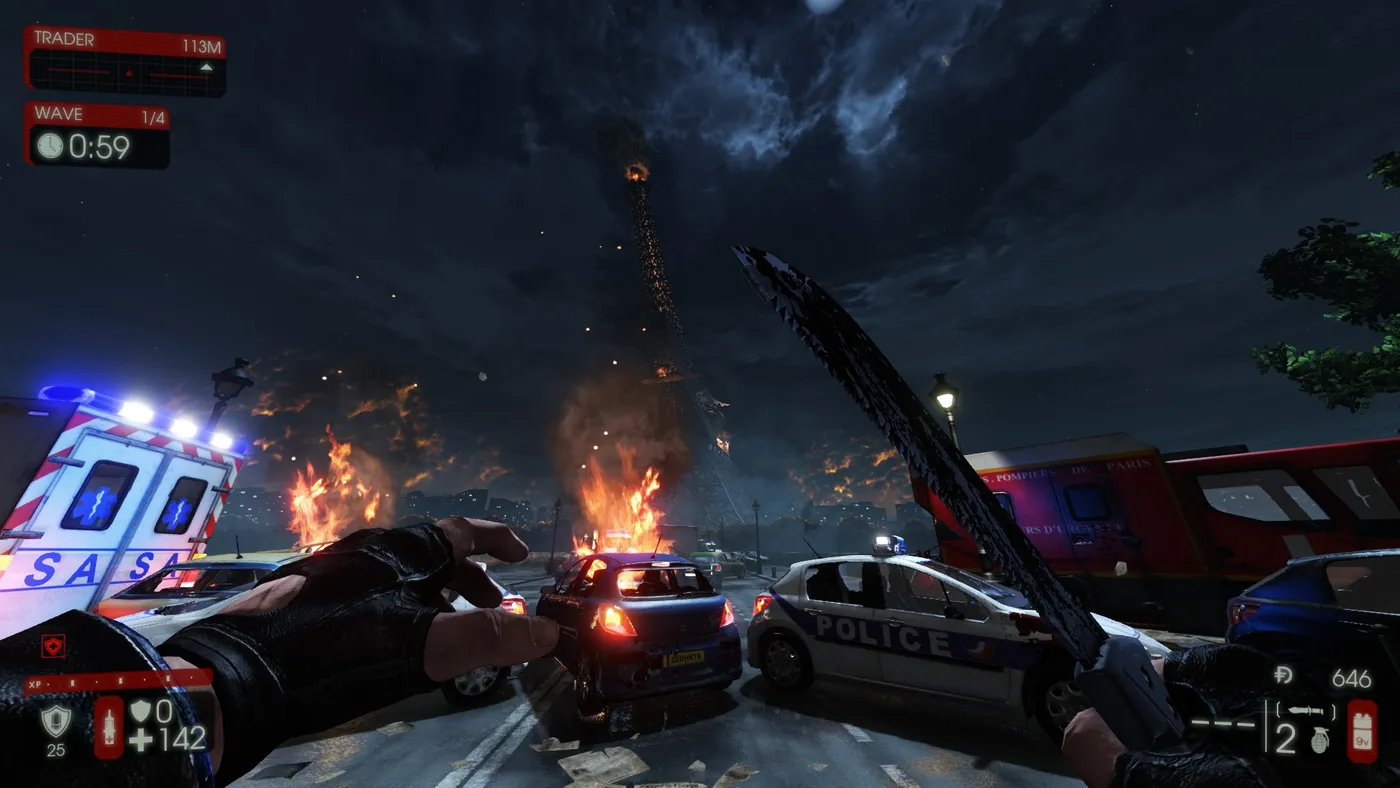
In KFEngine.ini, under [Engine.LocalPlayer], change AspectRatioAxisConstraint=AspectRatio_MaintainXFOV to AspectRatio_MaintainYFOV. This switches the FOV from Vert- to Hor+. On 1920x1080, a 90 degree horizontal FOV gives roughly 59 degrees vertical in Vert- mode and 106 degrees vertical in Hor+, against 74 degrees on a 4:3 screen. The view becomes wider with a slight fisheye at the edges, so it is optional. See also the short FOV guide.
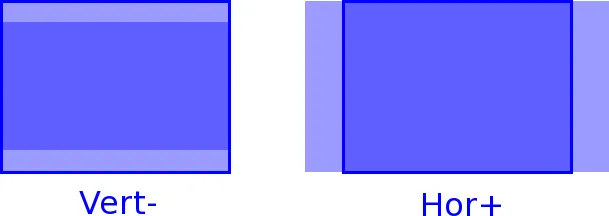 Vert- versus Hor+ explained.
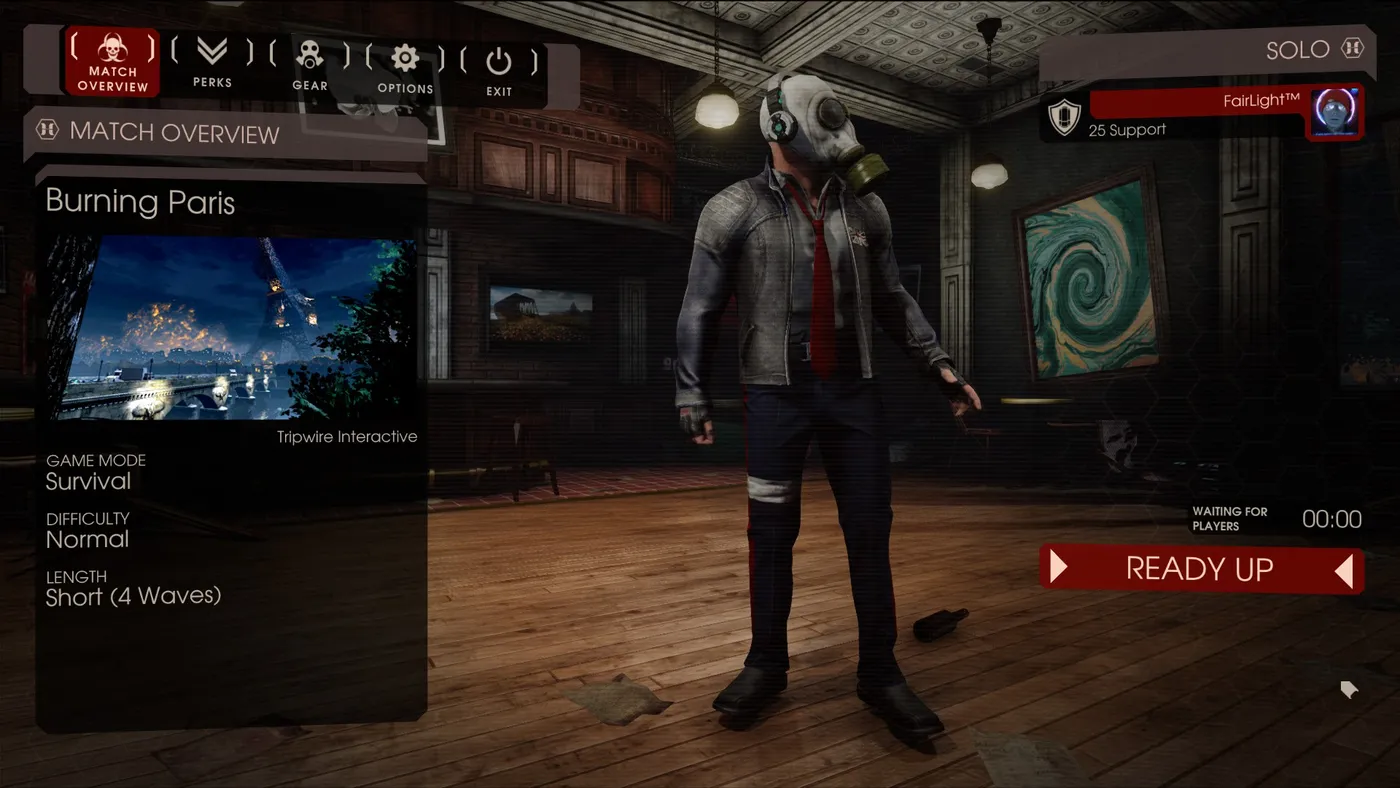 Vert- setting.
 Vert- setting, second view.
 Hor+ setting.
 Hor+ setting, second view.
Skip intro movies
Right-click Killing Floor 2 in the Steam library, open Properties, press Set Launch Options and enter -nostartupmovies.
Submitted fixes
- Texture pop-up: unlock the frame rate and turn VSync off in game. This especially affected SLI and Crossfire setups.
- DxTory crash on startup (version 2.0.130 and up): in the Advanced tab, under Hook Option, tick Delay Hook and set about 7 seconds or more. This lets the game start before the FPS counter hooks in. It fixes most startup crashes with DxTory but not if SweetFX or ReShade is running.
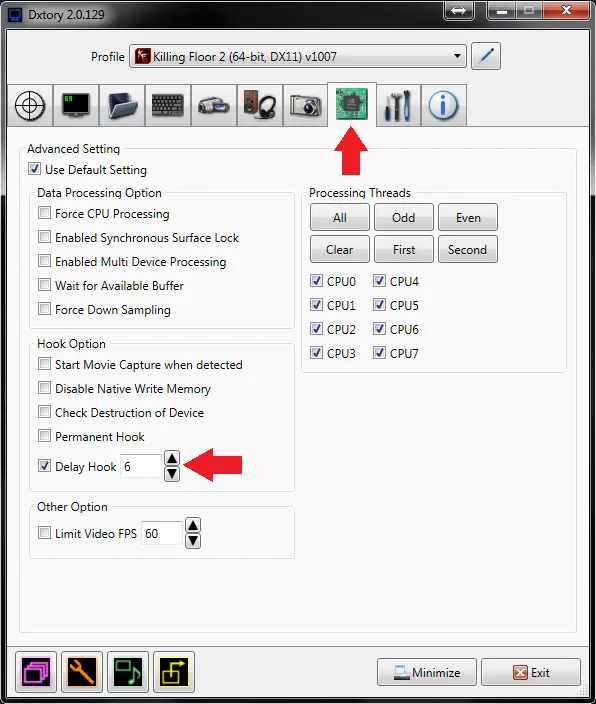 The Delay Hook setting in DxTory.
Update history
- 02/09/2015: Incinerate N Detonate update, PhysX Flex settings added.
- 29/03/2016: PhysX Flex update, DxTory info, SLI and Crossfire texture pop-up tip.
- 08/05/2016: PhysX Flex tweaks re-added and more content.
- 25/08/2016: section on noteworthy user guides.
- 05/01/2017: more commands, including more texture quality entries.
FAQ
- Which files does this guide edit?
- Only the user copies in Documents\My Games\KillingFloor2\KFGame\Config: KFEngine.ini, KFGame.ini and KFSystemSettings.ini. The DefaultXXX.ini files are never touched.
- Why not edit the Default ini files?
- They get reset on every game update, and keeping your changes in the user files makes it easy to revert: delete them and Steam regenerates the defaults.
- Should I disable texture streaming?
- The author prefers to keep it on and improve it. Disabling it entirely is at your own risk and recommended only for GPUs with at least 6 GB of VRAM.
