
KF2: How to Change HUD Size (HUDScale in DefaultUI.ini)
If the Killing Floor 2 HUD feels too large or too small on your monitor, you can rescale it with a single line in a config file. This short tutorial, adapted from a Steam community guide, walks through the steps. For a full set of HUD tweaks from a mod, see FriendlyHUD commands, and for hiding the HUD entirely see hide HUD with showhud.
Steps
- In Steam, right-click Killing Floor 2, open Properties, go to Local Files and click Browse to open the game folder.
- Open the
KFGamefolder.
 Inside the install folder, open KFGame.
- Open the
Configfolder.
 The Config folder holds the Default.ini files.*
- Find
DefaultUI.iniand open it in Notepad.
 DefaultUI.ini is the file to edit.
- Find the line
HUDScale=1and change the number to the size you want.
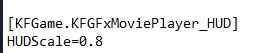 The HUDScale line inside the file.
Showcase
With the default value of HUDScale=1:
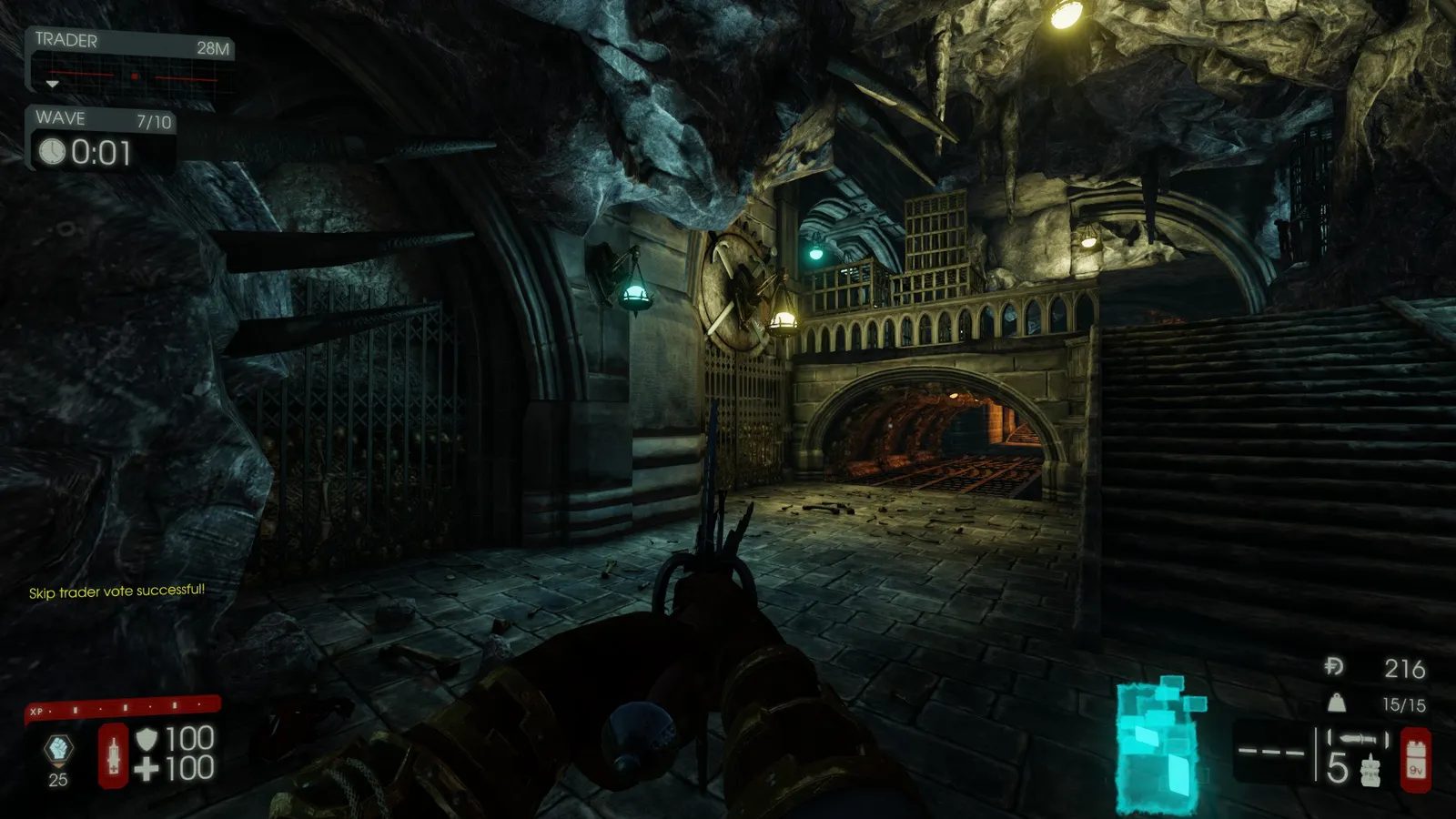 Default HUD size.
With HUDScale=0.8:
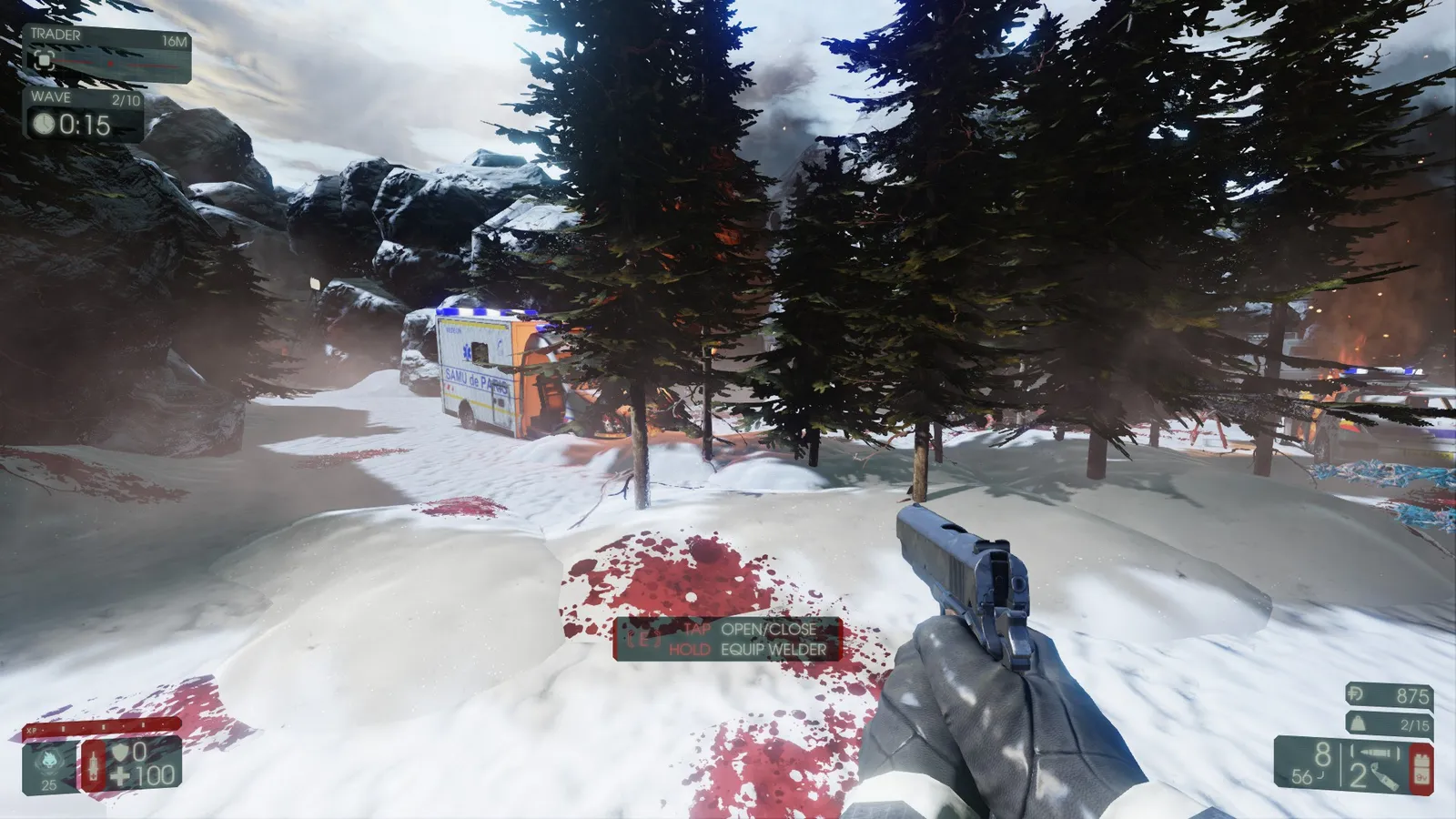 A noticeably smaller HUD at 0.8.
Tips
- Change the value in small steps (for example 0.9, 0.8) and relaunch to compare.
- Close the game before editing. A game update may overwrite the file, so keep a note of your value.
FAQ
- Which setting changes the HUD size?
- HUDScale in KFGame\Config\DefaultUI.ini. The default is 1; lower values shrink the HUD and higher values enlarge it.
- Where is the Config folder?
- Right-click Killing Floor 2 in Steam, open Properties, Local Files, Browse, then KFGame and Config.
