
KF2 Mouse Fix: Disable Smoothing and Acceleration in KFInput.ini
A short fix for the floaty, inconsistent mouse feel in Killing Floor 2. It removes mouse smoothing and view acceleration inside the game's input file, then removes the system-level acceleration in Windows. The author promises a big difference for aiming.
Edit KFInput.ini
Open Documents\My Games\KillingFloor2\KFGame\Config\KFInput.ini.
- In the first section,
[Engine.PlayerInput], near the beginning set:LookUpScale=-300bEnableMouseSmoothing=false
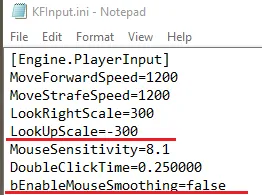 Engine.PlayerInput values in KFInput.ini.
- Press Ctrl+F and find
[KFGame.KFPlayerInput]. In this section make sure you have:bViewAccelerationEnabled=FALSELookUpScale=-300.000000
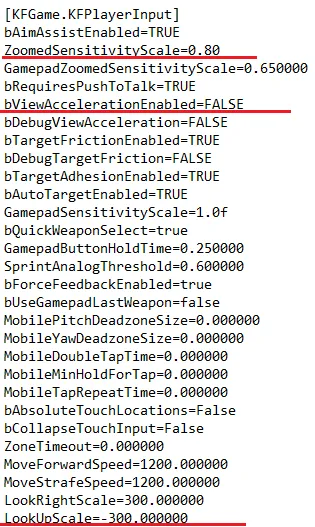 KFGame.KFPlayerInput values.
- If you use ADS a lot, you can change the ADS sensitivity in the game's options, or set
ZoomedSensitivityScale(a value from 0.0 to 1.0) in the same file. It is the percentage of normal sensitivity used while aiming down sights. The author recommends 0.8, which is 80 in the in-game option menu.
 The ADS sensitivity scale.
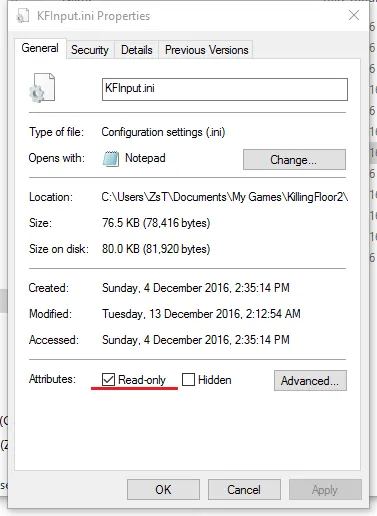
Always back up your KFInput.ini, because updates or the live service may reset it. The author suggests making the file read-only so you do not have to worry about it later.
Disable acceleration in Windows
Windows has its own mouse acceleration. Go to Control Panel, Mouse, Change mouse settings, Pointer options and untick Enhance pointer precision. If Mouse is not shown in the root menu, type it into the search box at the top right.
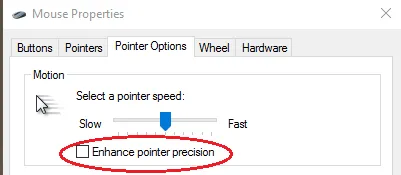 Untick Enhance pointer precision.
After these changes the author expects a large improvement and better aim. The guide also links a video explaining DPI, smoothing and acceleration for those who want the background.
Related: mouse lag and acceleration, mouse sensitivity not saving and custom text binds and mouse acceleration.
FAQ
- Which file do I edit?
- KFInput.ini in Documents\My Games\KillingFloor2\KFGame\Config.
- Which values turn off smoothing and acceleration?
- In [Engine.PlayerInput] set LookUpScale=-300 and bEnableMouseSmoothing=false; in [KFGame.KFPlayerInput] set bViewAccelerationEnabled=FALSE and LookUpScale=-300.000000.
- Can updates reset my changes?
- Yes. Back up KFInput.ini, and consider making it read-only so updates cannot reset it.
