
KF2 Custom Music: Swap Tracks with Audacity and Wwise (WAV to WEM)
This is an early community guide (written in April and May 2015) to replacing the music in Killing Floor 2 with your own songs. The method uses free tools and does not need the SDK for the audio swap itself. The author warns that the SDK-based track-name change does not work online and can cause version mismatches. Treat the file locations as those of the version the guide was written for.
What you need
- Wwise Authoring Tools from Audiokinetic. Use "Offline Setup for Windows" and download one Wwise Authoring installer (probably 64-bit) plus the Authoring Data installer.
 Download the Wwise Authoring files and the Authoring Data installer.
- Audacity (or GoldWave, or any program that converts audio). The track must become a .wav before it can become .wem, which is the format KF2 uses.
Step 1: convert to WAV
Open Audacity and load your music file through the File menu or by dragging it into the window.
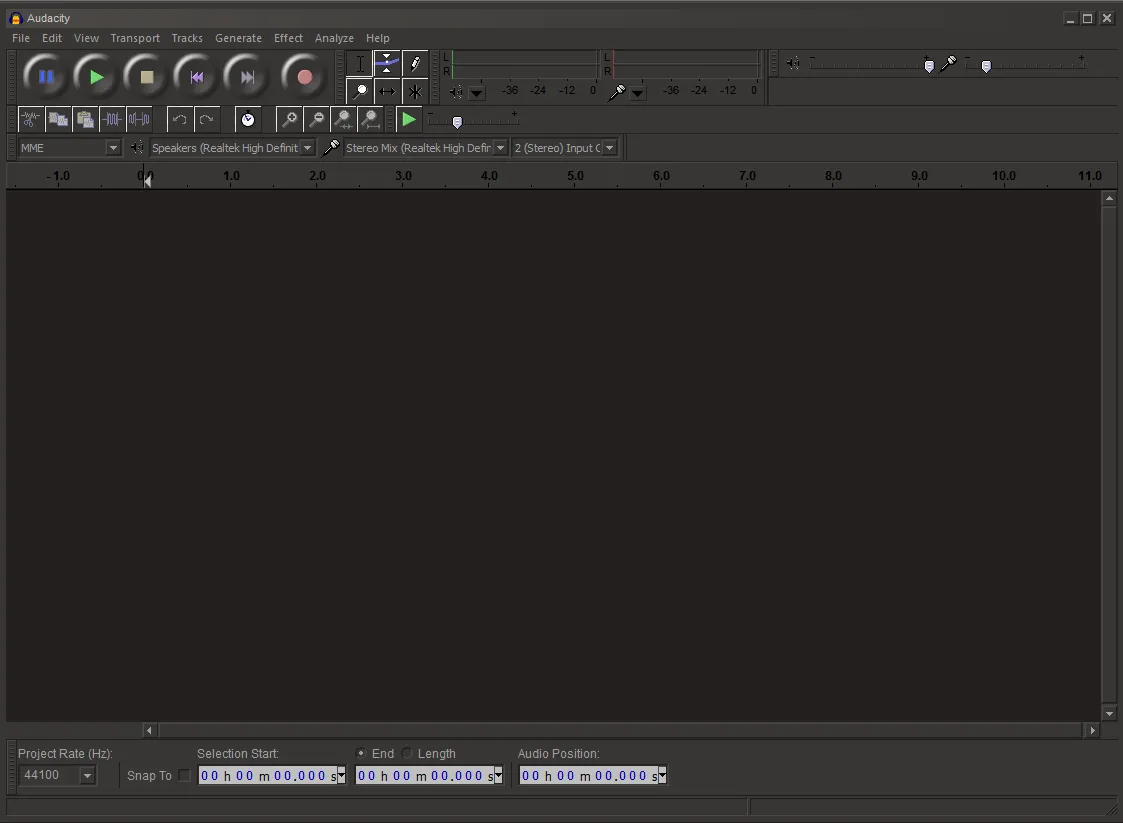 Audacity at startup.
You normally do not need any edits, though you could add effects such as a fade-in. Then go to File, Export and choose WAV (Microsoft) signed 16-bit PCM.
 Export dialog with WAV signed 16 bit PCM selected.
Use a lowercase file name without spaces (underscores are fine) and save it somewhere you will find it.
Step 2: convert WAV to WEM in Wwise
Start Wwise from the Start menu (the author used Wwise v2014.1.4, 64-bit).
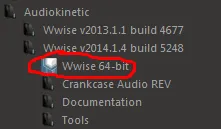 Wwise in the Start menu.
If you get errors, make sure the Authoring Data installer was installed. Click New at the bottom left, choose Select None to remove extra items, give the project a name and click OK.
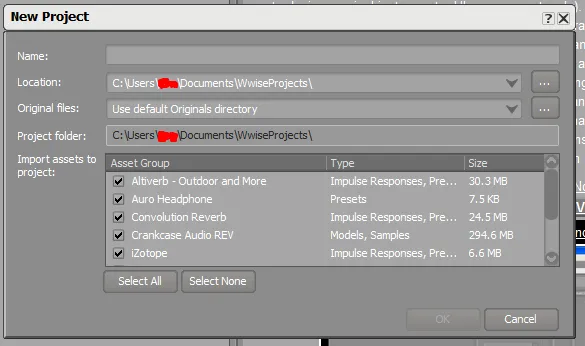 New project dialog in Wwise.
A needed step added on 24 April 2015: set the conversion mode to Vorbis Quality High. Go to Project, Project Settings, open Source Settings and click the three dots, then choose Vorbis Quality High.
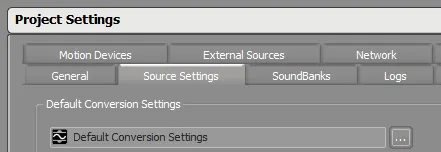 Open the conversion setting in Project Settings.
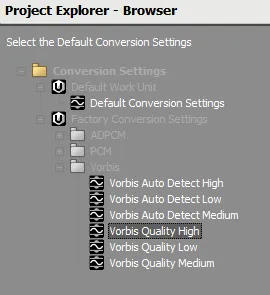 Choose Vorbis Quality High.
Next choose Project, Import Audio Files.
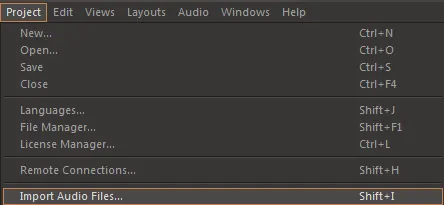 Project menu, Import Audio Files.
Make sure the import settings match the screenshot, click Add files, browse to your .wav and import it.
 Import settings used in the guide.
Then choose Project, Convert All Audio Files, tick Windows and click OK. There is no completion message; you will simply be back at the menu.
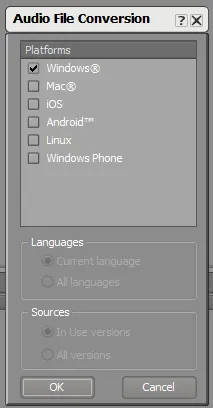 Convert dialog with the Windows platform ticked.
Step 3: swap the file in the game
Wwise does not announce the result, but your .wem is in your Wwise project folder:
My Documents\WwiseProjects\<your project>\.cache\Windows\SFX
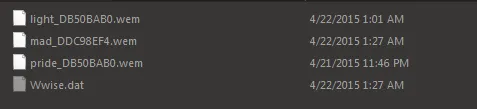 Converted .wem files named after the exported WAV.
Copy your .wem, then open the game's audio folder:
<Steam folder>\steamapps\common\killingfloor2\KFGame\BrewedPC\WwiseAudio\Windows
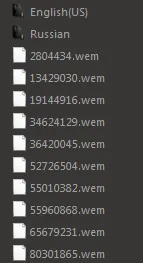 Game WwiseAudio folder with .wem files and bank text files.
The music files have random numeric names, but two text files tell you which is which:
WwiseDefaultBank_WW_MACT_Default.txt: MACT (Music ACTion), combat music.WwiseDefaultBank_WW_MAMB_Default.txt: MAMB (Music AMBient), music played during trader time.
Open the right file and scroll down to the line "Streamed Audio ID Name Audio source file ...". Artists are abbreviated, so Fit For a King becomes FFAK. Boss music IDs start with 666. The example replaces Hans Volter's boss music: ID 666327332, MUS_SH_Boss_DieVolter.
 The ID in the text file matches the .wem filename in the folder.
Rename the original file with a suffix (for example _DieVolter) so you remember what it was, then paste your .wem and rename it to the ID, here 666327332.wem. That is the whole swap. The tracks keep Killing Floor artist and song names, but you get features such as the volume drop in ZED time.
Addendum: changing track names (SDK, not for online play)
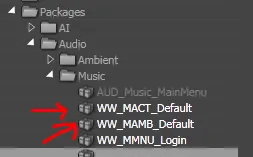
Open the SDK and go to the Content Browser, Packages, Audio, Music. There are two packages, WW_MACT_Default and WW_MAMB_Default.
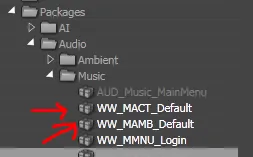 Music packages in the SDK Content Browser.
Open WW_MACT_Default for combat music, scroll to the archetypes at the bottom, double-click your track's archetype and change the artist and song name in the parameters. The album field is not used anywhere. Right-click any icon in the music package and choose Save.
 Artist and song name parameters of an archetype.
Saving puts the files in the Unpublished folder (Documents\My Games\KillingFloor2\KFGame\Unpublished\BrewedPC\Packages\Audio\Music). Copy the edited .upk files from there into STEAMFOLDER\steamapps\common\killingfloor2\KFGame\BrewedPC\Packages\Audio\Music, overwriting as needed. Back up the originals, especially if you plan to connect to servers.
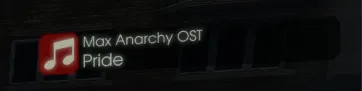 The new title appears in the top right when the track plays.
Notes
- The name change does not work online and causes issues when connecting to public servers, so keep the original .upk files on hand.
- Fan-made music replacement is a popular mod area; see custom music replacement tool and replace game music with Wwise and WEM.
FAQ
- What file format does Killing Floor 2 use for music?
- The game uses Wwise .wem files. You convert your track to .wav first, then to .wem with Wwise.
- Does the music swap work online?
- Replacing the audio file itself works for you locally, but changing track names with the SDK does not work online and causes version mismatches when you connect to public servers.
- How do I know which file is which track?
- Open WwiseDefaultBank_WW_MACT_Default.txt for combat music or WwiseDefaultBank_WW_MAMB_Default.txt for ambient music. They list each track name with its numeric file ID.
