
Killing Floor 3 Stuttering and Frame Drops - How to Fix
Killing Floor 3 runs on Unreal Engine 5. It looks good, but it can stutter, drop frames and feel laggy on hardware that ought to cope. Most of the trouble comes from a few heavy lighting features and from driver-side settings. The fixes below are ordered from the biggest gain to the smallest. Restart the game after each one so you can tell which change actually helped.
 Big hordes, fire and M.E.A.T. gore are where frame time spikes show up first.
Quick checklist
| Fix | Where | What it helps |
|---|---|---|
| Disable Lumen and the Reflection Method | In-game graphics settings | Low FPS, stutter, input lag |
| Update graphics drivers | NVIDIA / AMD / Intel app | Frame drops, crashes |
| Shader Cache Size to Driver Default | NVIDIA Control Panel | Hitching and stutter |
| Turn off VSync | In-game display settings | Input lag |
1. Disable Lumen and the Reflection Method
If you see frame drops, stuttering or input lag, start by lowering the graphics settings. The two that matter most are:
- Global Illumination Method: move it off Lumen. Lumen is Unreal Engine 5's real-time global illumination. It looks great, but it is very demanding and puts a heavy load on the CPU as well as the GPU.
- Reflection Method: turn it off. Real-time reflections are expensive for the same reason.
Together these two are the most common reason for low FPS and lag in KF3. If you still need more headroom afterwards, lower shadows and post-processing next.
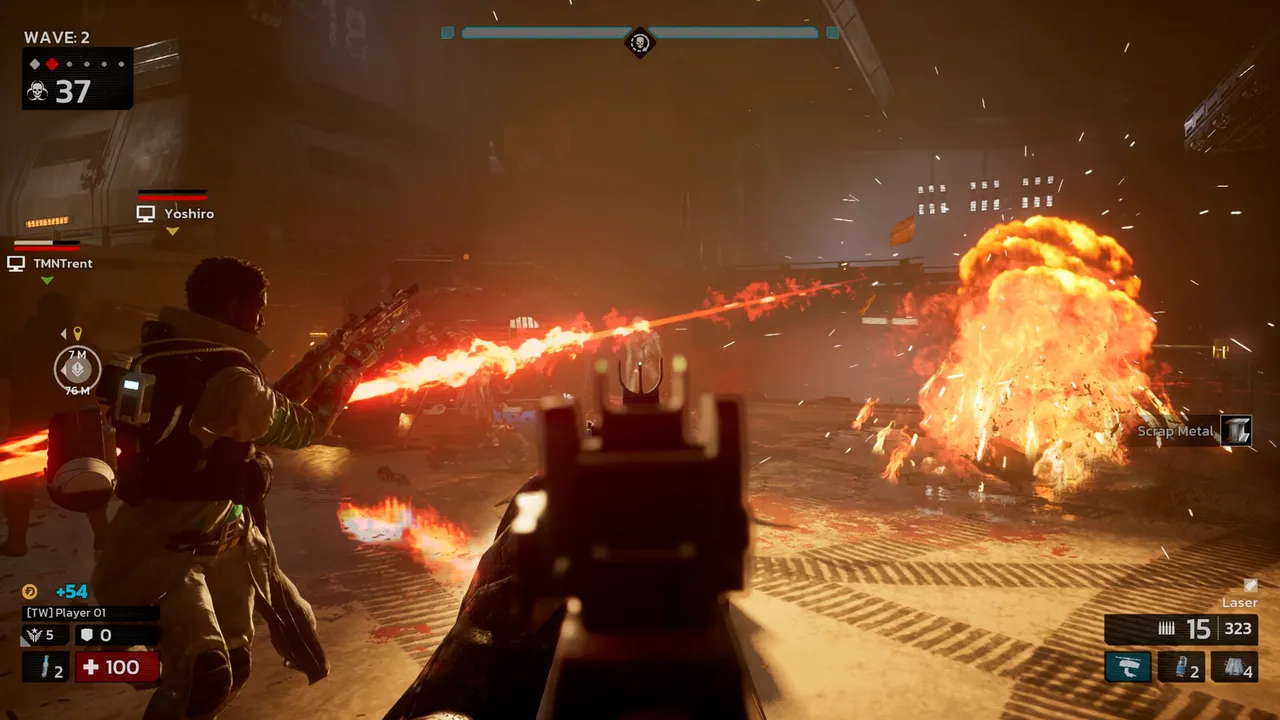 A smooth frame rate matters most during Zed Time and boss waves, when the screen is at its busiest.
2. Update your graphics drivers
Outdated drivers often cause FPS drops and stutter in new games. Install the latest driver for your card from the NVIDIA app, AMD Software or Intel's driver tool, then launch the game again. GPU vendors regularly ship fixes and optimisations for big releases, and an old driver can miss them.
3. Set Shader Cache Size to Driver Default (NVIDIA)
On NVIDIA cards:
- Open the NVIDIA Control Panel.
- Go to Manage 3D Settings.
- Find Shader Cache Size and set it to Driver Default.
- Apply and restart the game.
A cache that is too small, or disabled, forces the game to rebuild shaders more often, and you feel that as hitches. Unreal Engine 5 games are especially sensitive to this.
4. Turn off VSync
To reduce input lag, disable VSync in the game's settings. VSync syncs each frame to the monitor's refresh rate. When the game's frame timing and the display's refresh do not line up, your inputs wait for the next refresh and the controls feel delayed. If you get screen tearing without it, use your monitor's G-Sync or FreeSync instead of in-game VSync.
Still stuttering?
- Check that your PC meets the Killing Floor 3 system requirements.
- If the game crashes instead of stuttering, or shows a server error, see Hydra Error 4 and the authentication error fix.
- If the lag is network rather than frame rate (enemies teleporting, delayed hits), see connection lag and disconnect fixes.
FAQ
- What is the single most effective fix for KF3 stuttering?
- Switching the Global Illumination Method away from Lumen and turning the Reflection Method off. Both are expensive Unreal Engine 5 features and are the usual cause of low FPS and hitching.
- Does turning off VSync help in Killing Floor 3?
- It reduces input lag. VSync holds frames until the monitor refresh, so when the frame rate and refresh rate drift apart, your inputs feel delayed.
- What shader cache setting should NVIDIA users pick?
- In the NVIDIA Control Panel, under Manage 3D Settings, set Shader Cache Size to Driver Default.
- Do I need to update my GPU driver?
- Yes. Outdated graphics drivers are a common cause of frame drops and stutter in new Unreal Engine 5 games, so install the latest driver from NVIDIA, AMD or Intel first.
